
Use AutoCorrelation in Test Controller
Use AutoCorrelation in Test Controller
ThisAutoCorrelation ishelps identify dynamic values that must be captured and reused for a featureperformance addedtest to AIQreplay whichcorrectly. providesUse it during script validation before increasing load.
When to review correlation
- Requests fail after login, checkout, search, or session creation.
- The application returns tokens, IDs, or timestamps that change each run.
- A script works once but fails on replay or under load.
Recommended workflow
- Run a small validation execution.
- Review failed requests and dynamic response values.
- Apply correlation rules only to values required by later requests.
- Replay and verify the
userscriptthebeforeoption to generate autocorrelated resources and scenarios. This is mostly useful for HAR scenarios only which are based on requests.scaling.
Follow the below steps for auto correlating a HAR scenario.
Create a functional scenario with the test case being HAR
All other entries are to be filled according to the use case
Click Save and Play the Scenario
On the controller window, once the test is completed its execution successfully, go to the Autocorrelation tab
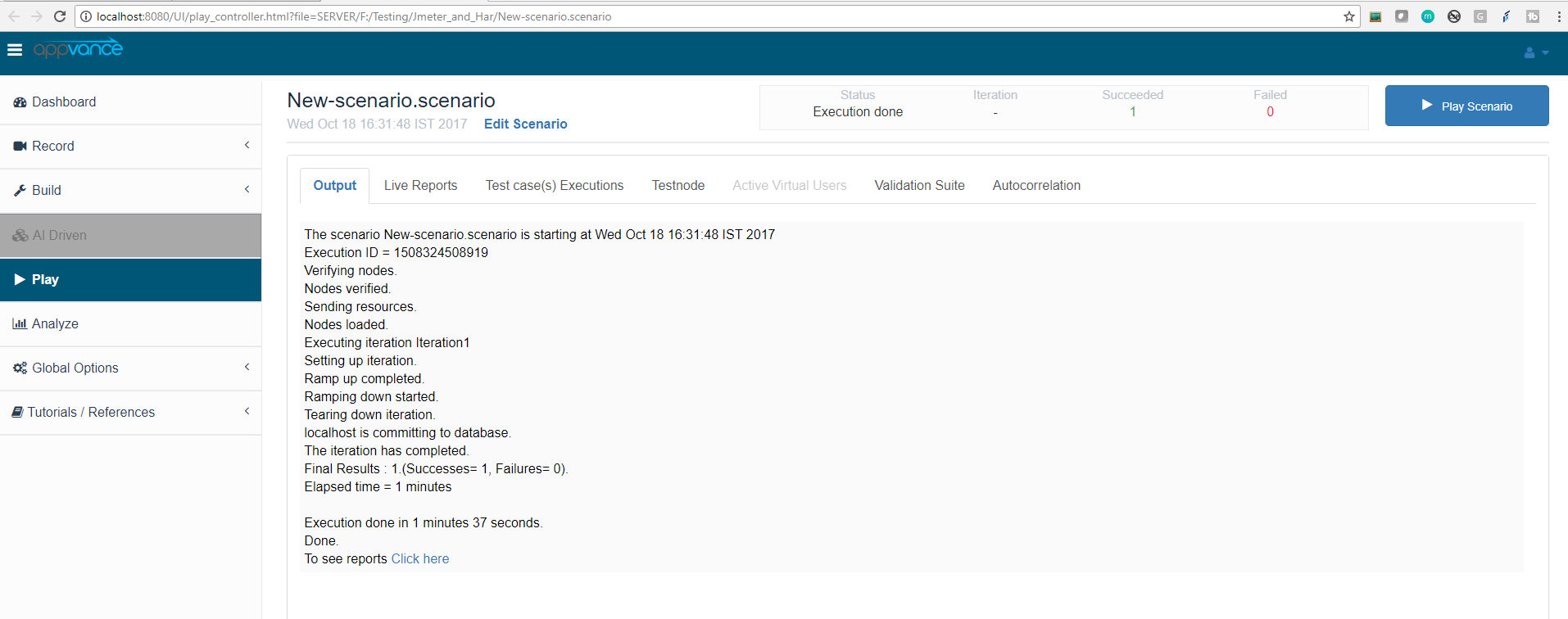
Click the Start Autocorrelation button for the autocorrelation to begin, you will see a message "processing scenario autocorrelations. Please wait"
The system shall display all the correlations that the system found, the user can either Accept All correlations or reject them
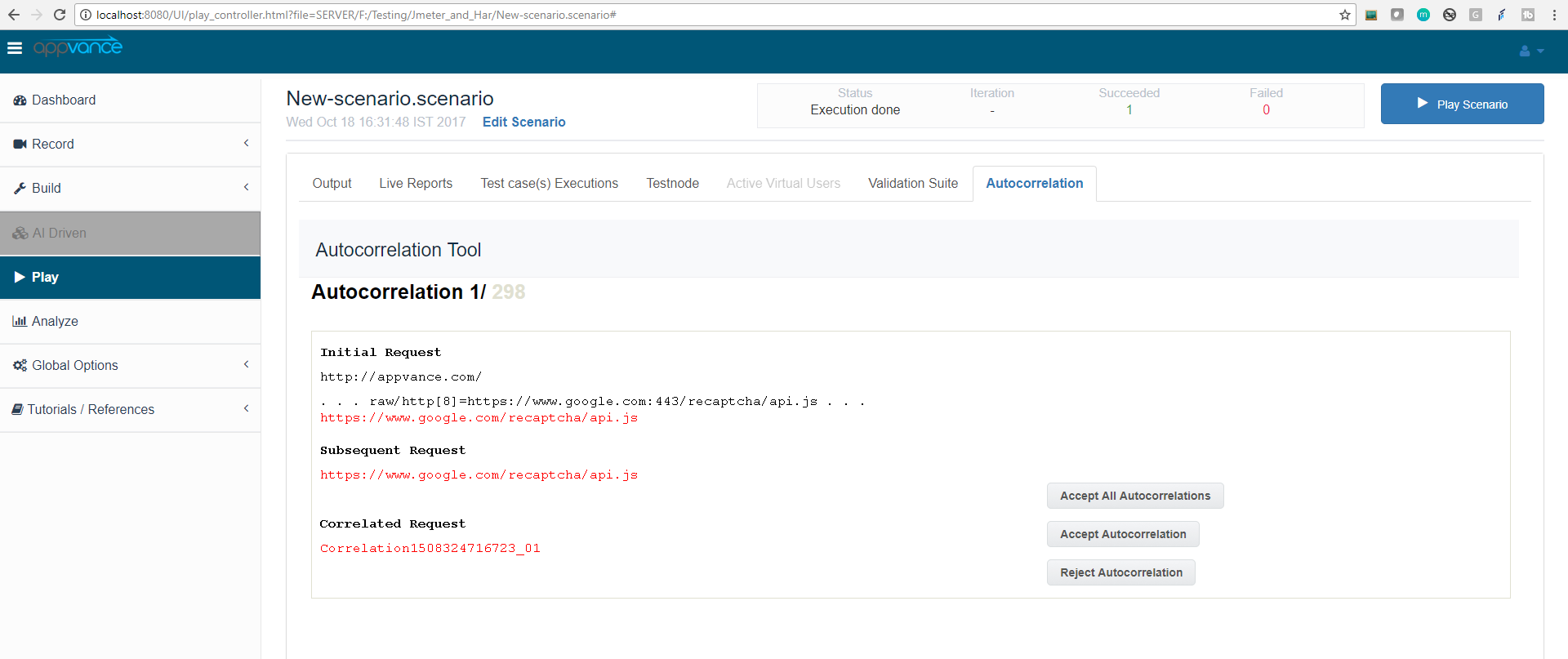
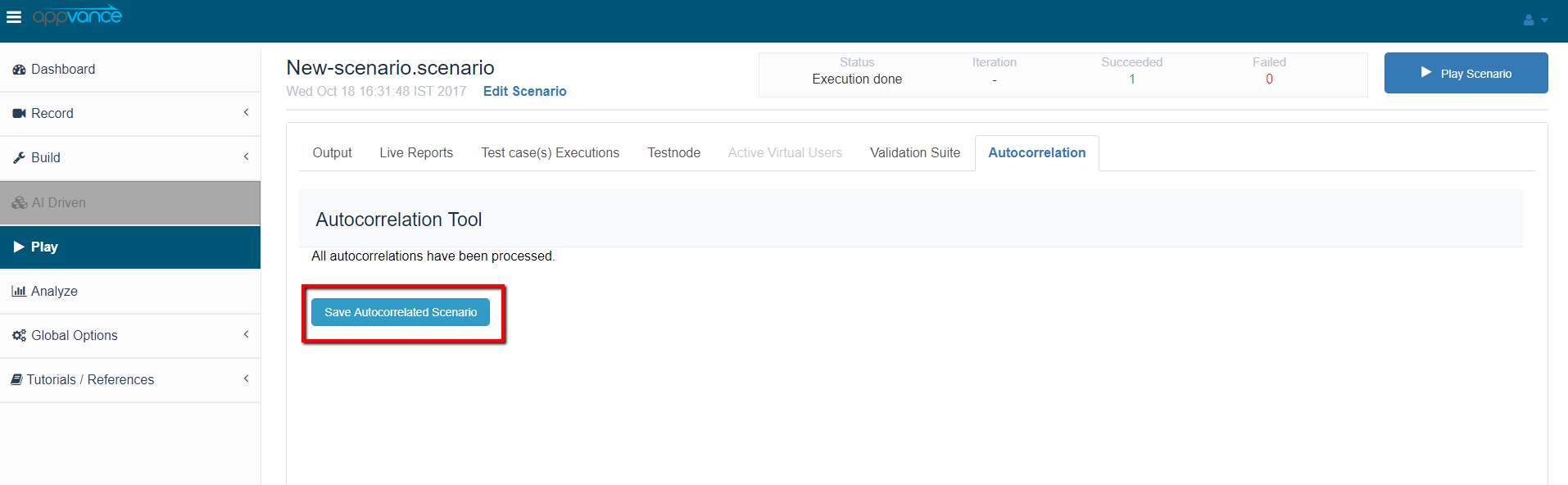
After accepting or rejecting correlations, Save the autocorrelated scenario by clicking "Save Autocorrelated scenario"
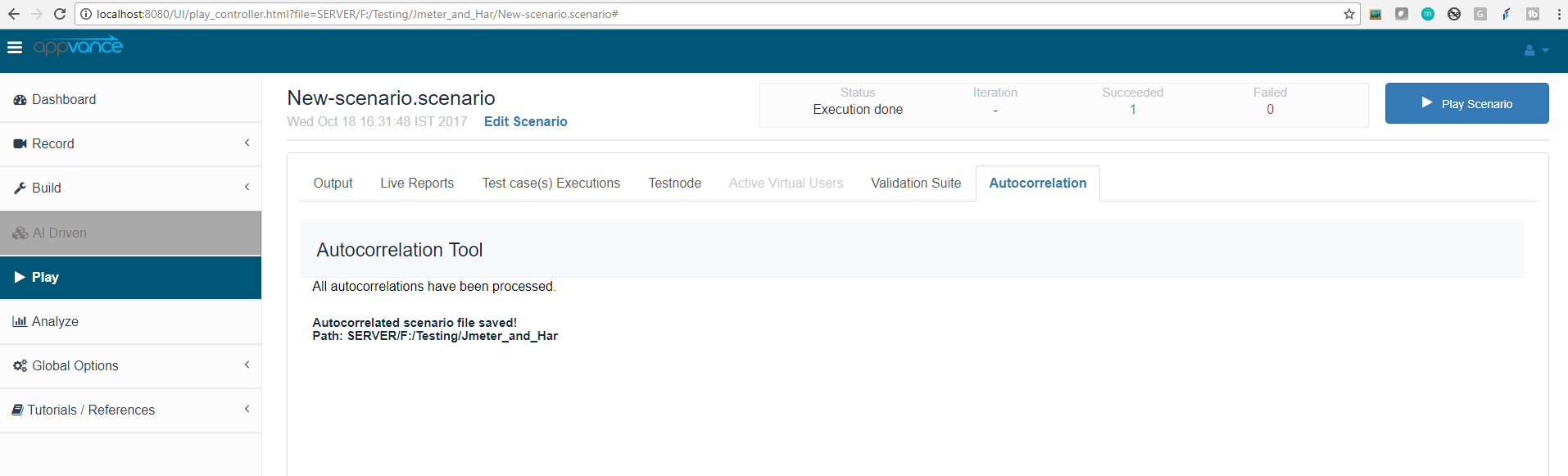
You can open the scenario from scenario builder to see all the correlations
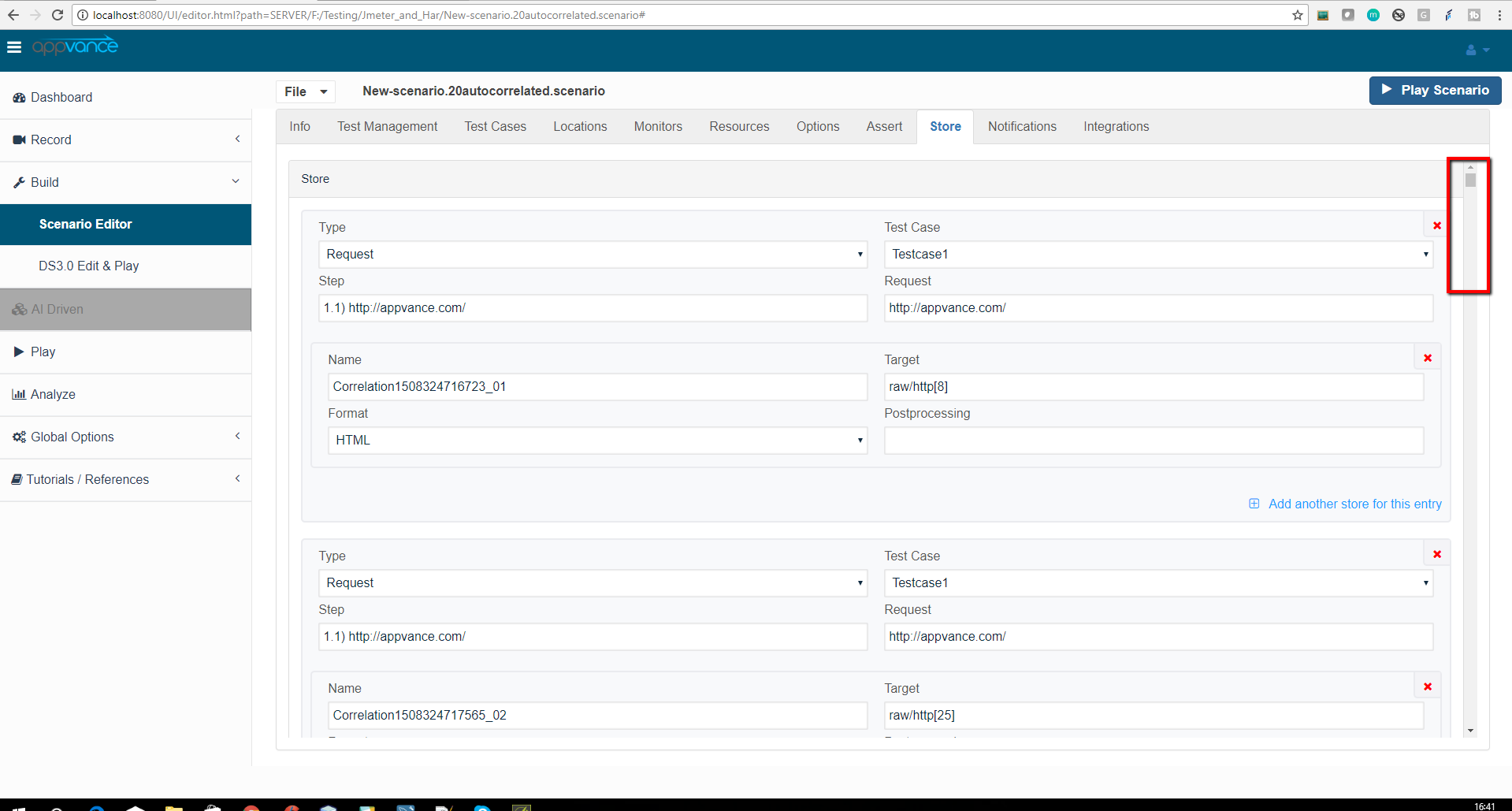
Users can play this autocorrelated scenario for more successful results
Last updated: JuneSeptember 26,18, 20232026
If you have any feedback on this topic, please contact us at documentation@appvance.ai