
Find and Resolve Test Failures
Unified
Find and Resolve Test Platform features 3 ways to understand test use cases that fail and why:
TheStart controllerfailure windowanalysis showswith the mostfirst recentmeaningful test use cases as a set of transactionsfailure in the rightexecution. panels,Later includingerrors theoften request/response data and error messages.
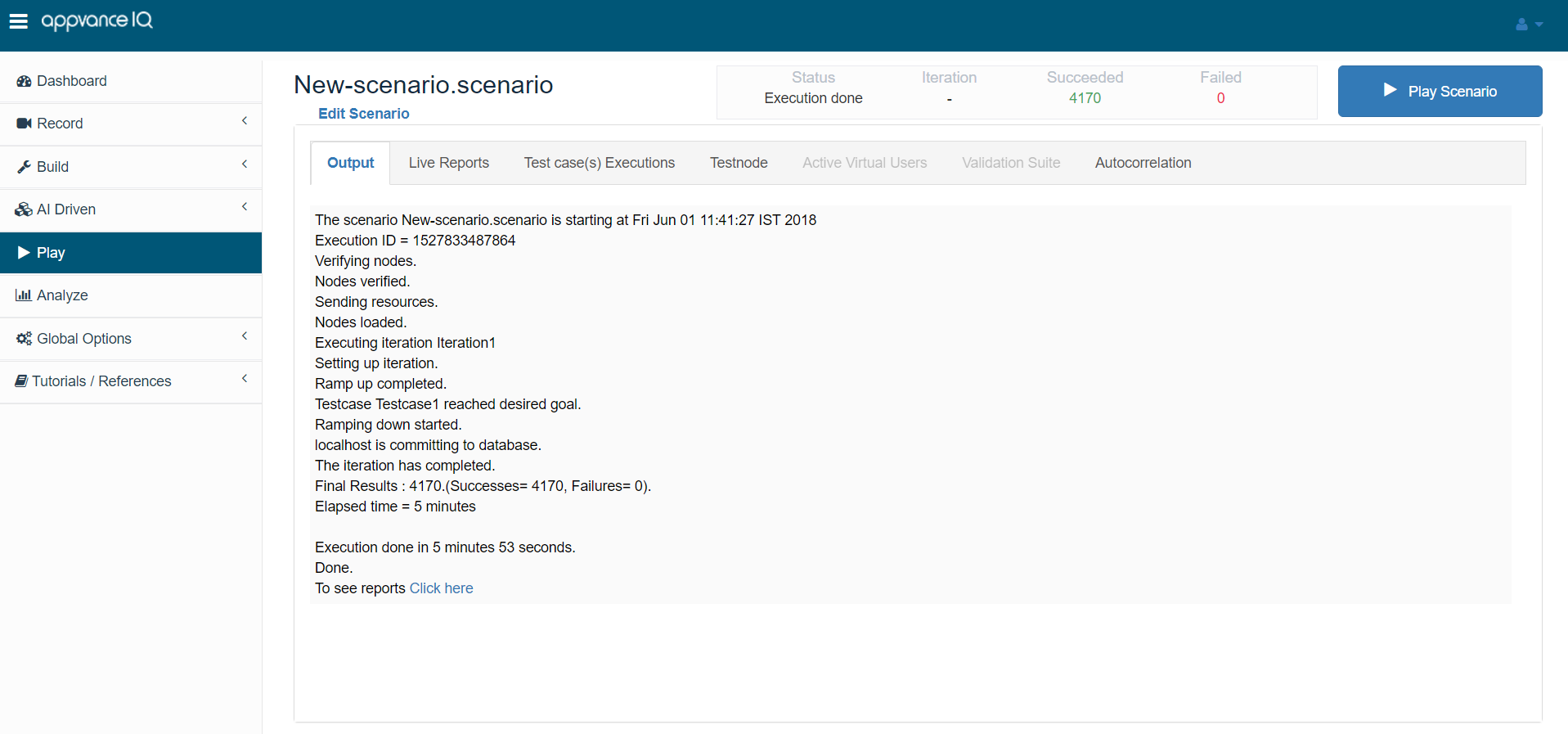
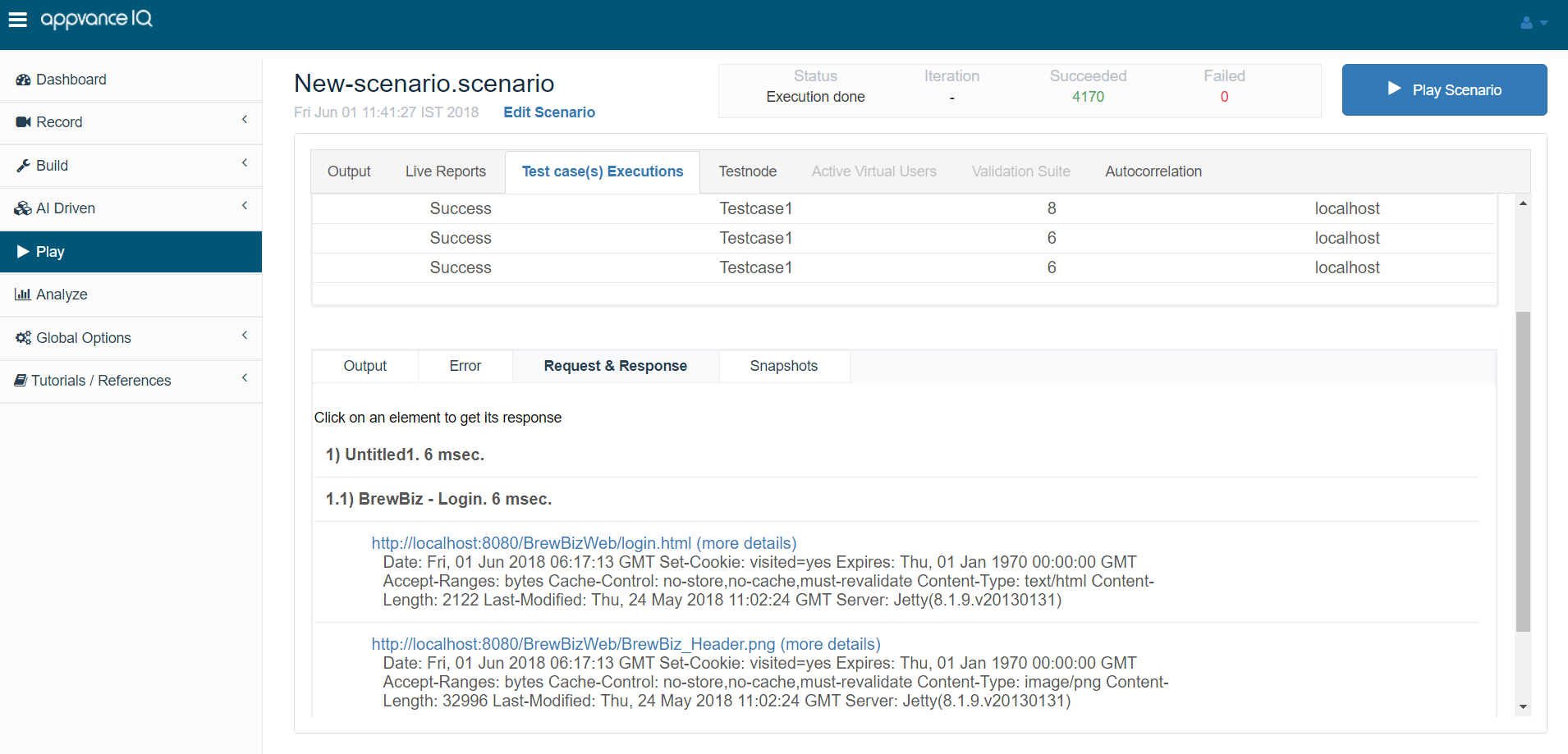
As AIQ operates the test, the middle tab Transactions tab shows the most recent transaction details. Click a row in the Transactions list to view the details: Output message, error failure (exception) message, request and response values, and any custom user log messages. Click the Error tab to see a stack trace messagecome from the testsame useroot case.
Clickand thecan Response tab to see the response receiveddistract from the server.actual problem.
Failure
Fortriage
functional
- Scenario
tests,or locator issue: theResultsapplicationAnalysischangedReports show a Functional Status chart, includingor therequest/responsestepvalues,targetsfailurethe(exception)wrongmessage,element. - Test data issue: required data is missing, reused, expired, or invalid.
- Environment issue: the application, network, browser, or Test Node is unstable.
- Application defect: the system under test behaves incorrectly under the tested condition.
Recommended workflow
- Open the failed execution and
timings.identify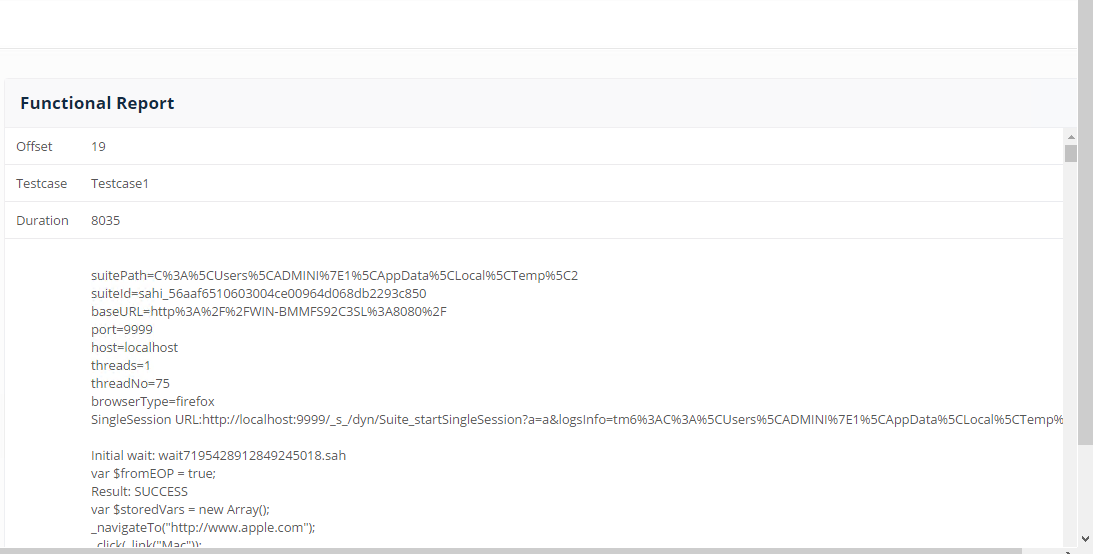
- Review
Afteroutput,AIQscreenshots,operateslogs,aandfunctionalconsumed testuse the Analyze button from the Home Screen to view the details of the functional test. Choose the execution of the functional test from the list and then click the Functional Report command. This report shows the output message, error failure (exception) message, request and response values, and any custom user log messages.
For load and performance tests the Results Analysis Reports show a Test Case Execution chart. Each test use case appearsCompare with a greenknown trianglegood shapeexecution forwhen successavailable.
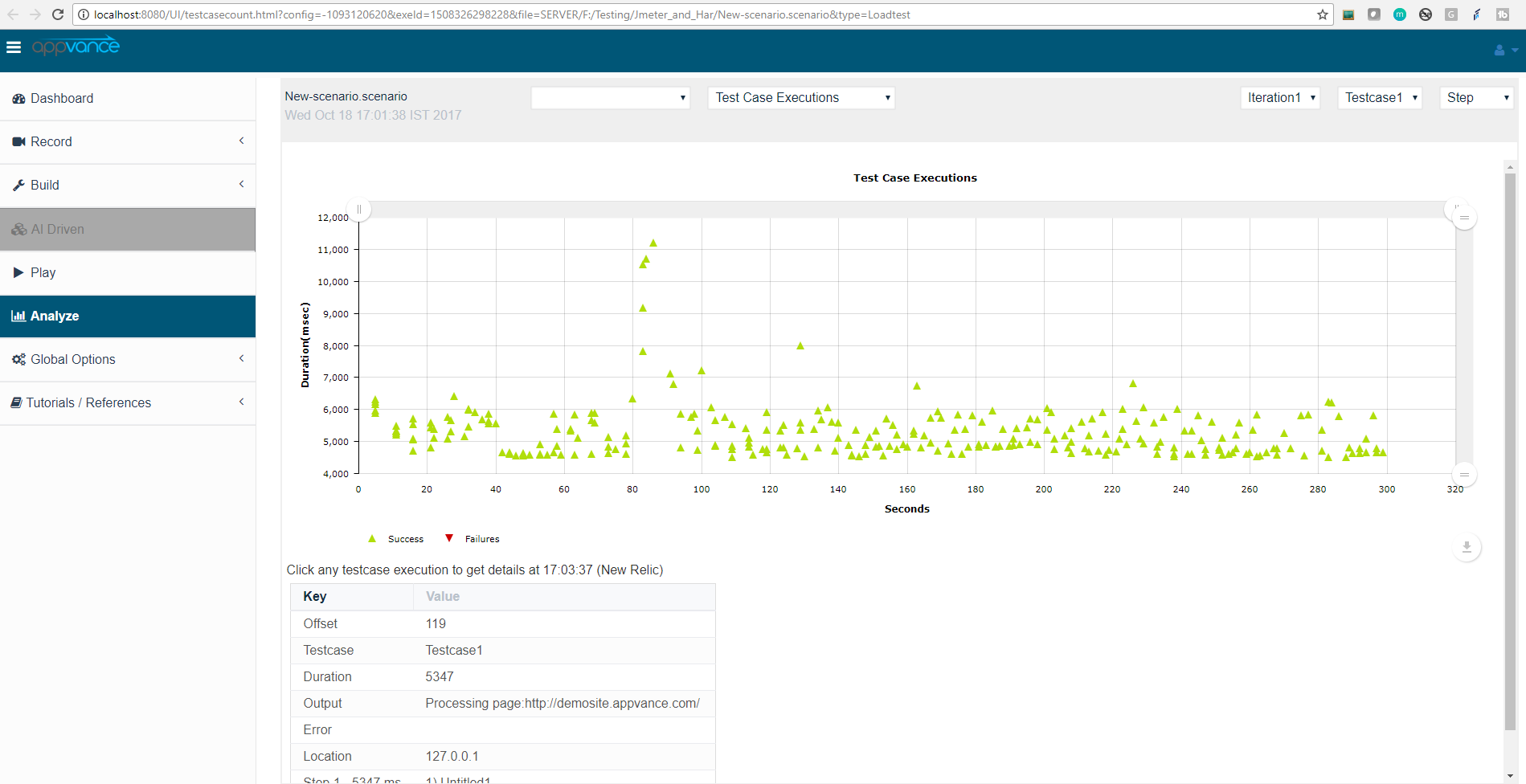
After AIQ operates a load and performance test use the Analyze button from the Start Screen to view the test details. Choose the execution of the load and performance test from the list and then click the Transaction Distribution command. Click one of the transactions to view the output message, error failure (exception) message, request and response values, and any custom user log messages.
Last updated: JuneSeptember 26,18, 20232026
If you have any feedback on this topic, please contact us at documentation@appvance.ai