
Finding and Solving the Failures
Find
Unified Test Platform features 3 ways to understand test use cases that fail and Resolvewhy:
StartThe failurecontroller analysiswindow withshows the firstmost meaningfulrecent failuretest use cases as a set of transactions in the execution.right Laterpanels, errorsincluding oftenthe comerequest/response data and error messages.
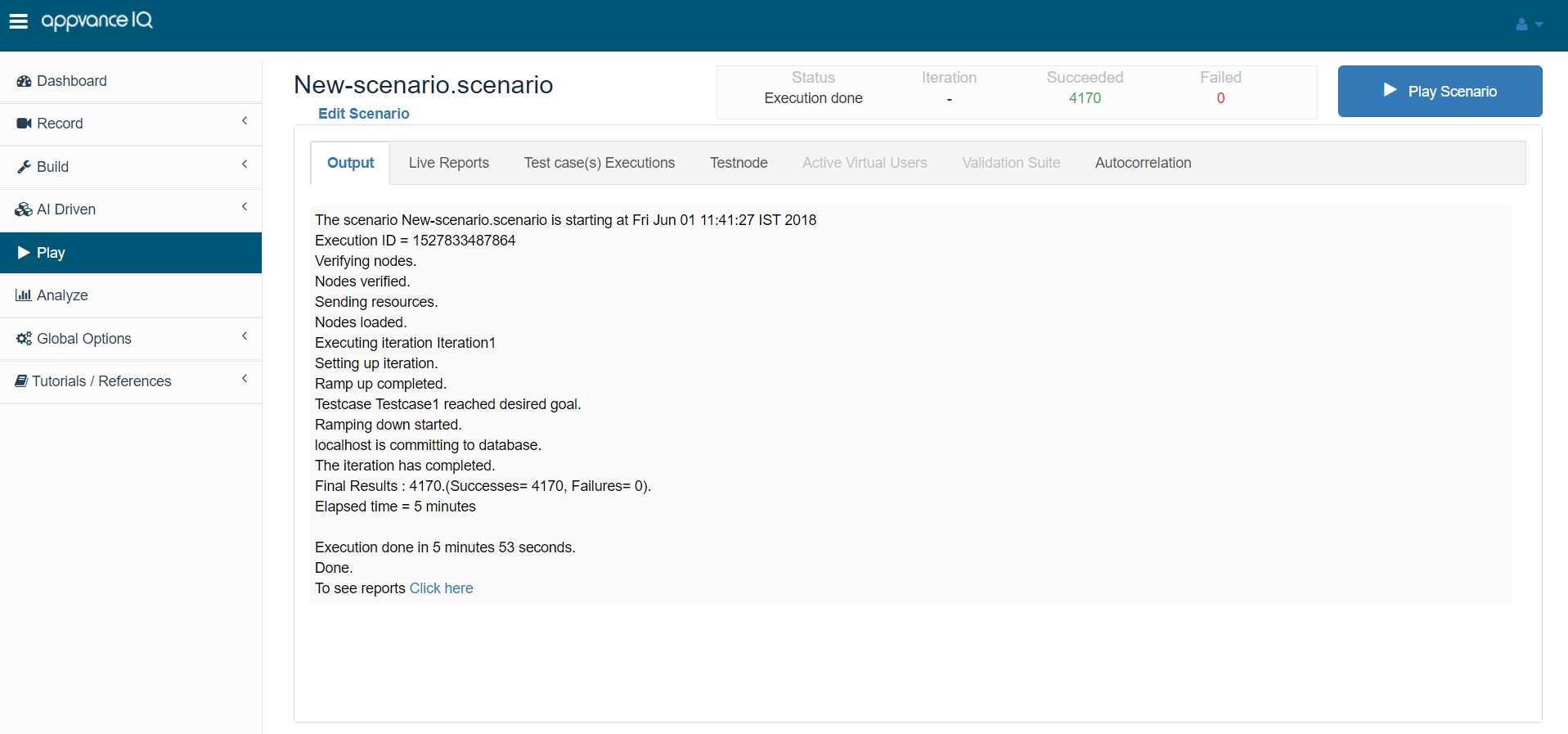
As AIQ operates the test, the middle tab Transactions tab shows the most recent transaction details. Click a row in the Transactions list to view the details: Output message, error failure (exception) message, request and response values, and any custom user log messages. Click the Error tab to see a stack trace message from the sametest rootuse causecase.
Click canthe distractResponse tab to see the response received from the actual problem.server.
Failure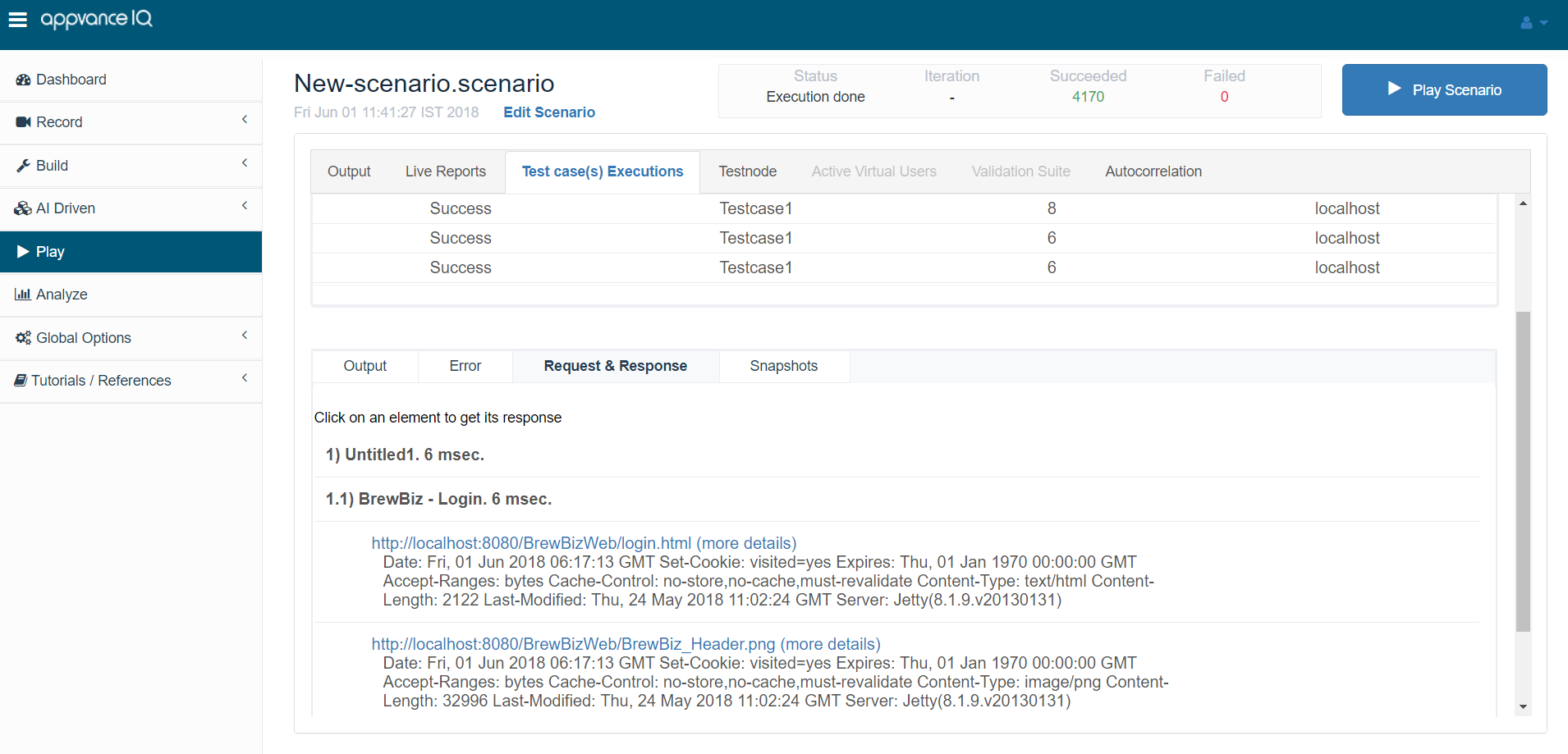
triage
For
Scenariofunctionalor locator issue:tests, theapplicationResultschangedAnalysisorReports show a Functional Status chart, including thesteprequest/responsetargetsvalues, failure (exception) message, and timings.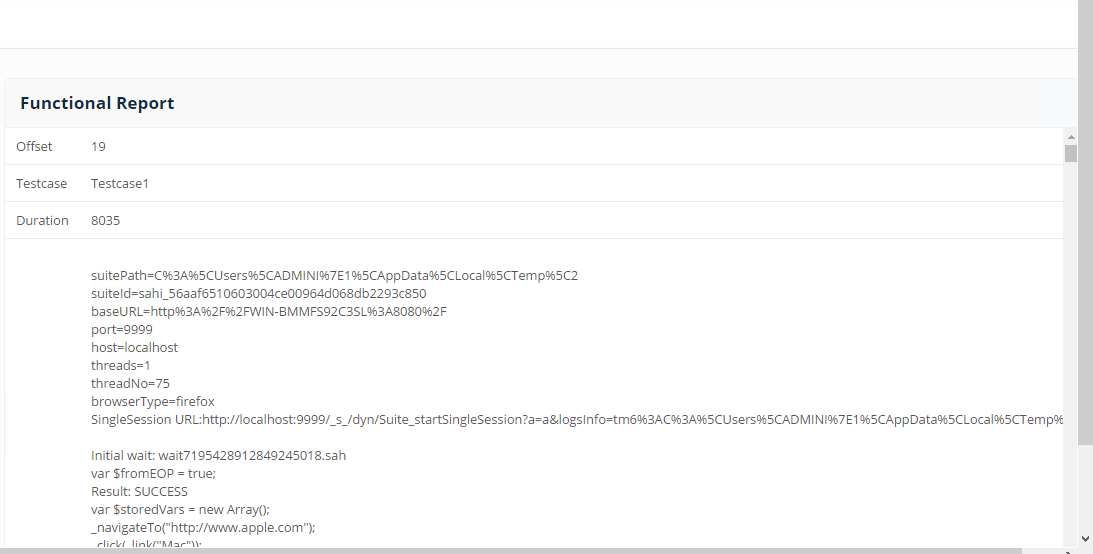
-
After AIQ operates a functional test use the
wrongAnalyzeelement. Testbuttondata issue: required data is missing, reused, expired, or invalid.Environment issue:from theapplication,Homenetwork,Screenbrowser,toorview the details of the functional test. Choose the execution of the functional test from the list and then click the Functional Report command. This report shows the output message, error failure (exception) message, request and response values, and any custom user log messages.
For load and performance tests the Results Analysis Reports show a Test NodeCase isExecution unstable.
Recommended workflow
Open the failed execution and identify the first failed step or request.Review output, screenshots, logs, and consumed test data.Compareappears with aknowngreengoodtriangle shape for success and a Red triangle for failure. Click the shape to learn the details of the test use case, including request/response values, failure (exception) message, and timings.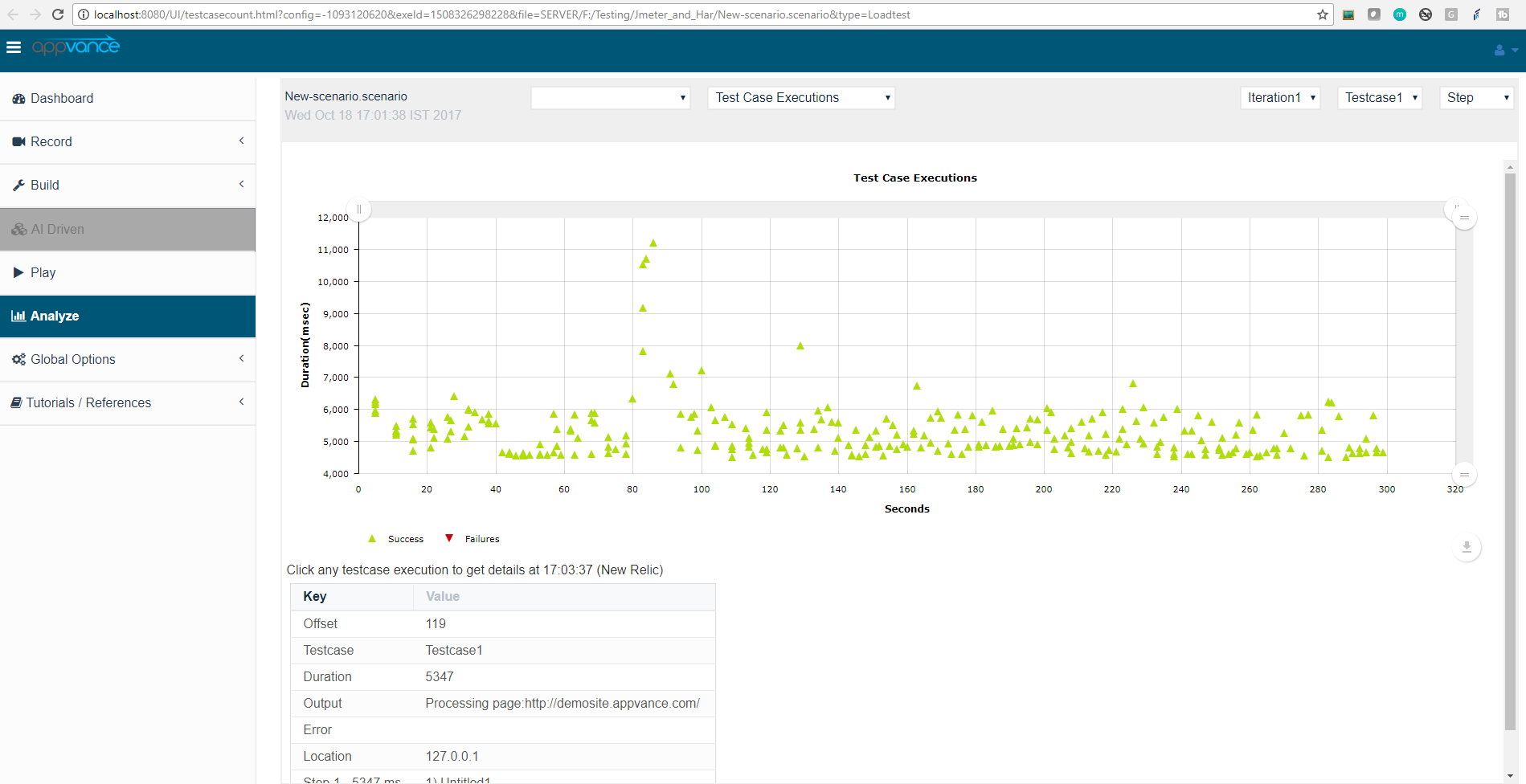
After AIQ operates a load and performance test use the Analyze button from the Start Screen to view the test details. Choose the execution when available.
Last updated: SeptemberJune 18,26, 20262023
If you have any feedback on this topic, please contact us at documentation@appvance.ai