
Services Workbench
RecommendedContents
Use your UX Scripts to generate Service Suite Scripts.
Using UX Scripts to Generate Service Suite Scripts
Introduction
Service Suite is AIQ’san HTTP API andtesting servicetechnology using standardized Javascript syntax, that was written from scratch with the goal to make API testing areasimple to use but very powerful.
Can be used for buildingfunctional HTTP requests, validating responses, extracting values,testing and supportingdebugging API-drivenand to launch performance tests with thousands or millions of virtual users integrating with the current AIQ scenario editor and usage of cloud-based test workflows.nodes.
Service Suite”Suite inhas currentan documentationextensive insteadlist of olderactions Services Workbench wording unless referringready to legacybe navigationused orfor historicalAPI assets.Calls, SQL Calls, IOT, microservices, and Mobile Calls.
What
Note: Please be careful when using SoapUI with Service Suite supportsin the same AIQ Scenario, because of incompatibilities among them.
SoapUI support was removed in release 5.2.0 of AIQ.
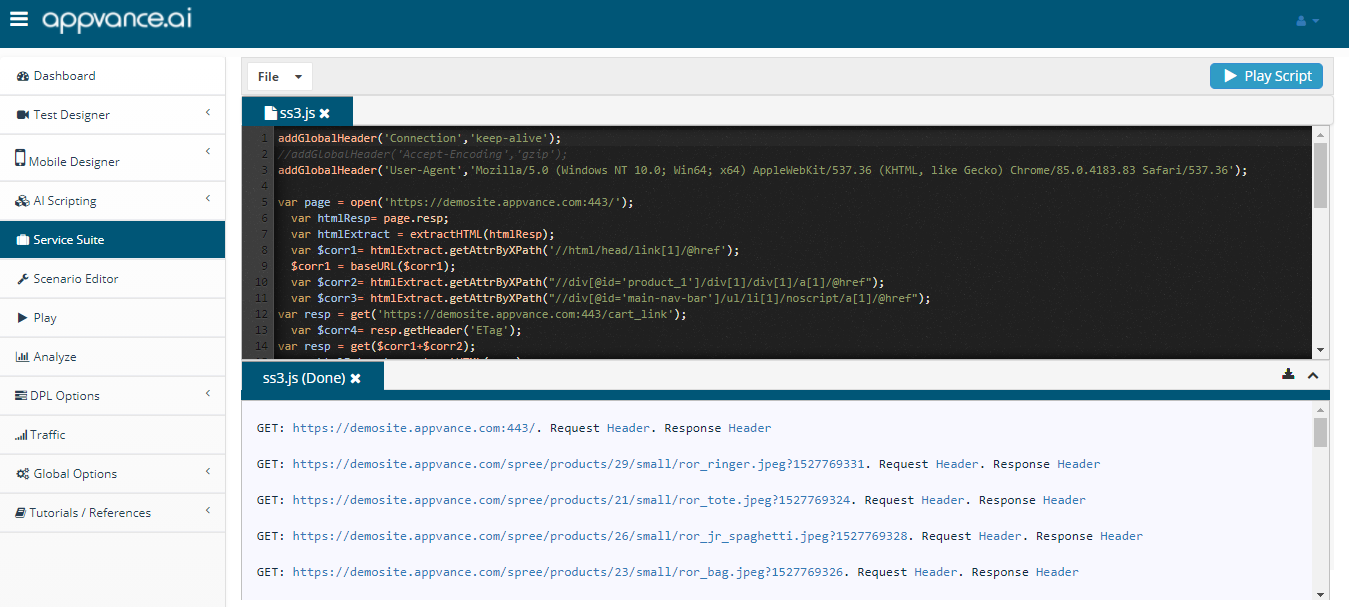
With Service Suite, You can open multiple files which open in different tabs which makes it easy for the user to copy contents between different scripts.
Control+S will automatically save the script.
Control+O will open the file manager to open the files.
There is IntelliSense, as you type in the default methods and functions would be available to select from the drop-down including custom-defined variables and functions.
It is required to have Test Designer services running to work with Service Suite.
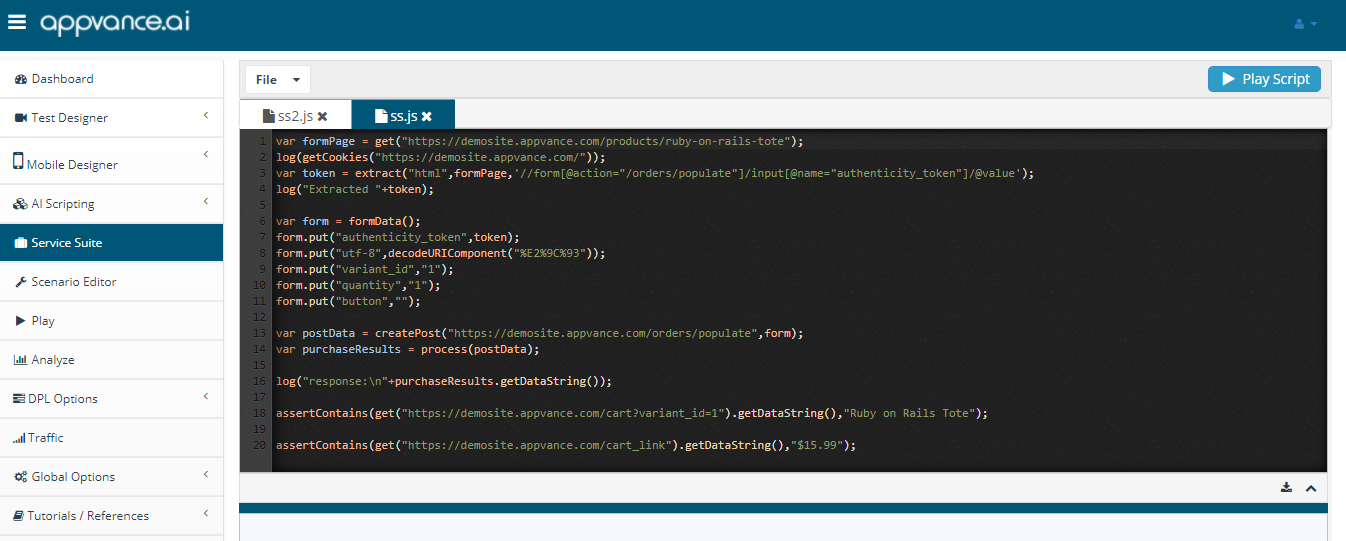
Logs
HTTPLogs
APIcan be checked once the script is running or finished running, there is a separator to drag and drop to check the logs.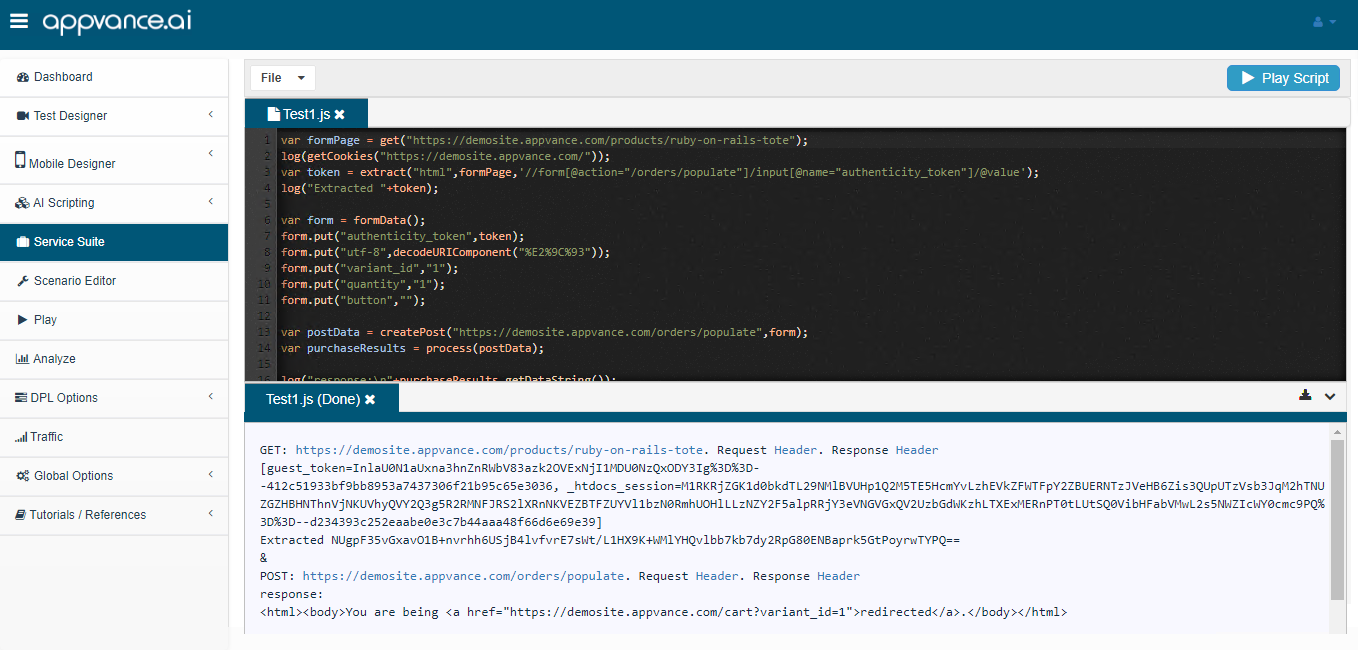
There is also a toggle button to switch back and forth between the script screen and the logs.
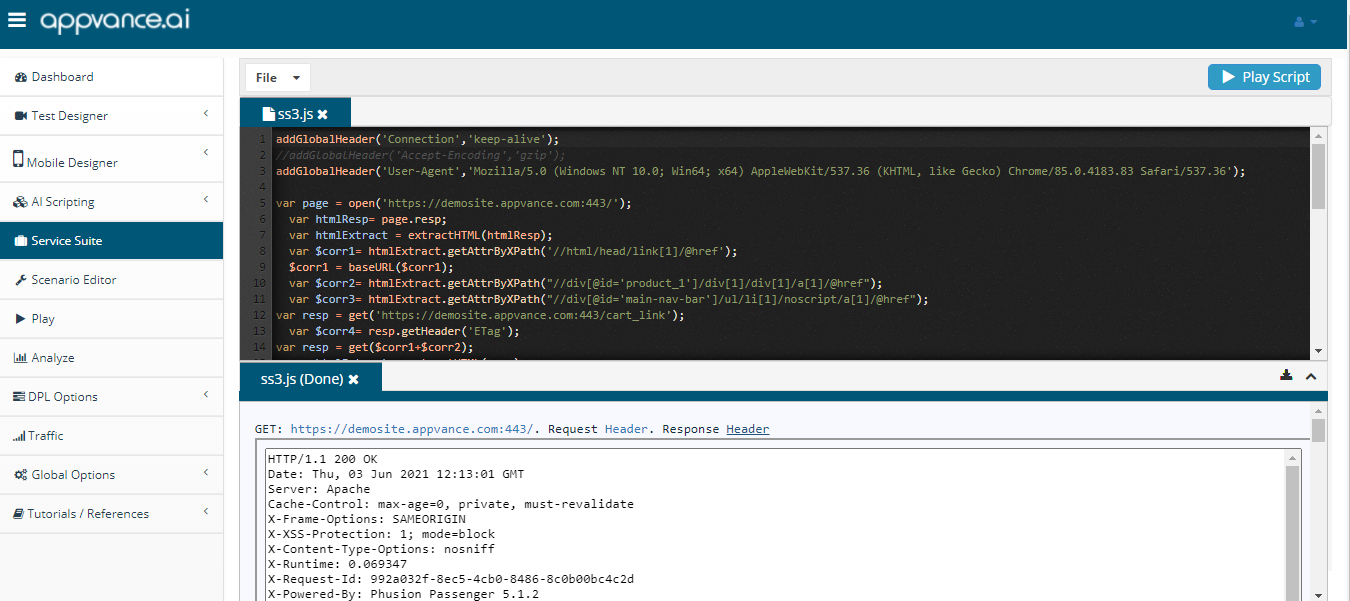
From the logs, you would be able to see the response for the GET or POST requests
withand would be able to download them, Request Header can be clicked to see the request headers,parameters,responsebodies,headersandcanauthentication.Assertionsbe clicked to see the response headers.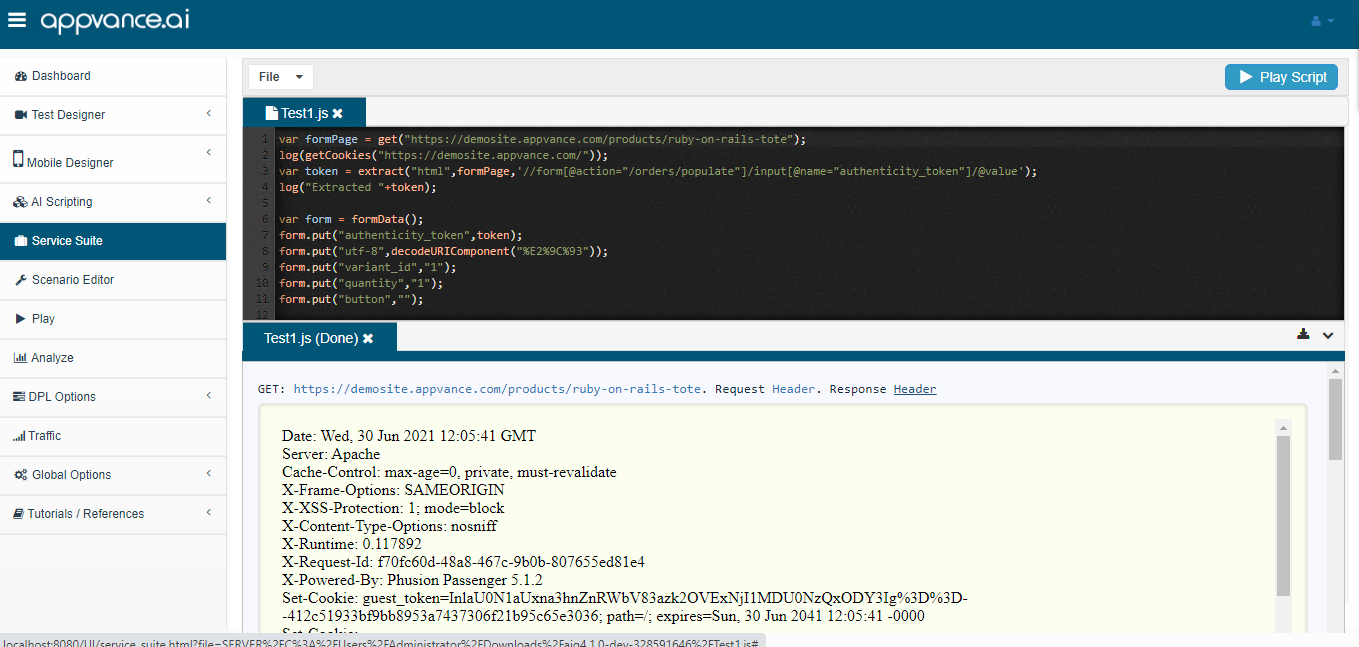
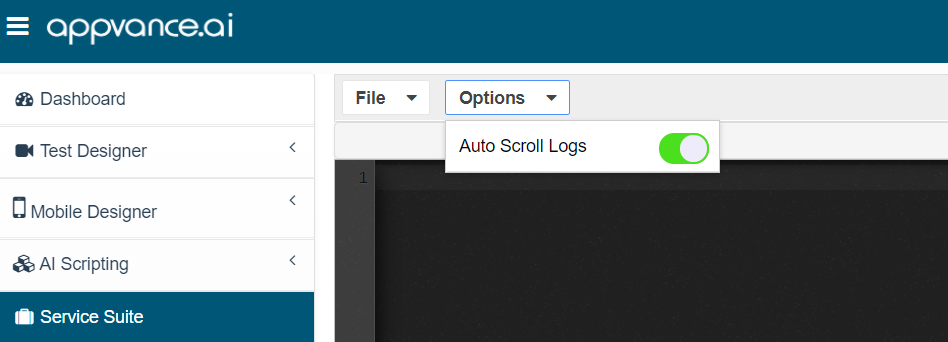
Auto Scroll logs
Auto Scroll logs from the Options menu can be turned on for
statusthecodes,logsresponsetofields,Autoschemas,Scrollandasbusinesstherules.Responsescriptextractionreplays.for reuse in later service or Scenario Editor steps.Data-driven API tests using DPLs or controlled test data.Evidence through logs, reports, and reusable service assets.
Best practices
Start with small, independent requests before chaining complex workflows.- Use
secureyourcredentialUXhandlingScriptsandtomask sensitive values in shared evidence. Document dependencies on external services, rate limits, and environments.Review older Services Workbench pages for consolidation intogenerate Service Suitecontent.ScriptsYes, it is possible to create a Service Suite API script using an already created UX Script using Test designer.
Below steps:
Make sure the Test designer services are running.
-
Open the saved Test designer in IDE.
Open Instant Replay in a different tab.
Click Start Recording by clicking the Record button.
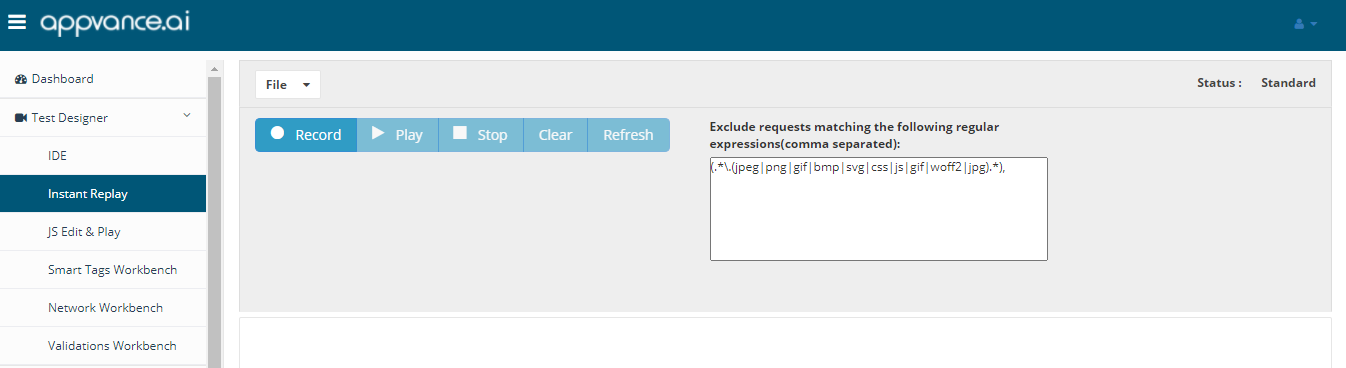
Go back to Test Designer IDE and Click Play
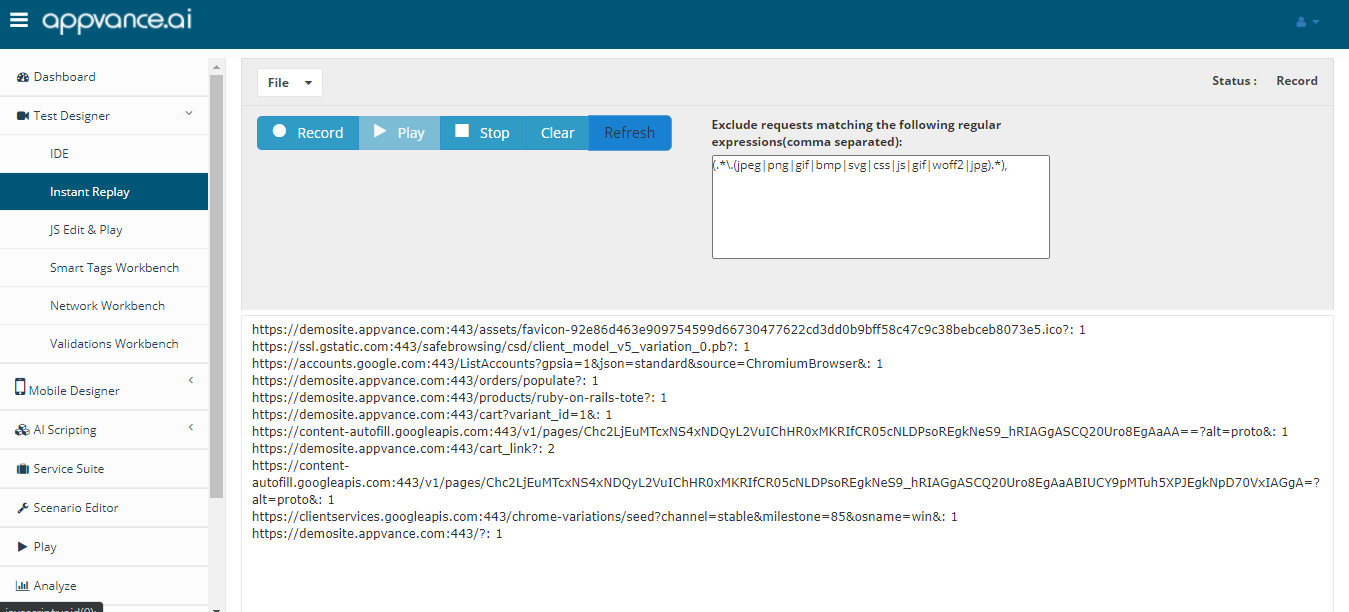
Once the script is played back fine, go to the Instant replay tab and click Refresh
All the traffic calls would be recorded and displayed.
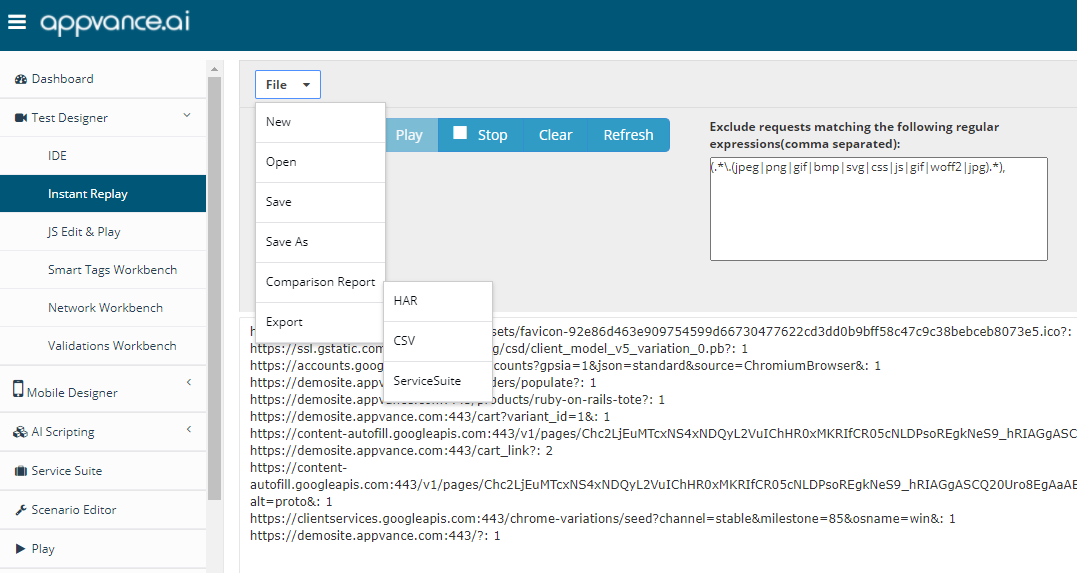
Click File > Export > Service Suite
This option will be removed in the AIQ 4.10.0 release.
Optional Step - If there is DPL File that was used for the script, please browse the file else Click Start Autocorrelation
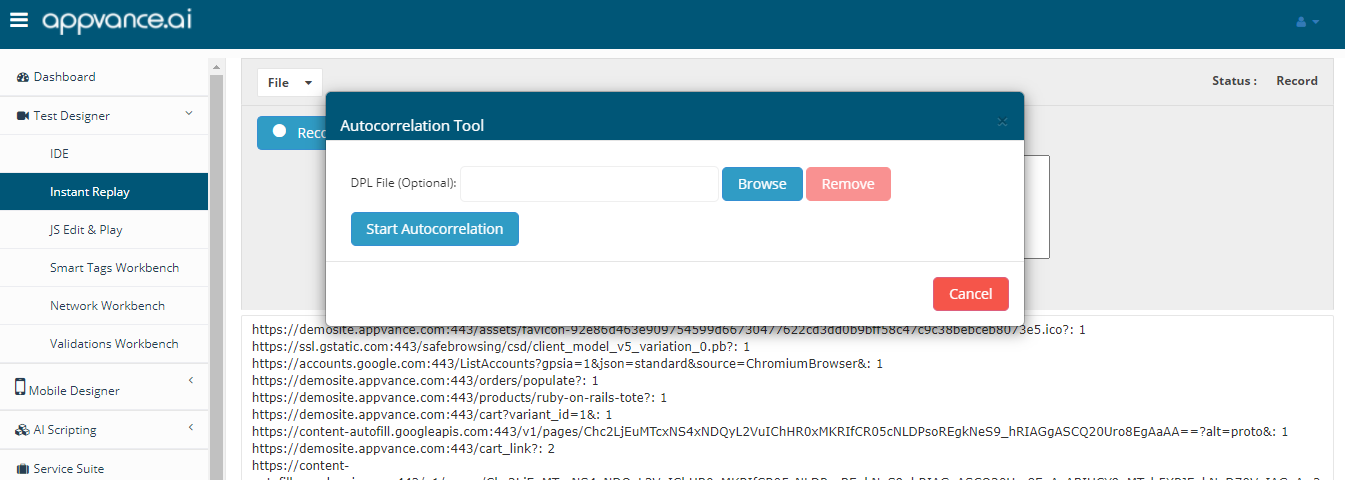
The autocorrelation tool captures all the autocorrelations and would be presented, you can accept or reject or accept all the autocorrelations
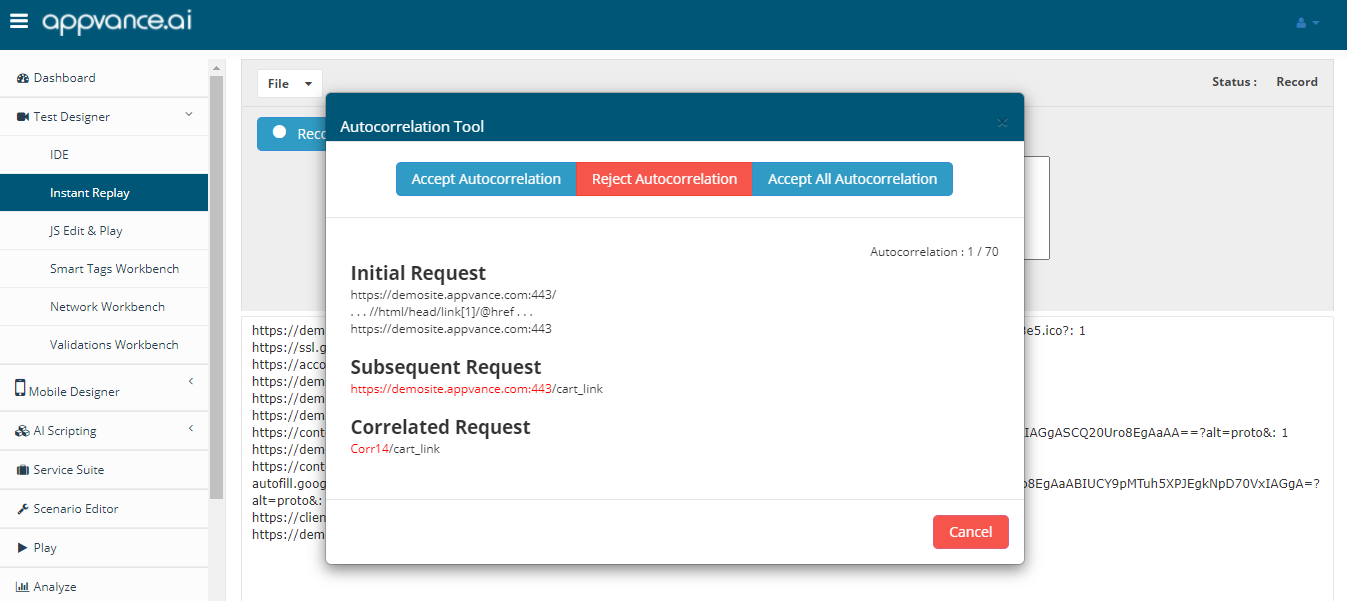
Once all the correlations are done, you will be presented to save the script or Reset autocorrelations
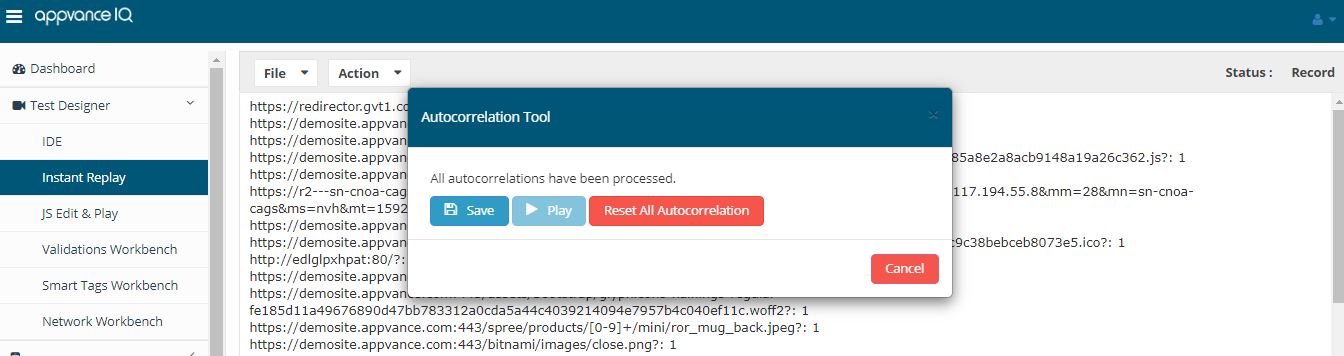
Click Save and Save the Service suite script
Select between available browsers so you can choose which browser will play the script.
This option was added in AIQ 4.9.2. See the release notes for Release 4.9.2.
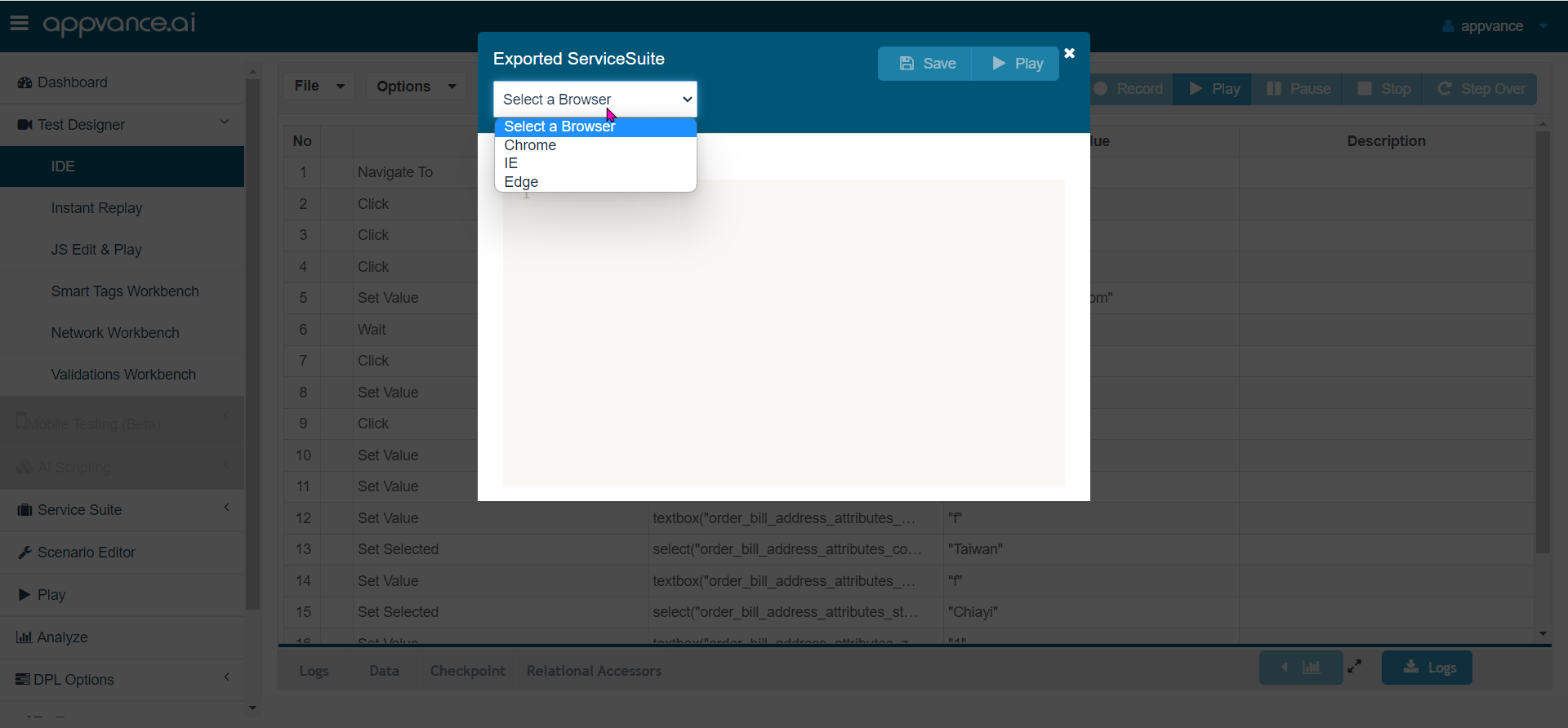
IE is still available in the dropdown, but it is no longer supported. If you select it, the script will fail. The option will be removed in a future release.
Click Play
The Service Suite page would be opened with the autocorrelated script ready to use
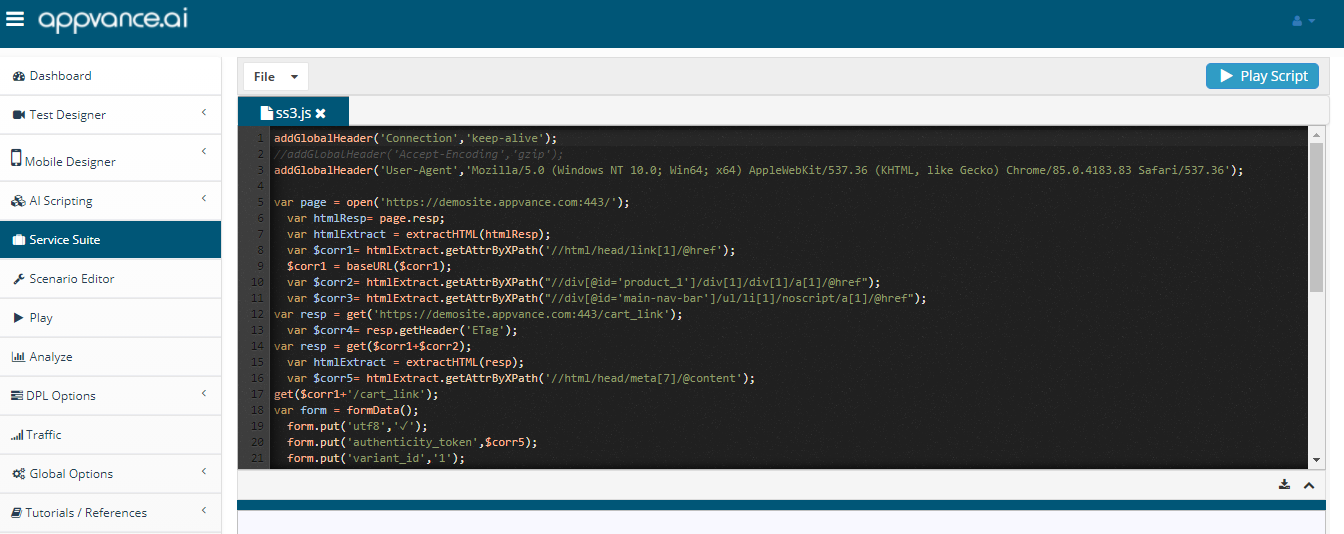
Click Play for the script to playback and provide the results
Last updated: OctoberJuly 6,25, 20262024
If you have any feedback on this topic, please contact us at documentation@appvance.ai