
Monitoring Your App On Other Servers
APC Monitors: How to monitor your app or other servers?
APCMonitor can be deployed on 'Application Under Test (AUT) in two ways:
-
APCMonitor is to run as a standalone service on the AUT machine (Most Popular)
-
Ensure the latest JRE is installed.
-
Download: wget https://s3.amazonaws.com/apc-monitor/APC_Monitor_New.zip
-
Unzip the contents to a folder
-
Give full read/write permissions to the folder: sudo chmod -R a+x APCMonitor_New (Linux)
-
cd APCMonitor_New
-
Run startup.bat (Windows) or sudo sh startup.sh (Linux)
-
Make sure the Monitor launch script startup.bat/.sh is run even if your servers are rebooted.
-
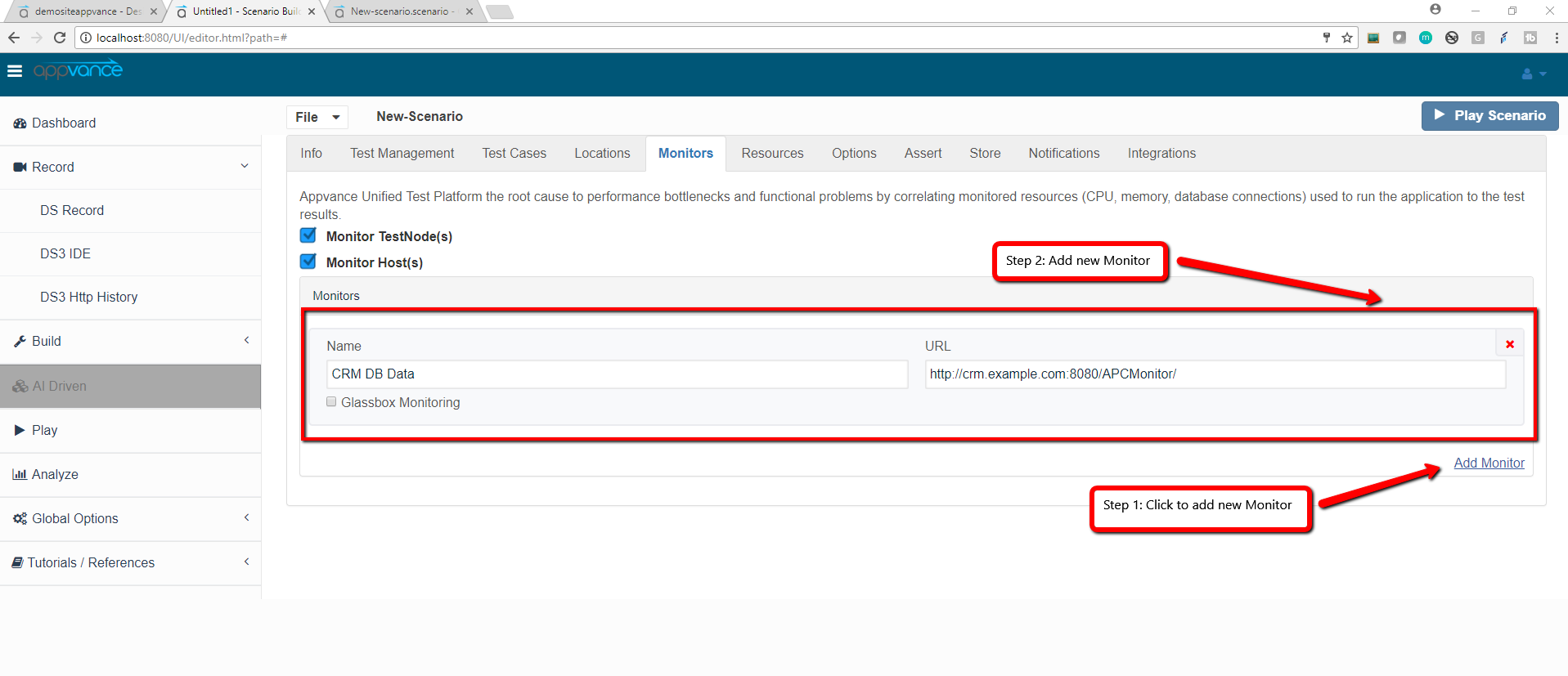
In the Scenario Editor, navigate to the Monitors section.
-
Click Add Host Monitors
-
Add the server name in the name text field and below URL as value:
http://<AUT Machine IP Address>:8080/APCMonitor

-
APCMonitor is run as a web appliance inside an application server container, such as WebLogic, WebSphere, Tomcat, etc.
-
When deployed as an appliance, APCMonitor will provide system resource metrics such as CPU, RAM; In addition, JVM performance metrics like heap usage can also be gathered in real-time.
-
WAR file of the APCMonitor can be downloaded from here:
NOTE: Please make sure there is no "/" at the end of the URL while saving the Scenario, else Monitor might not work.
For Ex: http://<AUT Machine IP Address>:8080/APCMonitor this will work however http://<AUT Machine IP Address>:8080/APCMonitor/ wont work.