
Scenario Editor Options
-
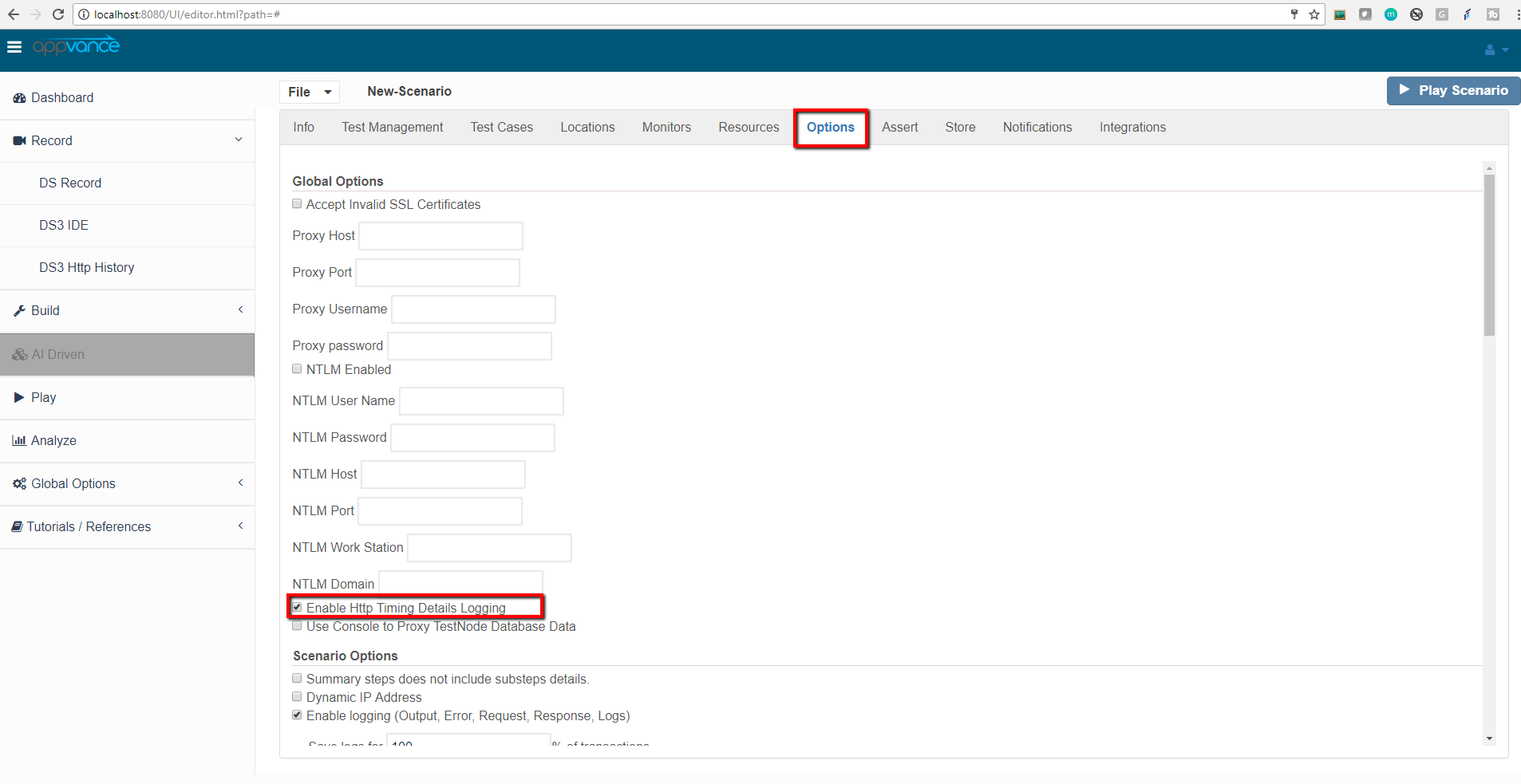
Enable HTTP Timing Details Logging
This feature is useful when the user wants to know the complete HTTP Request timing details like Sending, Receiving, and Waiting. This can enable in the Options tab of Scenario builder as shown below

-
Use Console to Proxy Test Node Database Data:
Checking this option will let use the Controller machine as a proxy for most of the communication between Test Nodes and Database when there is high latency between them.
-
Filter response content:

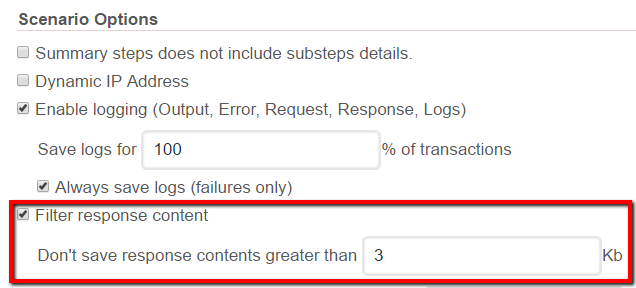
The filter response content is one of the important features in load/performance testing, where this feature is useful to diminish the amount” and the OffSet time will count down from 60 seconds to 0.
Once the OffSet reaches 0 then the virtual users will start and execute as defined in your test case.
Interval Time and Sleep Time: Users can provide Interval time and Sleep time in seconds.
Consider the following example to understand the Interval Time and Sleep Time better.
Suppose the user defines a test scenario which has 2 Test-Cases, test case 1 and test case 2.
Interval Time provided is 5 minutes and Sleep Time provided is 1 minute.
Example 1: Assume test case 1 takes 2 minutes to complete execution.
In the above case, sleep time would be 3 minutes.
Interval Time provided is 5 minutes and Sleep Time provided is 1 minute.
Example 2: Assume test case 1 takes 3 minutes to complete execution.
In the above case, sleep time would be 2 minutes.
Interval Time provided is 5 minutes and Sleep Time provided is 1 minute.
Example 3: Assume test case 1 takes 6 minutes to complete execution.
In the above case, sleep time would be 1 minute.
Interval Time and Sleep time are also available at the Global options (Options panel of the Scenario Builder), Think time and Sleep time at the Test-case level will be considered and taken into account when the user provides this option at both Test-Case and Global level.
Node Tolerance:

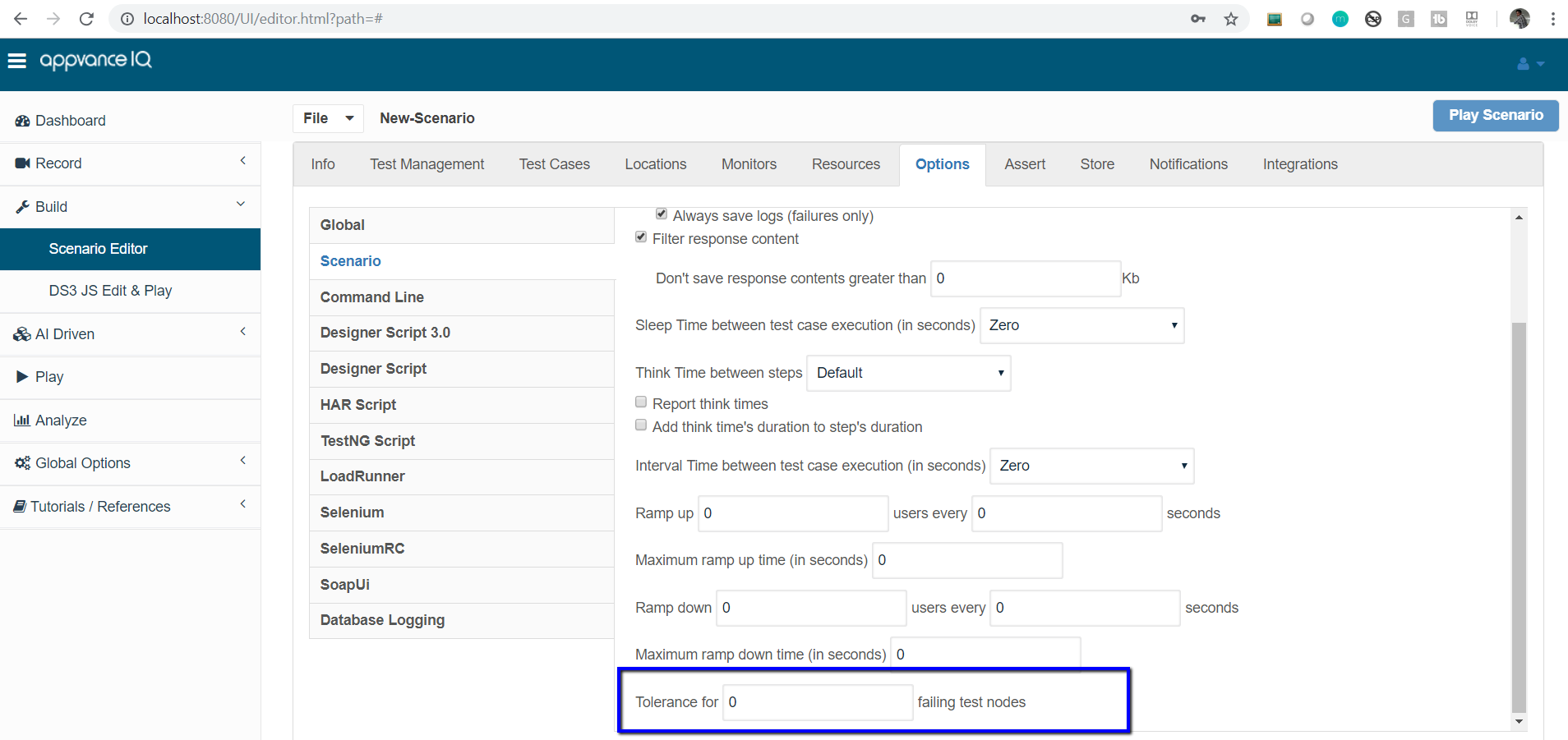
Node Tolerance is a feature that is related to AWS EC2 instances. Setting this option to a value say 1 or 2, you will notice that even 1 or 2 of the test nodes fails (failing to reach, connection lost, test node failed for some other reason), the scenario would continue to run with the other available test nodes and the executions/load would be distributed among other available test nodes.
If the test nodes failing exceeds the specified number, then the test scenario would stop with a failure message but the running instances will properly follow the termination/stop procedure set in the scenario cloud-config settings.