
Scenario Notifications
Instead of tapping your foot waiting for scenarios to finish, use the Notifications tab to tell Appvance Enterprise to send you an email when it's finished. The Notifications tab is a list of emails that will be sent for a test scenario.
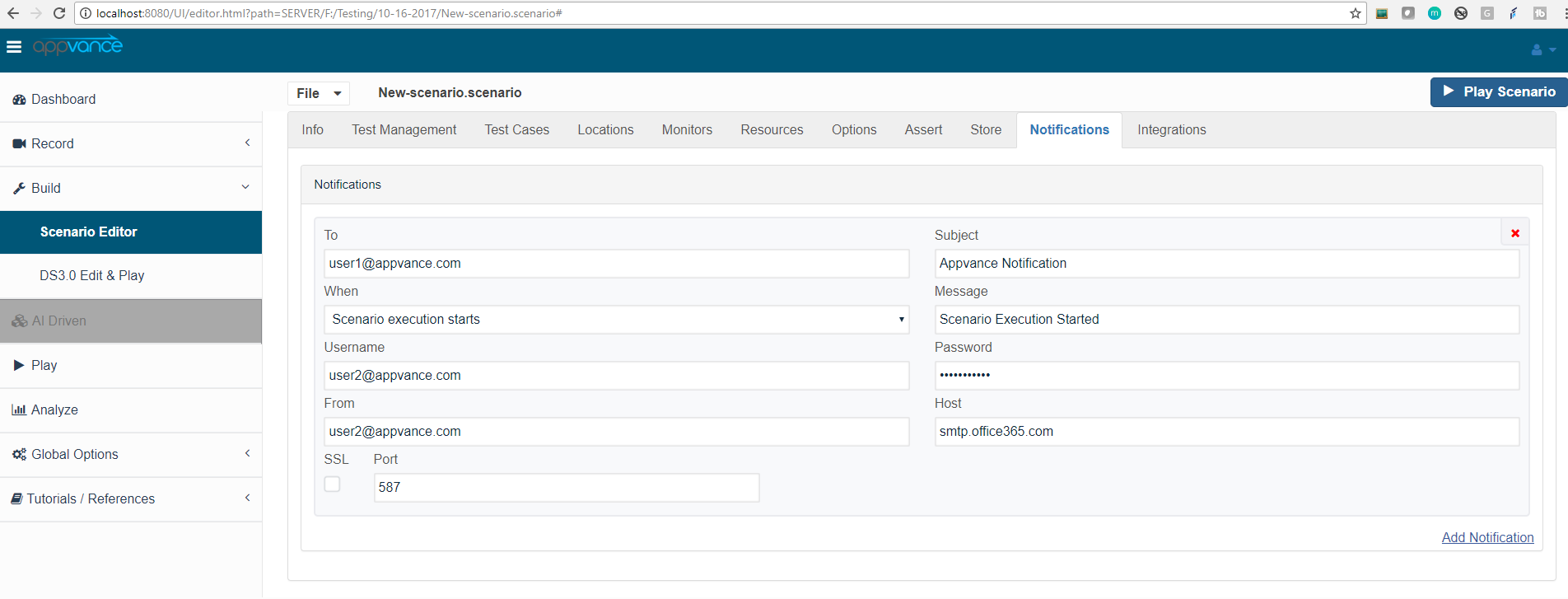
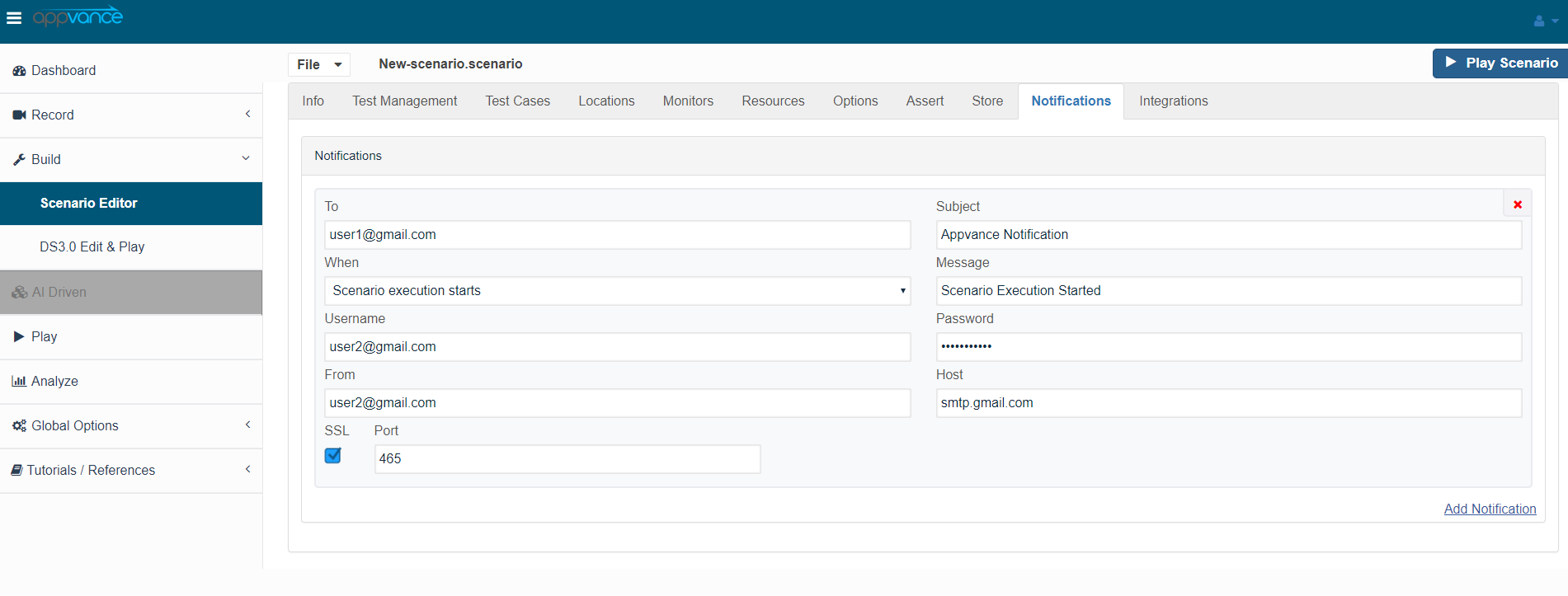
Fill in the email address and the subject line you'd like to see in the To and Subject fields. Choose an event from When, one of the following:
-
Test starts
-
Test ends
-
The transaction fails means the email is sent if something goes wrong.
-
Hourly means that Appvance IQ sends a message every hour while the test scenario is running, kind of like a very slow heartbeat.
-
The message field can be used to enter the messages.
you can use break statements (<br/> will add a new line) like below to have messages with new line entries.
hi <br/> hello
You can set up as many notifications as you like. Click Add Notification to add another one to the list. To remove a notification, click its red X.
Below are a couple of Example screen-shots for Gmail and Outlook settings:


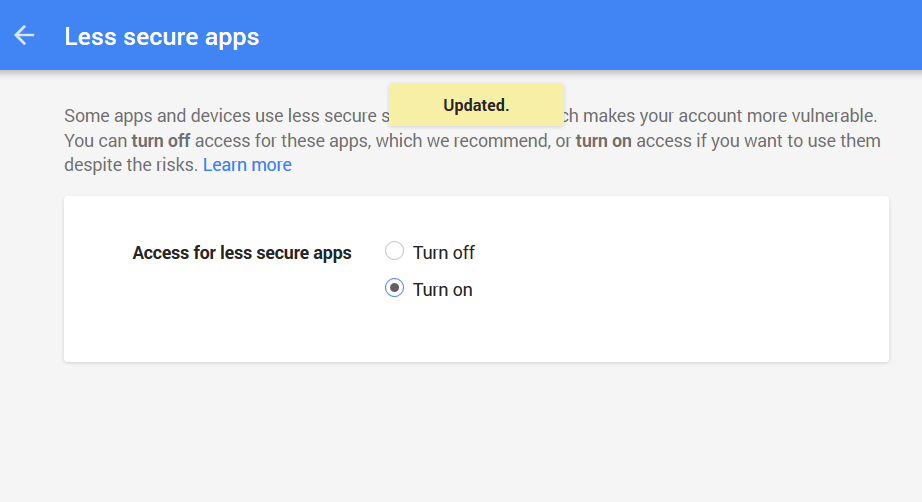
Users may not receive email notifications from Gmail due to its security policy. We have to change the security settings in the below link:
https://www.google.com/settings/security/lesssecureapps
The user has to click the radio box for "Turn on" after navigating to the URL. The settings are given below in the screenshot.

Also, the captcha has to be unlocked, to do this go to the below link and click 'Continue'
https://accounts.google.com/DisplayUnlockCaptcha
Note: Some email servers, like Amazon SES, use the 'mail.smtp.from' (FROM in Appvance UI) property to set the return email address, in addition to providing also the user name (without the @domain). Other email servers default this "From" field to the 'mail.smpt.user' (USER NAME in appvance UI) and require the user name to be a full email address.
So the From field is required by some email servers, and optional with others.
Normally the username and from fields are equal, but Amazon SES requires for example these settings:
email = "name@AspAssociates.com";
username = "AKIAJXJ5W3dummyZNONQ";
from = "AKIAJXJ5W3dummyZNONQ@us-east-1.amazonaws.com";
message = "TEST";
password = "Ar1bWkdummy97EV9vL6mTVvvUYNY9Gmx678H";
port = 465;
server = "email-smtp.us-east-1.amazonaws.com";
ssl = true;
subject = "My Subject";
Also, when the FROM field is added, included setting logic in case the user fills just one of the two fields (this is for normal email servers) suppose a user fills user@appvance.com in the FROM but nothing in the USER NAME field, when trying to authenticate Appvance will check if the user name is not provided ant then will try using the FROM field for the authentication.