
Running a Complete Scenario
Using Firefox for this example:
Firefox Browser.
As described in the Proxy Settings Chapter, please configure the proxy settings to listen to port 9095 and save the settings.
Click Traffic under Record.
Provide HTTP Port to be 9095 or any other.
Under Record - Provide a mark Step value "Navigate to" and click Record.
Go to Firefox browser and enter the app under test, in my example "http://localhost:8080/AjaxApp/examples/desktop/desktop.html" was used for recording.
Click Refresh to see the recorded traffic.
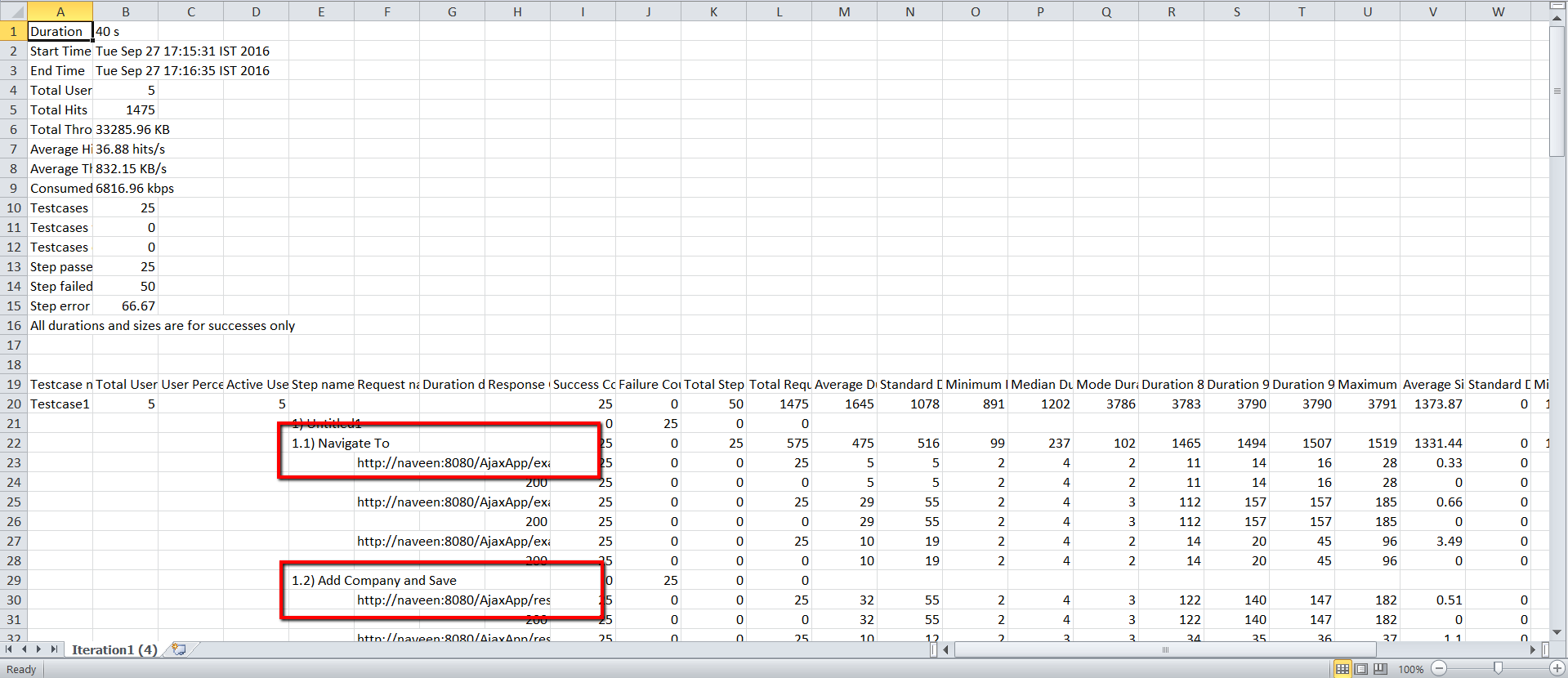
Users can come back to the Record section and change the mark step name to something else like "Add Company and Save"
All the actions that were done to add the company, providing the values and savings will be stored under the "Add Company and Save" step.
Click Stop and Click Save to save the traffic requests saved.
Go to Scenario Editor.
Click File > New
Info tab - Select Performance Test.
Go to Test Management and Select Executions Per user or any desired completion criteria for the scenario run.
Click Test case panel.
Click 'Add a new test case execution'
Select HAR as the script type from the drop-down and select the resource as the .har file that was saved from the HTTP proxy
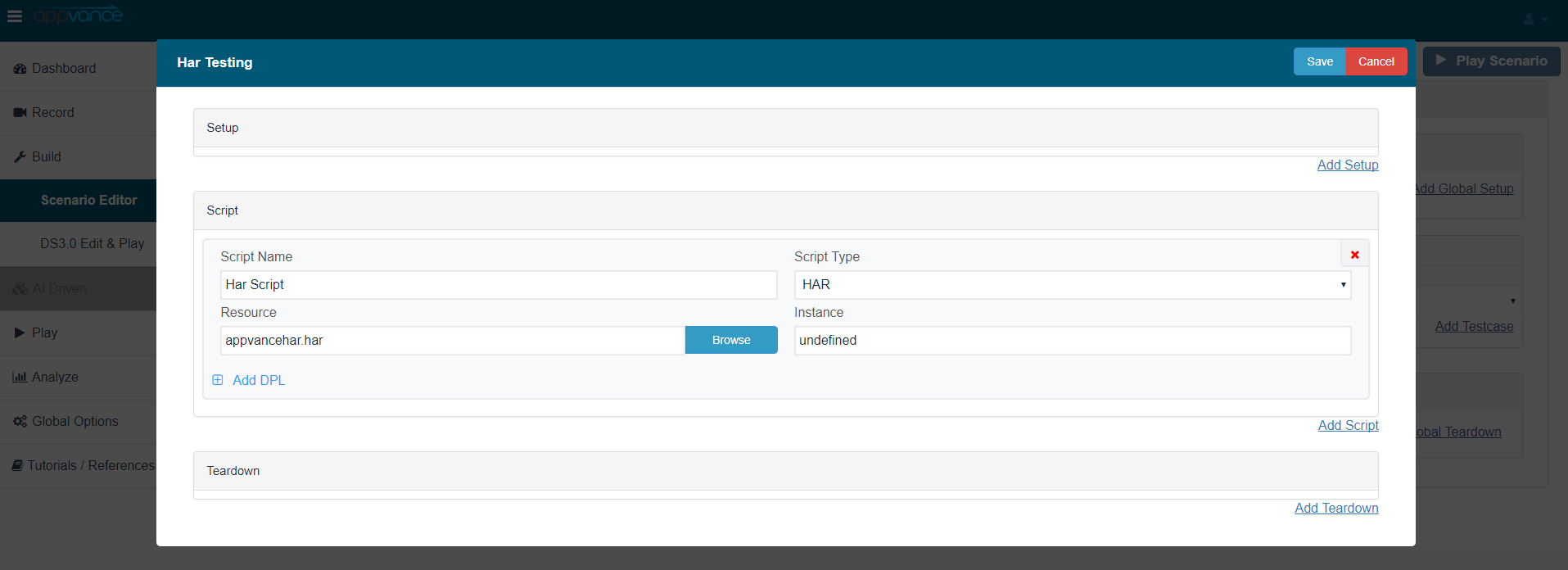
Click Save
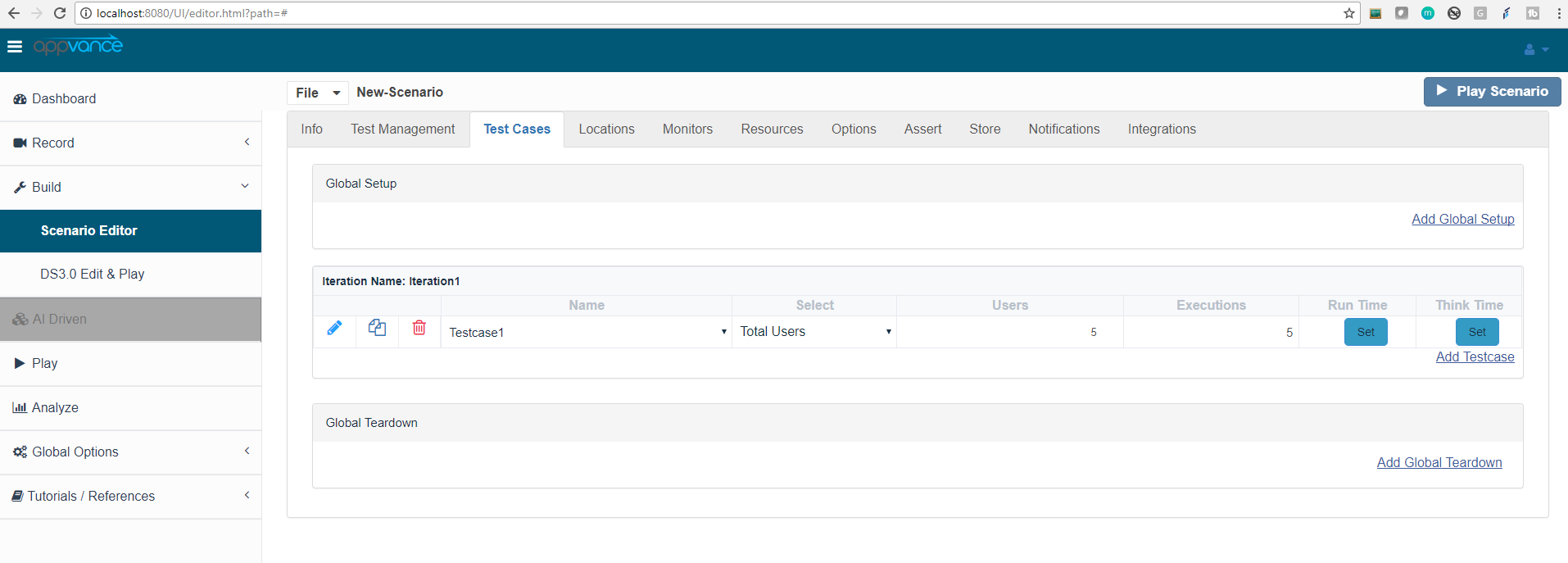
Provide Users and Executions as desired, I have provided 5 users and 5 executions in this example
Go to Options and select the desired logs and also save the Database settings
Save the Scenario and click the Play Scenario button
As the recorded script is a HAR script, the script playback will be at the protocol level where the user shall not see any browsers popping up
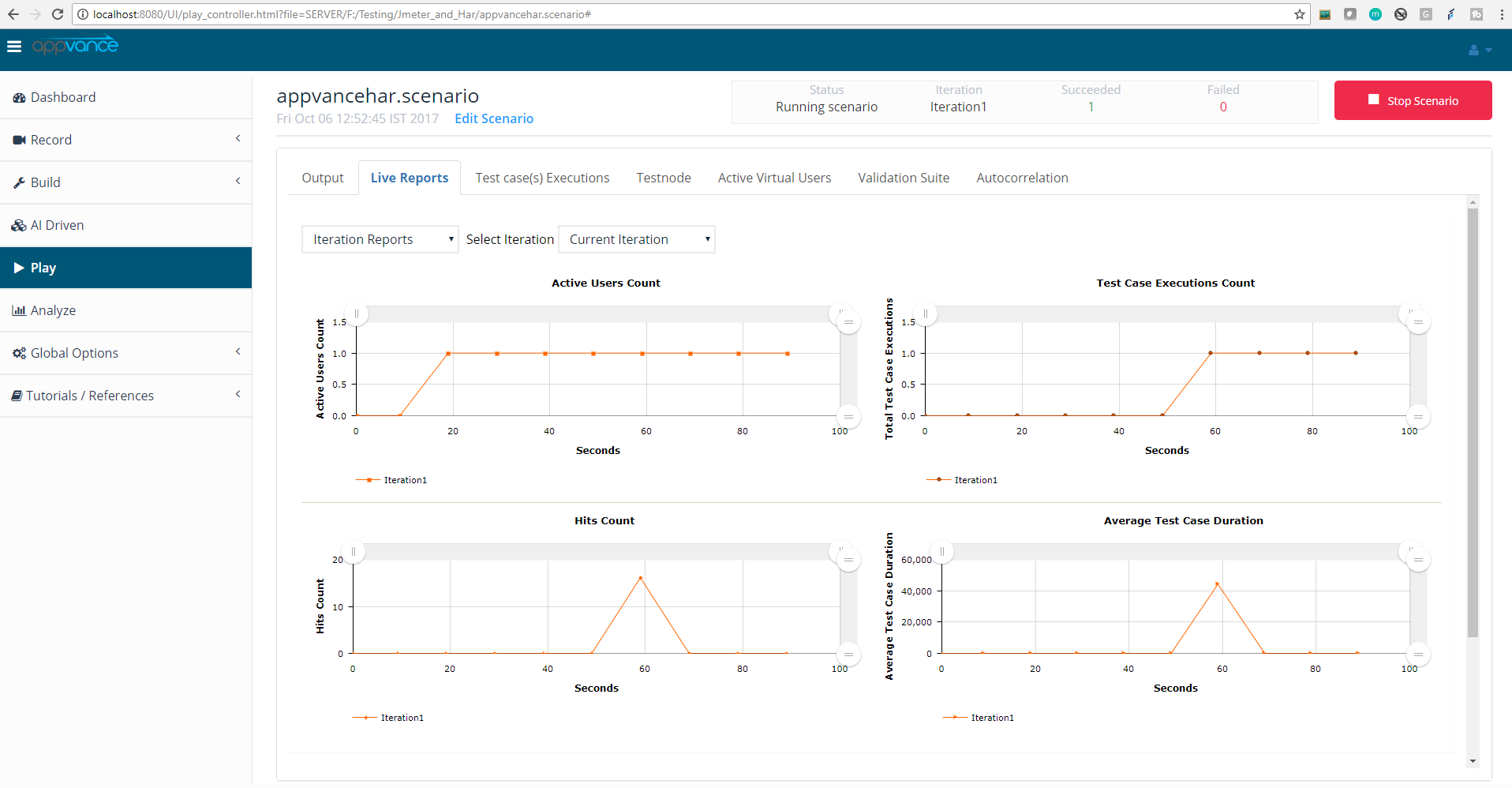
Users can go to the output tab from the above image and click “click here” to go to the reports page and download the iteration summary report which displays the steps that were marked along with response times and many other results for the test run
Similarly, users can choose any browser or any device to record a script and run it in AIQ. It's that simple!
Last updated: July 28, 2023
If you have any feedback on this topic, please contact us at documentation@appvance.ai