
Traffic - Record
On the connectConnect tab, once the port and the device are configured to listen to the traffic - it is time to move to the Record tab to record all the HTTP traffic of the target application.
When you provide a port that is already beenin useduse inon the system, AIQ will prompt an error saying "Port is already in use, choose a different port"
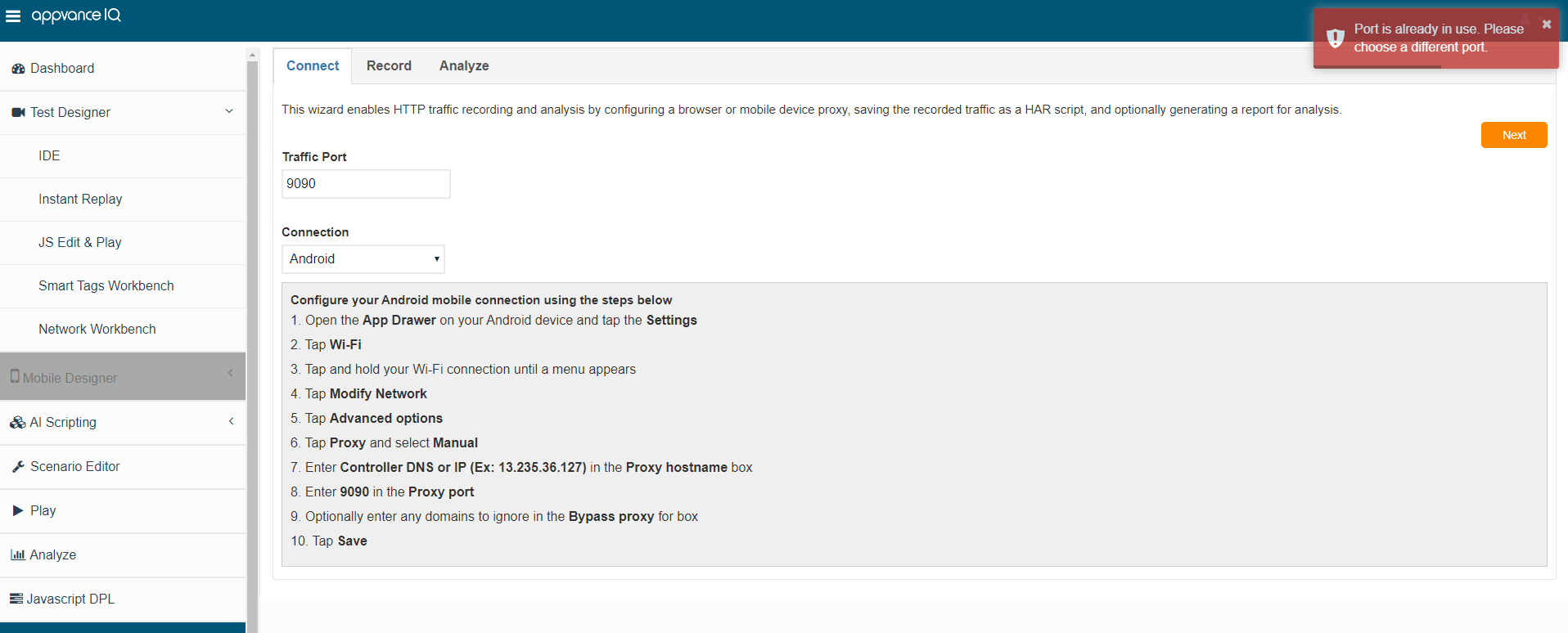
Once the traffic port is mentioned and the recording has begun, you shall not be able to change the port asfields theyare shalldisabled and can no longer be disabled to change.changed.
Record Tab:
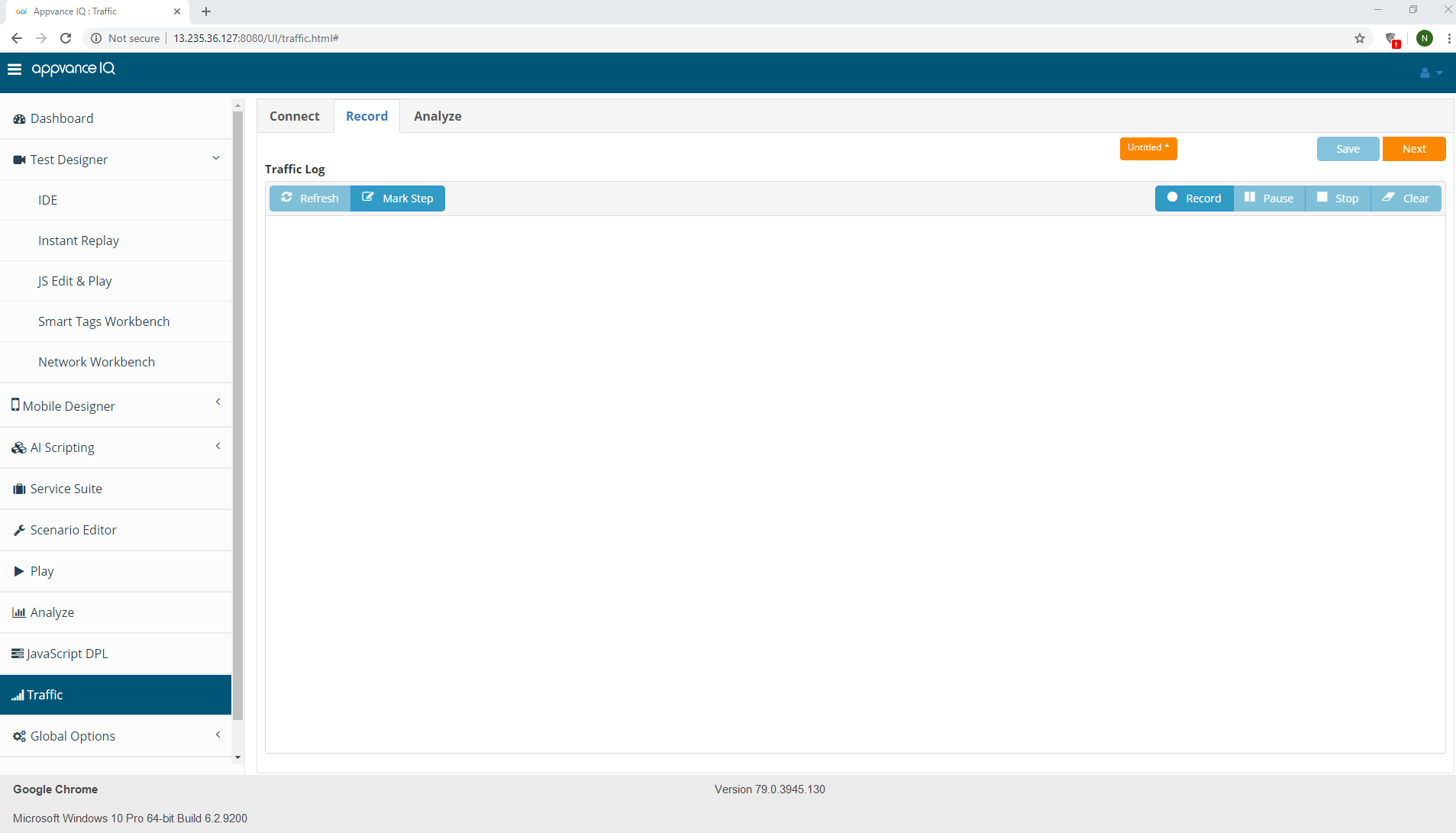
Mark Step: Before starting the proxy, the user should mark the step by providing a meaningful name to the set of requests the HTTP proxy is going to capture.
For example, the user can mark the step as login - the steps/requests that can be captured below the login would involve the following:
a. Click Log in to go to the login page
b. Set the user name and password
c. Click Log in to navigate inside the application
All this traffic can be captured below the log-in step, After marking the step and starting the proxy, all the traffic mentioned in the above use case will be saved under Log in Step.
The next step would be to Purchase
a. After successful login, click some items
b. Add them to the cart
c. Click purchase
All these can be marked as another step by providing the step name as Purchase and clicking on the Mark step, these can be validated using the status tab.
Record: After marking a step user can click the Record button, a confirmation message will be displayed informing that the proxy is starting on the provided port number. The record button will be grayed out.
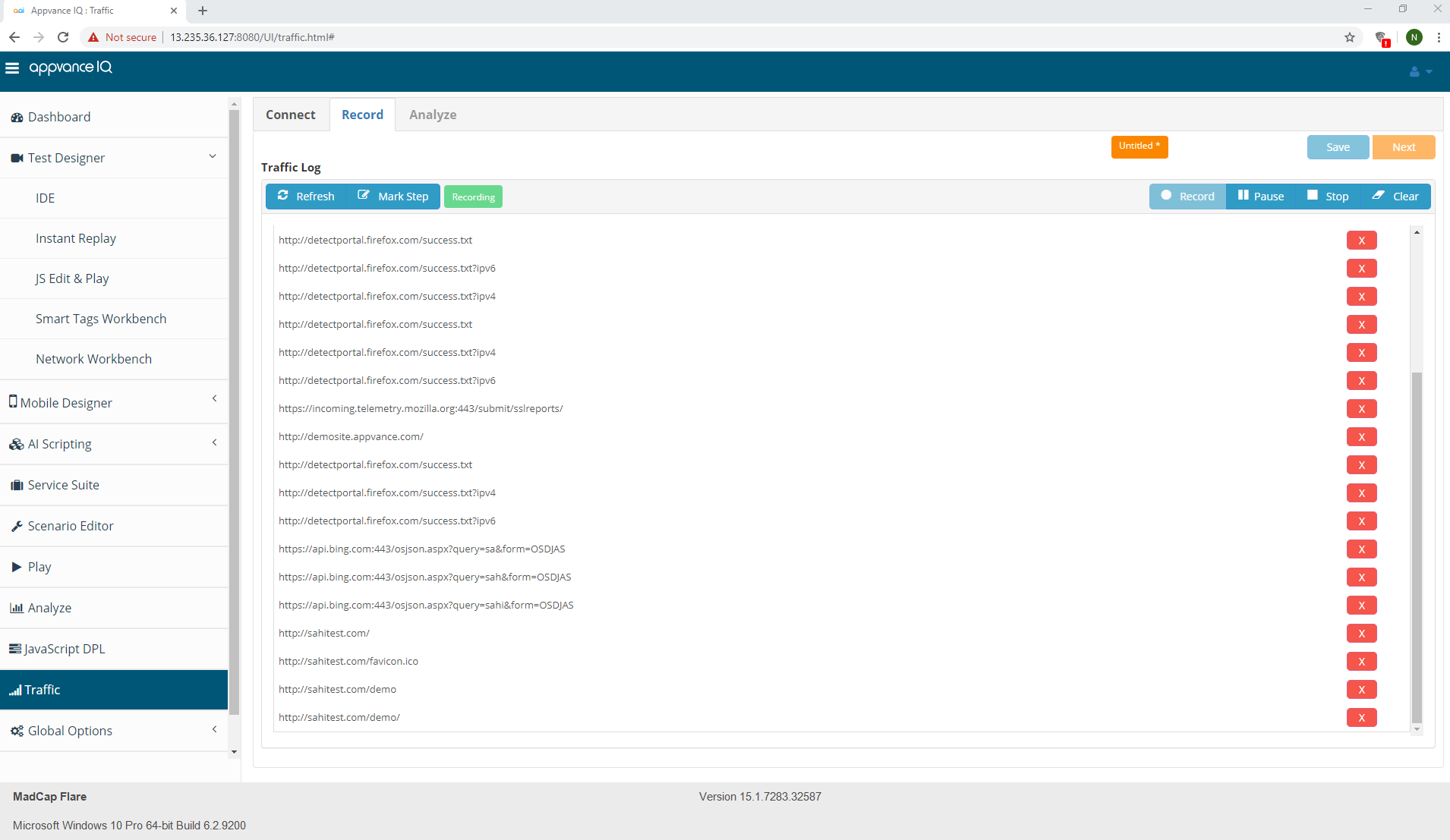
Pause: At times it may be required to pause the ongoing recording of the traffic as the user might want to do some unwanted navigation which anyone would want not want to have in the recorded script, Pause Recording request can be used for this purpose. The pause button would be changed to 'Resume' after clicking
Resume: Once the Pause recording request has been chosen, the user would want to resume the recording after pausing the script for which the Resume button could be used.
Stop: Stops the Recording of the HTTP Traffic.
Clear: As the name suggests it just clears the recorded traffic requests, users can use this when creating new scripts.
Refresh: Can be used to refresh the HTTP Traffic calls.
Save: Once you are done with recording the traffic requests, you can click the 'Stop' button and click the Save button which will open the file manager and saves the script which will have the .har extension.
You also have an option to remove unwanted calls recorded, using the Delete button available for every request.
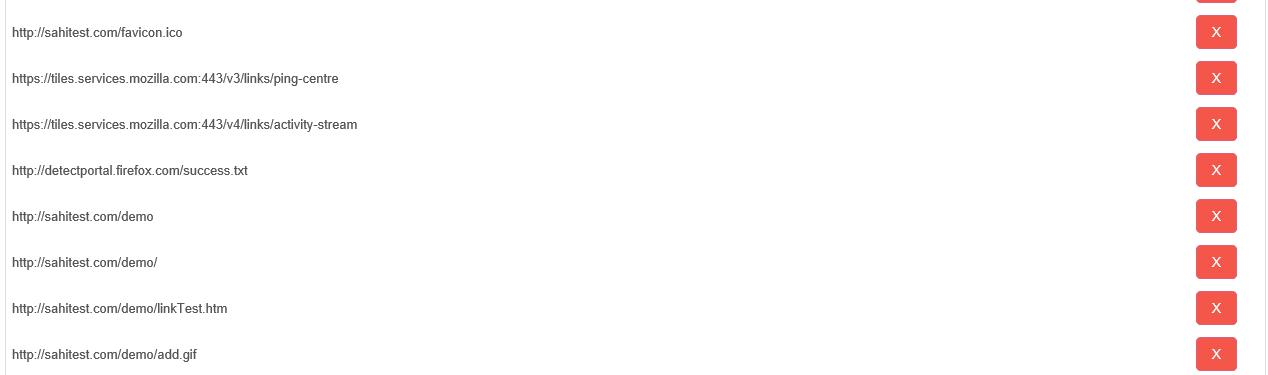
Status:
Displays the status of the proxy, either Running or Not, and also the recording status or being running, paused, etc. Use the refresh button periodically to capture all the latest traffic logs before saving the HTTP file.
Last updated: June 26, 2023
If you have any feedback on this topic, please contact us at documentation@appvance.ai