
Adding Users
Login to Appvance IQ as an ADMIN and navigate to Options page > Preferences > Credentials and Click the ‘ADD NEW USER’ button.
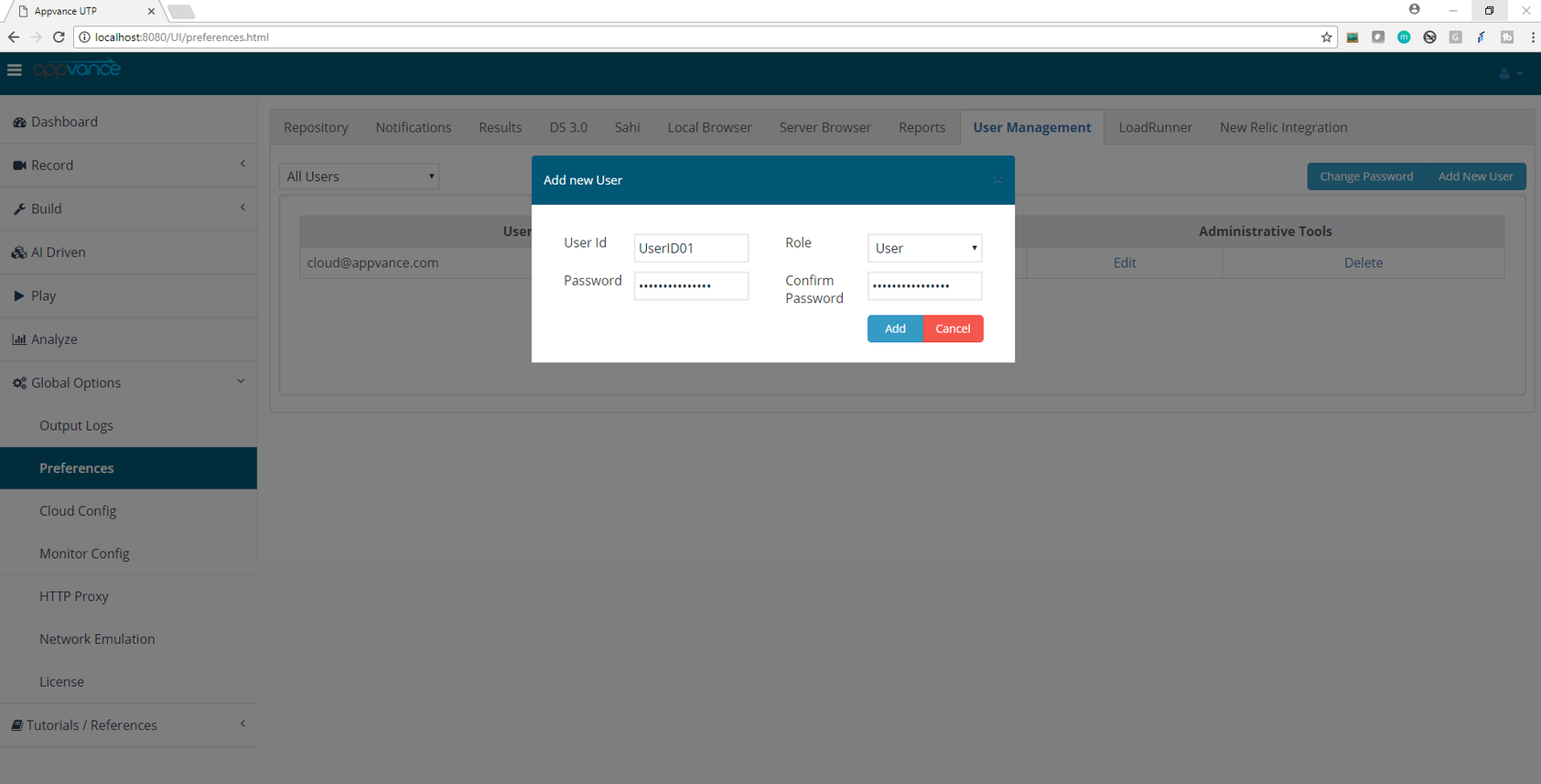
Provide the UserId of the new user and a default password for the user (which can be changed upon user login in), Select the Role of the User to be a User or Admin:
Admin: can add more users
User: cannot add any users.
Click Add to add the User.
Clicking Cancel will not add the user.
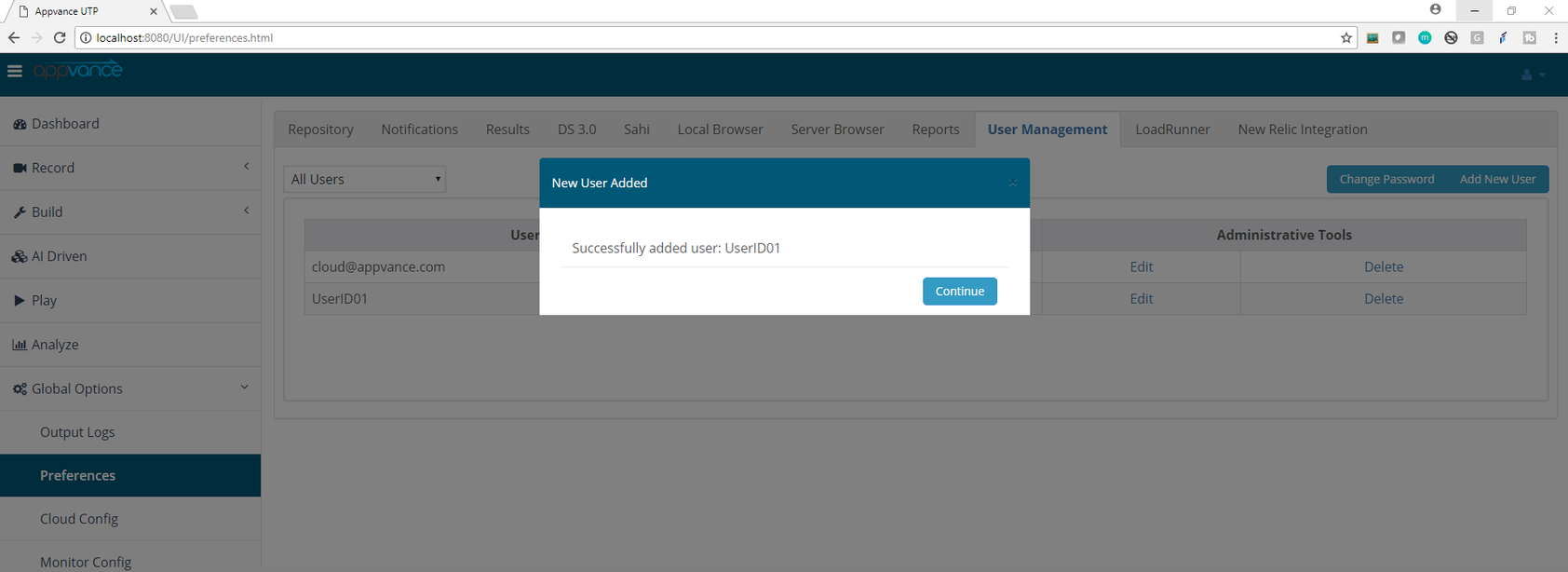
Multiple users can be added the same way.
Adding users from File Upload
Starting from Appvance IQ 4.0.6 Release, you will now be able to upload the users using a CSV file.
The CSV file should have 4 columns, in the order of Username, Role, Password and Confirm Password, else the user would not be uploaded to the system and throw an error message.
From the same User Management page, click the "Upload users(s)" button which will open the browse window to select the created CSV file, the file can be either placed on the Server or can be uploaded to the Repository and can be accessed from the File Manager.
Users will not be uploaded when
The format of the file is incorrect.The number of users is exceeding than defined in the license.The user domains are different than those defined in the license file.
Last updated: October 15, 2026
If you have any feedback on this topic, please contact us at documentation@appvance.ai
Account and role verification
After creating a user, have the user sign in and change the temporary password according to the organization’s policy. Assign the least-privileged role required for the work, verify the user’s access, and use the CSV upload format documented below when adding multiple accounts.
Choosing a cloud configuration
Select the cloud type, beginning behavior, and related lifecycle settings according to the TestNode capacity and persistence required by the scenario. Validate credentials, network access, quotas, and cleanup behavior before running a distributed test. Treat ephemeral instance storage as temporary and keep scripts and test data in a reproducible repository.
Login to Appvance IQ as an ADMIN and navigate to Options page > Preferences > Credentials and Click the ‘ADD NEW USER’ button.
Provide the UserId of the new user and a default password for the user (which can be changed upon user login in), Select the Role of the User to be a User or Admin:
Admin: can add more users
User: cannot add any users.
Click Add to add the User.
Clicking Cancel will not add the user.
Multiple users can be added the same way.
Adding users from File Upload
Starting from Appvance IQ 4.0.6 Release, you will now be able to upload the users using a CSV file.
The CSV file should have 4 columns, in the order of Username, Role, Password and Confirm Password, else the user would not be uploaded to the system and throw an error message.
From the same User Management page, click the "Upload users(s)" button which will open the browse window to select the created CSV file, the file can be either placed on the Server or can be uploaded to the Repository and can be accessed from the File Manager.
Users will not be uploaded when
The format of the file is incorrect.The number of users is exceeding than defined in the license.The user domains are different than those defined in the license file.
If you have any feedback on this topic, please contact us at documentation@appvance.ai
Account and role verification
After creating a user, have the user sign in and change the temporary password according to the organization’s policy. Assign the least-privileged role required for the work, verify the user’s access, and use the CSV upload format documented below when adding multiple accounts.
Choosing a cloud configuration
Select the cloud type, beginning behavior, and related lifecycle settings according to the TestNode capacity and persistence required by the scenario. Validate credentials, network access, quotas, and cleanup behavior before running a distributed test. Treat ephemeral instance storage as temporary and keep scripts and test data in a reproducible repository.
Last updated: October 15, 2026