
AIQ Status Overview
Recommended guidance
TheUse AIQ Status pageto displaysconfirm whether the platform is healthy before troubleshooting individual scenarios, services, or integrations. Status checks should separate platform availability from test design issues, data problems, browser/device problems, and external system outages.
What to review
- Application services and background workers that support test execution.
- Test Node availability, capacity, and connectivity.
- Database, file storage, and repository access.
- Browser, mobile, API, and Service Suite execution dependencies.
- Recent errors in Output Logs, server logs, or integration logs.
How to use the status ofinformation
- Confirm the
AIQaffectedsystem.area:Fromlogin,hereScenarioyouEditorcanexecution,gatherServicesomeSuite,basicTestinformationController,forreports,troubleshooting.or integrations. - Check whether the issue impacts all users or only one workspace, project, scenario, node, or browser.
- Compare the status page with recent changes such as upgrades, repository updates, certificate changes, or new browser versions.
- Collect timestamps, affected users, scenario names, node names, and error messages before escalating.
Escalation notes
If the status page shows a service problem, avoid making unrelated scenario changes. Capture evidence and escalate with the exact time window, affected component, and any matching Output Logs entries.
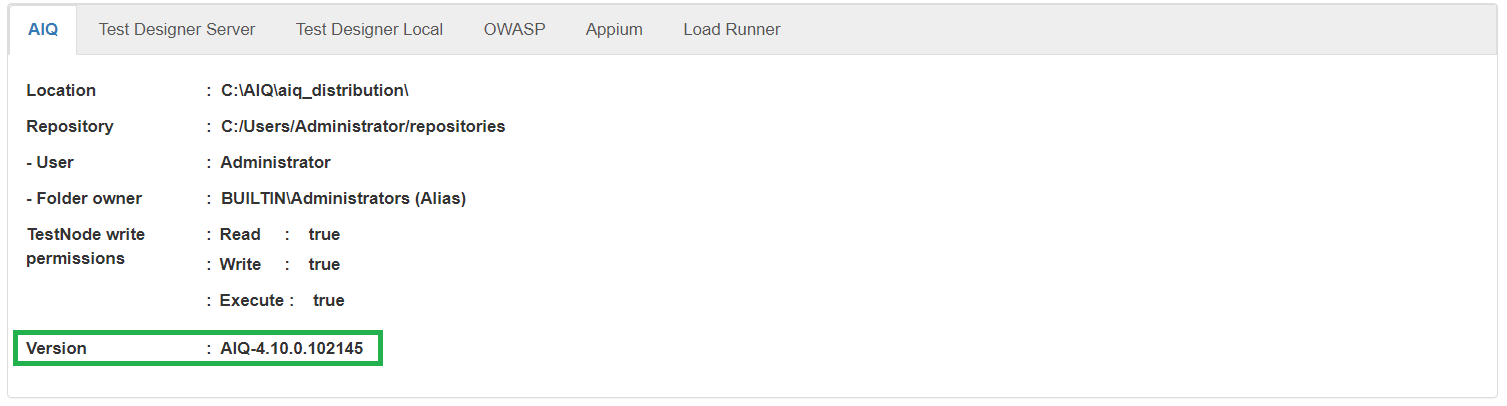
From AIQ navigate to AIQ Status:
c
Each of these components has a status tab:
AIQ
Test Designer Server
Test Designer Local
OWASP
Appium
Load Runner
Last updated: FebruaryOctober 23,5, 20242026
If you have any feedback on this topic, please contact us at documentation@appvance.ai