
Checking the Status of Test Nodes
If you need to know if one or more of your test nodes are busy and currently executing scenarios, or if they are free, you can use Lab Management.
AIQ’s Lab Management feature displays all the test nodes that have been configured along with the status of the test nodes.
See the “Configuration Steps” section below for instructions on how to configure this functionality.
All currently running test nodes appear in the Machines list and indicate the Machine Status and currently installed AIQ Version. If one or more scenarios are running on any of the test nodes, the Machine Status displays as “Executing” along with the execution ID’s of the scenario runs.
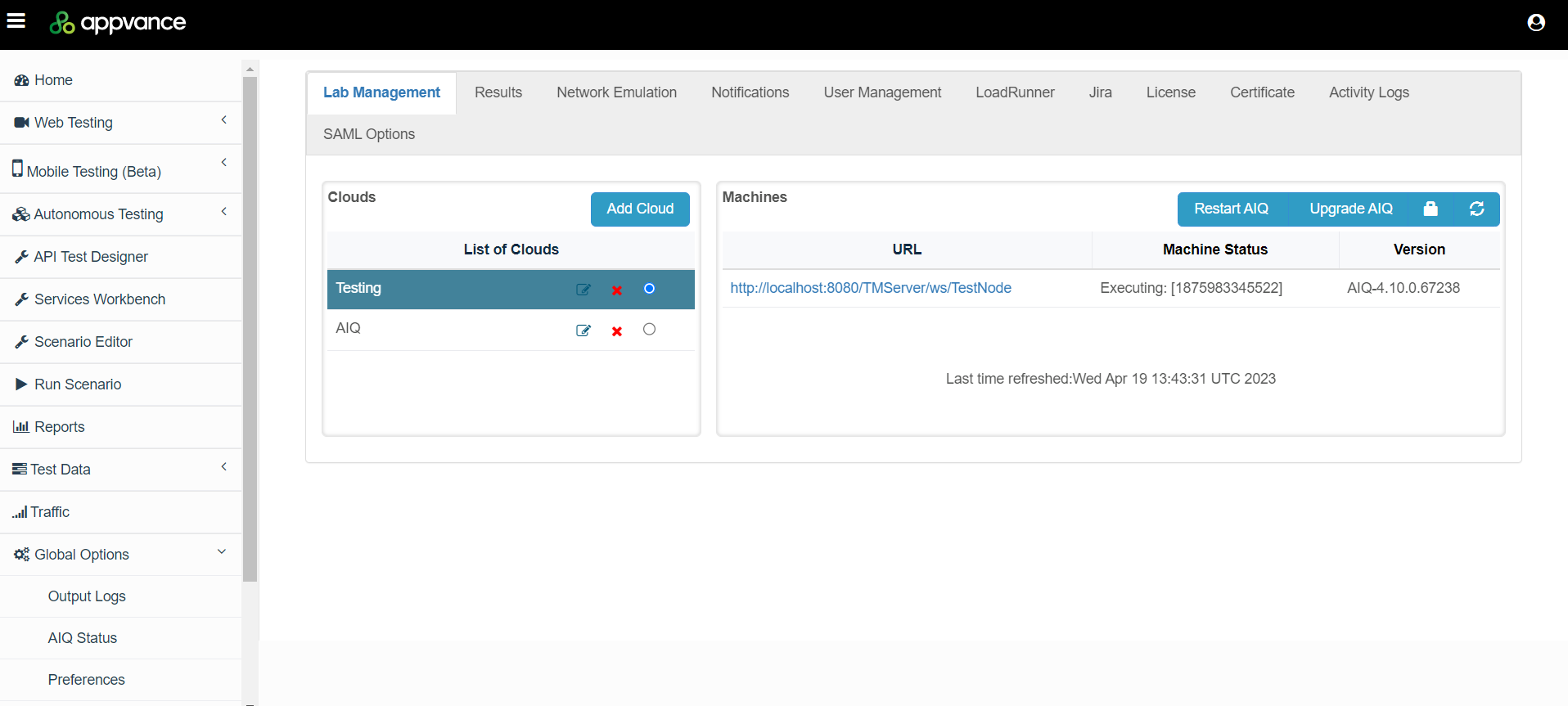
Configuration Steps
Login to AIQ as an Admin user.
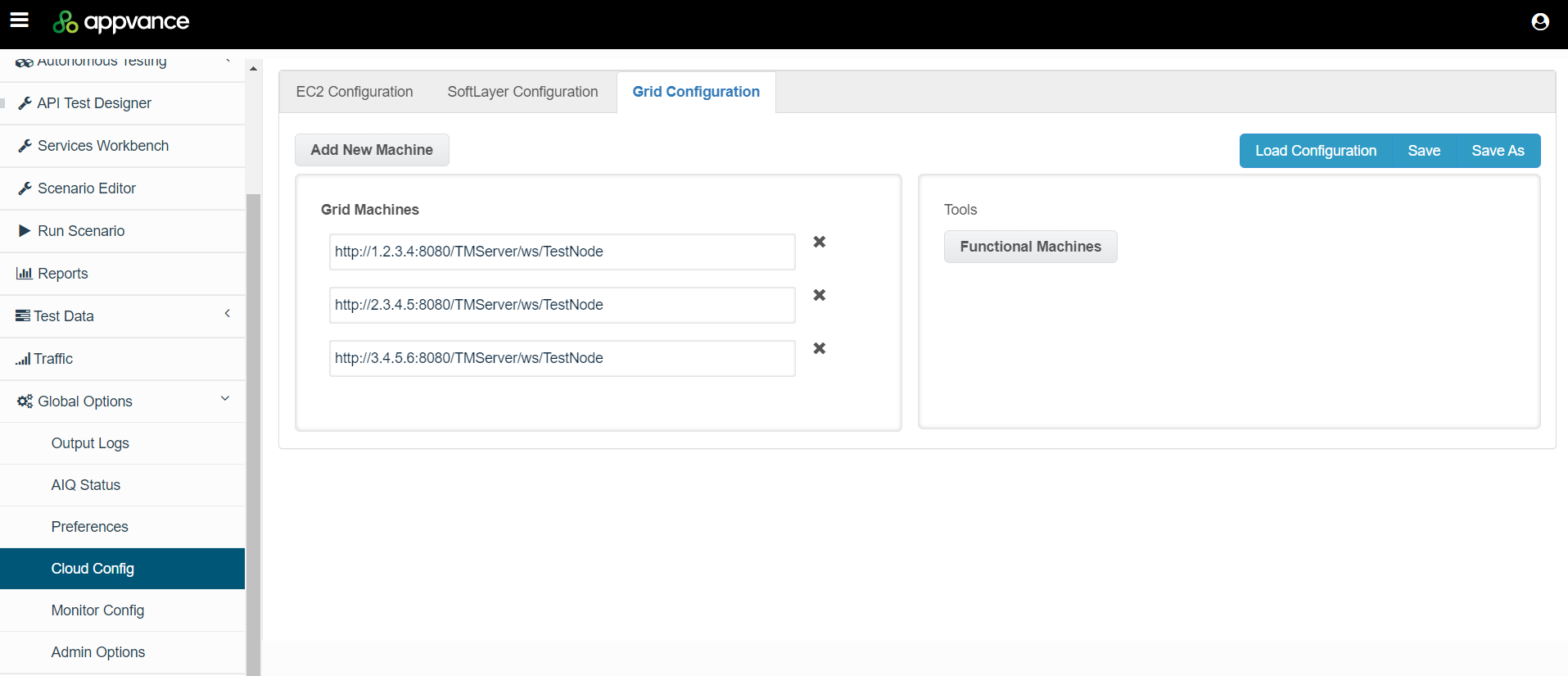
Navigate to Global Options > Cloud Config > Grid Configuration.
Click Add New Machine.
Enter the list of test node URLs.
Example URL: http://1.2.3.4:8080/TMServer/ws/TestNode
Click Save to save the configuration file. The configuration file will have a “.cloud” extension.
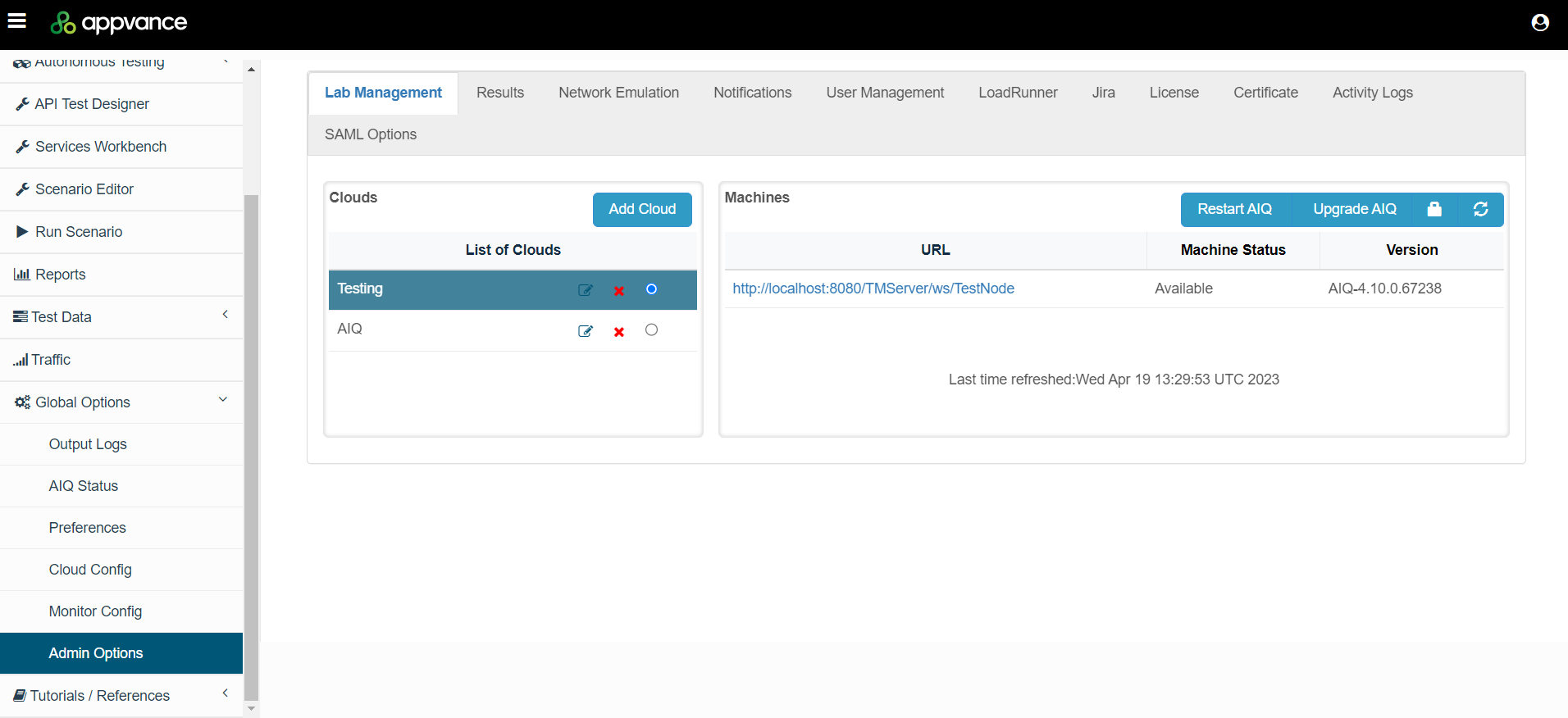
Navigate to Global Options > Admin Options > Lab Management.
Click Add Cloud.
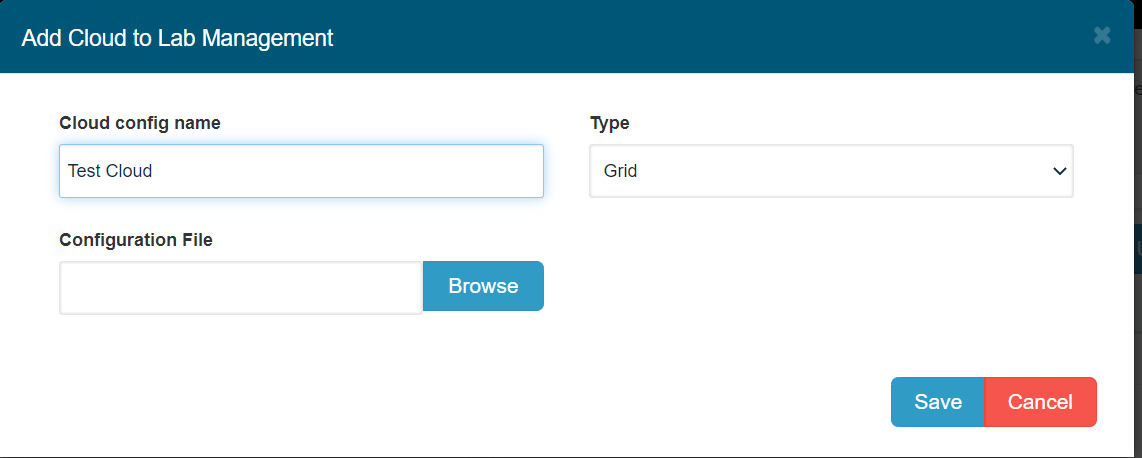
Enter a cloud configuration name.
In Type, select as “Grid”.
Browse to the Configuration File file you created in step 5 and click Save.
AIQ will display all the test nodes that have configured along with their status of the test nodes and the available version. If one or more scenarios are running on any of the test nodes, the Machine Status displays as “Executing” with the execution ID’s of the scenario runs.
Last updated: September 01, 2023
If you have any feedback on this topic, please contact us at documentation@appvance.ai