
Check AIQ Test Node Status
IfLast youreviewed: needSeptember 30, 2026
Use this article to knowverify ifwhether oneAIQ Test Nodes are online, healthy, and ready to execute scenarios.
What changed in this article
- Shortened the title and aligned it with AIQ Test Node terminology.
- Added checks for online status, assigned capacity, browser/runtime availability, recent heartbeat, node logs, and execution queue symptoms.
- Added troubleshooting guidance for distinguishing node availability from scenario-level failures.
Validation workflow
- Check the Test Node list or
moreadminofviewyourfortestonline/offlinenodes are busystatus andcurrentlyrecentexecuting scenarios, or if they are free, you can use Lab Management.AIQ’s Lab Management feature displays allheartbeat. - Confirm the
testnodenodes that have been configured along withhas thestatusrequiredofbrowser, runtime, network access, and capacity for thetesttargetnodes.execution. - If a runfails,
Seecomparethenode“Configuration Steps” section below for instructions on how to configure this functionality.
itself.All currently running test nodes appear in theMachineslistlogs andindicatequeuethestatusMachinebeforeStatus and currently installed AIQ Version. If one or more scenarios are running on any of the test nodes, the Machine Status displays as “Executing” along with the execution ID’s ofchanging the scenarioruns.
Review 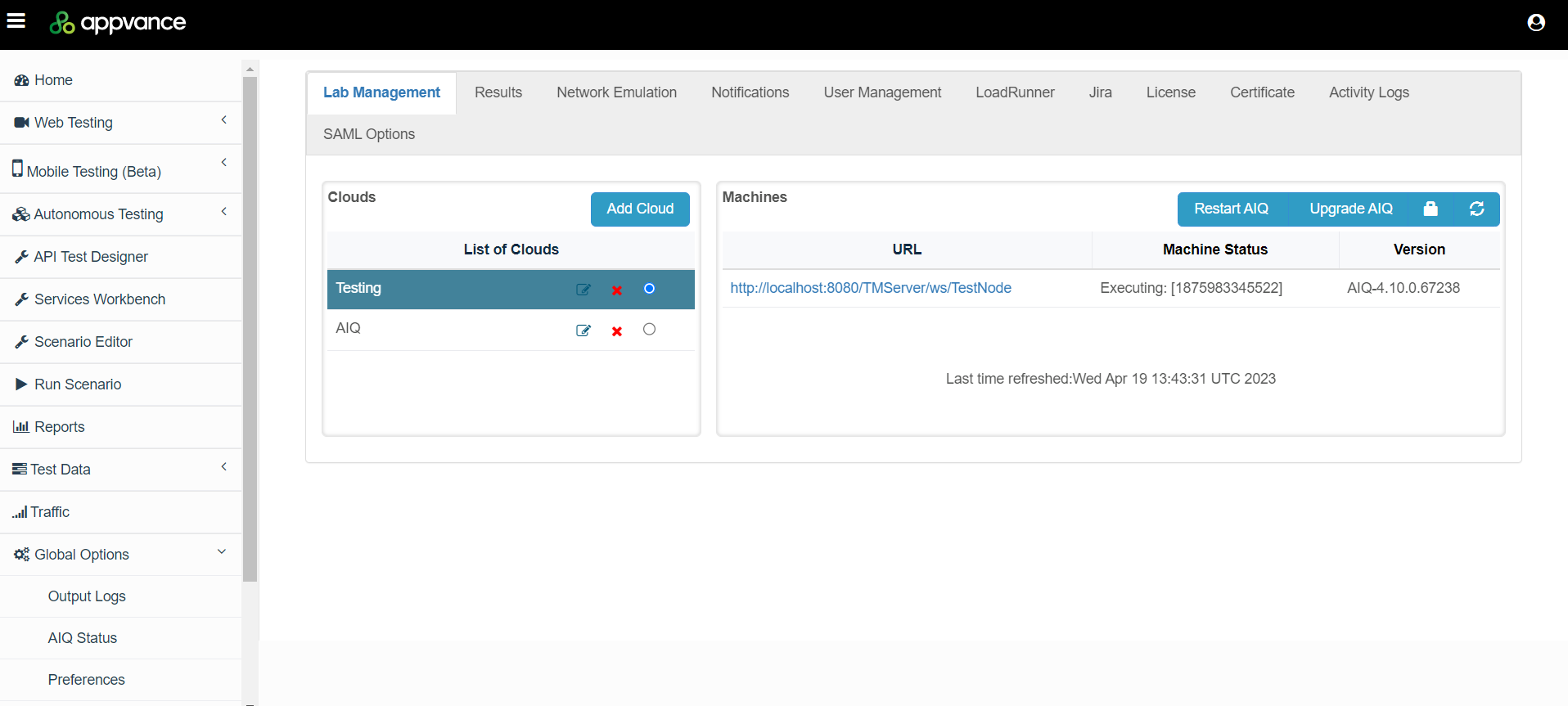
Configuration Steps
Login to AIQ as an Admin user.
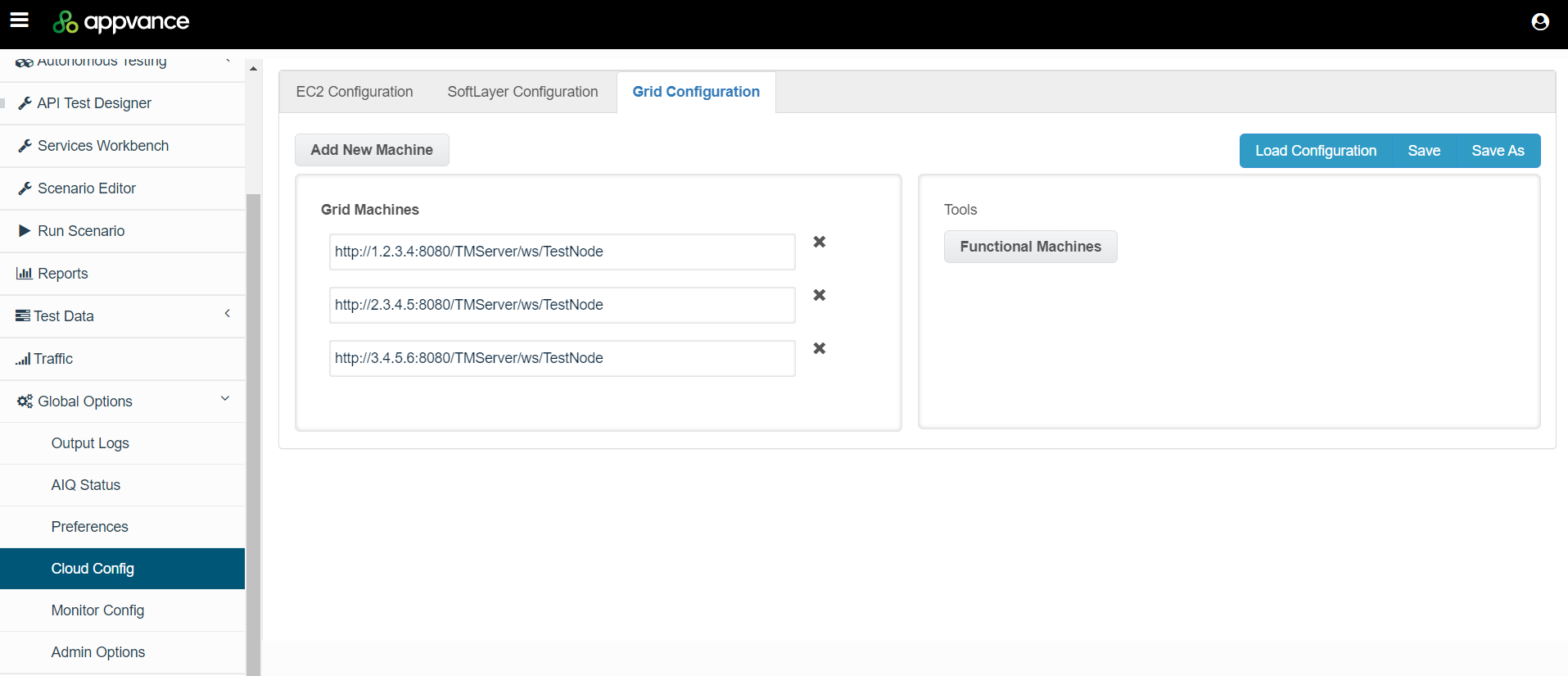
Navigate to Global Optionsnote: >This Cloudpage Confignow >gives Grida Configuration.
Click Add New Machine.
Enter the listinstead of testonly nodepointing URLs. Example URL: http://1.2.3.4:8080/TMServer/ws/TestNode
Click Save to save the configuration file. The configuration file will haveat a “.cloud”UI extension.location.
Navigate to Global Options > Admin Options > Lab Management.
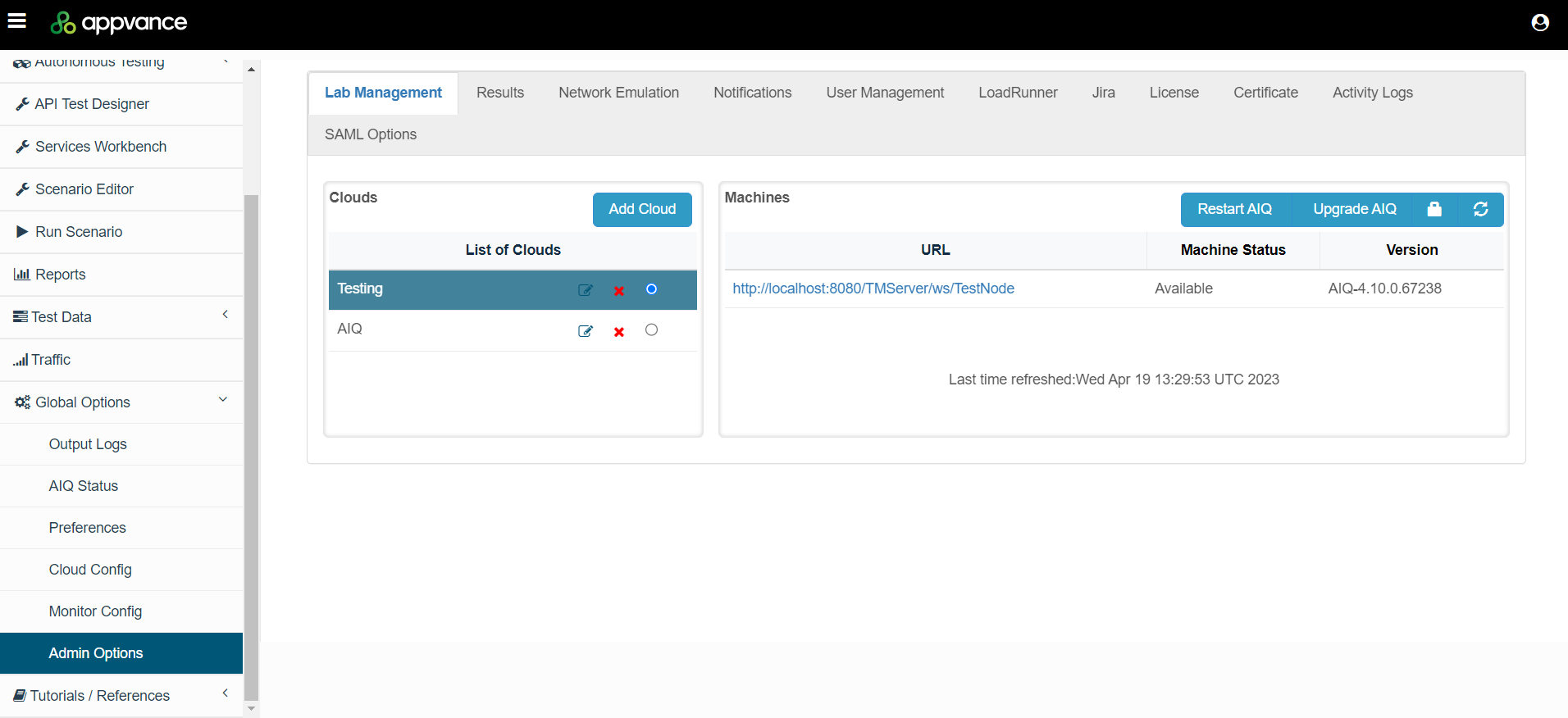
Click Add Cloud.
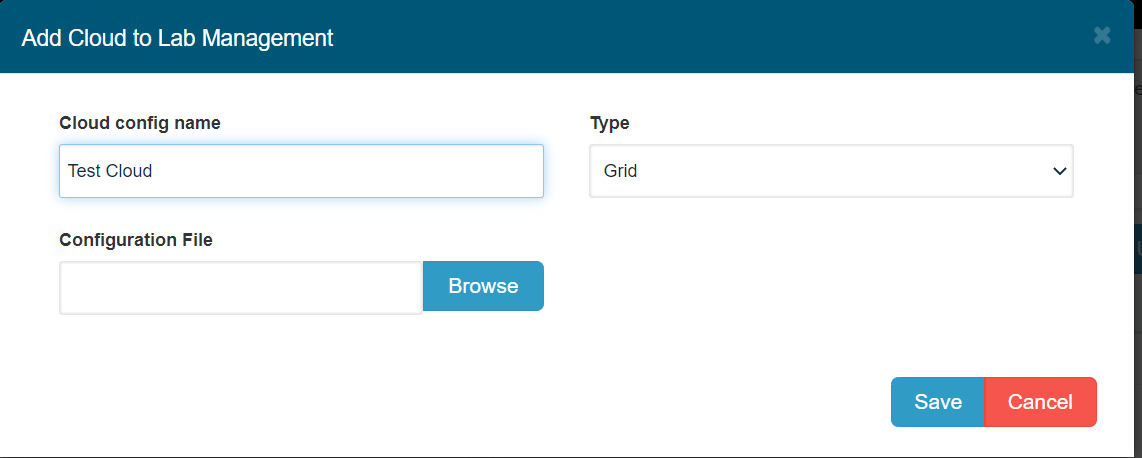
Enter a cloud configuration name.
In Type, select as “Grid”.
Browse to the Configuration File file you created in step 5 and click Save.
AIQ will display all the test nodes that have configured along with their status of the test nodes and the available version. If one or more scenarios are running on any of the test nodes, the Machine Status displays as “Executing” with the execution ID’s of the scenario runs.
Last updated: September 01,30, 20232026
If you have any feedback on this topic, please contact us at documentation@appvance.ai.