
Output Logs
From the Output Logs screen you can view, search, export or clear various log files.
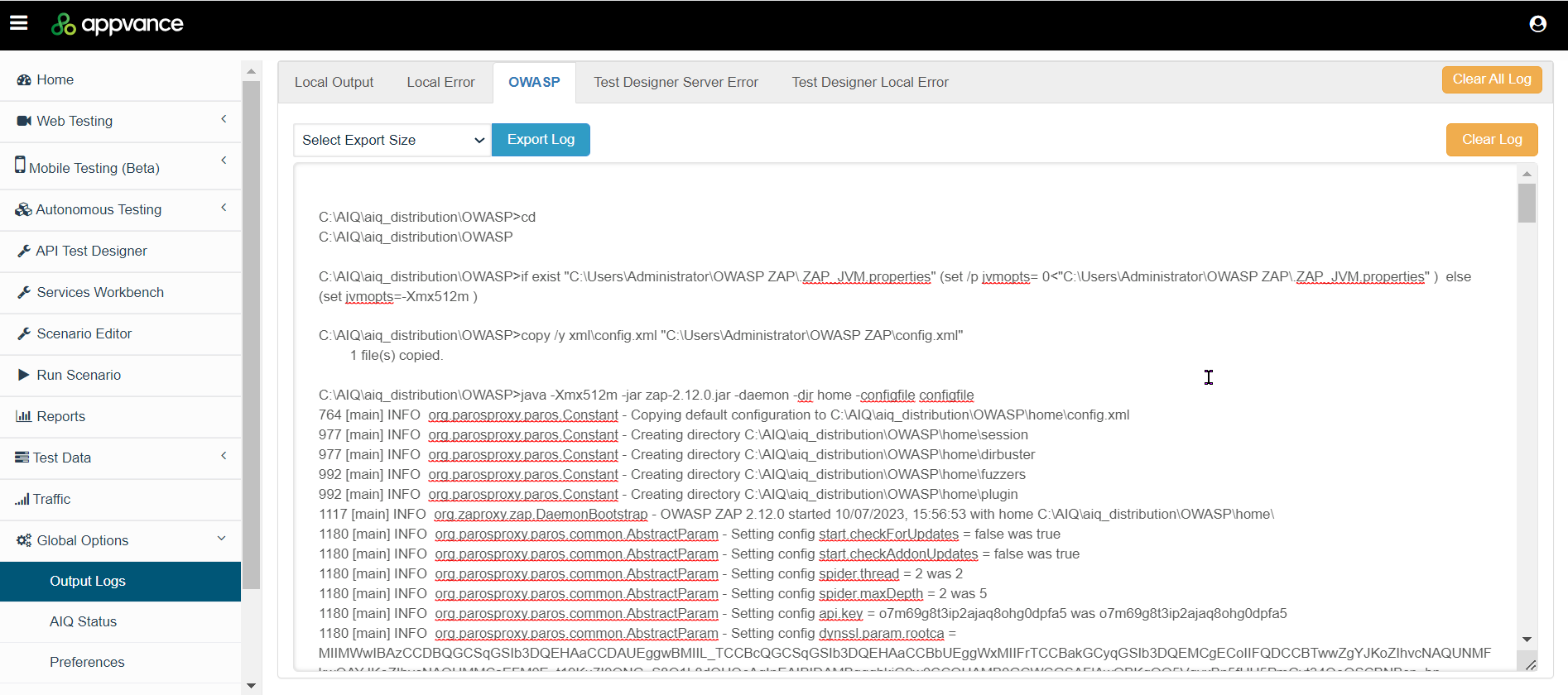
The following logs are available on separate tabs:
Local Output
Local Error
OWASP
Test Designer Server Error
Test Designer Local Error
Working with Log Files
Here are the basic options available to you from this page.
Searching Log Files
If you click the output tab of any log file, you can search for text within that log. For example, you can search for Jira errors in the Local Output log by searching for the text “[JIRA]” in the log files.
Exporting Log Files
You can export a log file. You can export data in increments of 2Mb up to 10Mb in the Select Export Size dropdown.

Clearing Log Files
You have the option to clear a specific log file or clear all the log files.

Submitting Logs to Appvance Support
You may be asked to submit log files to the Appvance Technical Support team to help diagnose an issue.
To help with submitting relevant log files you may be asked to follow a process similar to this:
Depending on the issue, one or more log files may be requested. Please select the one required, and click on Clear Logs.
Perform a test trying to replicate the issue.
Navigate back to the Output Logs page.
Select the relevant log file.
Click Export Log and save it in your desired location.
Check with the Appvance Technical Support team before clearing log files related to any issues.
- Visit the Appvance Service Desk to submit a request.
- The Service Desk Management Guide contains information on what to expect when submitting a support request.
Last updated: February 23, 2024
If you have any feedback on this topic, please contact us at documentation@appvance.ai