
Review Output Logs in AIQ
Recommended guidance
FromUse Output Logs as the Outputfirst Logsevidence screensource youwhen canan view,AIQ search,execution exportfails, behaves differently than expected, or clearstops variousbefore logcompletion. files.Logs should be reviewed together with the scenario, data source, browser or device, Test Node, and time window.
What 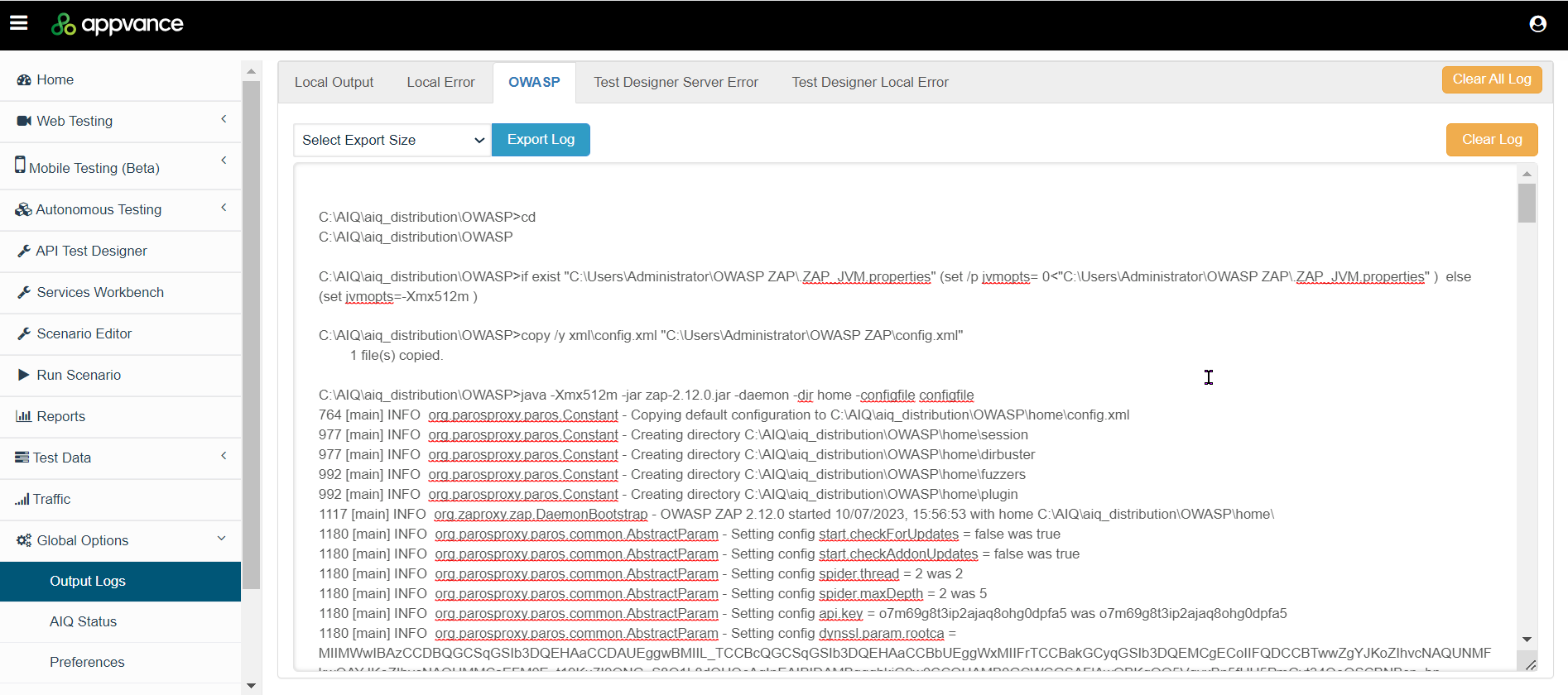
The following logs are available on separate tabs:
- Execution start and stop timestamps.
- Scenario
step failures, assertion failures, and wait timeouts.LocalEditorOutput - Service Suite request, response, authentication, and parsing errors.
- Browser,
mobile,Localdriver,Error
OWASP
Test DesignerNode Servererrors.
Test Designer Local Error
WorkingUseful withtroubleshooting Log Filespattern
Here are the basic options available to you from this page.
Searching Log Files
If you click the output tab of any log file, you can search for text within that log. For example, you can search for Jira errors in the Local Output log by searching for the text “[JIRA]” in
- Filter the log
files.Exporting Log FilesYou can export a log file. You can export data in increments of 2Mb upto10Mb intheSelectfailingExportexecutionSizedropdown.
Clearing Log FilesYou haveor theoptionnarrowesttotimeclearwindowa specific log file or clear allavailable. - Identify the
logfirstfiles.meaningfulerror,
only
atSubmittingtheLogsfinaltoerrorAppvanceshownSupportYouthemayend. - Match
betheaskedfailingto submit log filesstep to theAppvancescenario,TechnicaldataSupportrow,teamservicetocall,helpordiagnosebrowseranaction. - Check
issue.whether theTofailurehelpis reproducible withsubmittingthe same data and environment. - Attach relevant log
filesexcerptsyouwhenmayescalating;beavoidaskedsharingtosecrets,followtokens, or full credentials.
Common mistakes
- Assuming a
processUIsimilarfailuretoisthis:an - platform
Dependingissueonbeforethecheckingissue, one or more log files may be requested. Please select the one required,data andclickwaits. - Copying
onentireClearlogsLogs.without removing sensitive information. - Ignoring
- earlier
Performwarnings that explain atestlatertrying to replicate the issue.
Navigate back to the Output Logs page.
Select the relevant log file.
Click Export Log and save it in your desired location.
Check with the Appvance Technical Support team before clearing log files related to any issues.
Visit theAppvance Service Deskto submit a request.TheService Desk Management Guidecontains information on what to expect when submitting a support request.failure.
Last updated: FebruaryOctober 23,5, 20242026
If you have any feedback on this topic, please contact us at documentation@appvance.ai