
Output Logs
From the Output Logs screen you can view, search, export or clear various log files.
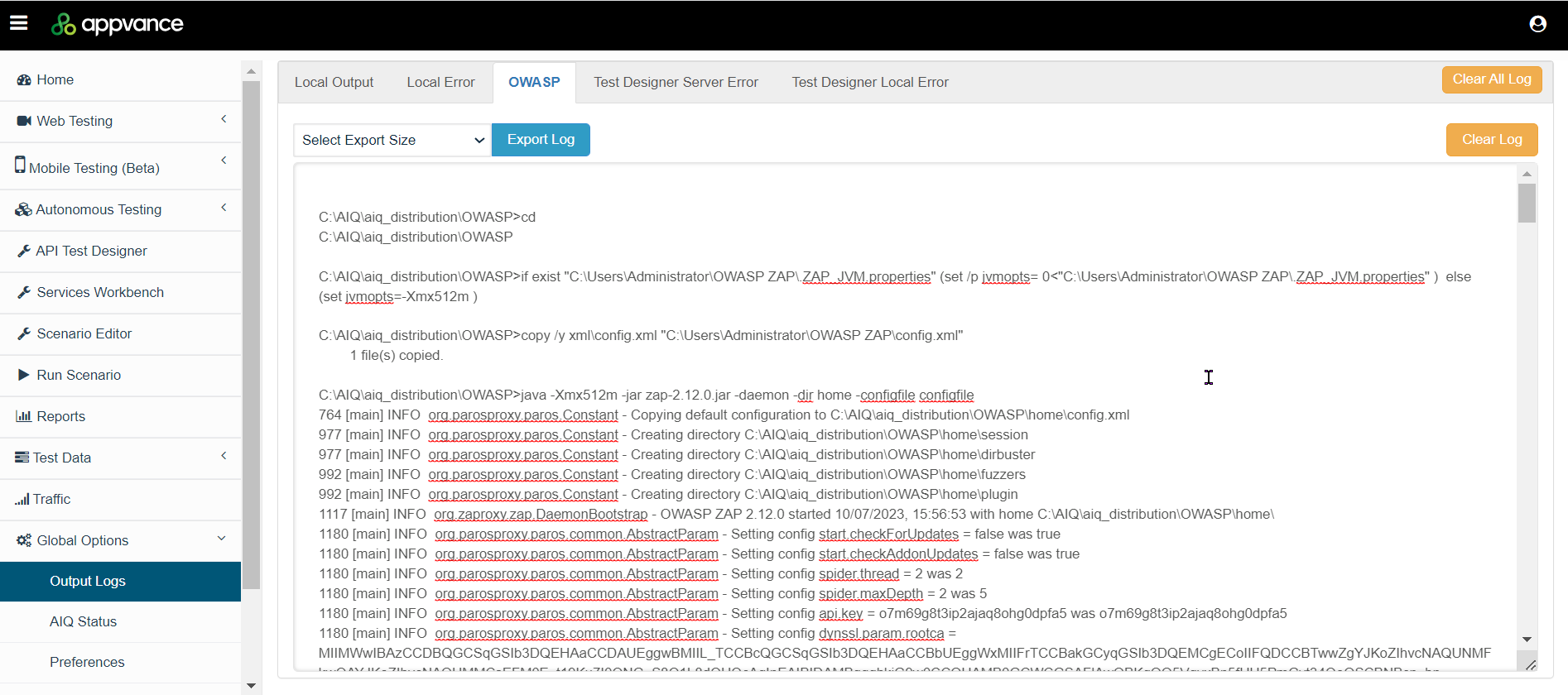
The following logs are available on separate tabs:
Local Output
Local Error
OWASP
Test Designer Server Error
Test Designer Local Error
RecommendedWorking guidancewith Log Files
UseHere are the basic options available to you from this page.
Searching Log Files
If you click the output tab of any log file, you can search for text within that log. For example, you can search for Jira errors in the Local Output Logslog asby searching for the firsttext evidence“[JIRA]” sourcein whenthe log files.
Exporting Log Files
You can export a log file. You can export data in increments of 2Mb up to 10Mb in the Select Export Size dropdown.

Clearing Log Files
You have the option to clear a specific log file or clear all the log files.

Submitting Logs to Appvance Support
You may be asked to submit log files to the Appvance Technical Support team to help diagnose an AIQissue. execution
To behaveshelp differentlywith thansubmitting expected,relevant log files you may be asked to follow a process similar to this:
Depending on the issue, one or stopsmore beforelog completion.files Logs shouldmay be reviewedrequested. togetherPlease select the one required, and click on Clear Logs.
Perform a test trying to replicate the issue.
Navigate back to the Output Logs page.
Select the relevant log file.
Click Export Log and save it in your desired location.
Check with the scenario,Appvance dataTechnical source,Support browserteam orbefore device,clearing Testlog Node,files and time window.
Whatrelated to lookany for
issues. ExecutionVisitstarttheandAppvancestopServicetimestamps.Desk to submit a request.ScenarioEditorThestep failures, assertion failures, and wait timeouts.- Service
SuiteDeskrequest,Managementresponse,Guideauthentication,containsandinformationparsingonerrors. Browser,whatdriver,tomobile,expectorwhenTestsubmittingNodeaerrors.Repository,supportfile, certificate, proxy, or environment access failures.request.
Useful
Filter the log to the failing execution or the narrowest time window available.Identify the first meaningful error, not only the final error shown at the end.Match the failing step to the scenario, data row, service call, or browser action.Check whether the failure is reproducible with the same data and environment.Attach relevant log excerpts when escalating; avoid sharing secrets, tokens, or full credentials.
Common mistakes
Assuming a UI failure is an AIQ platform issue before checking data and waits.Copying entire logs without removing sensitive information.Ignoring earlier warnings that explain a later failure.
Last updated: OctoberFebruary 5,23, 20262024
If you have any feedback on this topic, please contact us at documentation@appvance.ai