
Access a Windows EC2 Machine Through Windows Firewall
PleaseLast findreviewed: belowSeptember 25, 2026
Use this article whichwhen explainsa inlocal details on what stepsmachine needs to bereach followed.
a To Access an windowsWindows EC2 machineinstance whichthat has windowsWindows Firewall "ON"
enabled.
What followchanged in this article
- Corrected the
stepstitlementionedgrammarbelowand made the scope specific toaccess anWindows EC2machineconnectivity. - Added
withchecks for AWS security groups, Windows Firewall"ON"
inboundStep1:
rules,LoginRDP/WinRM ports, and source IP restrictions. - Added caution to avoid opening broad public access just to make a troubleshooting step pass.
Validation workflow
- Confirm the EC2
machinesecurity group allows the required port from the local source IP. - Confirm Windows Firewall allows the same service inside the instance.
- Test connectivity with the
usernameapproved access method andpassword.thenOncenarrowloggedanyintemporarysuccessfullyrulenavigatechanges.
Review Controlnote: Panel\System and Security and click "Windows Firewall". 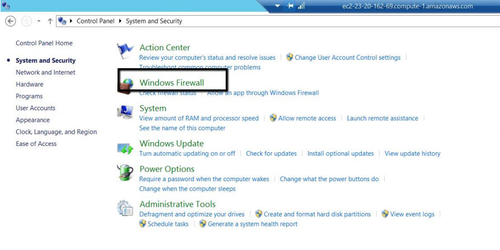
Step 2: OnceKept the userarticle hasas navigatedoperational insideguidance "Windows Firewall", on the left handside user will have an option named "Advanced Settings" click that. 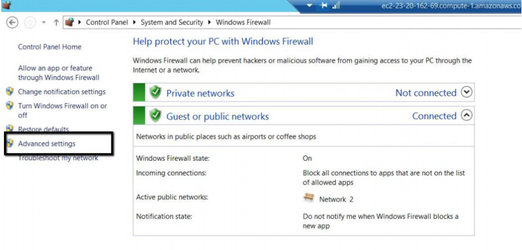
Step 3: Once the user has navigated to Advanced settings, User should click "Inbound Rule" and on the right hand side user should get an option to create a "New Rule" and clicks on it 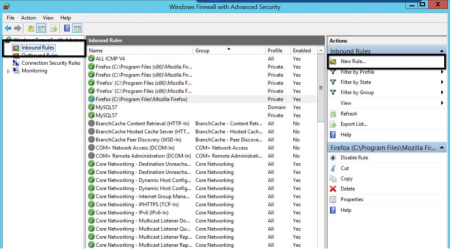
Step 4: User Clicks on "Custom rule" and clicks on Next 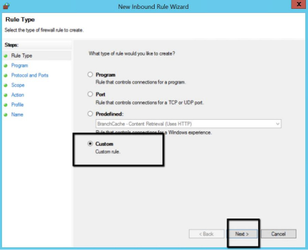
Step 5: User selects on " All Programs" and clicks on Next 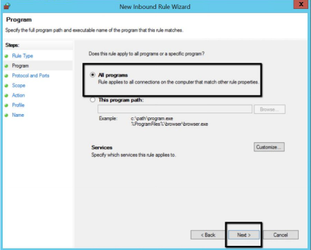
Step 6: User chooses the "Protocol Type" from the dropdown. In our case we will be opting for "TCP" since we need to access application over internet. Also User can also select ports for which this rule can be applied(For Ex: if we select 80, user can only access port 80 and so on). After making the changes the user clicks on next 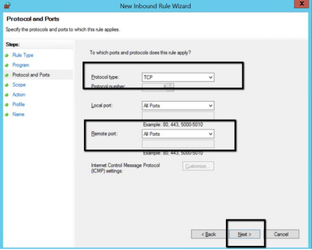
Step 7: User clicks on the "Add" under "which remote IP address needs to be added. User should also need to know what public IP address is. User obtains the Public IP address and enters it and clicks on Next. 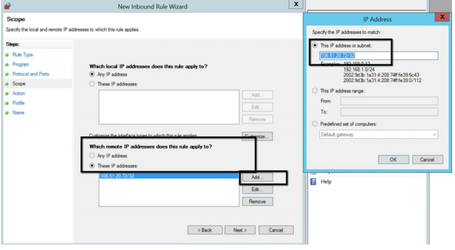
Note: After the IP address, you don't specify "/0". If you do, every computer in the world would have access to that port. To restrict access to a single address specify "/32" after the IP. (If you want to know why, read the following article: http://en.wikipedia.org/wiki/CIDR.) Step 8: User clicks on allowing the connection and clicks on next 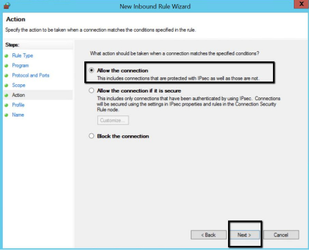
Step 9: User does not make any changes in this step and click "Next". 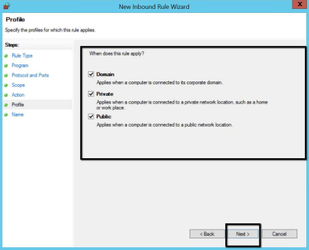
Step 10: User enters a name for this rule and clicks on Finish. 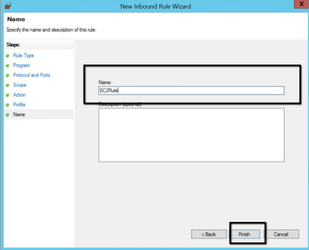
User Verifies whether the rule has beenbut added undersecurity Firewall
guardrails 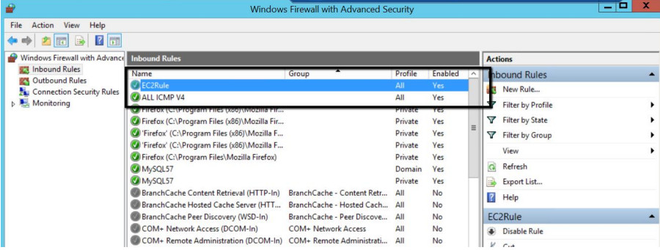
around Userfirewall tries to access the below URL :http://EC2 URL:8080/Appvance/login.html User should be able to navigate to the URL successfullychanges.
Last updated: JulySeptember 28,25, 20232026
If you have any feedback on this topic, please contact us at documentation@appvance.ai.