
Access windows EC2 machine which has windows firewall on from Local machine
UsePlease thisfind below article whenwhich aexplains localin machinedetails on what steps needs to reachbe afollowed.
WindowsTo Access an windows EC2 instancemachine thatwhich has Windowswindows Firewall enabled.
ValidationPlease workflow
follow Confirmthe steps mentioned below to access an EC2 machine with Firewall "ON"
Step1:
Login to the EC2securitymachinegroup allowswith therequiredusernameportand password. Once logged in successfully navigate to Control Panel\System and Security and click "Windows Firewall".
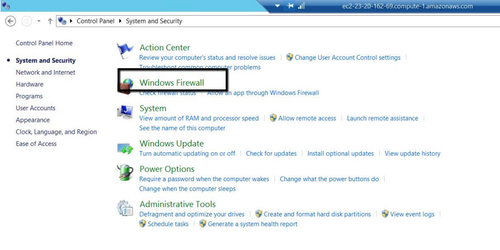
Step 2:
Once the user has navigated inside "Windows Firewall", on the left handside user will have an option named "Advanced Settings" click that.
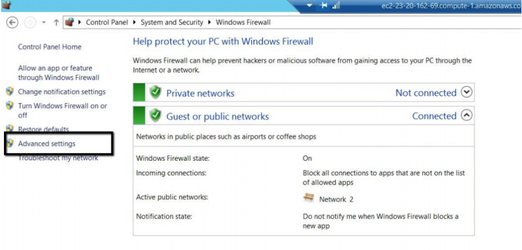
Step 3:
Once the user has navigated to Advanced settings, User should click "Inbound Rule" and on the right hand side user should get an option to create a "New Rule" and clicks on it
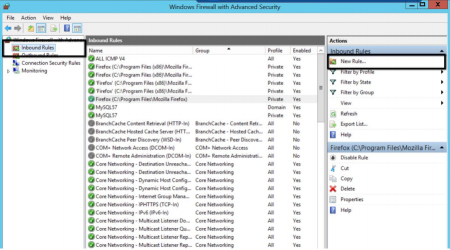
Step 4:
User Clicks on "Custom rule" and clicks on Next
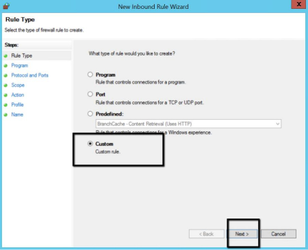
Step 5:
User selects on " All Programs" and clicks on Next
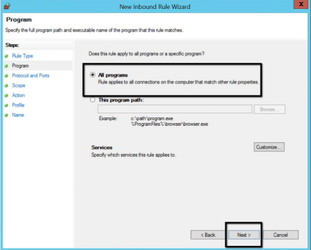
Step 6:
User chooses the "Protocol Type" from thelocaldropdown.sourceInIP.ConfirmourWindowscaseFirewallweallowswill be opting for "TCP" since we need to access application over internet. Also User can also select ports for which this rule can be applied(For Ex: if we select 80, user can only access port 80 and so on). After making thesame service insidechanges theinstance.Testuserconnectivityclickswithon next
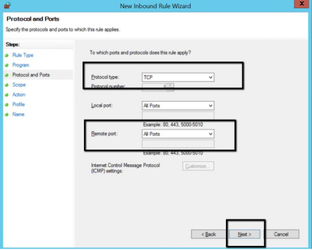
Step 7:
User clicks on theapproved"Add" under "which remote IP address needs to be added. User should also need to know what public IP address is. User obtains the Public IP address and enters it and clicks on Next.
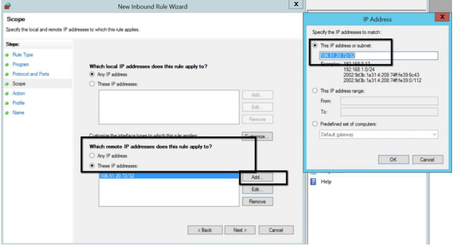
Note: After the IP address, you don't specify "/0". If you do, every computer in the world would have accessmethodto that port. To restrict access to a single address specify "/32" after the IP. (If you want to know why, read the following article: http://en.wikipedia.org/wiki/CIDR.)
Step 8:
User clicks on allowing the connection andthenclicksnarrowon next
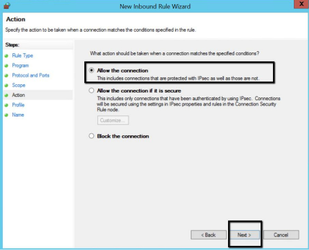
Step 9:
User does not make anytemporarychanges in this step and click "Next".
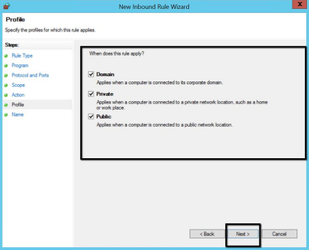
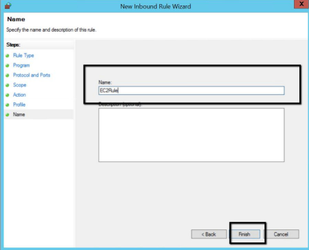
Step 10:
User enters a name for this rulechanges.
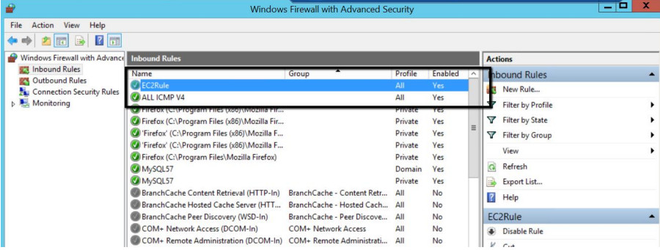
User Verifies whether the rule has been added under Firewall
User tries to access the below
URL :http://EC2 URL:8080/Appvance/login.html
User should be able to navigate to the URL successfully
Last updated: SeptemberJuly 25,28, 20262023
If you have any feedback on this topic, please contact us at documentation@appvance.ai