
CICD - FAQ
-
How to add multiple scenarios to build.xml file to run them in series?
-
How to schedule jobs in GitLab.
-
How to schedule pipelines sequentially in GitLab.
-
what is the difference between these 2 files - creds.json and consoledetails.json?
How to add multiple scenarios to build.xml file to run them in series?
There is an option to run multiple scenarios using build.xml file, and they could be run in series or in parallel.
Below is one example of executeScenario ant snippet of multiple scenarios defined and running in Sequential.
We can run the defined 2 scenarios in parallel as well just by un-commenting the parallel tags that are commented.
Note: Make sure you make changes both in executeScenario and fetchScenarioResults definitions.
<target name="executeScenario" depends="deps">
<taskdef name="executeScenario" classname="com.appvance.ci.ExecuteScenario">
<classpath refid="RestClientLibPath" />
</taskdef>
<!-- <parallel>-->
<executeScenario aiqCreds="${aiqCreds}" dir="${dir}" scenario="AMS/Scenario1.scenario" consoleDetails="${consoleDetails}" resultsFolder="${scenarioResults}" />
<executeScenario aiqCreds="${aiqCreds}" dir="${dir}" scenario="AMS/Scenario2.scenario" consoleDetails="${consoleDetails}" resultsFolder="${scenarioResults}" />
<!--</parallel>-->
<taskdef name="fetchScenarioResults" classname="com.appvance.ci.FetchScenarioResults">
<classpath refid="RestClientLibPath" />
</taskdef>
<!-- <parallel>-->
<fetchScenarioResults aiqCreds="${aiqCreds}" consoleDetails="${consoleDetails}" resultsFolder="${scenarioResults}" scenario="AMS/Scenario1.scenario" stopOnFailure="${stopOnFailure}" />
<fetchScenarioResults aiqCreds="${aiqCreds}" consoleDetails="${consoleDetails}" resultsFolder="${scenarioResults}" scenario="AMS/Scenario2.scenario" stopOnFailure="${stopOnFailure}" />
<!-- </parallel>-->
</target>
How to schedule jobs in GitLab
-
Go to your Project
-
Click CICD->Schedules
-
Click New Schedule
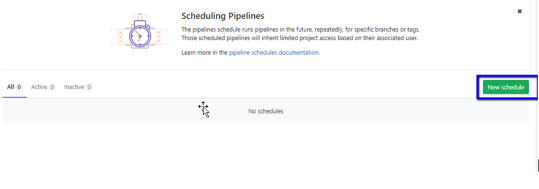
-
Provide a description
-
From the Cron Timezone select the Timezone user is familiar with
-
Enters the interval pattern i.e the schedule the user wants to run jobs on
-
Then click Save Pipeline
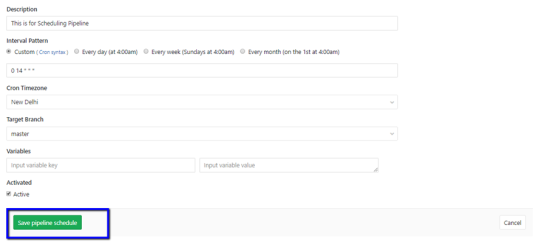
-
Once you click save pipeline, the job will be scheduled
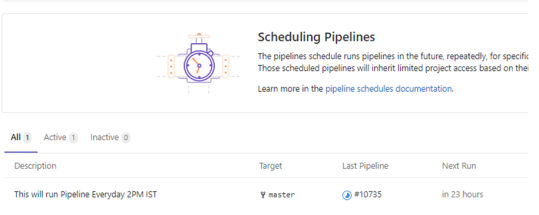
How to schedule pipelines sequentially in GitLab
This Set up is useful when the subsequent project needs to be run after the first project
-
Copy the Trigger Token of the project that needs to be executed once the main pipeline is completed by navigating to Settings - > CI/CD
Copy the Trigger token
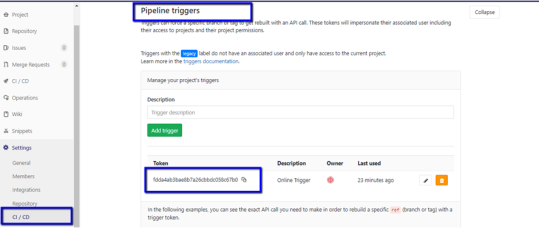
-
In the Trigger page itself, the command to be added to the .yml will be given below
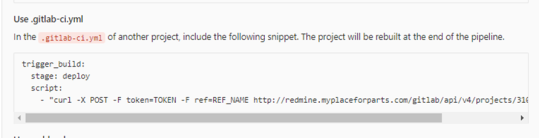
Please replace TOKEN with Triggern token value
Ref_Name – refers to the branch which will be executed
-
Add the cURL in the .yml file and click run Pipeline
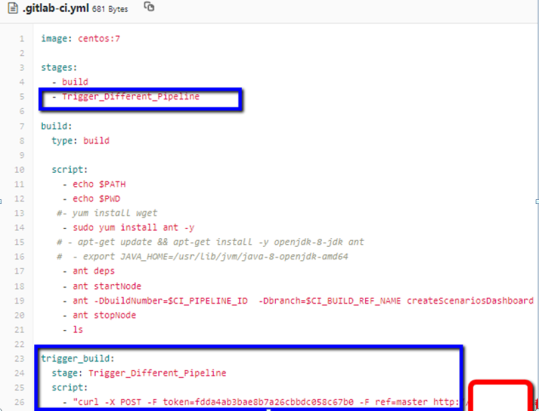
What is the difference between these 2 files - creds.json and consoledetails.json?
consoledetails.json is written after running from instanceId (startNode)
creds.json has all the credentials to use existing ec2 consoledetails.json
{
"instanceId":"i-00d97858290605e2e",
"url":"http://ec2-xxx-xx-x.us-west-2.compute.amazonaws.com:8080/TMServer/ws/TestNode"}
creds.json
{
"controller": {
"url":"http://localhost:8080",
"ec2Creds": "ec2.creds",
"timeOut": 60,
"username":"appvance",
"password":"appvance",
"workFolder":"C:/Builds/Resources"
}
}
Last updated: June 28, 2023
If you have any feedback on this topic, please contact us at documentation@appvance.ai