
How to Create an Access Key to your IAM User
Create
To create, modify, or delete your own IAM user access keys (console)
Use your AWS account ID or account alias, your IAM user name, and your password to sign in to the IAM console.
For your convenience, the AWS sign-in page uses a browser cookie to remember your IAM user name and account information. If you previously signed in as a different user, choose Sign in to a different account near the bottom of the page to return to the main sign-in page. From there, you can type your AWS account ID or account alias to be redirected to the IAM user sign-in page for your account.
To get your AWS account ID, contact your administrator.
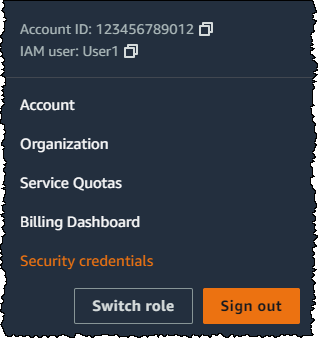
In the navigation bar on the upper right, choose your user name, and then choose Security credentials.
Do one of the following:
To create an AWSaccess IAMkey:
In the Access Keykeys forsection, AIQchoose Integrations
Create access key. If you already have two access keys, this button is deactivated and you must delete an AWS IAM access key onlybefore whenyou ancan AIQcreate integrationa requiresnew programmaticone.
On the Access key best practices & alternatives page, choose the Command Line Interface CLI option and then choose Next.
(Optional) Set a description tag value for the access andkey. This adds a role-basedtag approachkey-value pair to your IAM user. This can help you identify and rotate access keys later. The tag key is not available. Follow the customer's cloud security policy and use the minimum permissions required.
Security checklist
Prefer IAM roles, temporary credentials, or workload identity when supported.Create keys for a dedicated integration user, not a personal administrator account.Attach a least-privilege policy scopedset tothe required AWS service and resource.Storethe access keyandid.secretTheintaganvalueapprovedissecretsetmanager or secured AIQ configuration.Rotate keys on a defined schedule and remove unused keys immediately.
Validation workflow
Test the integration with the minimum required permissions.Confirm logs do not printto the access key description that you specify. When you are finished, choose Create access key.
On the Retrieve access keys page, choose either Show to reveal the value of your user's secret access key, or secret.
For more details see the Amazon AWS documentation: Managing access keys for IAM users - AWS Identity and AWSAccess account.
Last updated: October 8,31, 20262024
If you have any feedback on this topic, please contact us at documentation@appvance.ai