
Creating a HAR Script and Running it
About HAR
HAR, which stands for HTTP Archive Format, is an archive file derived through interactions within a web browser. The file contains protocol-level GET and POST request logging, as well as performance information and web page load times.
Why HAR
HAR files are quick and simple to produce. When used with Appvance IQ, HAR files provide detailed performance data and load testing capabilities.
Steps to be followed to create HAR script:
Open Google Chrome Browser.
Navigate to the web application that you wish to record.
Press F12 or right-click the page and click the Network tab.
Click the clear button, Refresh the page and click the Preserve Log check box.
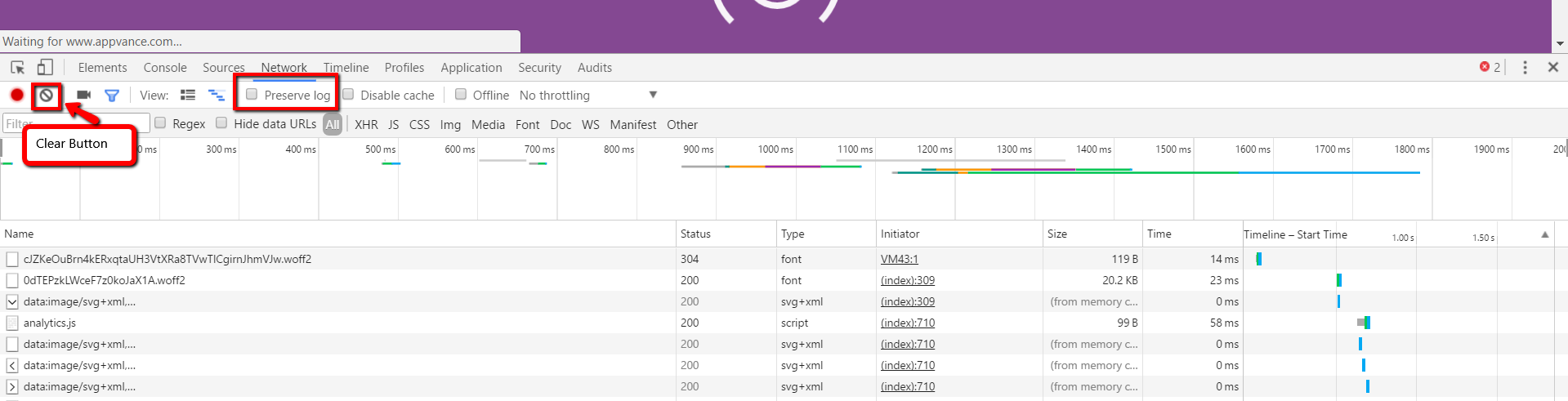
Perform the desired actions of the web application
The network tab records all the protocol level GET and POST request logging
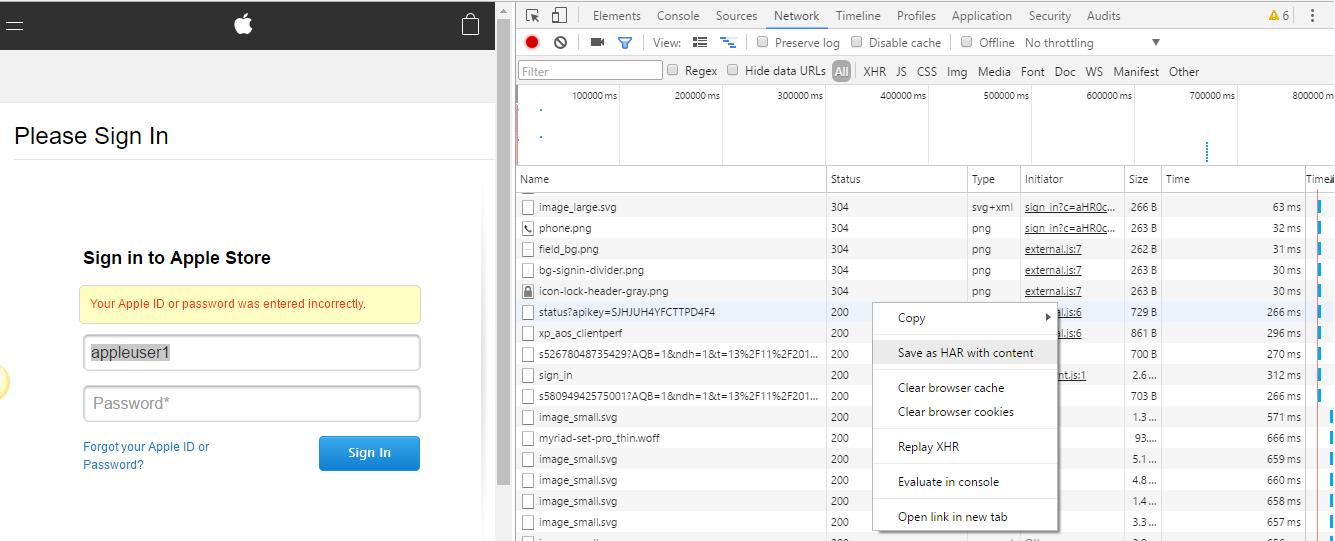
Once complete with the actions, right-click the requests and select 'Save as HAR with content'
Save the file to your machine with a .har extension
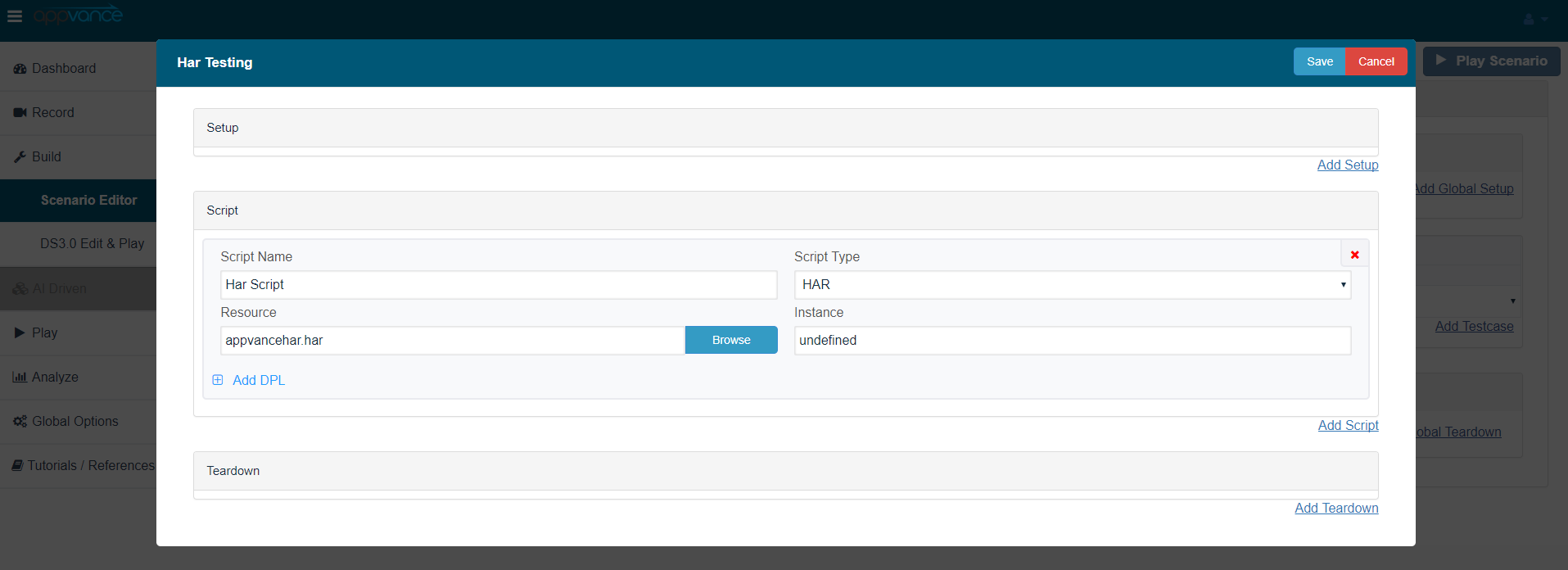
Run the HAR script in Appvance Scenario Builder:
Login to Appvance IQ.
Click in Build
Click File→New
Chose any Test Type(Ex: Functional)
Click the Test Case tab and click Add Test cases for Test Execution
Select Script type as HAR and Browse the HAR Script.
Save the scenario and Play the scenario to see the results in the controller window.
It's that simple!
Last updated: June 26, 2023
If you have any feedback on this topic, please contact us at documentation@appvance.ai