
Legacy Selenium IDE Import Reference
Last reviewed: September 28, 2026
DownloadUse seleniumthis IDEarticle Firefoxonly plug-inwhen anda installteam fromstill needs to understand older Selenium IDE Downloadassets in relation to AIQ.
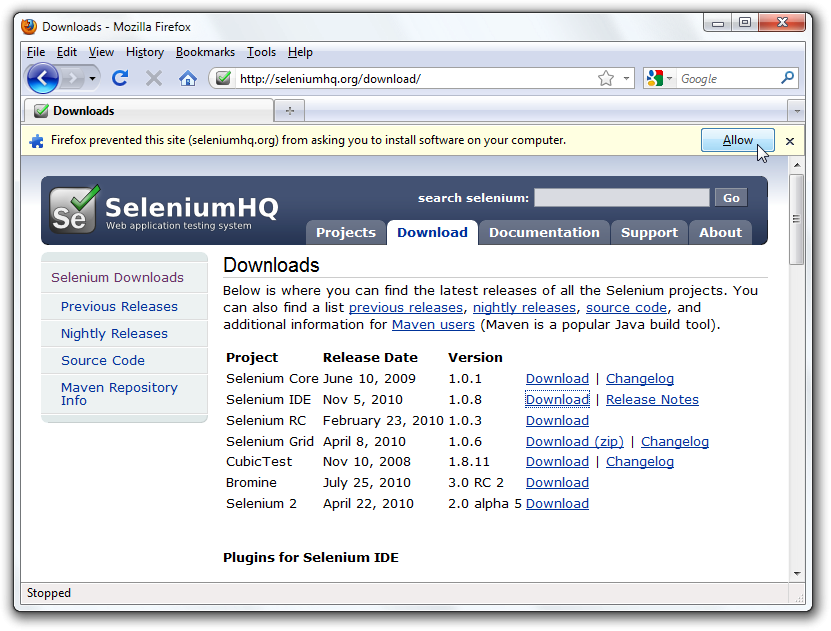
What
Restartchanged Firefox.in Afterthis Firefoxarticle
reboots
- Marked
youSeleniumwillIDEfindguidance as legacy because current AIQ work should prefer Scenario Editor, supported Selenium/TestNG flows, or maintained automation code. - Removed the
Selenium-implication that Selenium IDElistedisundera primary authoring workflow. - Added checks for export format, browser compatibility, locator quality, and whether the
FirefoxscriptToolsshouldmenu.be
Open the IDE To run the Selenium-IDE, simply select it from the Firefox Tools menu. It opens as follows with an empty script-editing window and a menu for loading, or creating new test cases
Click the record button to record the user’s browser actions.
– Enter the address of the application under test (“http://www.appvance.com/” ) inside the Base URL textbox.
– By default, the Record button isrebuilt in theScenario ONEditor state.instead.
Validation to tune it ON if it is in an OFF state so
– Open the application under test (https:// http://google.com ) in Firefox.
– At the end, we would end the recording session by tuning the record button into the OFF state.
Save a test script.
Note:
- Confirm
Exportwhether the Selenium IDEscriptartifact is still needed or can be rebuilt in Scenario Editor.- Validate exported commands and locators before importing or translating them.
- Run a small playback and review failures caused by outdated Selenium IDE commands.
Review note: This page now positions Selenium IDE as javamigration/reference /content, JUnitnot / Webdriver and save it as a .java file. Create a jar file of a web driver script using Eclipse. Users can make use of this jar file in Appvance IQ to run java tests as functional or performance tests.
Create a Data-driven script in selenium IDE and save it as a selenium script. Users can make use of this script in IQ to do Data-driven testing.
Replace actual values with data-enabled values in the selenium script.
Using the above-saved selenium script creates a scenario in IQ.
Add DPL to data enable script in IQ by clicking on Add Data source link under the Resources panel
Now go to the test case and add this DPL to it.
Save and play scenario.
Refer to this video for more information: Selenium Webinar
Create a Selenium RC scenario using the above script in Appvance Scenario Builder.
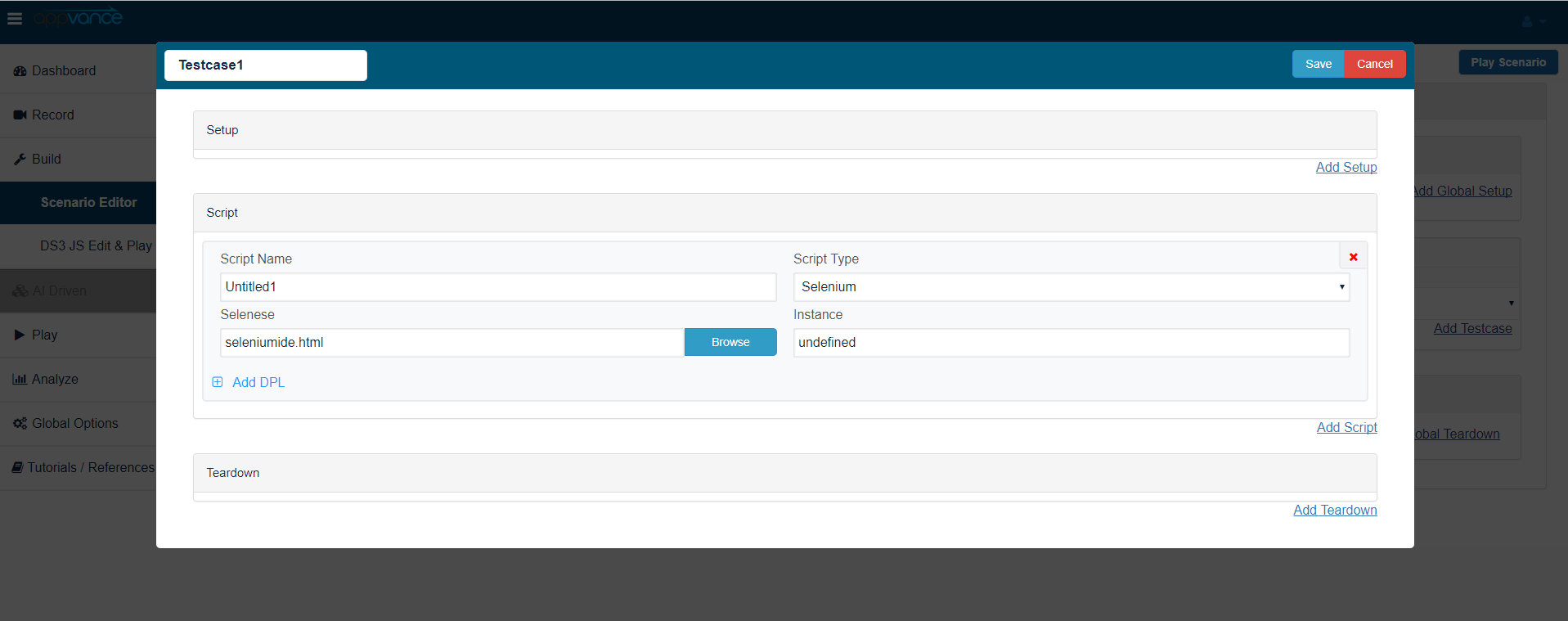
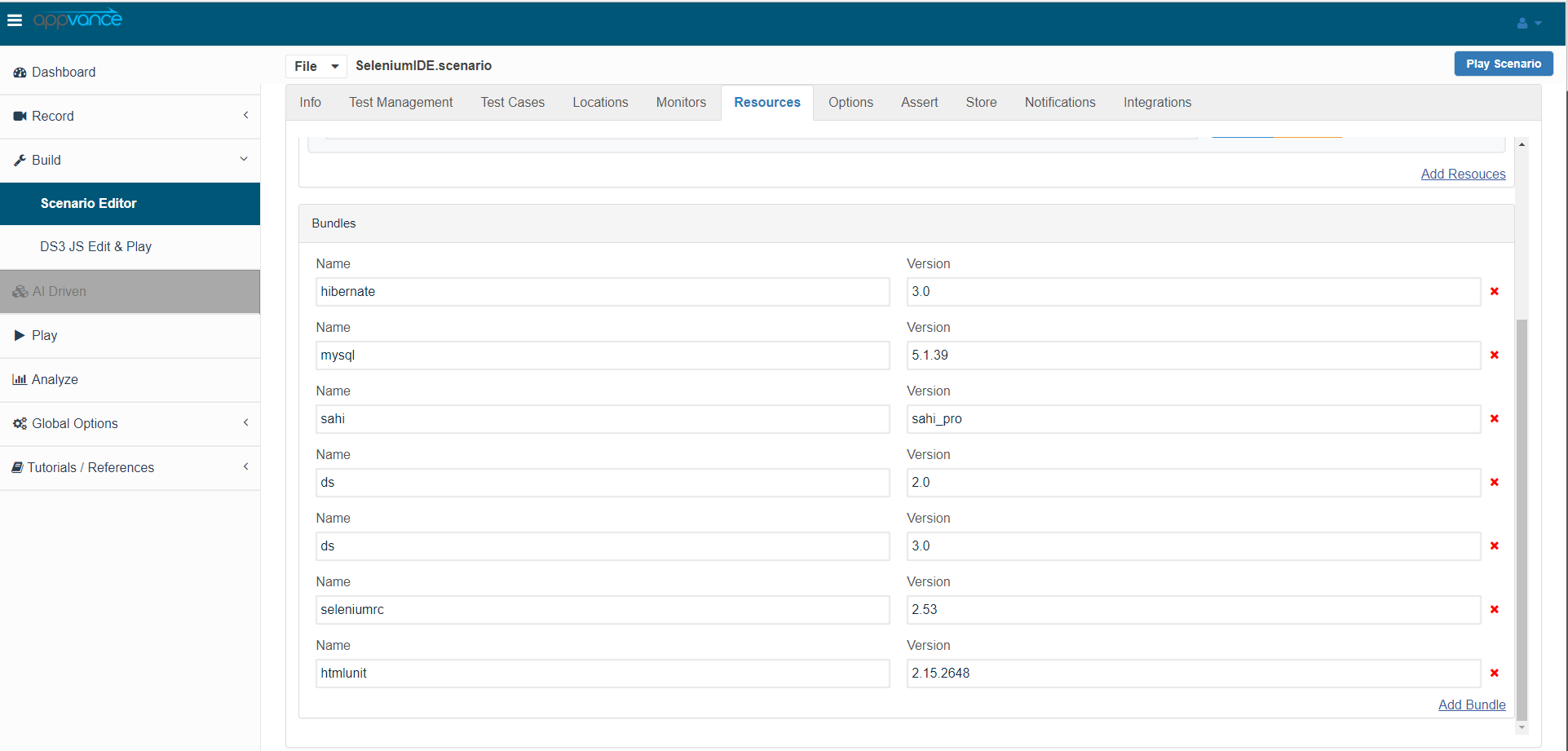
Ensure there is Seleniumrc 2.53 bundle added under the resources panel
While running a functional test give 100 percent logs to see them out in a controller window and 5-10 percent logs while running a performance test
Play the above-created scenario
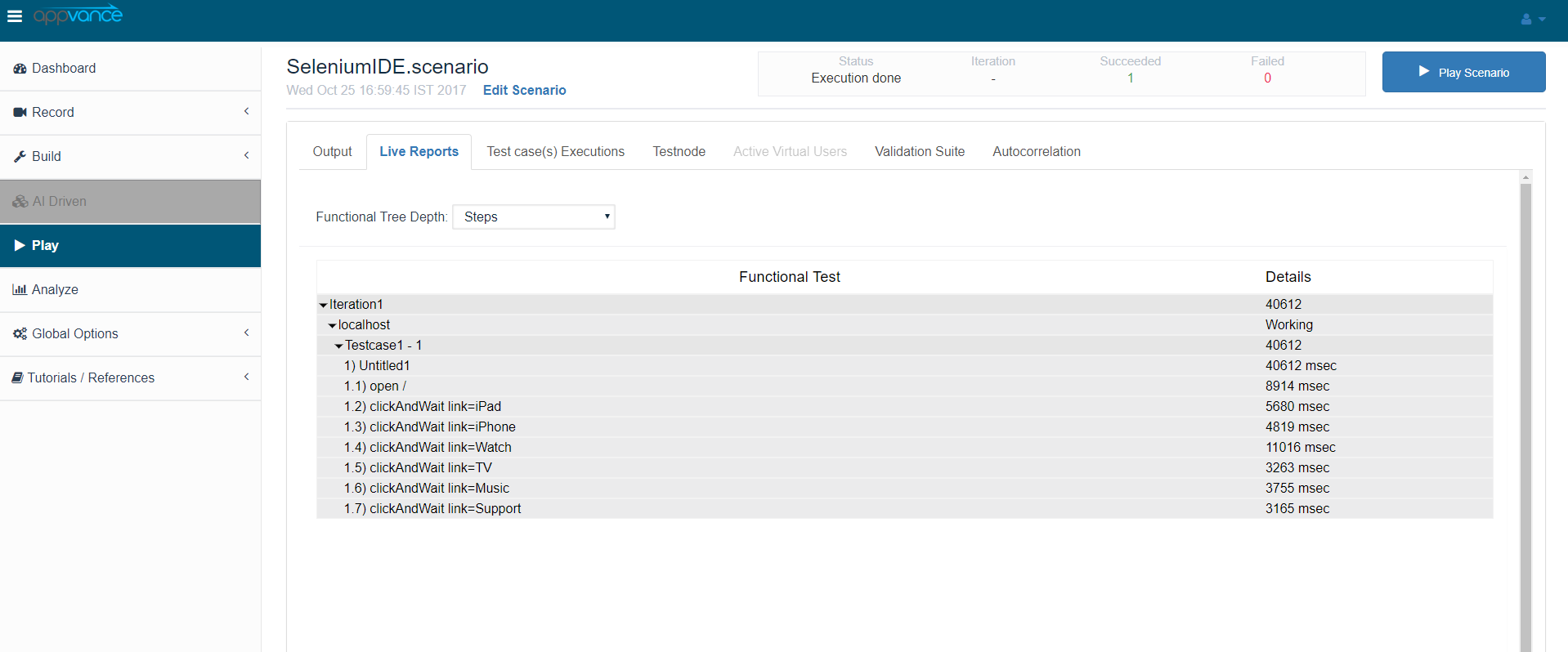
Click the “Click here” link in the controller window, the report is opened in arecommended new tabautomation authoring.
Download the Iteration summary report
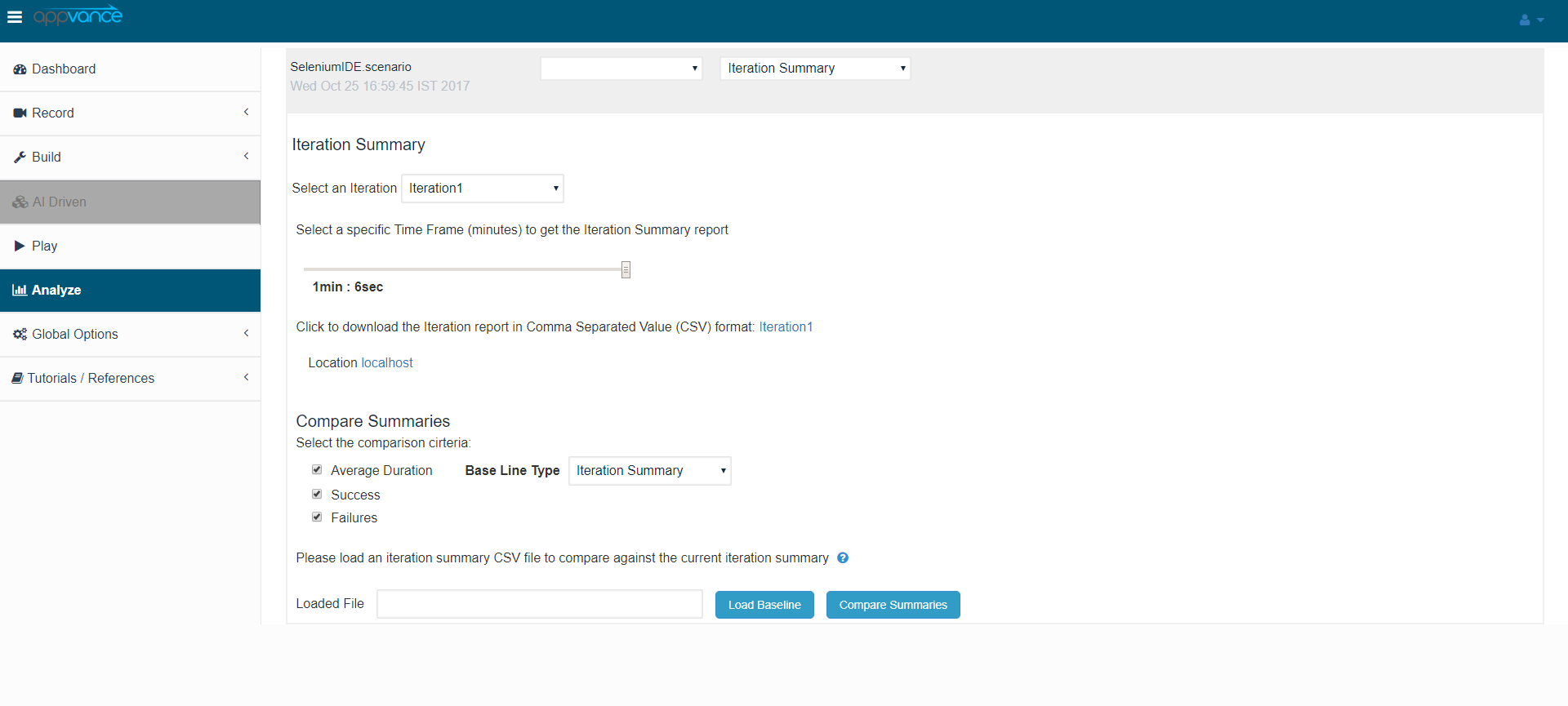
Iteration summary report
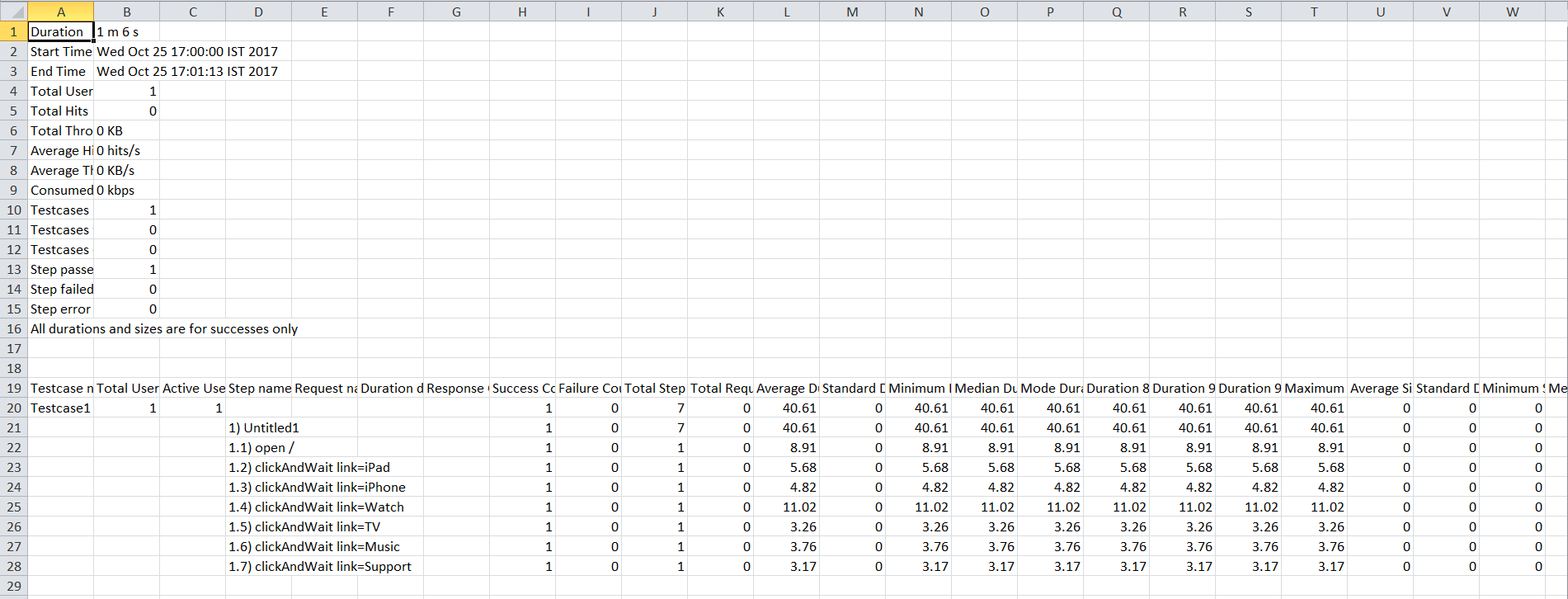
NOTE: Currently, the Throughput and throughput percentile are not enabled in selenium RC (HTML) files.
For data driving in selenium IDE: Open the selenium script in IDE, under the value column for the 'type' command, replace the actual value with "the name of the column from the CSV sheet without any $ symbol or quotes", Use the same name in the data sheet with the list of entries.
Last updated: JulySeptember 28, 20232026
If you have any feedback on this topic, please contact us at documentation@appvance.ai.