
Working with Selenium IDE
UseDownload thisselenium articleIDE onlyFirefox whenplug-in aand teaminstall stillfrom needs to understand older Selenium IDE assetsDownload
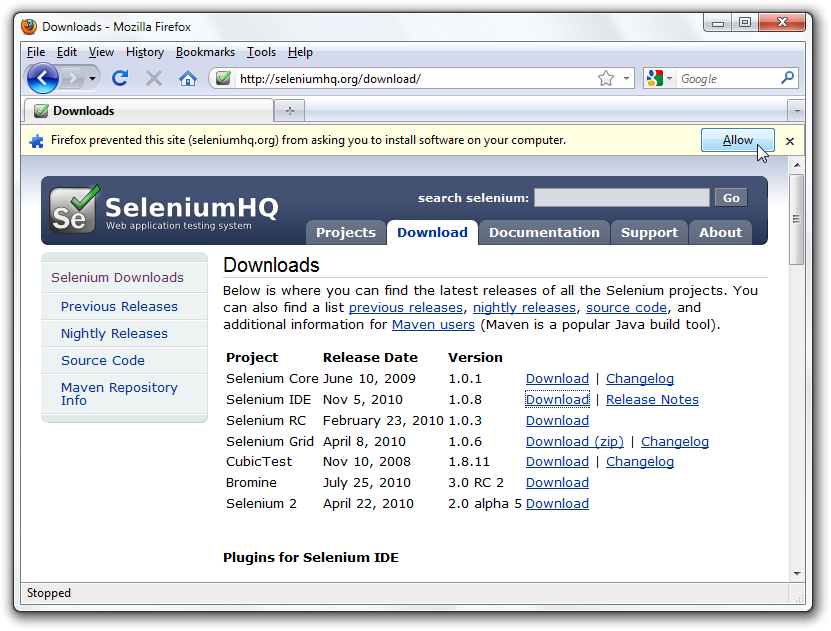
Restart Firefox. After Firefox reboots you will find the Selenium-IDE listed under the Firefox Tools menu.
Open the IDE To run the Selenium-IDE, simply select it from the Firefox Tools menu. It opens as follows with an empty script-editing window and a menu for loading, or creating new test cases
Click the record button to record the user’s browser actions.
– Enter the address of the application under test (“http://www.appvance.com/” ) inside the Base URL textbox.
– By default, the Record button is in relationthe ON state. Remember to AIQ.tune it ON if it is in an OFF state so
Validation
– workflowOpen the application under test (https:// http://google.com ) in Firefox.
– At the end, we would end the recording session by tuning the record button into the OFF state.
Save a test script.
Note:
Export the Selenium IDE artifactscript as java / JUnit / Webdriver and save it as a .java file. Create a jar file of a web driver script using Eclipse. Users can make use of this jar file in Appvance IQ to run java tests as functional or performance tests.
Create a Data-driven script in selenium IDE and save it as a selenium script. Users can make use of this script in IQ to do Data-driven testing.
Replace actual values with data-enabled values in the selenium script.
Using the above-saved selenium script creates a scenario in IQ.
Add DPL to data enable script in IQ by clicking on Add Data source link under the Resources panel
Now go to the test case and add this DPL to it.
Save and play scenario.
Refer to this video for more information: Selenium Webinar
Create a Selenium RC scenario using the above script in Appvance Scenario Builder.
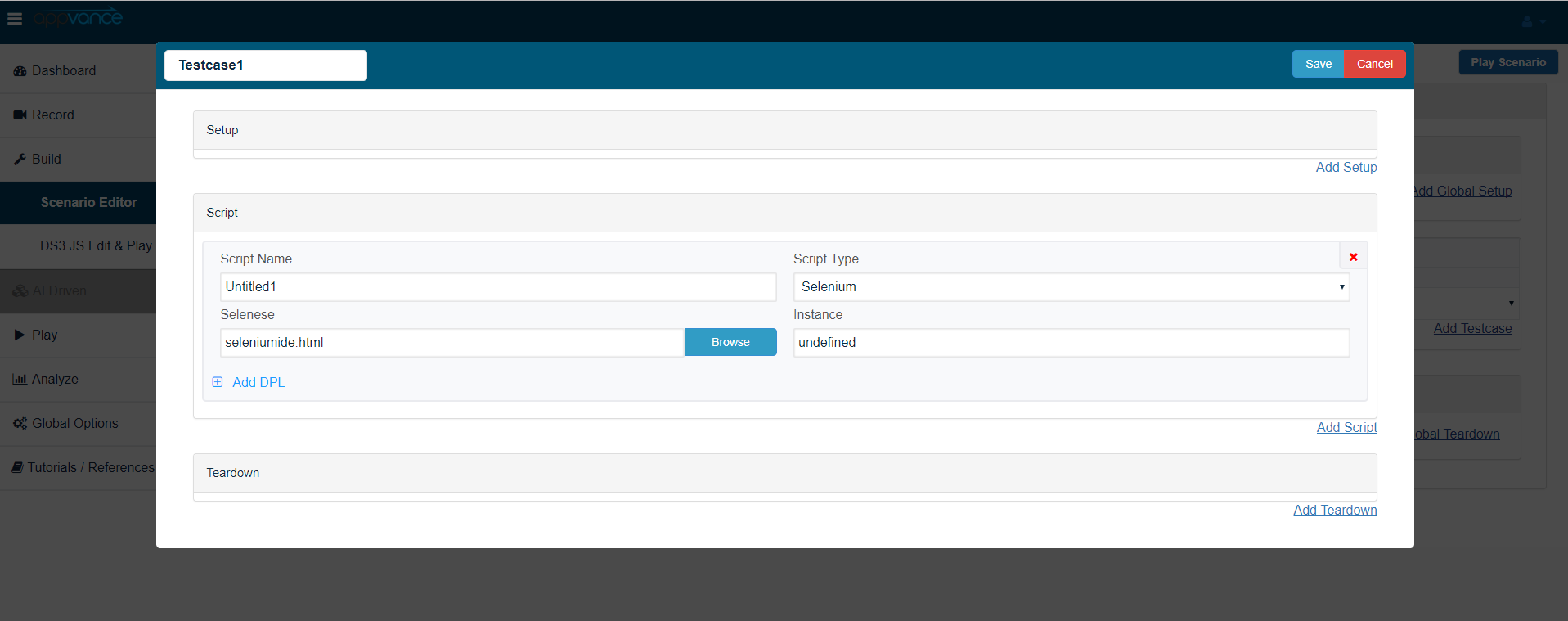
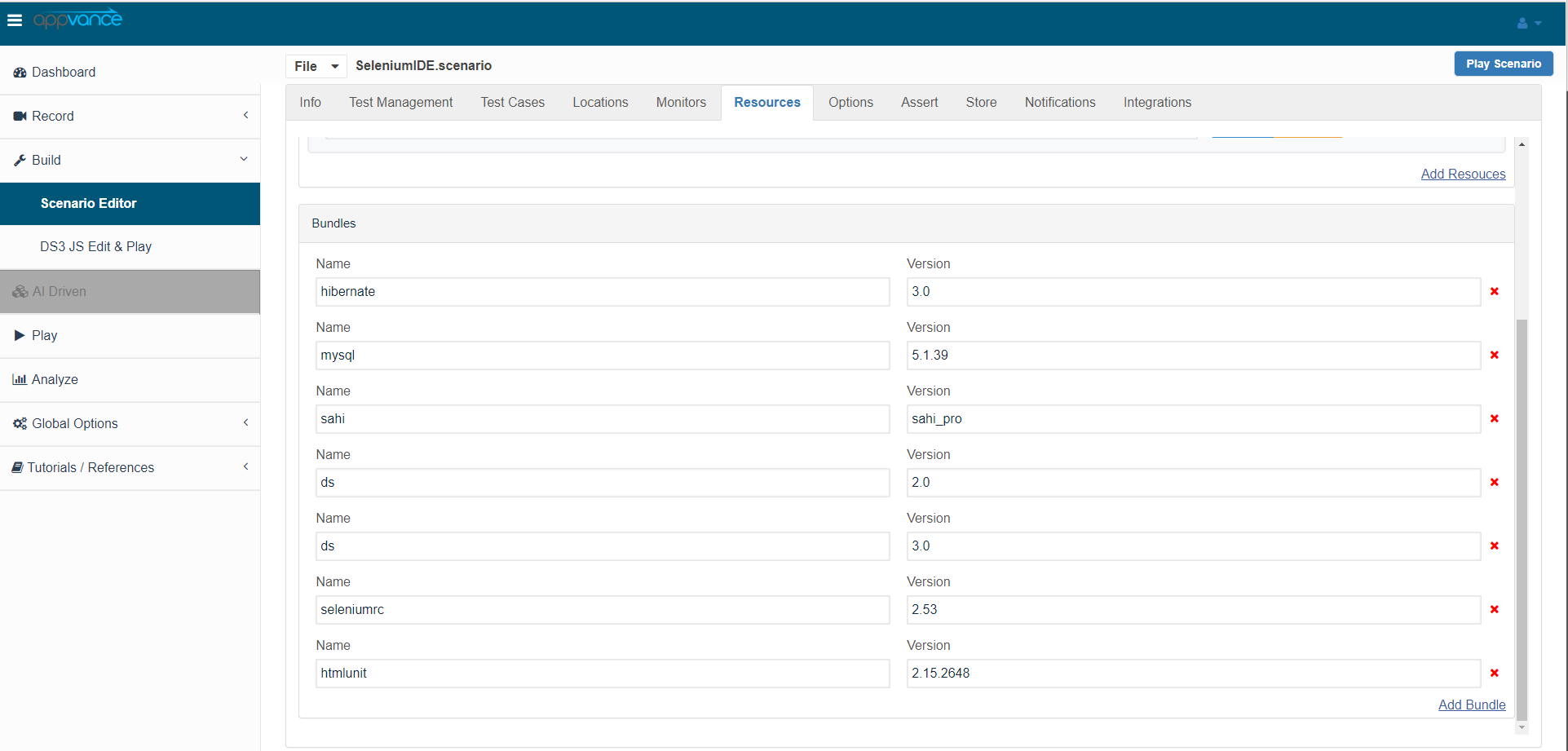
Ensure there is stillSeleniumrc needed2.53 bundle added under the resources panel
While running a functional test give 100 percent logs to see them out in a controller window and 5-10 percent logs while running a performance test
Play the above-created scenario
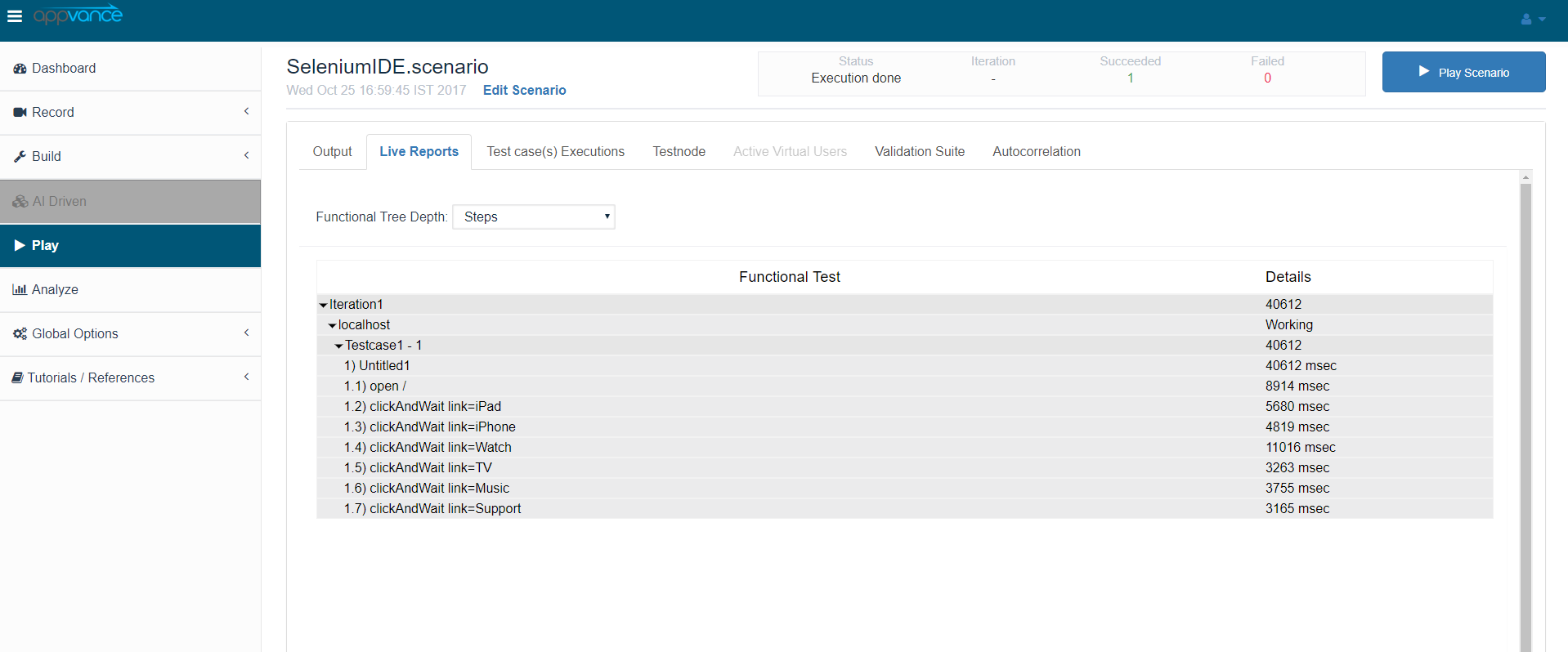
Click the “Click here” link in the controller window, the report is opened in a new tab
Download the Iteration summary report
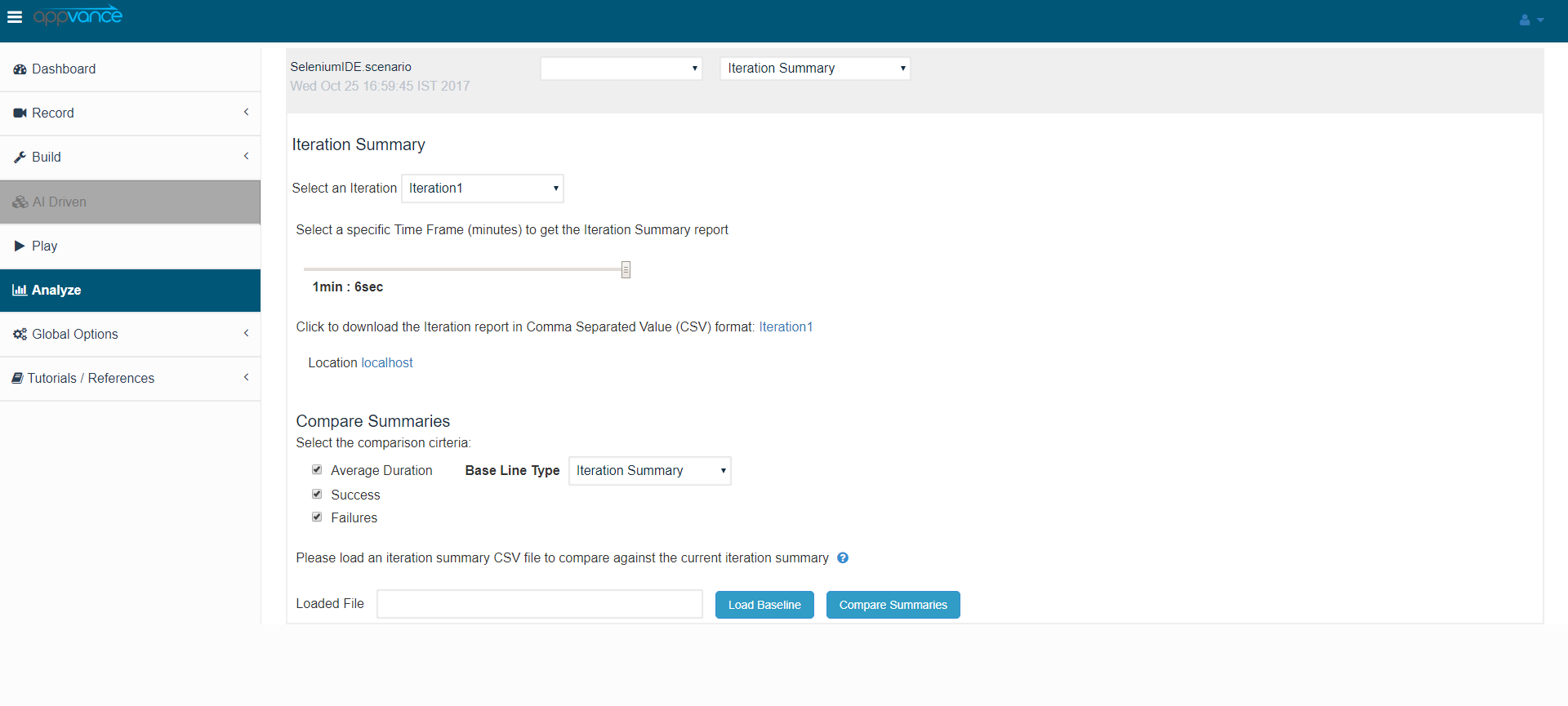
Iteration summary report
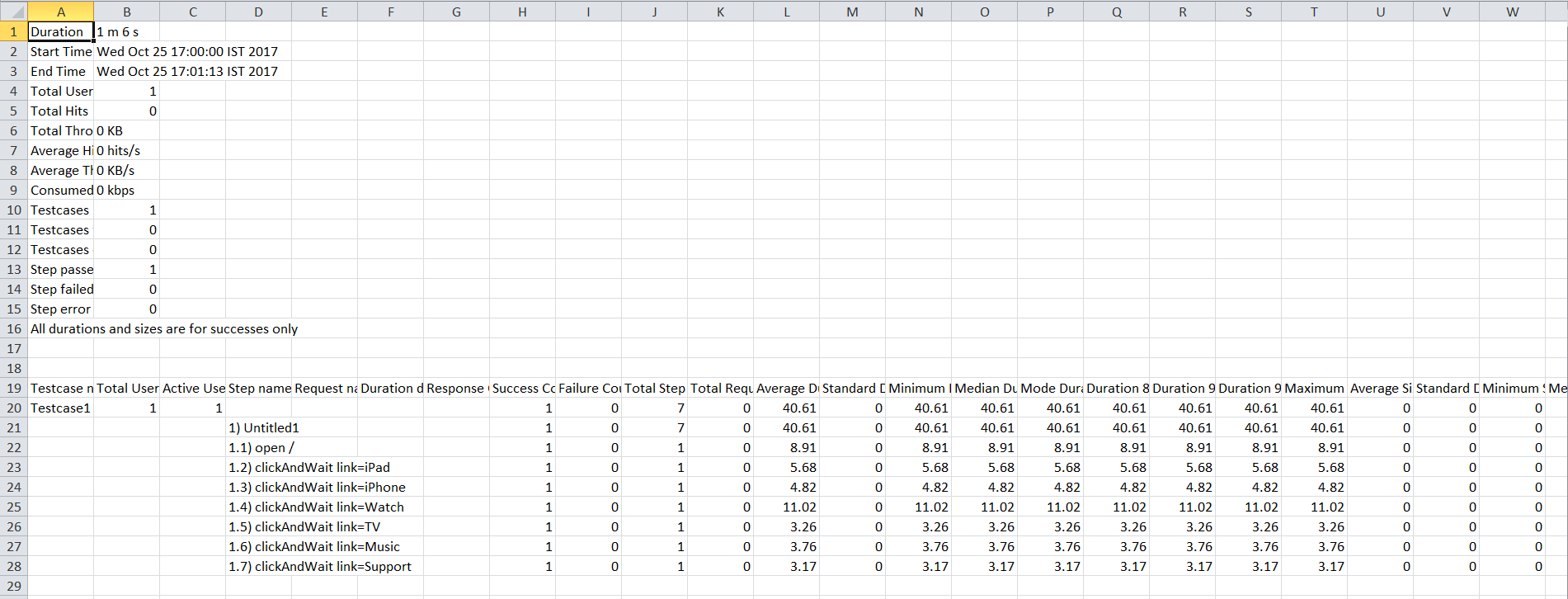
NOTE: Currently, the Throughput and throughput percentile are not enabled in selenium RC (HTML) files.
For data driving in selenium IDE: Open the selenium script in IDE, under the value column for the 'type' command, replace the actual value with "the name of the column from the CSV sheet without any $ symbol or canquotes", beUse rebuiltthe same name in Scenariothe Editor.
Last updated: SeptemberJuly 28, 20262023
If you have any feedback on this topic, please contact us at documentation@appvance.ai