
Maintain TestNG Framework Scripts in AIQ
Once
Maintain theTestNG seleniumFramework project is created, those scripts can be runScripts in the AIQ platform as a functional or as a load/performance test.
AUse simplethis script was createdarticle for theexisting demoTestNG purpose which launches the Firefox browser and it navigates to a webpage “http://www.google.com ”
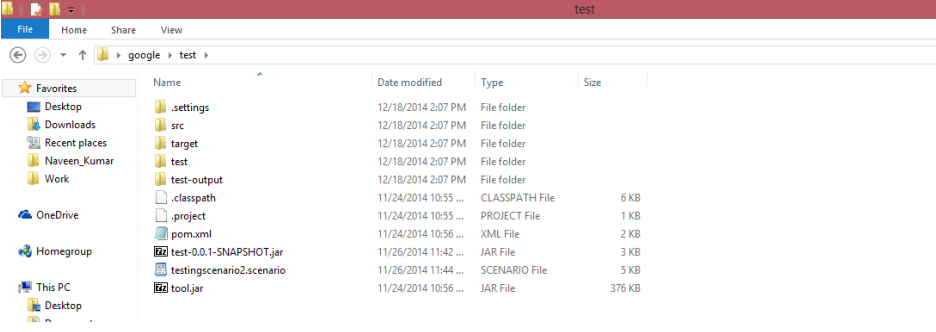
Add “tool.jar” file inside the project folder as seen in the above screenshot. This jar file is used to add the required steps in theframework scripts that in turn will be displayed in AQI's step times report (which will be discussed later)
‘Tool.jar’ file will be located at “\AIQ\TestNode\bundles\tool\1.0” Once added, Open pom.xml in your favorite editor and add the below dependency lines
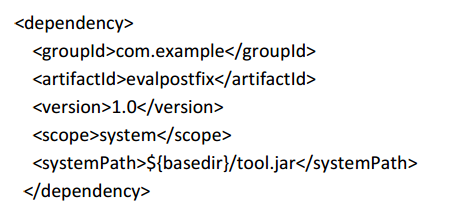
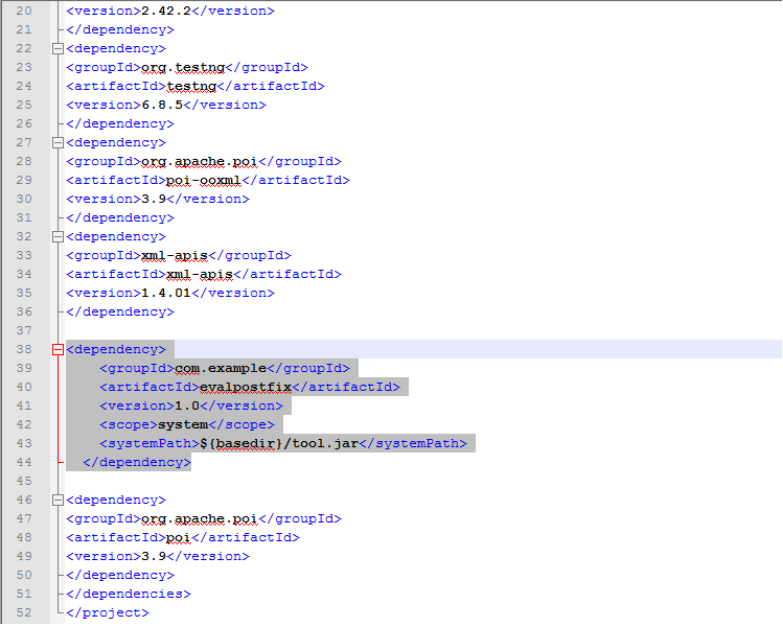
Open the project in your favorite IDE, either NetBeans or Eclipse
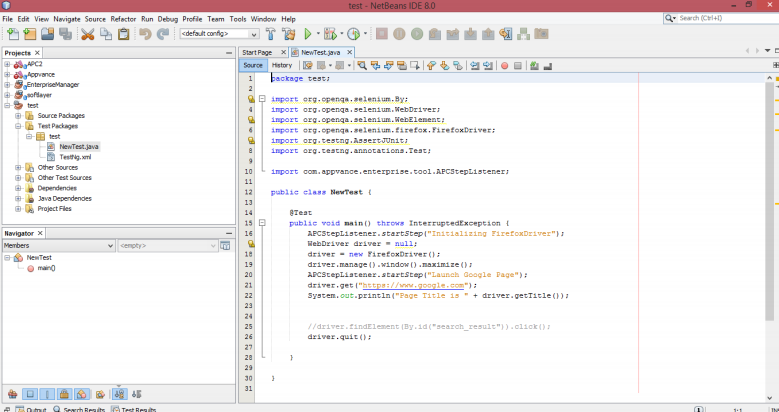
In the above-mentioned script, notice a few lines being added that reads as
UTPStepListener.startStep("Initializing FirefoxDriver");
These are the step listeners which usersstill need to addrun through AIQ integrations. Treat this as maintenance guidance for legacy or specialized assets, not as the default path for new Scenario Editor tests.
Recommended structure
- Keep test logic, test data, and environment configuration separate.
- Use build tooling to
theproducescript;repeatabletheseartifacts. - Store
stepcredentialsnamesandwillenvironmentbe displayedvalues inAIQapprovedReportssecurealongconfiguration locations. - Record the framework version and dependency versions with the
timeartifact.
Validation workflow
- Run the TestNG suite locally or in
millisecondsCIitbeforetookexecutingtofromexecuteAIQ. - Confirm
theserequiredsteps.dependenciesAlongarewithpackagedthisoruseravailableshould add this import statement aton thebeginningexecutionof the script as seen in the above screen-shot to support these step listeners.“import com.appvance.enterprise.tool.UTPStepListener;”
Once theReview AIQ stepoutput listenersfor haveclasspath, beenbrowser, added,data, weor environment failures.
Right-click the project and click Clean and Build
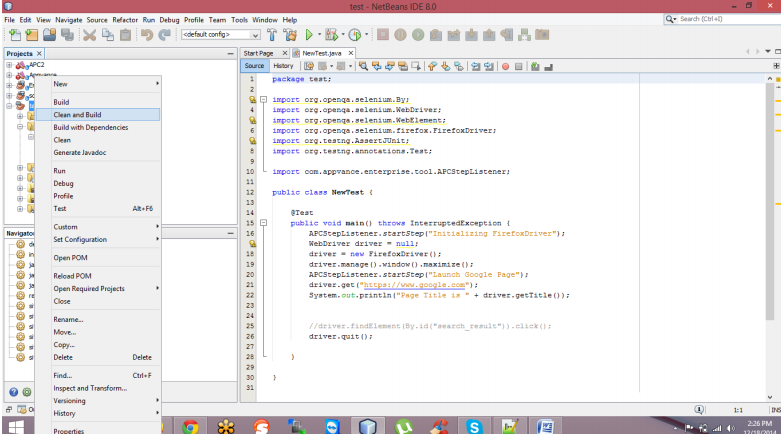
The jar file will be created in the default folder mentioned in Netbeans
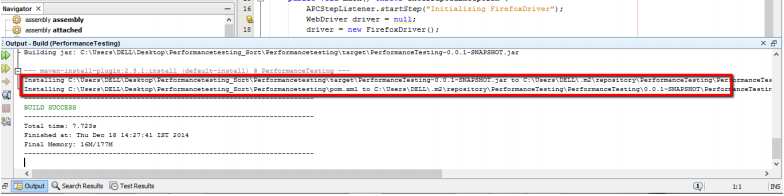
Navigate to the folder as displayed in the Netbeans output screen, and copy-paste the created jar file into the Selenium project
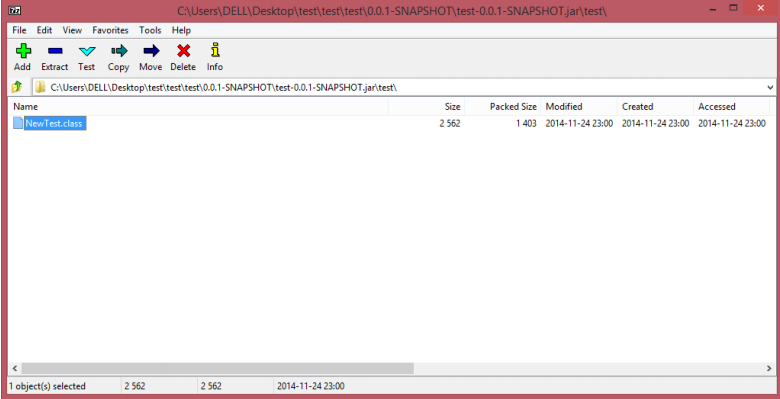
Open the created jar file in 7-zip software to make sure it contains the class files created, if not add those class files into the jar file by dragging them into the 7-zip folder
Class files will be created inside the project folder itself after compilingcover the same in Net-beans
Class files will have the same name as that of the java file name except the extension would be .class.

Make sure this class file is available in the jar file created, this is the only file that will be used in AIQ
Launch AIQ and navigate to Scenario Builder for creating the Scenario
Navigate to the Use-Case panel and select type as TestNG and select the jar file created from the project
Provide the TestNG Class, this will follow the format “Package.classname”
In our case, it would be ‘test.NewTest'
Select the required percentage of logs and the correct database from the Options Panel
Save the scenario and play
As seen in the above Screenshot, the AIQ step listeners added in the script will be displayed as separate steps with step durations.
The same information with more data can be seen in the Step times report
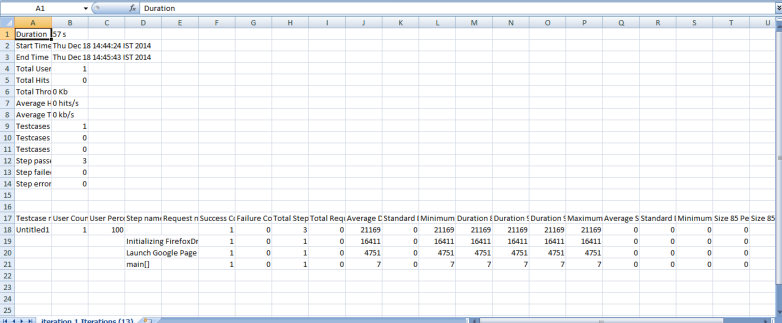
The same scenario can be converted to a Load test by using the test-type panel which is used to define the iterations and users and many others and run the load/performance tests.
Possible issues:
If the script is dependent on Oracle drivers and if the below error message is seen.
java.lang.ClassNotFoundException: oracle.jdbc.driver.OracleDriver
Either Login Failed or The Order link is not visible
Solution: Please add a couple of jar files “classes12.jar” and “ojdbc14.jar” under resources in Scenario Builder.
Path of the jar files: \UTPv2.0 \TestNode\bundles\oracle\10.2.0.5
Is Firefox not launching and getting some time-out issue? Make sure all the Firefox processes are killed from all different users and re-run the test
Please make sure to add the dependency in pom.xml and add ‘tool.jar’ to see the AIQ Step listeners in the AIQ controller
Working with Selenium scripts (Java) in Appvance PerformanceCloud.
A new java class can be created
Selenium bundle will be added in Appvance Scenario Builder upon selecting Java / TestNG test type in the test case panel
All the required jar files can be moved to a new folder called lib in the project
All the required jar files are to be added as resources in Scenario Builder
About AIQ Step listeners
Few modifications need to be done for the project before using the script in IQ to see the steps which we call Step listeners.
Add “tool.jar” file inside the project folder. This jar file is used to add the required steps in the scripts that in turn will be displayed in IQ’s step time report. ‘Tool.jar’ file will be located at “\AIQ\TestNode\bundles\tool\1.0”
Open the project in your favorite IDE, either Net-beans or Eclipse.
In the project few lines can be added where required which reads as UTPStepListener.startStep("Initializing FirefoxDriver"); These are the step listeners that users need to add in the script; these step names will be displayed in AIQ Reports along with the time in milliseconds it took to execute these steps.
Along with this user should add this import statement at the beginning of the script to support these step listeners.
“import com.appvance.enterprise.tool.UTPStepListener;” Once the AIQ step listeners have been added, we can re-compile (Clean and build from Netbeans) the project to create the jar file or use the above process mentioned for Eclipse.
Building jar in Eclipse:
Right-click the project > Click Export
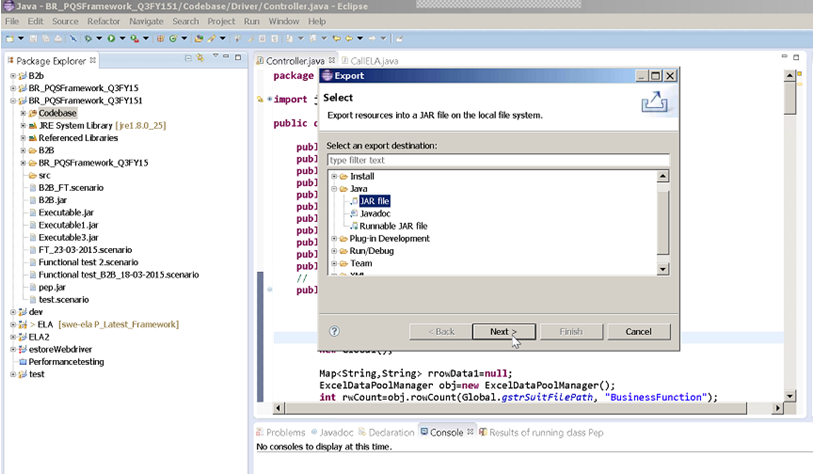
Under Java, select the JAR file as the option > Click Next Select ‘Export generated class files and resources and provide the destination path and in the Jar file and click next.
Note: Make sure all the previous jar files are deleted (if created any earlier) from the destination folder
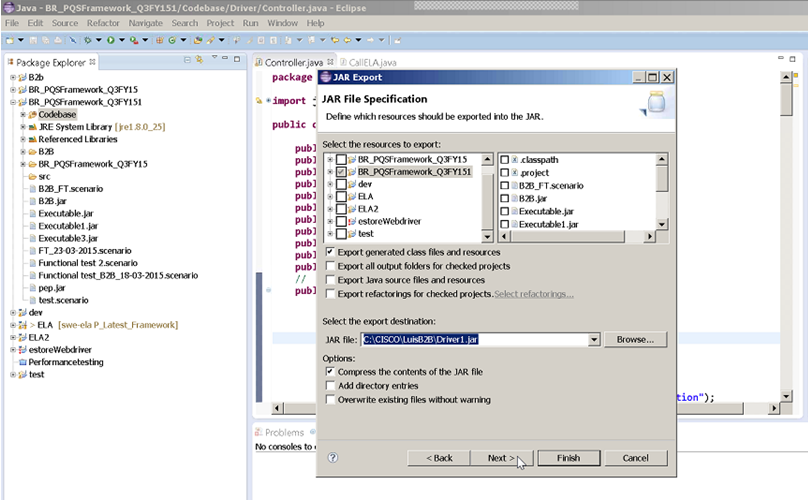
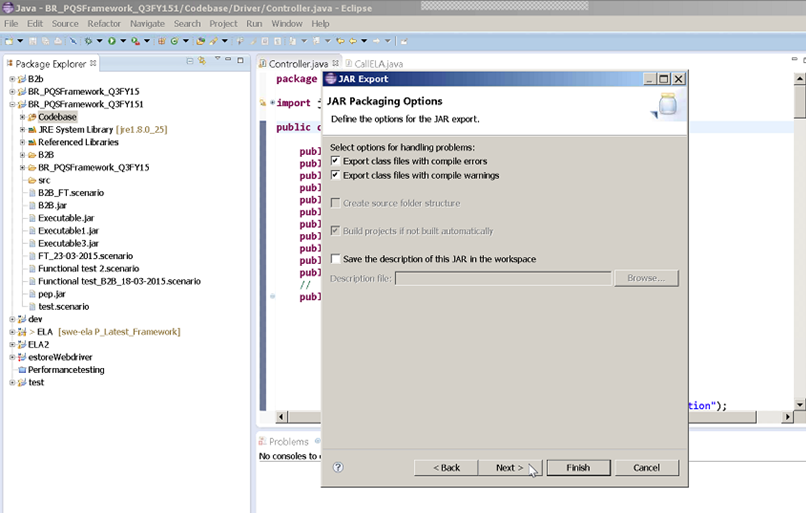
Click Next
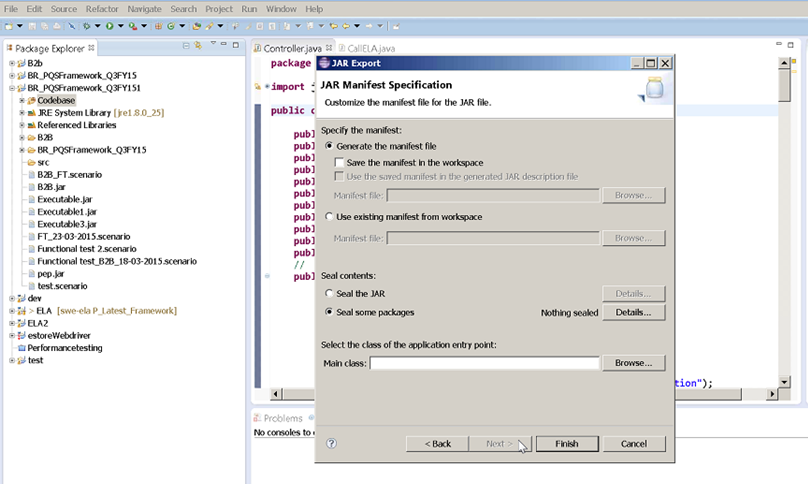
Click Finish
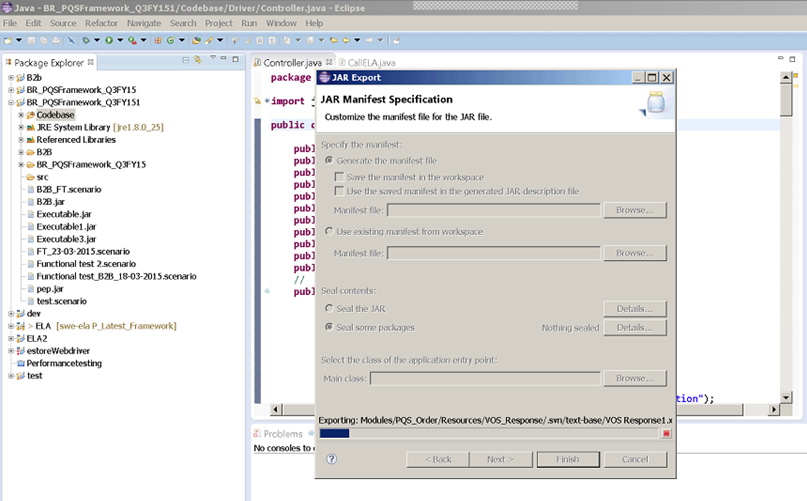
A new jar file will be created with this which will be used as a resource in Appvance Scenario Editor
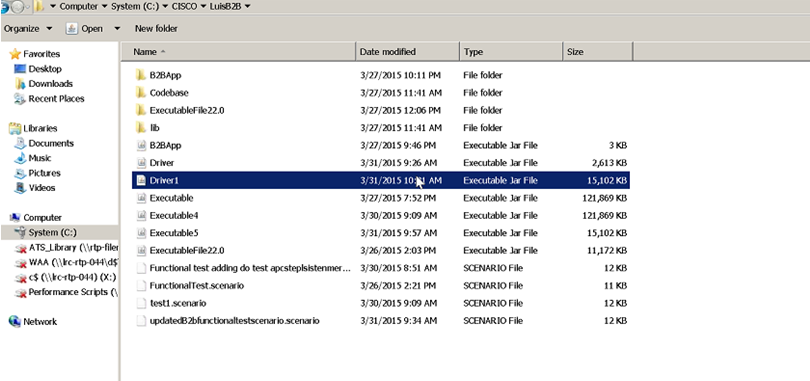
Creating Scenario in Scenario Builder:
Open Scenario Builder from the Start screen.
Navigate to the TestCase panel and select Java from the test-type drop-down.
Select the generated jar file that was created from Eclipse or Net-beans.
Provide the class and the method name. In our case, we can provide the class and method name as “appvance.test.CallB2B” and “doTest” respectively.
Navigate to the Resource panel and Click Add Bundle and add httpclient “4.3.4” as a bundle, then add seleniumrc 2.43 bundle.
Click Add resources and add all the required jar files which were moved to the lib directory earlier.
Save the Scenario and run the test as a functional test to see the results in the Test Controller, AIQ Step listeners added will be shown in the reports.
The same scenario can be converted to a Performance/load test from a test-type panel.
Last updated: JuneSeptember 26,8, 20232026
If you have any feedback on this topic, please contact us at documentation@appvance.ai