
Command-Line Integration
Operate an Appvance Test Scenario from the command line using the Appvance IQ.
Appvance IQ Test scenarios can be run from command line integration using a CIPlugin that Appvance provides. CIPlugin enabled you to start test scenarios from ant tag (CI Tools) and if needed, from the command line as well.
Click the link to download the Appvance CI Plugin jar
Prerequisites
Appvance CI Plugin - As mentioned above with the download link
Java 1.8
Scripts and Appvance Test scenario created and available
Running the Test Scenario
Download the jar plug-in
Navigate to the folder where the plug-in is downloaded or moved
Open command prompt (make sure you have enough permissions or open CMD with Admin mode)
Copy the path of the test scenario that you need to run from the command prompt
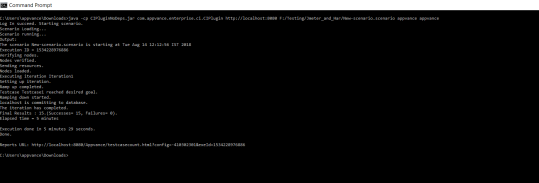
From windows: Below is the syntax to run
java -cp CIPluginNoDeps.jar com.appvance.enterprise.ci.CIPlugin http://localhost:8080 F:/Testing/Jmeter_and_Har/New-scenario.scenario appvance appvance
where the first parameters are always the same (java -cp CIPluginNoDeps.jar com.appvance.enterprise.ci.CIPlugin)
The next 4 parameters are:
Server URL - Could be localhost or where AIQ is hosted along with the port number
Path to scenario file - Scenario path
Username - username of AIQ
Password - The password that is used for the above username
From Mac: Below is the syntax to run
java -cp CIPluginNoDeps.jar com.appvance.enterprise.ci.CIPlugin http://localhost:8080 ~/repositories/appvance/HOME/sahiTestApi.scenario appvance appvance
The usage from the ant is illustrated in the link explaining how to start scenarios from Jenkins Ci Tool
Last updated: June 28, 2023
If you have any feedback on this topic, please contact us at documentation@appvance.ai