
Running Data-enabled SoapUI Test
Recommended guidance
Run data-enabled SoapUI testssupport was removed in AIQrelease only5.2.0 whenof theAIQ.
SoapUI asset remains required. For new API automation, consider whether Service Suite and DPLs can provide the same coverage with fewer legacy dependencies.
Before
Make running
Confirm SoapUI version, project file, data source, environment, endpoint, and credentials.Validate the data file or DPL values before execution.Check network, proxy, certificate, and firewall access from the AIQ host.Define expected pass/fail behavior for each data row.
Validation workflow
Runsure the SoapUI projectwithcreated has the properties defined and the request is data enabled properly as shown below in the screenshot.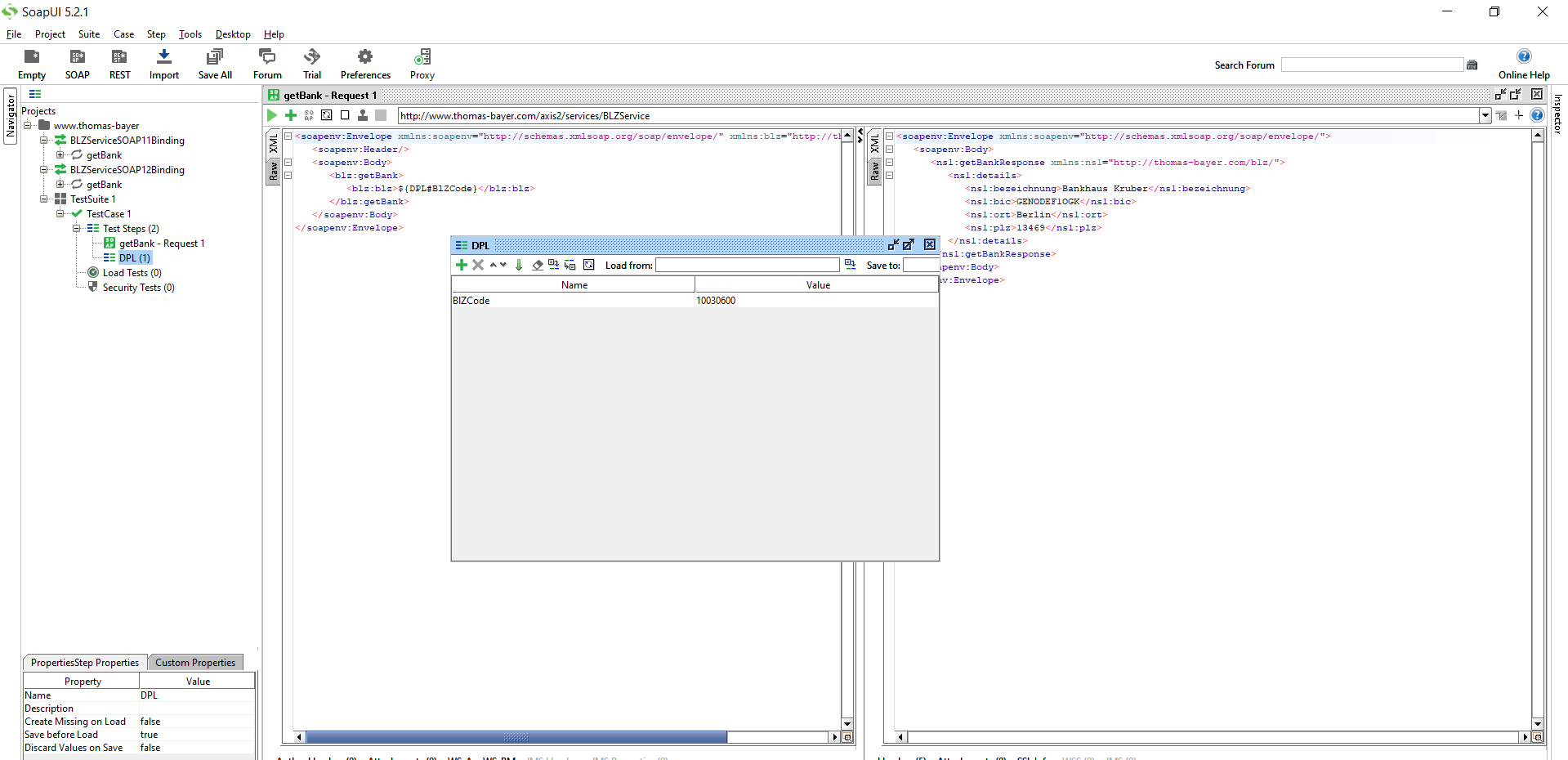
Save the project in SoapUI.
From Appvance IQ:
-
Navigate to the Appvance IQ Home screen and click Build
Click File ->New to create a smallnew samplescenario
Select Functional Test from the AIQScenario wrapperTest Type drop-down
Click the Test Management tab and check: "Repeat scenario's test cases 2 times"
Click the Test Cases tab and click the link for Add test case link
Enter the Test case name and Script name
Select "Service Suite-SoapUI" from the Script Type drop-down
Click Browse and browse the Soap UI file and then the Test Suite and then the Test Case from the drop-down. Save the test case
Click the Locations tab
10. Enter Name: localhost and URL: http://localhost:8080/TMServer/ws/TestNode (Should be added by default)
Navigate to Resources and make sure SoapUI bundle with version 5.2.1 is added by default
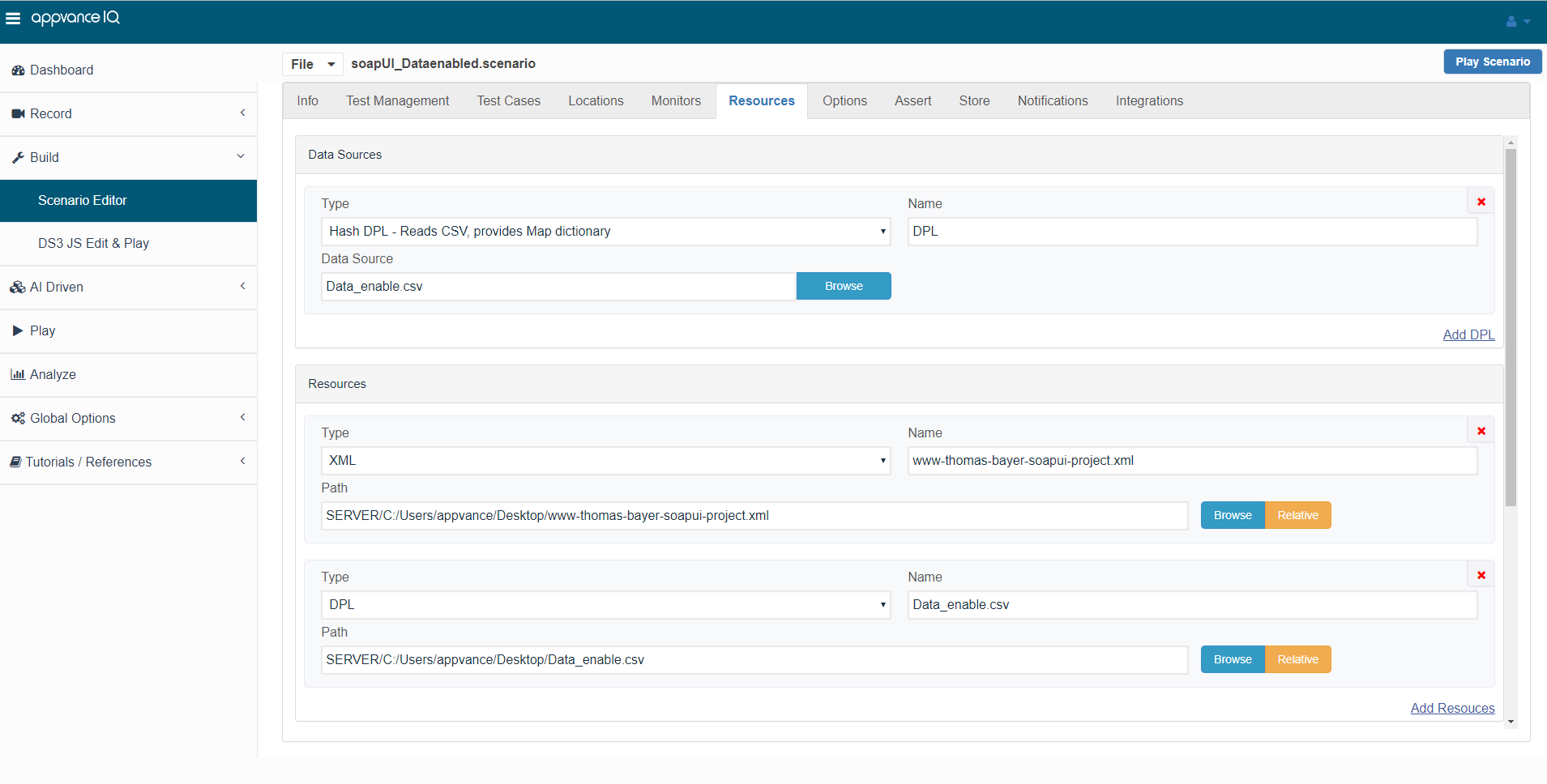
Also make sure the resources are added with Name, Type, and the correct path of the XML file
13. Go to the Resources tab, Click Add DPL, Select 'Hash DPL - Reads CSV, provides Map dictionary' from the Type drop-down, Provide Name (Important: Should be same as the property name provided in SoapUI), select the Data source (the CSV file with all the entries created)
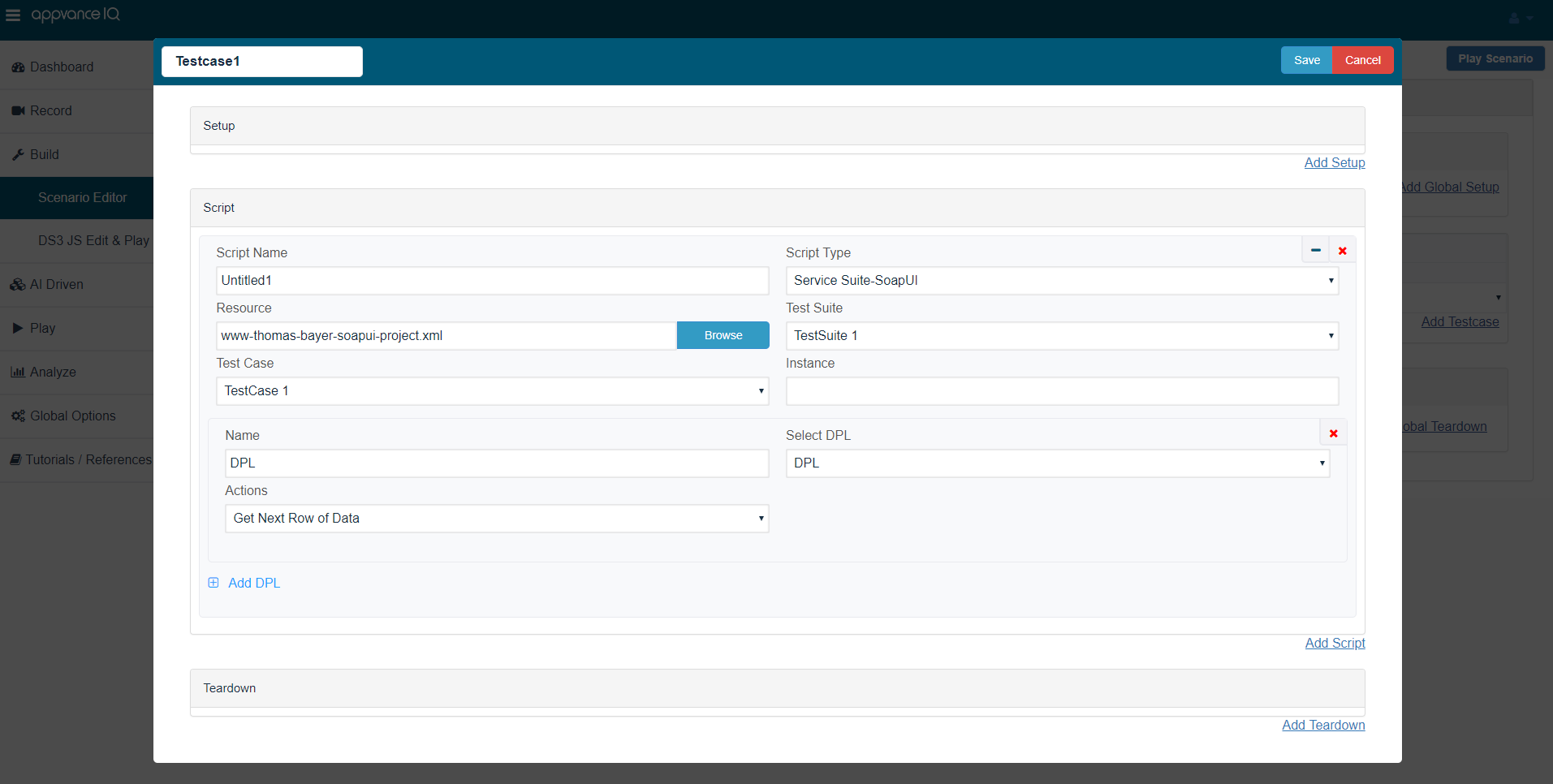
Come back to the Test cases panel, click edit and click Add DPL, under Select DPL, select the DPL that we just added, provide the name (Important: Should be the same sample.as the property name provided in SoapUI). Click Save
Navigate forto malformedOptions data,and exhaustedmake rows,sure endpointthat issues,Enable orlogging, assertionSave defects.logs on Failure are selected
Click optionscheck ifbox ServiceCustom SuiteDatabase Credentials (Database Logging) and make the following settings:
Database Type: MySQL
Driver: com.mysql.jdbc.Driver
URL: jdbc:mysql://localhost:3306/utp?useSSL=false
Default Schema: utp
Username: utp
Password: utp
Click File ->Save to save the new scenario
Click Play Scenario from the top navigation bar
The controller window will open in a new tab which displays the tests running and will display the pass / fail status of the tests upon the test completion
The left part shows the steps and the duration in milliseconds and the right side shows the test run status under the Output tab
On The transactions tab, we can replacefind the SoapUIrequest/response dependency.and an error tab to drill down further
Click the Click here link to get to the list of Reports that Appvance IQ supports
Last updated: OctoberJuly 7,25, 20262024
If you have any feedback on this topic, please contact us at documentation@appvance.ai