
Run JMeter Scripts in AIQ
Appvance IQ is a system that supports running many test types like SoapUI, Selenium, Appvance Designer Script, Java, Groovy, and more.
SoapUI support was removed in release 5.2.0 of AIQ.
In addition to the above list, AIQ also supports running JMeter scripts. Below are the steps that we need to follow to run the JMeter scripts from AIQ.
- Navigate to the AIQ Home screen and click Build
- Click File ->New to create a new scenario
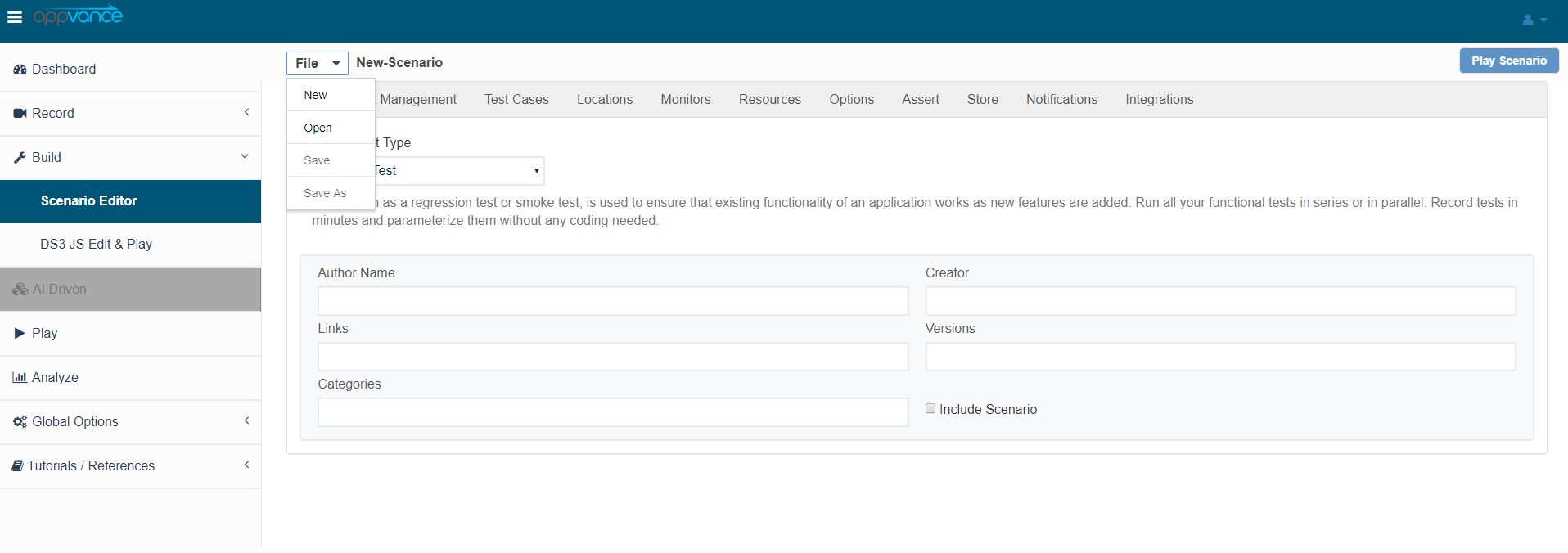
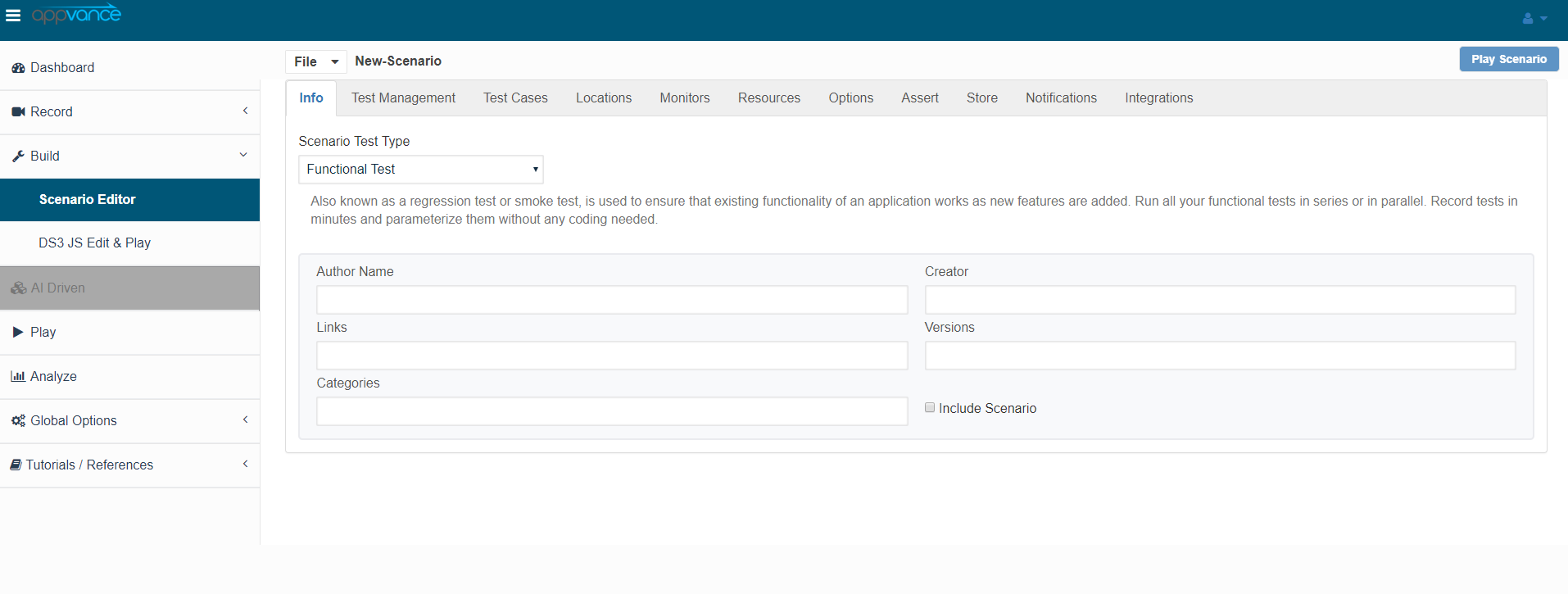
- Select Functional Test from the Scenario Test Type drop-down
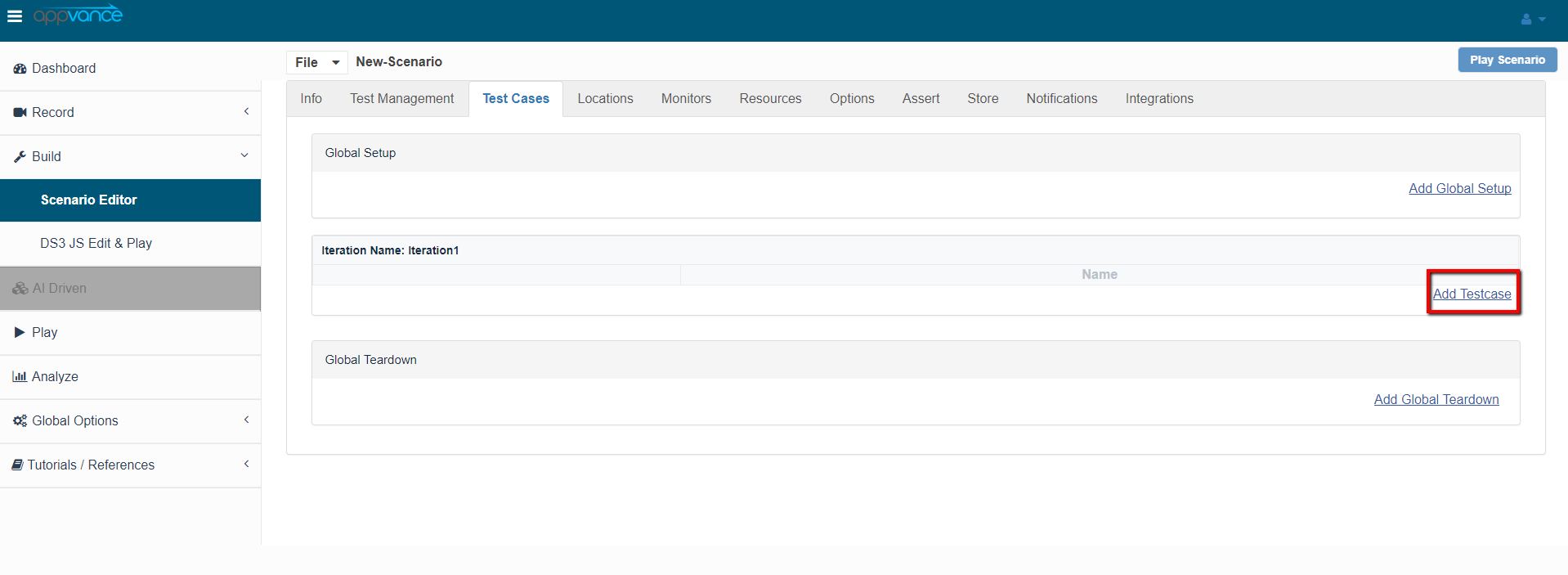
- Click the Test Cases tab and click the link for Add test case as shown below in the screenshot
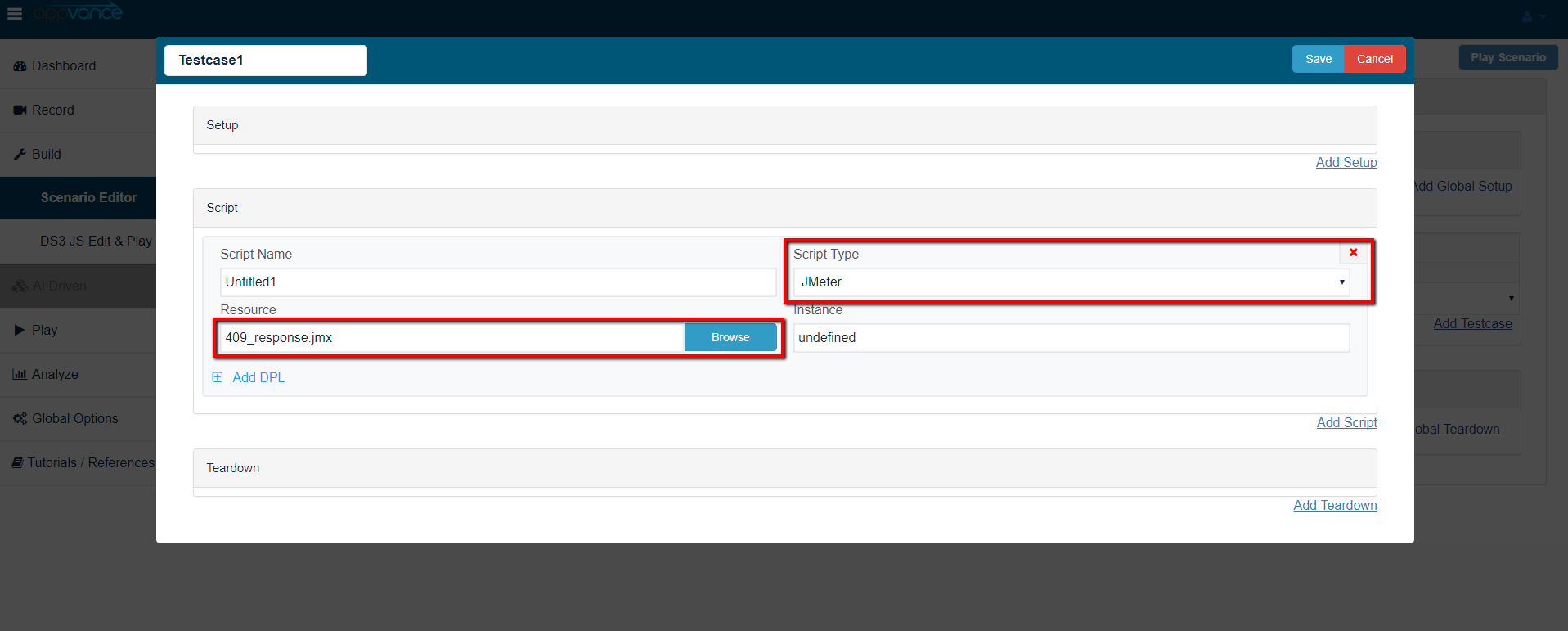
- Browse the JMeter script, the JMX file, and save the test case
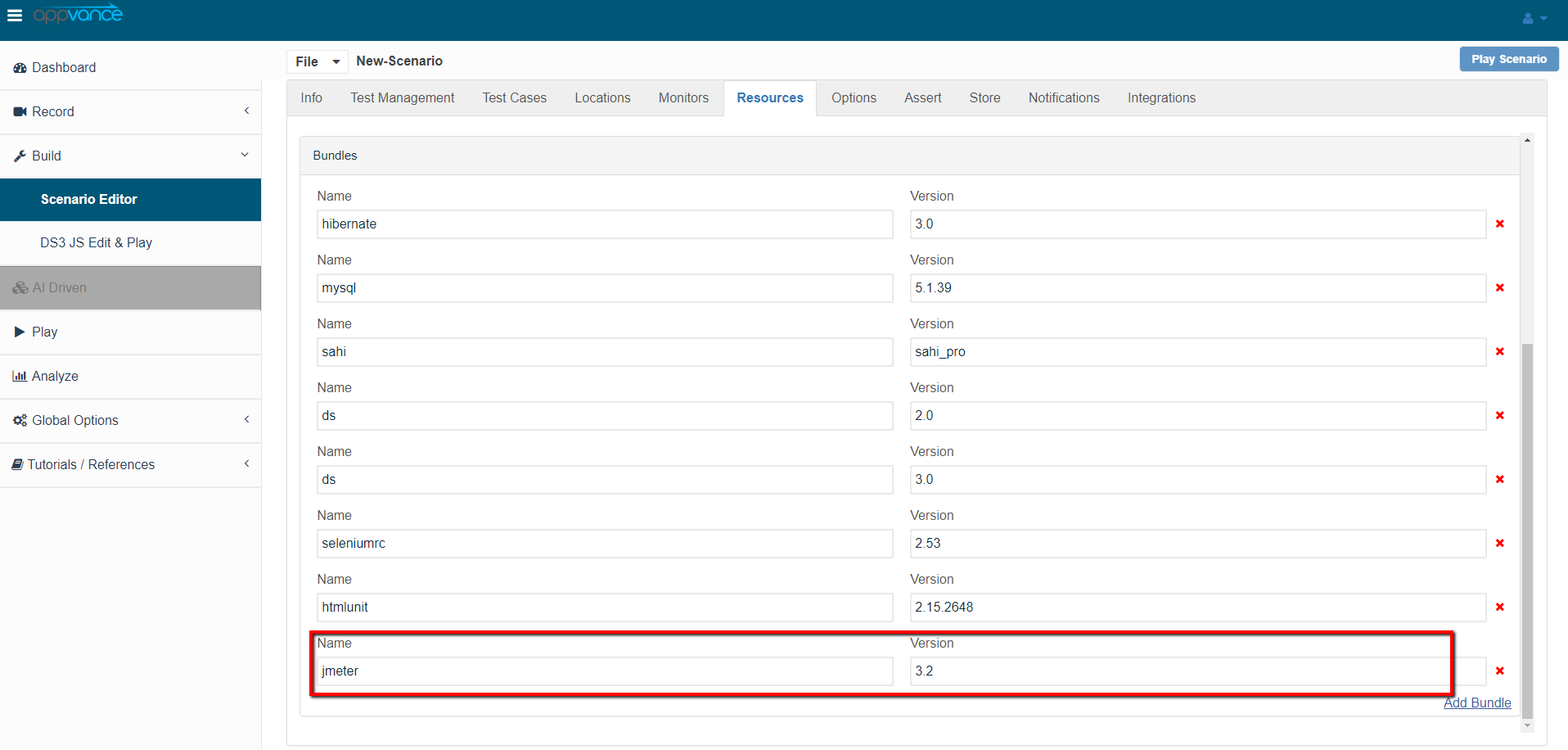
- Navigate to Resources and make sure the JMeter bundle with version 3.2 is added by default
- Also make sure the resources are added with name, Type, and the correct path of the file as seen in the below screenshot
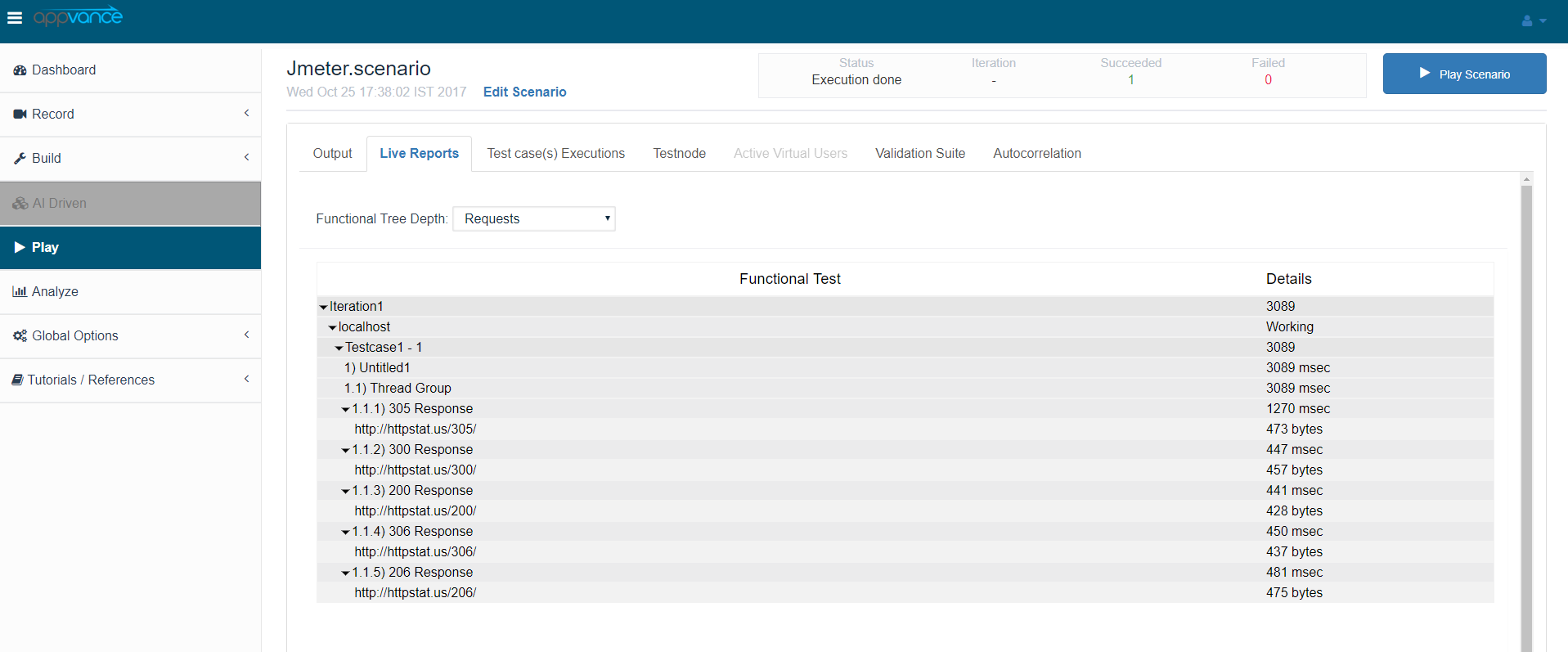
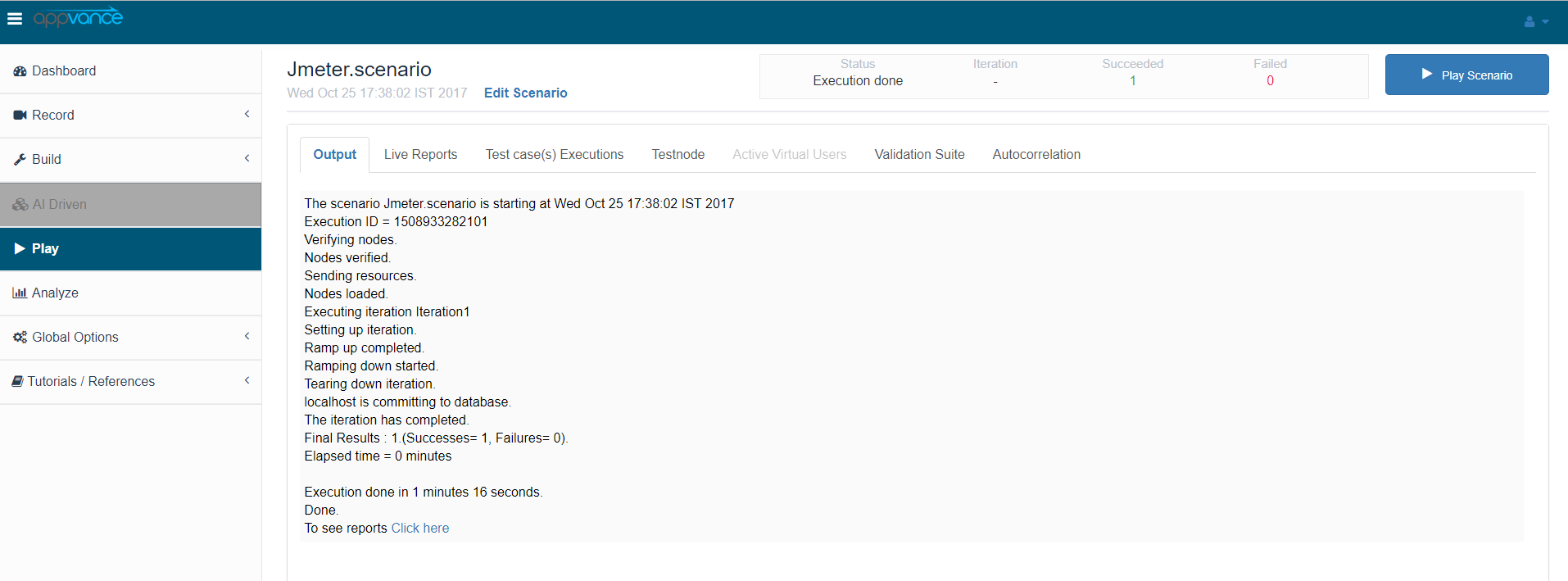
- Click Play Scenario from the top navigation bar and the Controller window will open in a new tab that displays the tests running and will display the pass/fail status of the tests upon the test completion as seen in the below screen-shot. The left part shows the steps and the duration in milliseconds and the right side shows the test run status under the Output tab. On The transactions tab, we can find the request/response and an error tab to drill down further
- Click the Click here link to get to the list of Reports that Unified Test Platform supports
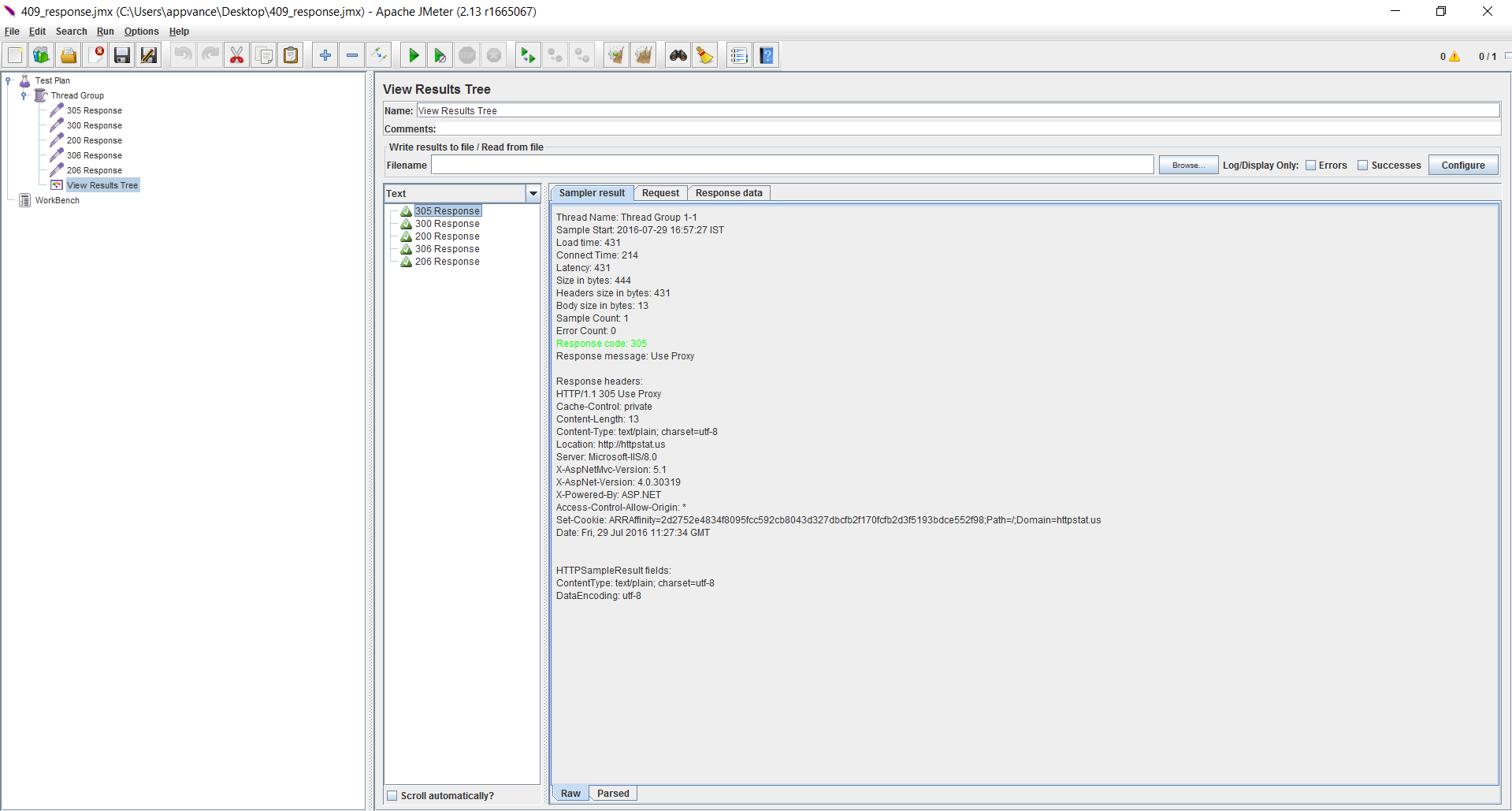
- You can also cross verify the same by running the tests using Apache JMeter
Last updated: July 25, 2024
If you have any feedback on this topic, please contact us at documentation@appvance.ai