
Run a JAR with Dependencies from Scenario Editor
Run a JAR with Dependencies from Scenario Editor
BelowThis articlepage explainsreplaces howthe obsolete “Scenario Builder” wording with current Scenario Editor terminology. Use this guidance only when a Java artifact must be executed as part of an existing AIQ workflow.
Before execution
- Package the JAR with required dependencies or provide a documented dependency path.
- Confirm the Java version supported by the execution host.
- Keep credentials and environment-specific values outside the JAR and documentation.
- Record the artifact version used by the AIQ execution.
Validation workflow
- Run the JAR in a controlled non-production environment.
- Check exit code, stdout, stderr, and generated files.
- Run a small AIQ validation execution before scheduling or scaling.
- Attach troubleshooting details to
executethejarrelatedwithmaintenancedependenciesticket:if Create selenium script that uses excel file to read data.fails.
Sample code:
package TestNG;
import java.io.FileInputStream;
import java.io.FileNotFoundException;
import java.io.IOException;
import java.util.concurrent.TimeUnit;
import org.openqa.selenium.By;
import org.openqa.selenium.WebDriver;
import org.openqa.selenium.firefox.FirefoxDriver;
import org.openqa.selenium.support.ui.Select;
import org.testng.annotations.DataProvider;
import org.testng.annotations.Test;
import jxl.Sheet;
import jxl.Workbook;
import jxl.read.biff.BiffException;
public class ExcelData {
    @Test(dataProvider="Login")
	   public  void  testJavajunit(String username,String password)  {
    	System.out.println("username:" +username+","+"password:"+password);
       WebDriver driver = new FirefoxDriver();
		driver.manage().window().maximize();
		driver.manage().timeouts().implicitlyWait(30,TimeUnit.SECONDS);
		driver.get("http://ec2-54-213-57-228.us-west-2.compute.amazonaws.com");
	    driver.findElement(By.xpath(".//*[@id='link-to-login']/a")).click();
	    driver.findElement(By.id("spree_user_email")).clear();
	    driver.findElement(By.id("spree_user_email")).sendKeys(username);
	    driver.findElement(By.id("spree_user_password")).clear();
	    driver.findElement(By.id("spree_user_password")).sendKeys(password);
	    driver.findElement(By.name("commit")).click();
	    System.out.println("window Title:"+driver.getTitle());
	   new Select(driver.findElement(By.id("taxon"))).selectByVisibleText("Categories");
	   driver.findElement(By.linkText("Bags")).click();
	   driver.findElement(By.id("Brands_Conditioned")).click();
	   driver.findElement(By.cssSelector("input.btn.btn-primary")).click();
	    driver.findElement(By.xpath(".//*[@id='nav-bar']/li[2]/a")).click();
	    driver.quit();
	  }
	@DataProvider(name="Login")
	public Object[][] loginData() {
		Object[][] arrayObject = getExcelData("F:\\Spree.xls","spreehar");
		return arrayObject;
	}
	/**
	 * @param File Name
	 * @param Sheet Name
	 * @return
	 */
	public String[][] getExcelData(String fileName, String sheetName) {
		String[][] arrayExcelData = null;
		try {
			FileInputStream fs = new FileInputStream(fileName);
			Workbook wb = Workbook.getWorkbook(fs);
			Sheet sh = wb.getSheet(sheetName);
			int totalNoOfCols = sh.getColumns();
			int totalNoOfRows = sh.getRows();
			arrayExcelData = new String[totalNoOfRows][totalNoOfCols];
			for (int i= 0 ; i < totalNoOfRows; i++) {
				for (int j=0; j < totalNoOfCols; j++) {
					arrayExcelData[i][j] = sh.getCell(j, i).getContents();
				}
			}
		} catch (FileNotFoundException e) {
			e.printStackTrace();
		} catch (IOException e) {
			e.printStackTrace();
			e.printStackTrace();
		} catch (BiffException e) {
			e.printStackTrace();
		}
		return arrayExcelData;
	}
}
Steps to create scenario with jar dependencies
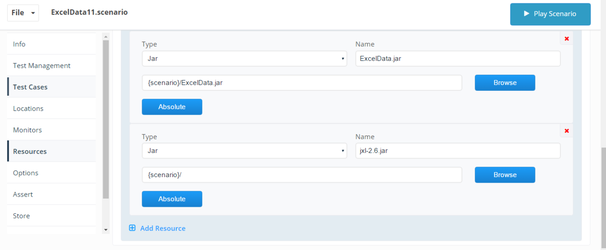
8. Save and Play scenario
Please find attached zip file consists of scenario ,Jxl jar and script jar file.

Last updated: JuneSeptember 26,8, 20232026
If you have any feedback on this topic, please contact us at documentation@appvance.ai