
Run Functional Scenarios from a TestNG JAR in AIQ
[@DataProvider:
Run MarksFunctional Scenarios from a methodTestNG asJAR supplyingin dataAIQ
Use this guidance for aexisting testTestNG method.class TheJARs annotatedthat methodare muststill returnrequired by an Object[AIQ ][workflow. ],For wherenew eachfunctional Object[automation, ]use cancurrent beScenario assignedEditor patterns unless a Java/TestNG integration is specifically required.
Pre-run checklist
- Confirm the
parameterJARlistwasofbuilt from thetestintendedmethod.Thesource@Testrevision. - Verify
methodallthatrequiredwantsdependenciestoarereceivepackageddataorfrom this DataProvider needs to use a dataProvider name equalsavailable to thenameexecutionofhost. - Confirm
thisbrowser,annotation.]driver,Sample code to read dataNote: The TestNGParams annotation, is part of Appvance UTP,Java, anditenvironmenthelpscompatibility. - Use approved credentials and test data stored outside the JAR.
Validation steps
- Run the JAR in the CI or local maintenance environment.
- Execute a small AIQ validation run.
- Review output for
bindingclasspath,TestNGdriver,withlocator,DPL.andItdatawillerrors. - Document
ask to create a interface to support in eclipse("import com.appvance.enterprise.tool.testng.TestNGParams;")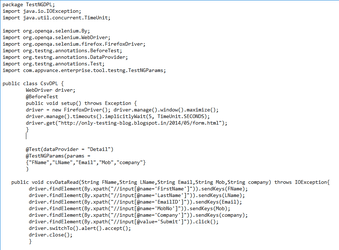
To use Data Provider in TestNG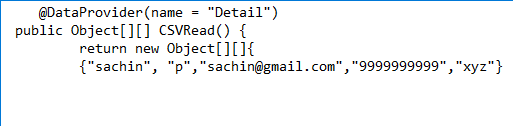
Note: Above is a just setup in eclipse to enablewhether theuserassettoremainsrunmaintainedthe CSV based scenario in Appvance IQ, but we cannot execute the above setup in eclipse as it is for the csv file.(If User want read the data from csv file in eclipse, they need a separate code).IQ.-Now create a Jar file for above TestNG class file to run script in Appvance.(Eclipse-->Project-->RightClick-->Export→Java→Jar).How to use TestNG class jar file to run Functional scenario in Appvance IQ:Prerequisite:Create a CSV file whichor should besimilar name as Data provider name(Ex; Detail) and also column name should be similarmigrated tothe Parameter passed to the class file.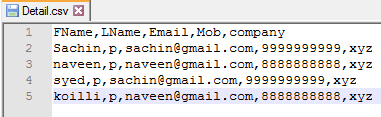
Launch Appvance IQ and click AppvanceScenarioBuilder from start screen.Select a Functional Test Test Type in Appvance Scenario Builder.Navigate to resources panel, click Data resources and Provide the similar name as Data provider NameCreate a Scenario for TestNG by selecting TestNG test type under Test case panel.Browse and add Jar file that contains TestNG codeEnter the TestNG class name as "packagename.classname".Click Add DPL and Select the DPL from Dropdown and Provide the Name as similar to Dataprovider NameSave the Scenario and click Play button.Editor.
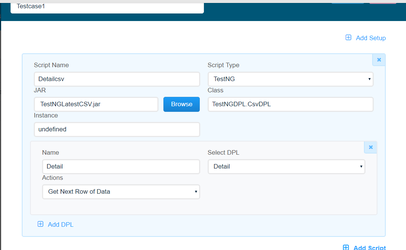
Output: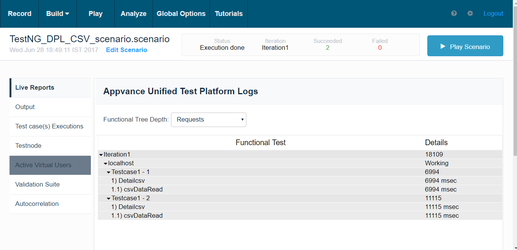
For Example, refer the attached TestNG_DPL_Working file that contains:1) Jar file(Used to create scenario in Appvance).2) Scenario which is already created by using above Jar file.3) CSV file.Last updated:
JuneSeptember26,8,20232026If you have any feedback on this topic, please contact us atdocumentation@appvance.ai