
How to run node.js (npm) code with Service Suite scenario
Existing workflows often involve the ability to execute operating system command line programs, which you can use the exec() command in service suite scripts.
The exec() command can be used to trigger a node.js script execution assuming you have node.js installed in the test node that will execute the scenario with the service suite script containing the exec() command.
exec(<working Folder>, <command>, <parameter1>, <parameter2>, …)
So assuming you have a folder called “folder-with-scripts“ you can execute a node.js script called “my-node-js-script“ using a command like:
result = exec('folder-with-scripts', 'npm',
              'run', 'my-node-js-script', 'param1', 'param2');
log("status: " + result.status);
log("output: " + result.output);
log("error: " + result.error);
For the above to work in a scenario/test node execution situation, you need to add several resources to the scenario and add some more steps to your service suite script to unzip the folder with the scripts, check if node.js is installed in the test node and execute a node update before running the node.js script. The following steps is assuming a Windows OS test node.
Step 1: Provide .zip with the node.js assets.
To provide the node-js-scripts zipped folder to the scenario as a resource, and then use an exec command to extract the folder in the test node.
var result = exec('', 'extract-powershell.bat', '');
In the above example, the extract-powereshell.bat is a file that must be also provided in the scenario resources with the following contents. Notice that the node-js-scripts.zip file name is hard coded in the .bat file, replace it with your actual zip file name.
@echo off
powershell.exe "Add-Type -A 'System.IO.Compression.FileSystem'; [IO.Compression.ZipFile]::ExtractToDirectory('./node-js-scripts.zip', '.');"
Step 2: Execute an npm update in the working folder
Once the folder with the node.js scripts is expanded, you should execute an npm update command in that folder with
log("NPM UPDATE");
result = exec('node-js-scripts', 'npm', 'update');
log("status: " + result.status);
log("output: " + result.output);
log("error: " + result.error);
Step 3: Execute your node.js script with npm
Once the folder with the node.js scripts is expanded, you should execute an npm update command in that folder with
result = exec('node-js-scripts', 'npm', 'run', 'my-node-js-script', 'param1', 'param2');
log("status: " + result.status);
log("output: " + result.output);
log("error: " + result.error);
Step 4: Saving the product of executing the node.js script into an S3 repository
If your node-js scripts generate a file that needs to be persistent in some way, you can use the git repository client or the AWS S3 client to upload the result file into any of those storages for later use.
The S3 client needs an encrypted S3.creds file to be also added to scenario resources with a set of credentials with permissions to write to the provided S3 bucket. This credentials file can be created with the AIQ > Preference > EC2 Credentials
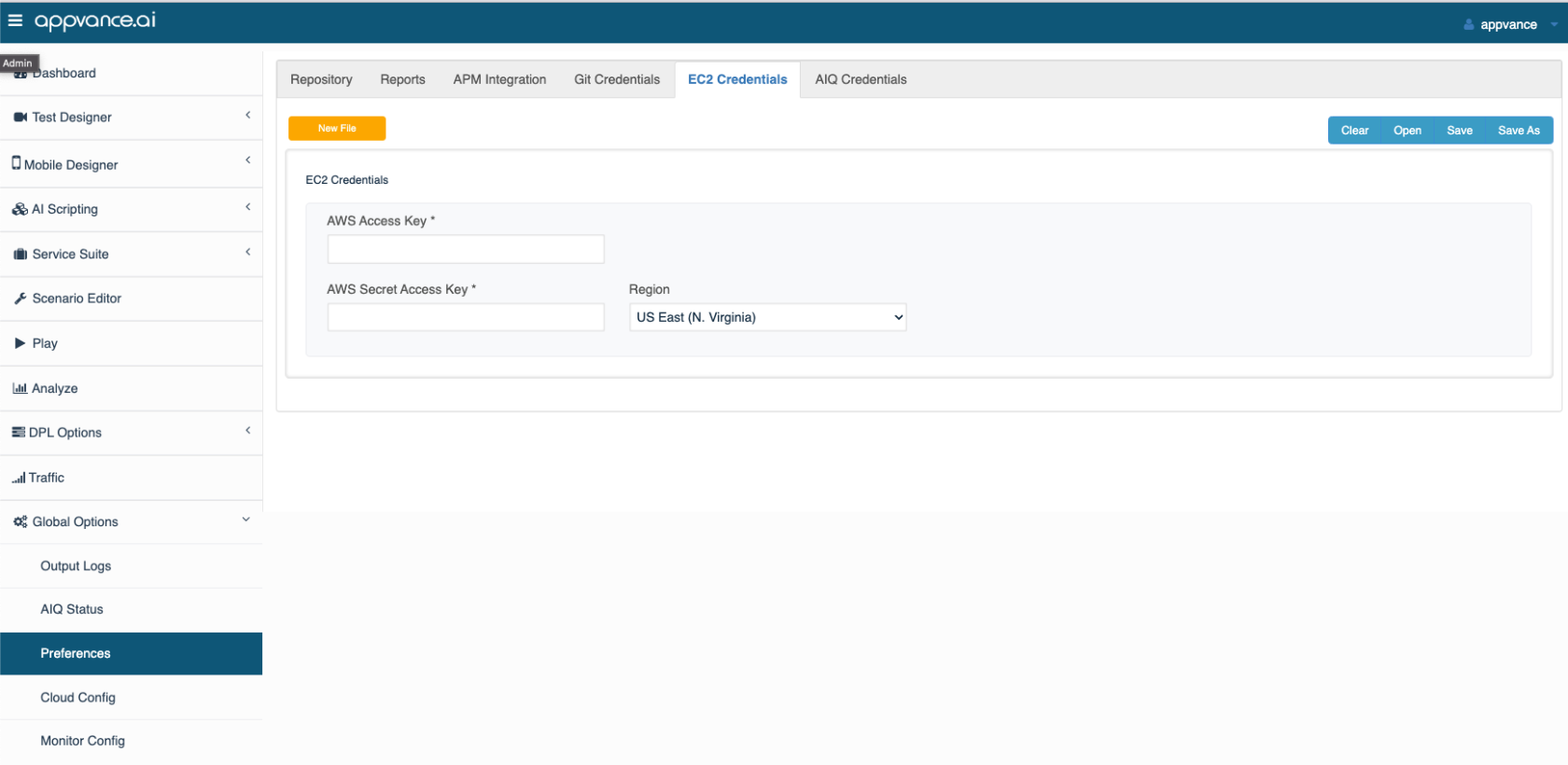
So assuming the previous step created a file called results/result.json then you can do
var content = readText("results/result.json");
log("Result:\n" + content);
content = readBytes("results/result.json");
wait(10000);
var client = createS3Client("{ds}/s3.creds", "results-bucket");
client.upload("results-bucket", content, "results.json");
All Together
LOG("CHECK NPM VERSION")
var result = exec('', 'npm', '-v');
log("status: " + result.status);
log("output: " + result.output);
log("error: " + result.error);
log("REMOVE PREVIOUS DIR")
var result = exec('', 'rd', '/s', '/q', 'node-js-scripts');
log("status: " + result.status);
log("output: " + result.output);
log("error: " + result.error);
log("EXTRACT FOLDER")
var result = exec('', 'extract-powershell.bat', '');
log("status: " + result.status);
log("output: " + result.output);
log("error: " + result.error);
log("NPM UPDATE");
result = exec('node-js-scripts', 'npm', 'update');
log("status: " + result.status);
log("output: " + result.output);
log("error: " + result.error);
log("NPM RUN NODE.JS SCRIPT");
result = exec('node-js-scripts', 'npm', 'run', 'my-node-js-script', 'param1', 'param2');
log("status: " + result.status);
log("output: " + result.output);
log("error: " + result.error);
log("RESULTS:")
var content = readText("node-js-scripts/results.json");
log(content);
content = readBytes("results/result.json");
wait(10000);
log("UPLOAD TO AWS S3")
var client = createS3Client("{ds}/s3.creds", "results-bucket");
client.upload("results-bucket", content, "results.json");
The scenario resources should look like this:
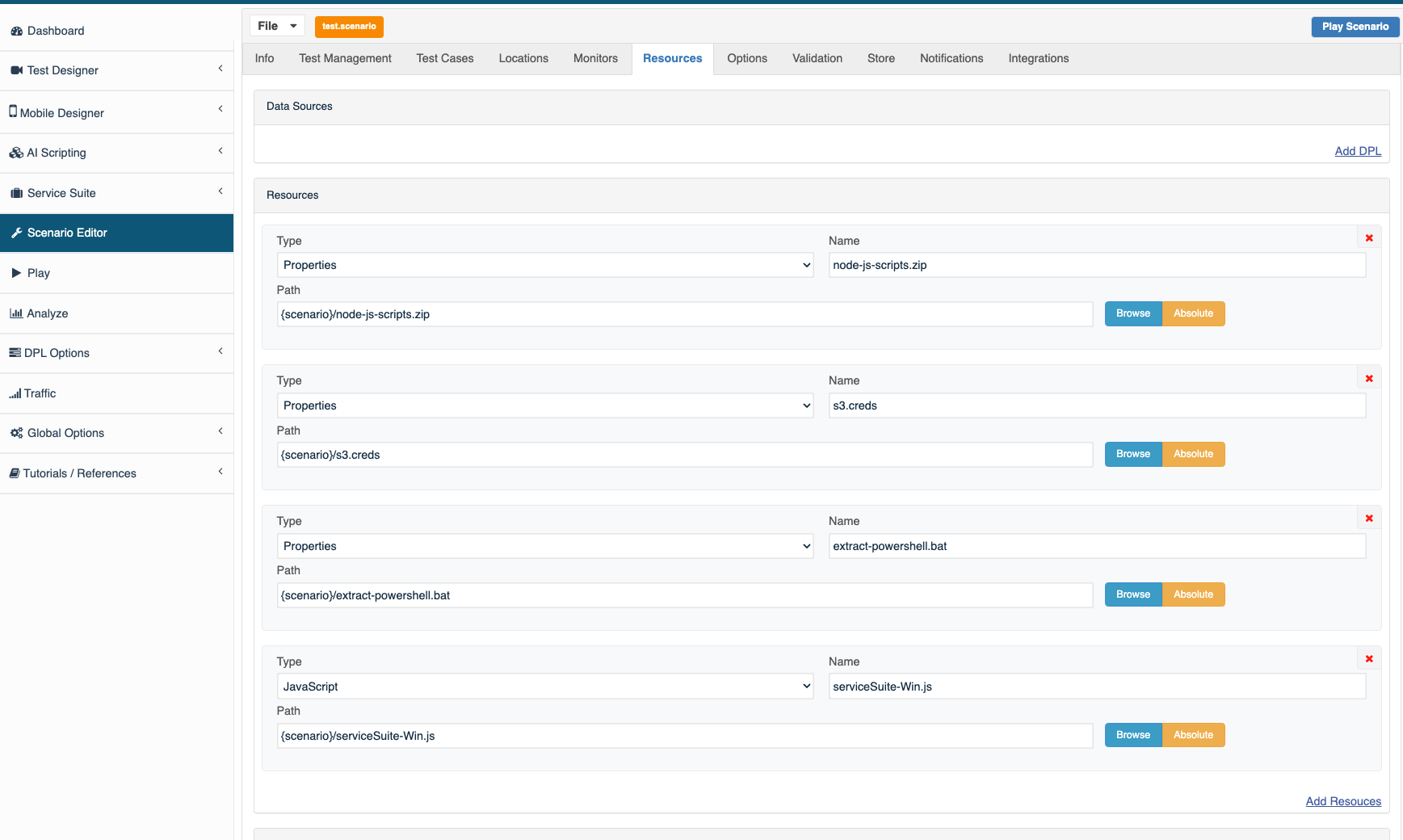
Download: Exract Powershell Batch File
Last updated: June 26, 2023
If you have any feedback on this topic, please contact us at documentation@appvance.ai