
Capture Text from a Captcha Image
You can create a Network Library (.netx) file to capture a Captcha request from a webpage and store the content of that response. This will allow you to log into a webpage that has a Captcha challenge.
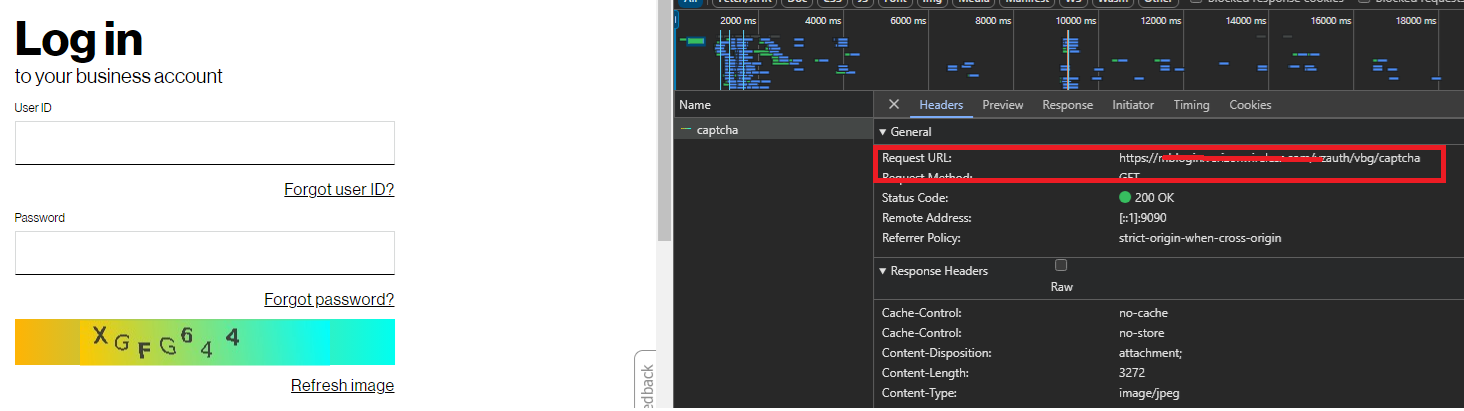
Process
-
In AIQ navigate to Web Testing > Network Workbench > Extractions (tab).
-
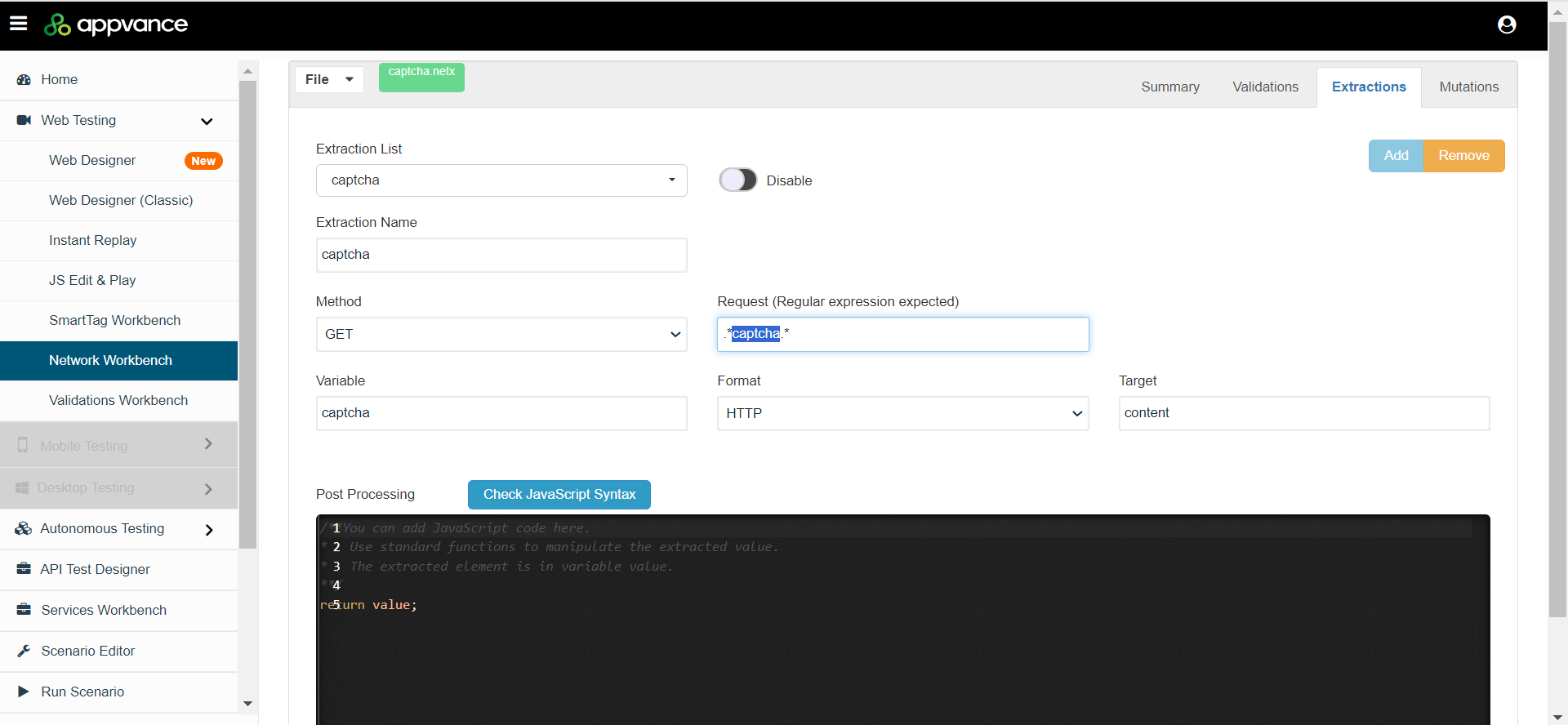
Click Create Action to create a new extraction with the following parameters:
- <![CDATA[ ]]>Extraction Name:Name the extraction. For example: "captcha".
- <![CDATA[ ]]>Method: Select the GET method.
- <![CDATA[
]]>Request:Specify the Regular Expression (Regex) pattern to match the corresponding the request of captcha of the webpage.
(
*captcha.*) - <![CDATA[ ]]>Variable: Specify the variable name. For example: "captcha".
- <![CDATA[ ]]>Format: Select HTTP as the format.
- <![CDATA[ ]]>Target: Extract the full content of the page as the Target.
-
After creating the
.netxfile, create theanticaptcha.jsfile (see Sample Files below). This will encode the Captcha image received by the.netxfile and use the API endpoints of theanticaptchaservice usingclient account key(apiKey) - createTaskandgetTaskResultto extract the data from Captcha image.anticaptcha=(byteImage, apiKey)=>{
base64Capcha = encodeBase64(byteImage);
antiCapchaMessage = {
"clientKey":apiKey,
"task":
{
"type":"ImageToTextTask",
"body":base64Capcha,
"phrase":false,
"case":false,
"numeric":0,
"math":false,
"minLength":0,
"maxLength":0,
"languagePool":"en" },
"softId": 0
}
log("********************************");
log(antiCapchaMessage);
taskId = JSON.parse(post("https://api.anti-captcha.com/createTask",antiCapchaMessage).toStringContent()).taskId;
taskResultMessage = {
"clientKey":apiKey,
"taskId":taskId
}
log(JSON.stringify(taskResultMessage));
for (;;){
var result = JSON.parse(post("https://api.anti-captcha.com/getTaskResult",taskResultMessage).toStringContent());
log(result);
if (result.status === "ready"){
return result.solution.text;
}
wait(1000);
}
}
var result = anticaptcha(locker.get("captchaImg"),locker.get("clientKey"))
locker.put("captchaSolution",result); -
After creating the above two files, you can create the test script (
.dsfile) by recording the corresponding webpage with the Captcha, using both files as part of the test script.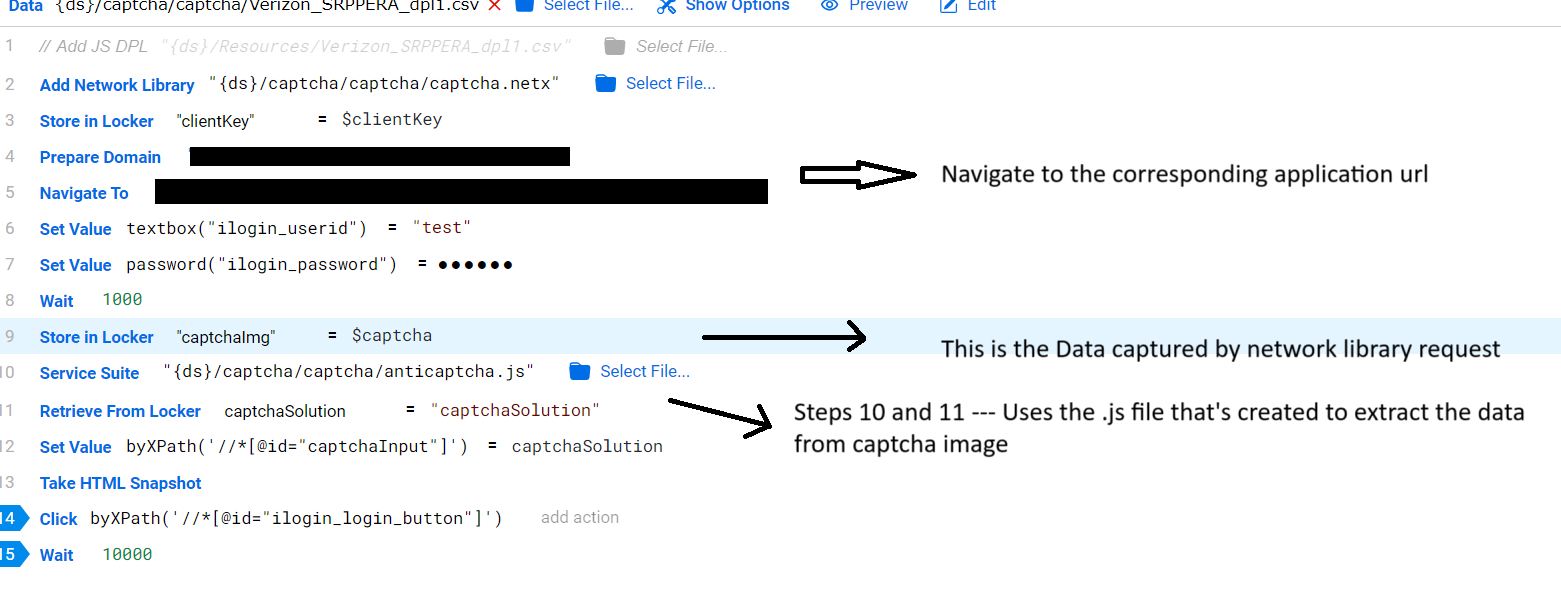
-
After recording the required steps for logging in to the application, use the
.netxfile and theanticaptcha.jsfile created in the test script (show in the image above). -
Then play back the test script and check whether the correct Captcha data is entered and you can log in successfully.
Sample Files
captcha.netx
{
    "validations": [],
    "extractions": [
        {
            "name": "captcha",
            "disabled": false,
            "regex": ".*captcha.*",
            "hint": "",
            "method": "get",
            "variable": "captcha",
            "format": "http",
            "target": "content",
            "postprocessing": "/**You can add JavaScript code here.\n*\t\tUse standard functions to manipulate the extracted value.\n*\t\tThe extracted element is in variable value.\n**/\nreturn value;"
        }
    ],
    "mutations": []
}
anticaptcha.js
anticaptcha=(byteImage, apiKey)=>{
  base64Capcha = encodeBase64(byteImage);
  antiCapchaMessage = {
      "clientKey":apiKey,
      "task":
          {
              "type":"ImageToTextTask",
              "body":base64Capcha,
              "phrase":false,
              "case":false,
              "numeric":0,
              "math":false,
              "minLength":0,
              "maxLength":0,
              "languagePool":"en"
          },
      "softId": 0
  }
  taskId = JSON.parse(post("https://api.anti-captcha.com/createTask",antiCapchaMessage).toStringContent()).taskId;
  taskResultMessage = {
      "clientKey":apiKey,
      "taskId":taskId
  }
    log(JSON.stringify(taskResultMessage));
  for (;;){
    var result = JSON.parse(post("https://api.anti-captcha.com/getTaskResult",taskResultMessage).toStringContent());
    log(result)
    if (result.status === "ready"){
      return result.solution.text;
    }
    wait(1000);
  }
}


var result = anticaptcha(locker.get("captchaImg"),locker.get("clientKey"))
locker.put("captchaSolution",result);
Last updated: October 02, 2024
If you have any feedback on this topic, please contact us at documentation@appvance.ai