
Capture Text from a Captcha Image
You can create a Network Library (.netx) file to capture a Captcha request from a webpage and store the content of that response. This will allow you to log into a webpage that has a Captcha challenge.
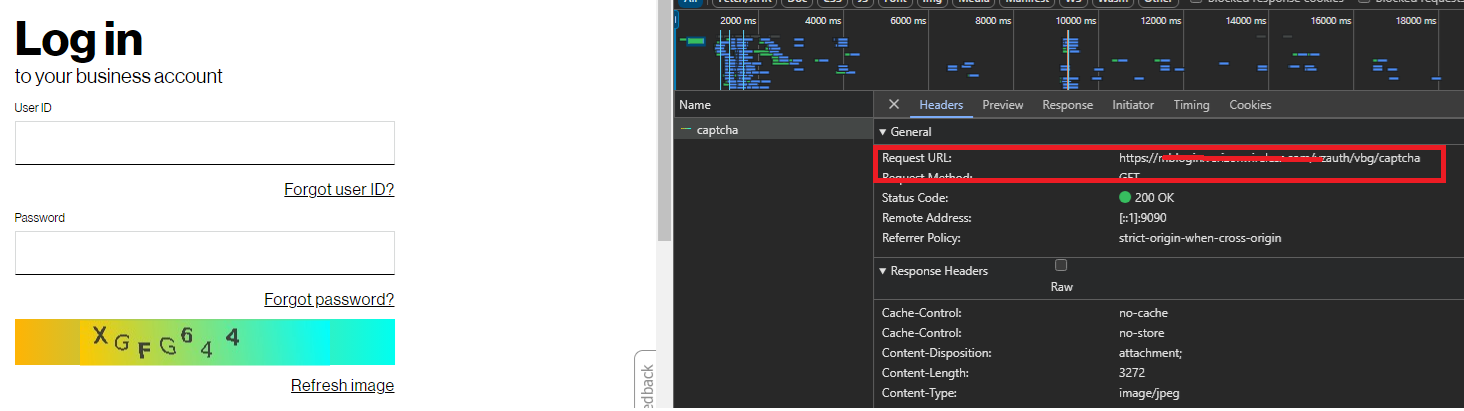
Process
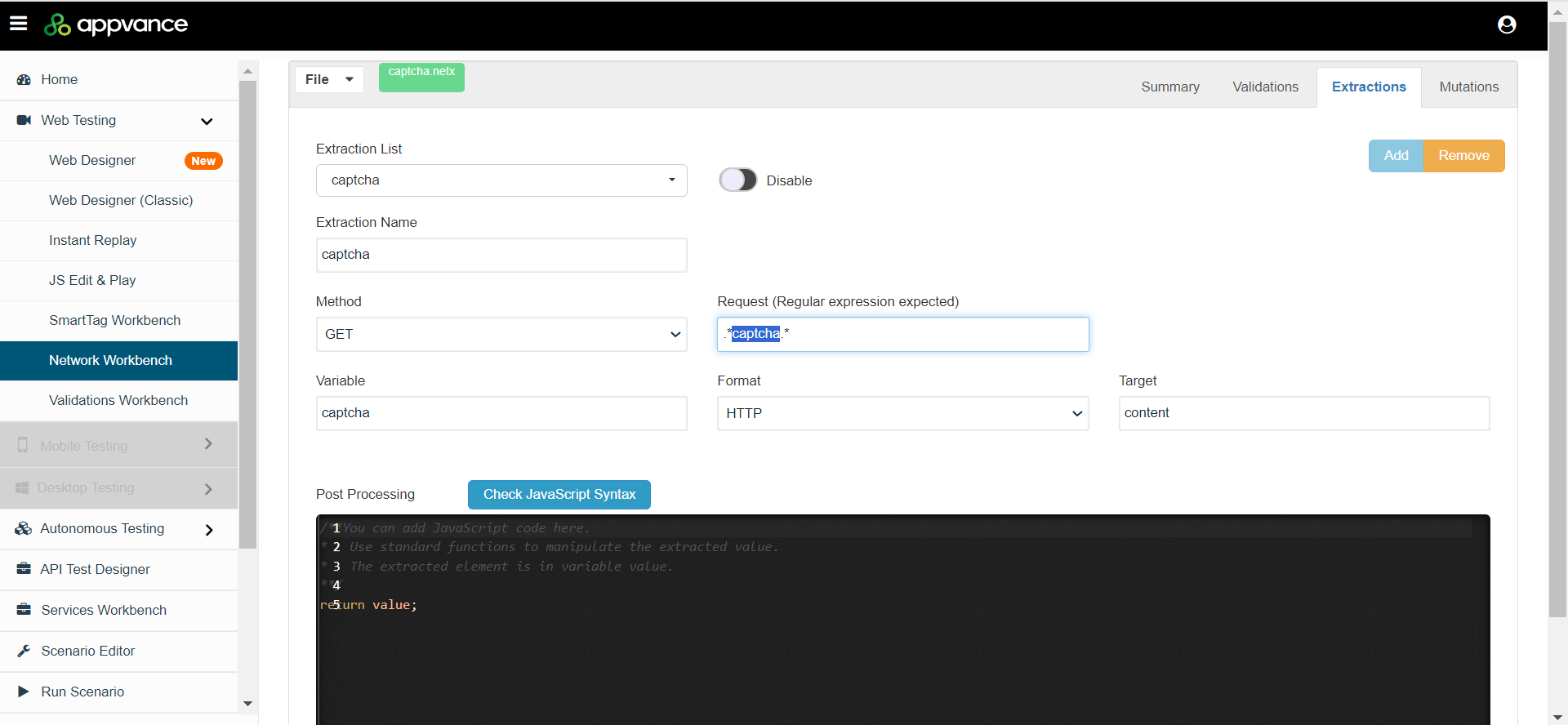
In AIQ navigate to Web Testing > Network Workbench > Extractions (tab).
Click Create Action to create a new extraction with the following parameters:
*captcha.*)
<![CDATA[
]]>Variable: Specify the variable name. For example: "captcha".
<![CDATA[
]]>Format: Select HTTP as the format.
<![CDATA[
]]>Target: Extract the full content of the page as the Target.
After creating the .netx file, create the anticaptcha.js file (see Sample Files below). This will encode the Captcha image received by the .netx file and use the API endpoints of the anticaptcha service using client account key(apiKey) - createTask and getTaskResult to extract the data from Captcha image.
anticaptcha=(byteImage, apiKey)=>{
  base64Capcha = encodeBase64(byteImage);
  antiCapchaMessage = {
      "clientKey":apiKey,
      "task":
          {
              "type":"ImageToTextTask",
              "body":base64Capcha,
              "phrase":false,
              "case":false,
              "numeric":0,
              "math":false,
              "minLength":0,
              "maxLength":0,
              "languagePool":"en"          },
      "softId": 0
  }
  log("********************************");
  log(antiCapchaMessage);
  taskId = JSON.parse(post("https://api.anti-captcha.com/createTask",antiCapchaMessage).toStringContent()).taskId;
  taskResultMessage = {
      "clientKey":apiKey,
      "taskId":taskId
  }
    log(JSON.stringify(taskResultMessage));
  for (;;){
    var result = JSON.parse(post("https://api.anti-captcha.com/getTaskResult",taskResultMessage).toStringContent());
    log(result);
    if (result.status === "ready"){
      return result.solution.text;
    }
    wait(1000);
  }
}


var result = anticaptcha(locker.get("captchaImg"),locker.get("clientKey"))
locker.put("captchaSolution",result);
After creating the above two files, you can create the test script (.ds file) by recording the corresponding webpage with the Captcha, using both files as part of the test script.
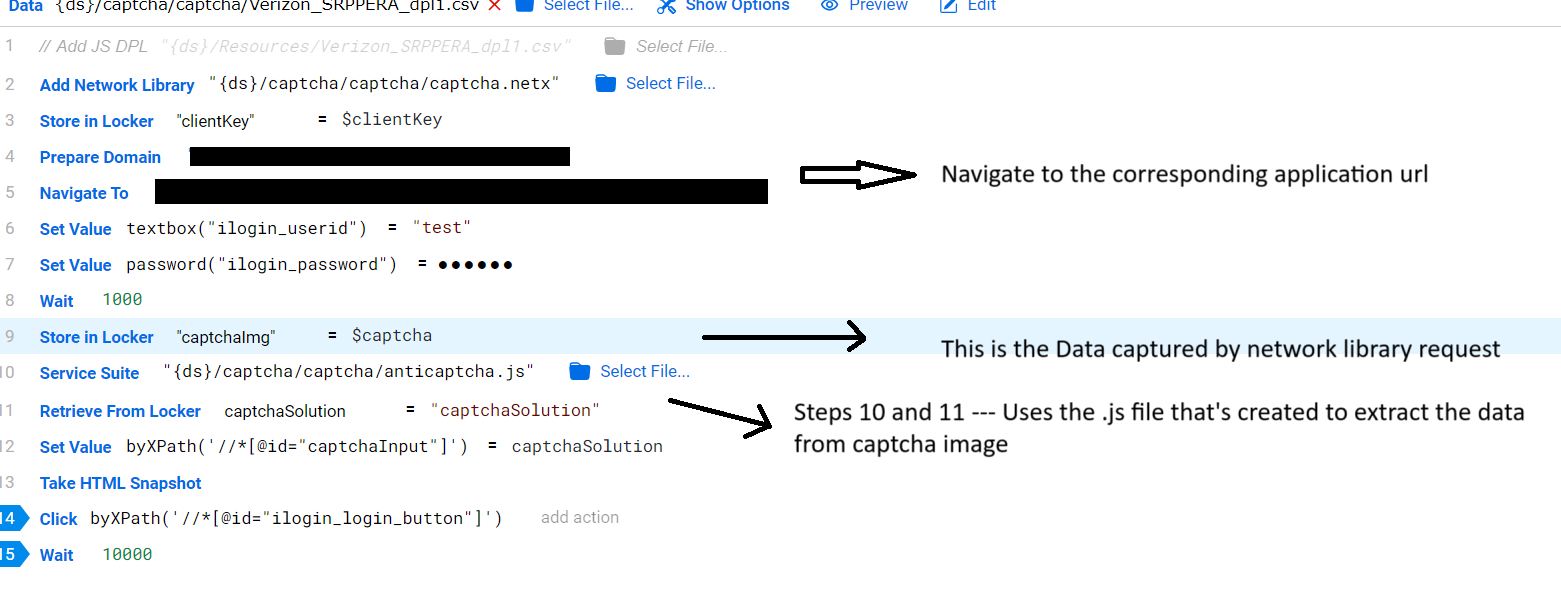
After recording the required steps for logging in to the application, use the .netx file and the anticaptcha.js file created in the test script (show in the image above).
Then play back the test script and check whether the correct Captcha data is entered and you can log in successfully.
Sample Files
captcha.netx
{
    "validations": [],
    "extractions": [
        {
            "name": "captcha",
            "disabled": false,
            "regex": ".*captcha.*",
            "hint": "",
            "method": "get",
            "variable": "captcha",
            "format": "http",
            "target": "content",
            "postprocessing": "/**You can add JavaScript code here.\n*\t\tUse standard functions to manipulate the extracted value.\n*\t\tThe extracted element is in variable value.\n**/\nreturn value;"
        }
    ],
    "mutations": []
}
anticaptcha.js
anticaptcha=(byteImage, apiKey)=>{
  base64Capcha = encodeBase64(byteImage);
  antiCapchaMessage = {
      "clientKey":apiKey,
      "task":
          {
              "type":"ImageToTextTask",
              "body":base64Capcha,
              "phrase":false,
              "case":false,
              "numeric":0,
              "math":false,
              "minLength":0,
              "maxLength":0,
              "languagePool":"en"
          },
      "softId": 0
  }
  taskId = JSON.parse(post("https://api.anti-captcha.com/createTask",antiCapchaMessage).toStringContent()).taskId;
  taskResultMessage = {
      "clientKey":apiKey,
      "taskId":taskId
  }
    log(JSON.stringify(taskResultMessage));
  for (;;){
    var result = JSON.parse(post("https://api.anti-captcha.com/getTaskResult",taskResultMessage).toStringContent());
    log(result)
    if (result.status === "ready"){
      return result.solution.text;
    }
    wait(1000);
  }
}


var result = anticaptcha(locker.get("captchaImg"),locker.get("clientKey"))
locker.put("captchaSolution",result);
Last updated: October 02, 2024
If you have any feedback on this topic, please contact us at documentation@appvance.ai