
Validate CAPTCHA Text Capture in Approved Test Environments
Validate CAPTCHA Text Capture in Approved Test Environments
YouUse canthis createarticle only for approved test environments where CAPTCHA images are provided as controlled test fixtures. Do not use AIQ automation to bypass CAPTCHA or defeat anti-bot protections on production systems.
Safe testing approach
- Use a
NetworksandboxLibraryCAPTCHA,(.netx)staticfilefixture,toorcapturecustomer-approvedatestCaptchamode. - Validate
requestOCRfromoratext-extractionwebpagebehavior only when the CAPTCHA provider andstoreapplicationtheownercontentpermitofit. - Keep
thatexpectedresponse.valuesThisinwilltestallowdata,younottoinlogproductionintouseraflows. - Record
webpage that has a Captcha challenge.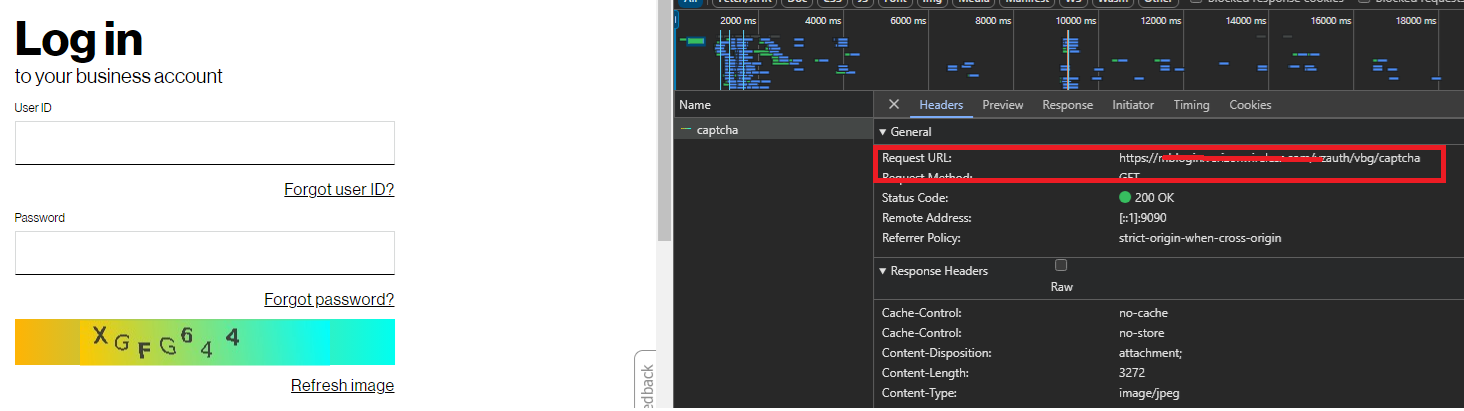
Process In AIQ navigate toWeb Testing>Network Workbench>Extractions(tab).
Click Create Action to create a new extraction with the following parameters:
*captcha.*
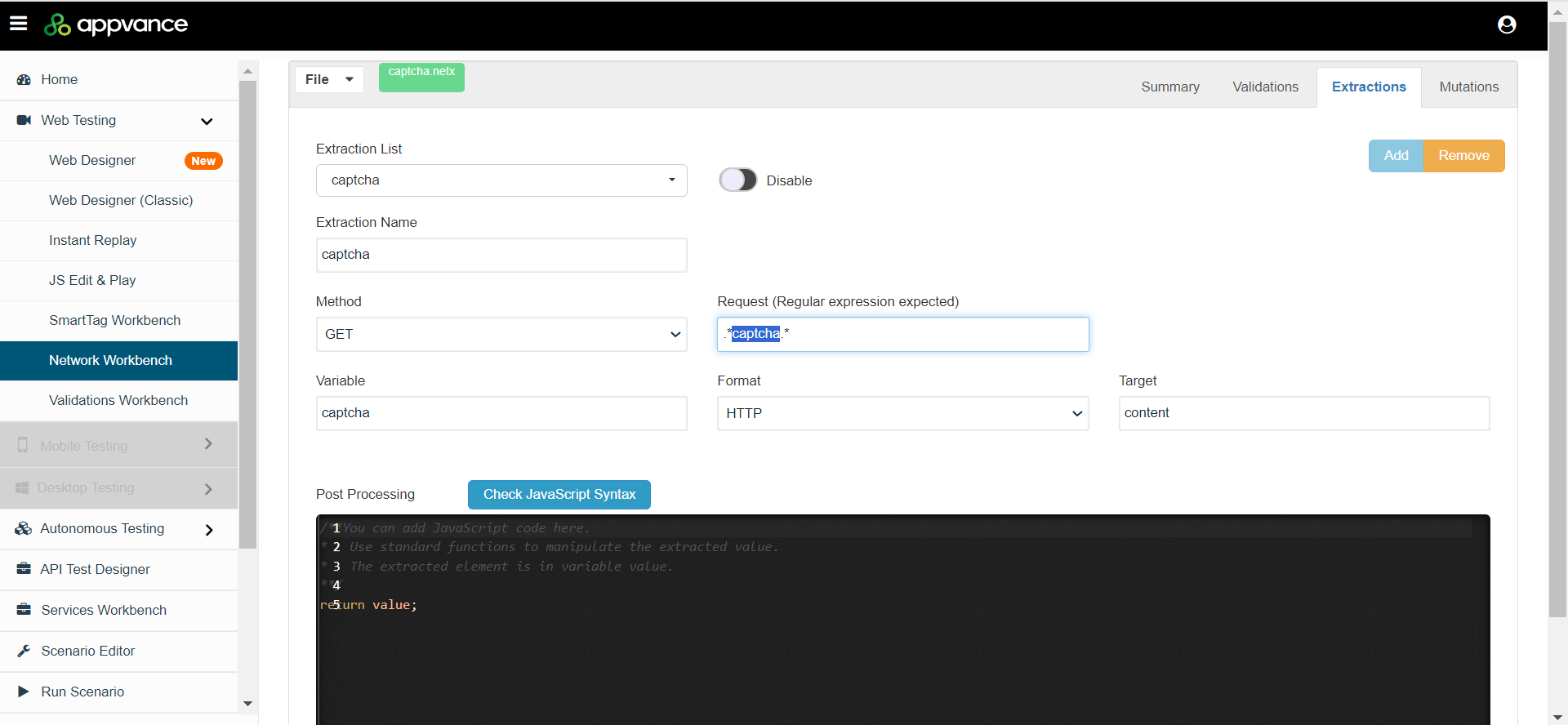
After creating the .netx file, create the anticaptcha.js file (see Sample Files below). This will encode the Captcha image received by the .netx file and use the API endpoints of the anticaptcha service using client account key(apiKey) - createTask and getTaskResult to extract the data from Captcha image.
anticaptcha=(byteImage, apiKey)=>{
  base64Capcha = encodeBase64(byteImage);
  antiCapchaMessage = {
      "clientKey":apiKey,
      "task":
          {
              "type":"ImageToTextTask",
              "body":base64Capcha,
              "phrase":false,
              "case":false,
              "numeric":0,
              "math":false,
              "minLength":0,
              "maxLength":0,
              "languagePool":"en"          },
      "softId": 0
  }
  log("********************************");
  log(antiCapchaMessage);
  taskId = JSON.parse(post("https://api.anti-captcha.com/createTask",antiCapchaMessage).toStringContent()).taskId;
  taskResultMessage = {
      "clientKey":apiKey,
      "taskId":taskId
  }
    log(JSON.stringify(taskResultMessage));
  for (;;){
    var result = JSON.parse(post("https://api.anti-captcha.com/getTaskResult",taskResultMessage).toStringContent());
    log(result);
    if (result.status === "ready"){
      return result.solution.text;
    }
    wait(1000);
  }
}


var result = anticaptcha(locker.get("captchaImg"),locker.get("clientKey"))
locker.put("captchaSolution",result);
After creating the above two files, you can createwhether the test scriptis (.dsfile)OCR byquality, recordingapplication handling, or a downstream business rule.
Validation workflow
- Confirm written approval or documented test-mode support for the
Captcha,CAPTCHAusing both files as part ofscenario. - Run the test
script.with aknown
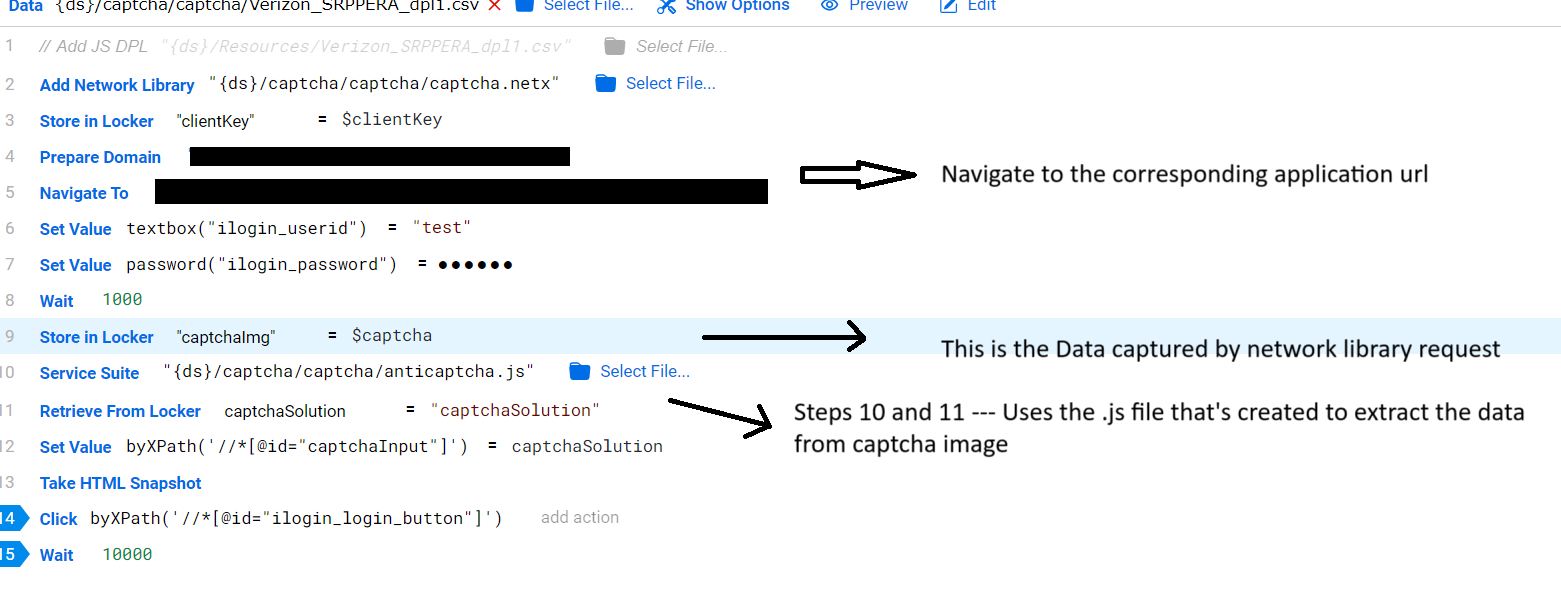
After recording the required steps for logging in to the application, use the .netx filefixture and the anticaptcha.js file created in the test script (show in the image above).
Then play back the test script and check whether the correct Captcha data is entered and you can log in successfully.
Sample Files
captcha.netx
{
    "validations": [],
    "extractions": [
        {
            "name": "captcha",
            "disabled": false,
            "regex": ".*captcha.*",
            "hint": "",
            "method": "get",
            "variable": "captcha",
            "format": "http",
            "target": "content",
            "postprocessing": "/**You can add JavaScript code here.\n*\t\tUse standard functions to manipulate theexpected extracted value.\n*\t\tTheValidate extractedsuccess elementand failure behavior separately.Review logs to ensure no real user credentials, session data, or sensitive images are captured.
Security note: CAPTCHA is ina variablesecurity value.\n**/\nreturncontrol. value;"
This }
content ],
must "mutations":not []}
anticaptcha.js
anticaptcha=(byteImage, apiKey)=>{
  base64Capcha = encodeBase64(byteImage);
  antiCapchaMessage = {
      "clientKey":apiKey,
      "task":
          {
              "type":"ImageToTextTask",
              "body":base64Capcha,
              "phrase":false,
              "case":false,
              "numeric":0,
              "math":false,
              "minLength":0,
              "maxLength":0,
              "languagePool":"en"
          },
      "softId": 0
  }
  taskId = JSON.parse(post("https://api.anti-captcha.com/createTask",antiCapchaMessage).toStringContent()).taskId;
  taskResultMessage = {
      "clientKey":apiKey,
      "taskId":taskId
  }
    log(JSON.stringify(taskResultMessage));
guide for (;;){
bypassing varCAPTCHA resulton =live JSON.parse(post("https://api.anti-captcha.com/getTaskResult",taskResultMessage).toStringContent());
    log(result)
    if (result.status === "ready"){
      return result.solution.text;
    }
    wait(1000);
  }
}


var result = anticaptcha(locker.get("captchaImg"),locker.get("clientKey"))
locker.put("captchaSolution",result);
systems.
Last updated: October 02,8, 20242026
If you have any feedback on this topic, please contact us at documentation@appvance.ai