
Configure Ramp-Up Settings in Scenario Editor
Configure Ramp-Up Settings in Scenario Editor
RampThis article replaces obsolete “Scenario Builder” wording with current Scenario Editor terminology. Ramp-up willcontrols alwayshow happenquickly accordingvirtual users or executions are introduced, which helps avoid unrealistic spikes and makes results easier to theinterpret.
How mentionedto inchoose theramp-up
- Use
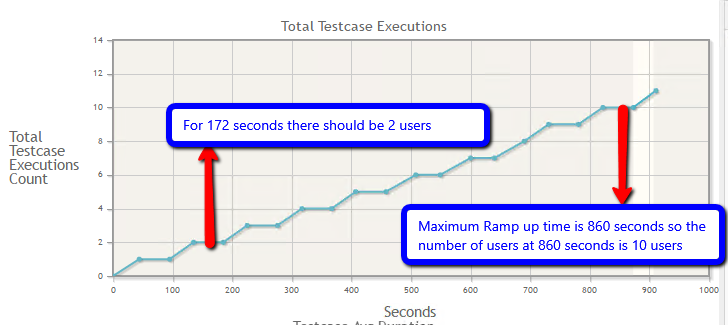
BuilderForaEx:shortif User mentions Rampramp-up1 user every 86 seconds and Maximum Ramp up time is 860 seconds then in the graphforthesmoke86thvalidationsecondortherelow-volumeshouldchecks. - Use
beaonegradualuserAt 172 seconds there should be 2 users and so onFor Maximum Rampramp-up for performance tests where steady-state behavior matters. - Avoid interpreting response-time
860resultsseconds.duringAccording to the setting The Graph should should show 10 users at 860 seconds.After the Maximum Rampramp-uptimeunlessisrampcompleted all the remaining users will start their executionAttachedbehavior is thegraphtestwhichobjective. - Confirm
explainsTest Node and target environment capacity before increasing load.
Validation workflow
- Start with a small run and review active users, errors, and output.
- Increase ramp and duration in controlled stages.
- Compare steady-state periods between runs.
- Document ramp-up, duration, load, and environment with the
Ramp up.result.
Last updated: JuneSeptember 26,9, 20232026
If you have any feedback on this topic, please contact us at documentation@appvance.ai