
IP Spoofing Setup Guidance for AIQ Tests
IP SPOOFING:
IP Spoofing canSetup beGuidance achievedfor byAIQ addingTests
Use IP addressspoofing only when the test objective explicitly requires traffic to aappear machine:
from *Todifferent addsource multiple IP to local machine follow below mentioned steps: 1. Find the IP address, subnet mask,addresses and default gateway addresses. Important: At the command prompt, run the following command: ipconfig /all. Review the following section in your output, and note the IPv4 Address, Subnet Mask, Default Gateway, and DNS Servers values for the network interface,Ifowner youhas enterapproved thesethe setup. This is an advanced environment configuration, not a default Scenario Editor requirement.
Before enabling IP addressesspoofing
- Confirm
youthemaytargetlosenetwork,network connection.2. Navigate to Control Panel-Networkfirewall, andInternet-Networkload-balancer teams approve the test. - Document the source IP range, target environment, Test Nodes, and
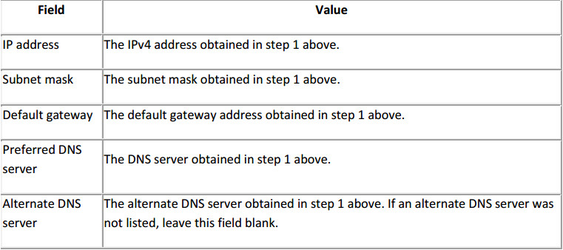
Sharing Centre.3. Click Change adapter settings.4. Right-click the network interface (LAN connection) and Select Properties.5. Select Internet Protocol version4 (TCP/IPv4) option and Click Properties.6. Select 'Use the following IP address' radio button and enter the following values, and click OK.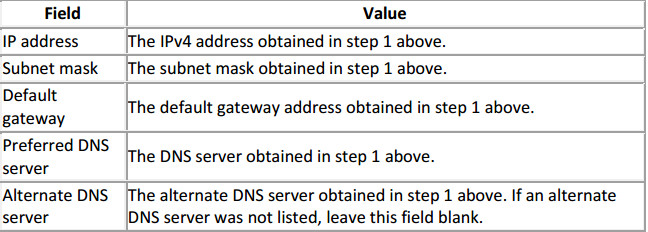
7. Now, Click 'Advanced..' button.8. On 'Advanced TCP/IP settings 'window,Click Add button.9. Add IP address, subnet mask values and Click Add.10. Click Okon 'Advanced TCP/IP settings'test window.11. Click OK on 'Internet Protocol Version 4(TCP/IP ) Properties'.12. Click Ok and LAN properties window is closed.13. Run the command ipconfig /all, to confirm that the secondary IP address has been added to the operating system.*Open Appvance and create a performance test with 'Dynamic IP Address' enabled under options panel. Give 5-10 per cent logs to see output on controller window.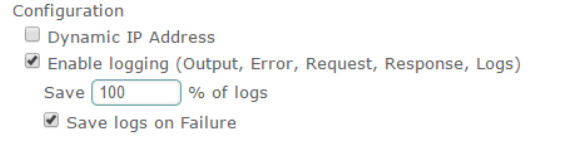
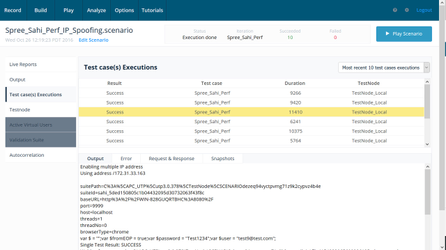
*Play a scenario and controller window is opened in new tab.*Click Test case Executions tab in a controller window and click each execution status to see the output logs.*Under output tab user can see a text "Enabling multiple IP address" and with a different IP being used for different user.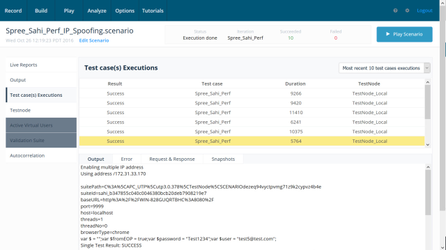
To add multiple IP address inEC2cloud machine follow below mentioned steps:**Create a VPC in ec2 cloud with Name tag and CIDR block (Use the Classless Inter-Domain Routing (CIDR) block format to specify your VPC's contiguous IP address range, for example, 10.0.0.0/16.)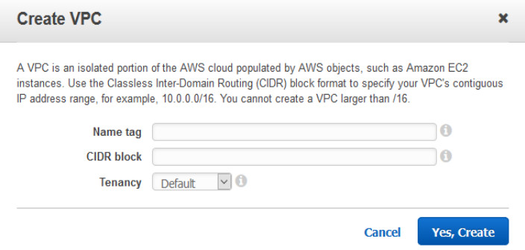
*Create an instance by selecting above created VPC in Network ,see below images:-Secondary ip address has to be added manually by the user, by clicking on 'Add IP' link.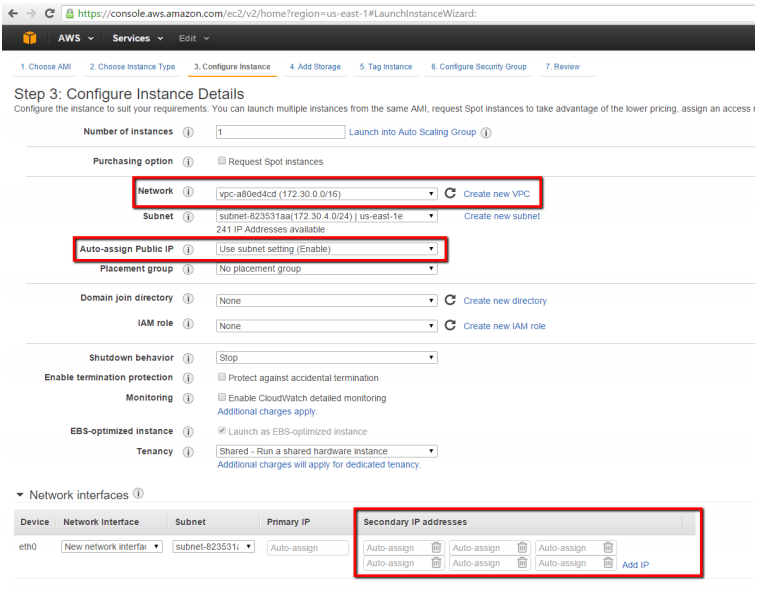
-Select a security group that as Inbound rules as shown in below image: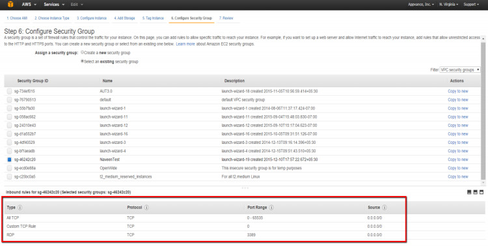
*Connect to EC2 VPC windows instance.
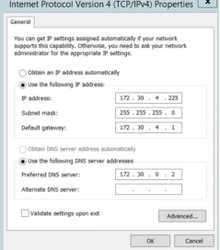
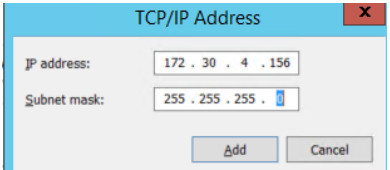
Validation workflow
- Run a small connectivity test from one Test Node.
- Confirm the target sees the expected source address
settings,behavior. - Monitor errors, routing, firewall, and
thenapplicationclicklogsOK.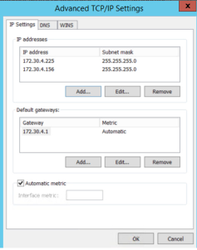
during13.scale-up. - Record
ClicktheOKconfigurationagain,with the execution evidence andthenrollbackclick Close.14. To confirm that the secondary IP address has been added to the operating system, at a command prompt, run the command ipconfig /all.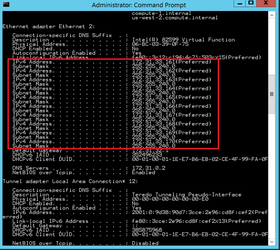
*Open Appvanceand create a performance test with 'Dynamic IP Address' enabled under options panel. Give 5-10 per cent logs to see output on controller window.*Play a scenario and controller window is opened in new tab.*Click Test case Executions tab in a controller window and click each execution status to see the output.*Under output tab user can see a text "Enabling multiple IP address" and with a different IP being used for different user.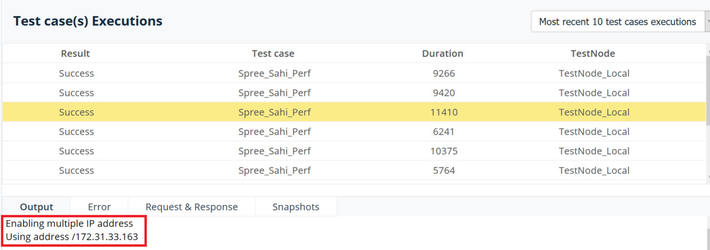
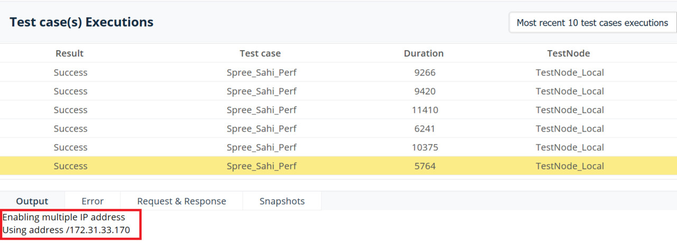
steps.
Last updated: JuneSeptember 26,9, 20232026
If you have any feedback on this topic, please contact us at documentation@appvance.ai