
Obsolete Internet Explorer 11 Execution Guidance
Last reviewed: October 2, 2026
This page is retained only to flag that Internet Explorer 11 execution guidance is noobsolete longerand should not be used for current AIQ testing.
What changed in this article
- Marked IE11 content as obsolete because Internet Explorer 11 is retired and not a current browser target for AIQ guidance.
- Replaced troubleshooting steps with a migration note toward supported Chromium-based execution paths.
- Added checks to confirm whether the issue still reproduces in supported browsers before treating it as an AIQ scenario problem.
Validation workflow
- Do not create new AIQ test coverage that depends on IE11.
- Reproduce the workflow in a supported browser
inandAIQ.reviewbrowser-specificRequired Setting Changes ClickBuild
Review note: This article should be removed or openarchived anonce existing,no scenariocustomers using File > New or File > Open
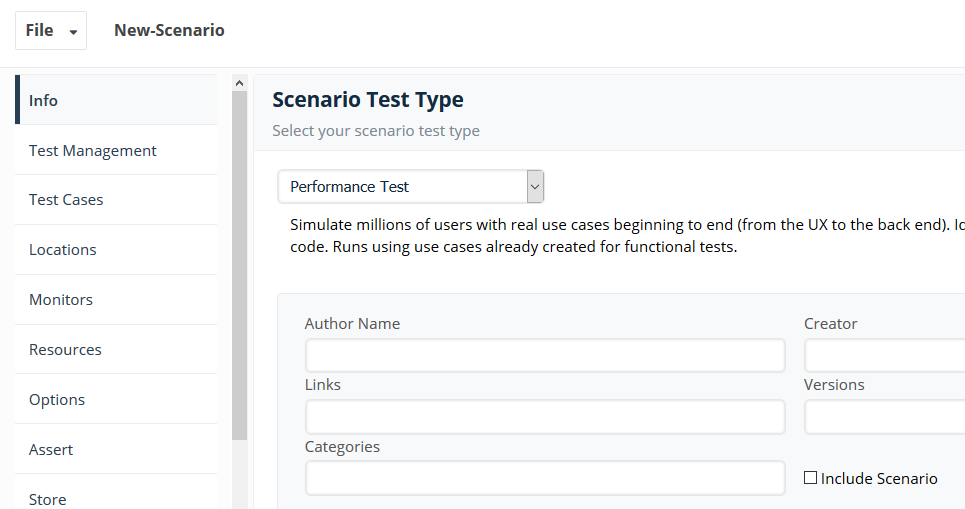
Applications using Internet Explorer's Compatibility Option
The following steps are required if your application under test is using Internet Explorer's Companitility Option. The steps must be performed on all Test Node machines, as well as any machines from which you are remotely accessing Appvance UTPreference.
Test Nodefile location: within your Appvance UTP install path <utp>\sahi\config\inject_top.txtRemote system accessing Appvance UTP:C:\Users\<user_name>\proxy_server\config\inject_top.txt
<META http-equiv="X-UA-Compatible" content="IE=9">or<META http-equiv="X-UA-Compatible" content="IE=10">
Save and close inject_top.txt
Finish configuration
Example updated file contents
<!--SAHI_INJECT_START--><META http-equiv="X-UA-Compatible" content="IE=9">$metaHeaders<script>/*<![CDATA[*//*---->*/__sahiDebugStr__="";__sahiDebug__=function(s){__sahiDebugStr__+=(s+"\n");};/*--*//*]]>*/</script><script src="/_s_/dyn/SessionState_domainfix/domainfix.js"></script><script src='/_s_/spr/concat.js' id='_sahi_concat'></script><script src='/_s_/dyn/SessionState_userExtensions/user_extensions.js'></script><script src='http://$commonDomain/_s_/dyn/SessionState/state.js'></script><script src='/_s_/spr/language_pack.js' id='langpack'></script><script>/*<![CDATA[*//*---->*/_sahi.createCookie('sahisid', _sahi.sid);_sahi.loadXPathScript()/*--*//*]]>*/</script><script>/*<![CDATA[*//*---->*/eval(_sahi.sendToServer("/_s_/dyn/Player_script/script.js"));/*--*//*]]>*/</script><script src='/_s_/spr/playback.js'></script><!--<applet CODEBASE="/_s_/spr/applet" ARCHIVE="sahiapplet.jar" CODE="SahiApplet.class" WIDTH=0 HEIGHT=0 id="_sahi_applet" MAYSCRIPT></applet>--><!--SAHI_INJECT_END-->
Last updated: October 16,2, 20232026
If you have any feedback on this topic, please contact us at documentation@appvance.ai.