
How to add Snapshot step in a designer script 2.0?
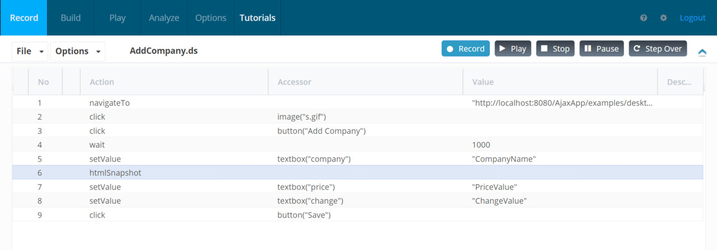
If the user wants to save a snapshot for a specific step, then a manual step needs to be added right after the target step.
- Right click the step, for which you want to take a snapshot and select 'Add a new step below'
- For this new line, select the Action value of 'htmlSnapshot'. The accessor and value fields should be blank.
- Note that if you would like snapshots of 2 different steps, you would need to add an 'htmlSnapshot' entry after each one of those.
- After running the script, the snapshot is saved to this folder: <AIQ>\sahi\userdata\logs\playback\images
Last updated: June 26, 2023
If you have any feedback on this topic, please contact us at documentation@appvance.ai