
Automate Scrolling in Scenario Editor
Automate Scrolling in Scenario Editor
WhenUse scrolling when the target element or content is not currently visible in the tablebrowser view,viewport. wePrefer needscrolling to scrolla down tillstable element getsor section over relying on pixel-only movements.
Recommended workflow
- Identify the element or section the scenario needs to reach.
- Scroll until the target is visible
inand stable. - Use a conditional wait if content loads asynchronously after scrolling.
- Perform the
tablevalidationview.orEx:-actionPatientonceNumberthe"L100"target isnotready.
Good inpractices
- Avoid
belowscrolltablestepsview,thatSodependweonneedatospecificclickscreenthesizeScrollunlessbar till element gets visible in the table view.
To achieve above scenario sahi API provides the "scrollTop" function.Belowthat is thesampletestsahi code to automateobjective. - Validate the
above scenario._div("pt1:r2:0:pc1:pt_t1::scroller") is the Scrollbartarget elementinafterthe respective Application (This Scrollbar element may vary from application to application)."Scrollbar-element.scrollTop" is the syntax to simulate the mouse hover and click scrollbar.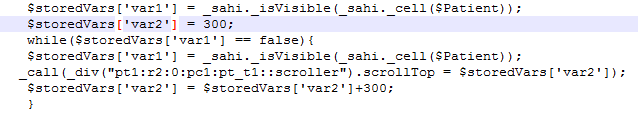
Used while loop in the code to iterate click scrollbar multiple times till element gets visible in the table view.
SCROLLING FUNCTION USAGE IN TEST DESIGNER:
There are various approaches one can use to do scroll – be it vertical/horizontal.Those are below:
Use CustomJS action from Action dropdown while using in scripts.Try these in browser's consolescrolling before usingclicking inor scripts.
JAVASCRIPTmobile APPROACHES:or
1.document.getElementById(<id>).scrollTo(1000,0)behavior -----------→separately > This is to horizontalwhen scrolling – y co-ordinates would be zero. you can try with x coordinate value of any number.
document.getElementsById(<id>).scrollTo(0,1000) ----------→ This is for Vertical scrolling - X co-ordinates would be zero. you can try with y coordinate value of any number.
Following will retrieve a list of elements matching this class .So accordingly we have to select the correct element to do the scroll.
2.document.getElementsByClassName(<classvalue>)
document.getElementsByClassName(<classvalue>)[1] – 2nd element from the list..
document.getElementsByClassName(<classvalue>)[1].scrollTo(1000,0)
3.document.getElementsByName(<name>) – name of element — document.getElementsByName(<name>)[1].scrollTo(1000,0)
4.document.getElementsByTagName(<tagname>) – tagname of element — document.getElementsByTagName(<tagname>)[1].scrollTo(1000,0)
5.document.getElementsByTagNameNS(<namespace>,<tagname>) – name of element — document.getElementsByTagNameNS(<namespace>,<tagname>)[1].scrollTo(1000,0)
Usage in Script – _eval("document.getElementById(<id>).scrollTo(1000,0)") — wrap the above in _eval("") to be used in script in ds or js scripts.
JQUERY APPROACHES:
Normal jquery selectors can be used – as ds$('#id') , ds$('.classvalue') ,etc..
ds$('#id').scrollTop(500) — > This will scroll vertically
ds$('#id').scrollLeft(500) — > This will scroll horizontally.
Usage in Script – _eval(" ds$('#id').scrollTop(500)") - wrap the above in _eval("") to be used in script in ds or js scripts.
XPATH APPROACHES:
If there are no proper identifiers for the element such as no class/id/name/title or any other attribute , then one can godiffers by XPATH – relative or absolute XPATH. Inspect the element .Then right click element in inspect panel – click copy – then click xpath/selector options etc to be used for scrolling.
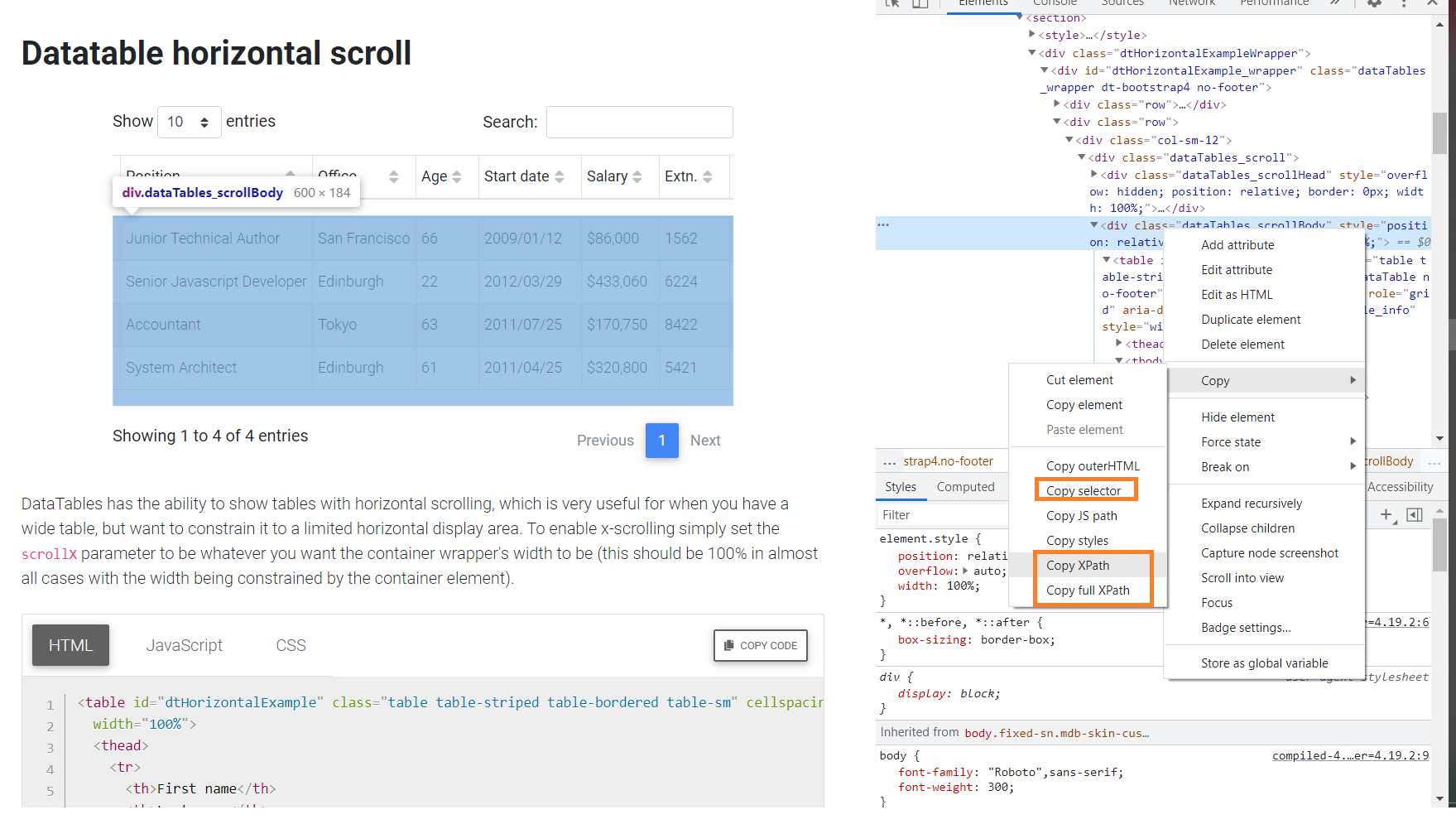
usage of XPATH to use in scrollTo:
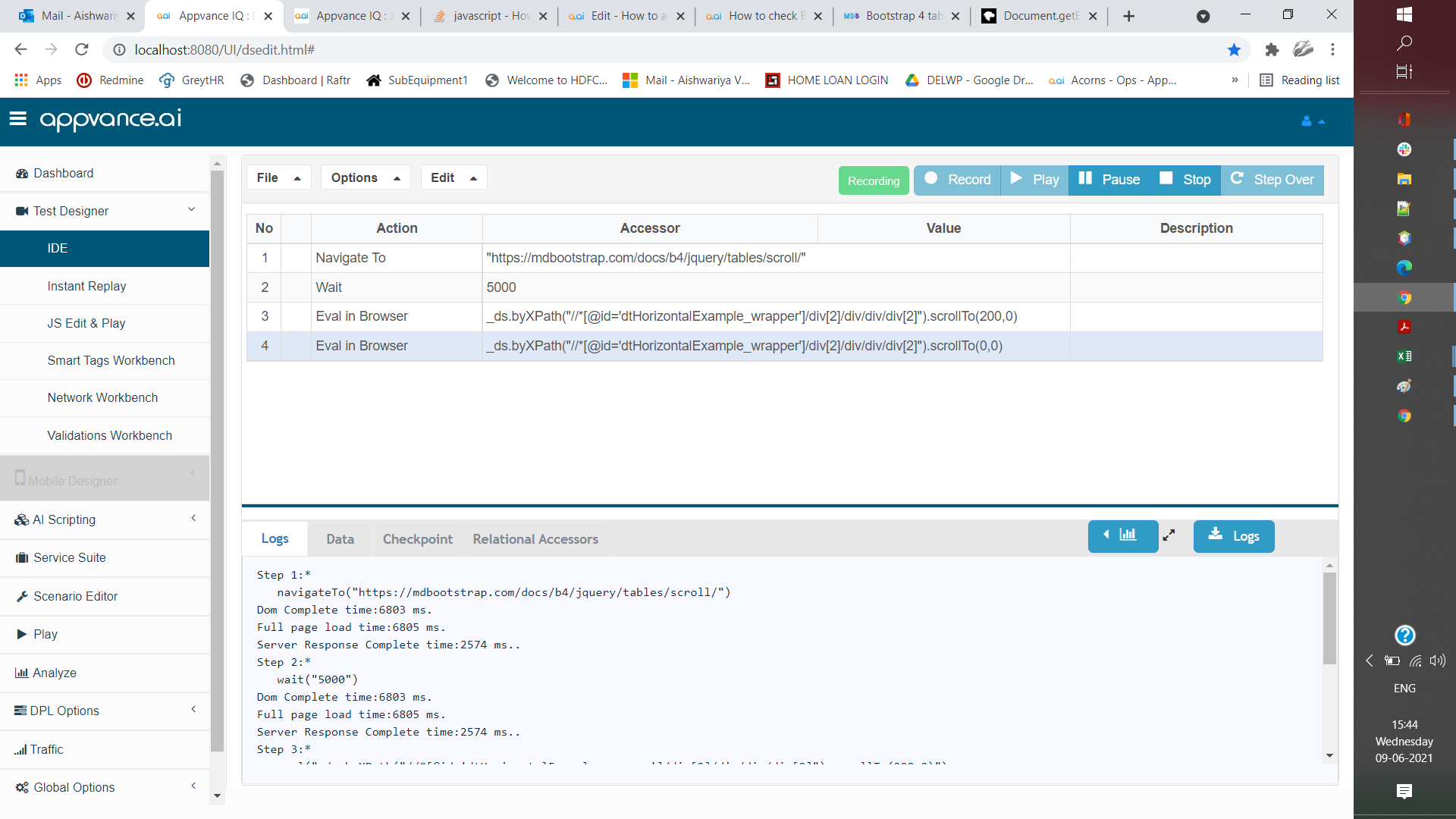
Eval in Browser as action and value to be used is - _ds.byXPath("//*[@id='dtHorizontalExample_wrapper']/div[2]/div/div/div[2]").scrollTo(200,0) — This is for horizontal scrolling. Same can be used for vertical scroll except the coordinates data 0,200. as in _ds.byXPath("//*[@id='dtHorizontalExample_wrapper']/div[2]/div/div/div[2]").scrollTo(0,200)
Last updated: JuneSeptember 26,9, 20232026
If you have any feedback on this topic, please contact us at documentation@appvance.ai