
How to automate the Scroll bar?
Automate Scrolling in Scenario Editor
Use scrolling when the targetWhen element or content is not currently visible in the browsertable viewport.view, Preferwe need to scroll down till element gets visible in the table view.
Ex:- Patient Number "L100" is not visible in the below table view, So we need to click the Scroll bar till element gets visible in the table view.

To achieve above scenario sahi API provides the "scrollTop" function.
Below is the sample sahi code to automate the above scenario.
_div("pt1:r2:0:pc1:pt_t1::scroller") is the Scrollbar element in the respective Application (This Scrollbar element may vary from application to application).
"Scrollbar-element.scrollTop" is the syntax to simulate the mouse hover and click scrollbar.
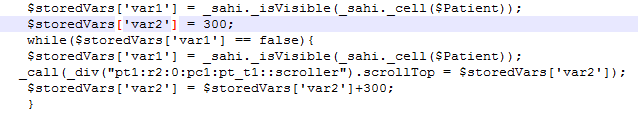
Used while loop in the code to iterate click scrollbar multiple times till element gets visible in the table view.
SCROLLING FUNCTION USAGE IN TEST DESIGNER:
There are various approaches one can use to do scroll – be it vertical/horizontal.Those are below:
Use CustomJS action from Action dropdown while using in scripts.Try these in browser's console before using in scripts.
JAVASCRIPT APPROACHES:
1.document.getElementById(<id>).scrollTo(1000,0) -----------→ > This is to horizontal scrolling to– y co-ordinates would be zero. you can try with x coordinate value of any number.
document.getElementsById(<id>).scrollTo(0,1000) ----------→ This is for Vertical scrolling - X co-ordinates would be zero. you can try with y coordinate value of any number.
Following will retrieve a stablelist of elements matching this class .So accordingly we have to select the correct element to do the scroll.
2.document.getElementsByClassName(<classvalue>)
document.getElementsByClassName(<classvalue>)[1] – 2nd element from the list..
document.getElementsByClassName(<classvalue>)[1].scrollTo(1000,0)
3.document.getElementsByName(<name>) – name of element — document.getElementsByName(<name>)[1].scrollTo(1000,0)
4.document.getElementsByTagName(<tagname>) – tagname of element — document.getElementsByTagName(<tagname>)[1].scrollTo(1000,0)
5.document.getElementsByTagNameNS(<namespace>,<tagname>) – name of element — document.getElementsByTagNameNS(<namespace>,<tagname>)[1].scrollTo(1000,0)
Usage in Script – _eval("document.getElementById(<id>).scrollTo(1000,0)") — wrap the above in _eval("") to be used in script in ds or sectionjs over relying on pixel-only movements.scripts.
Recommended
JQUERY workflowAPPROACHES:
IdentifyNormal jquery selectors can be used – as ds$('#id') , ds$('.classvalue') ,etc..
ds$('#id').scrollTop(500) — > This will scroll vertically
ds$('#id').scrollLeft(500) — > This will scroll horizontally.
Usage in Script – _eval(" ds$('#id').scrollTop(500)") - wrap the above in _eval("") to be used in script in ds or js scripts.
XPATH APPROACHES:
If there are no proper identifiers for the element such as no class/id/name/title or
sectionany other attribute , then one can go by XPATH – relative or absolute XPATH. Inspect thescenarioelementneeds.Then right click element in inspect panel – click copy – then click xpath/selector options etc toreach.Scrollbeuntilused for scrolling.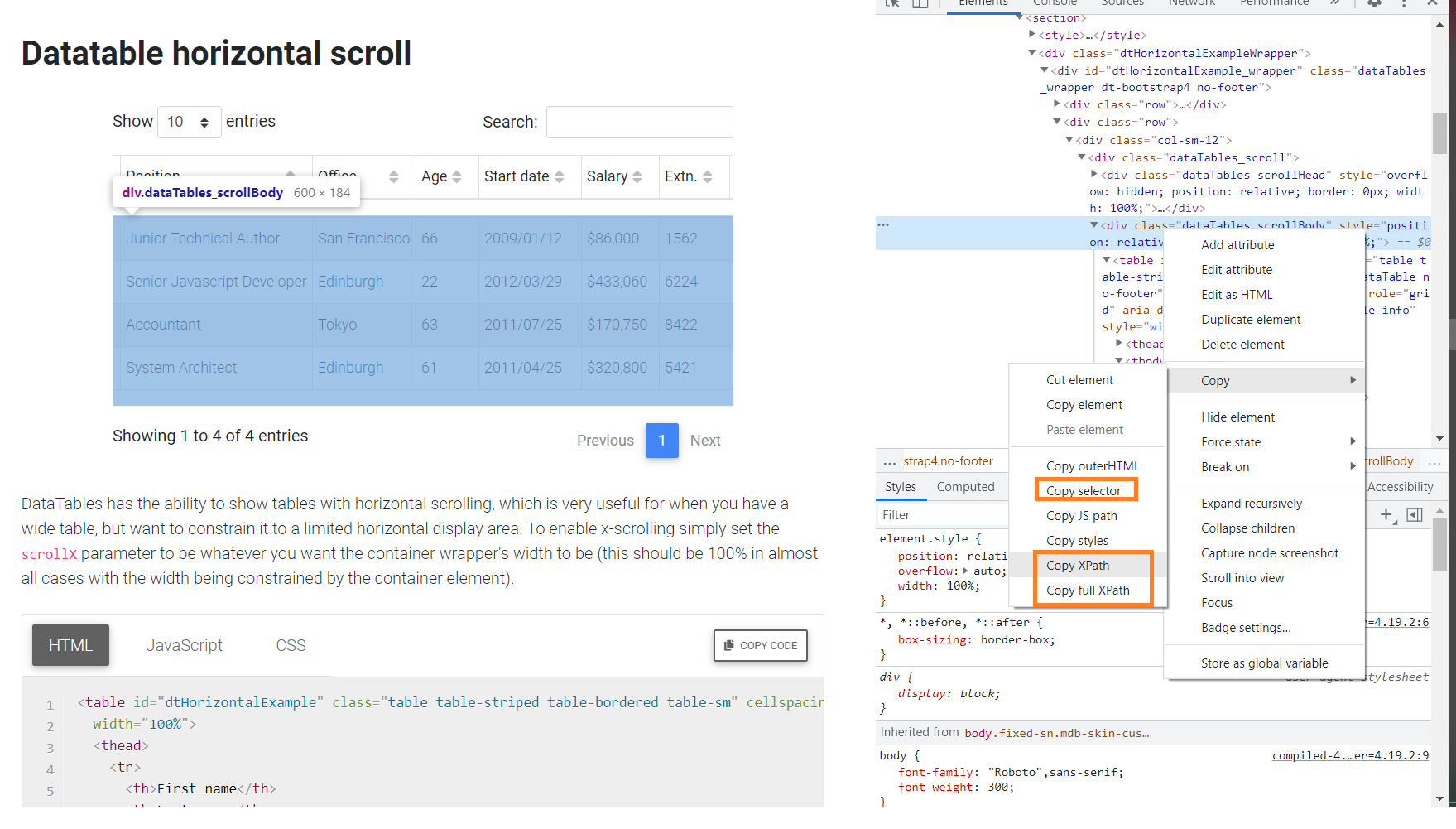
usage of XPATH to use in scrollTo:
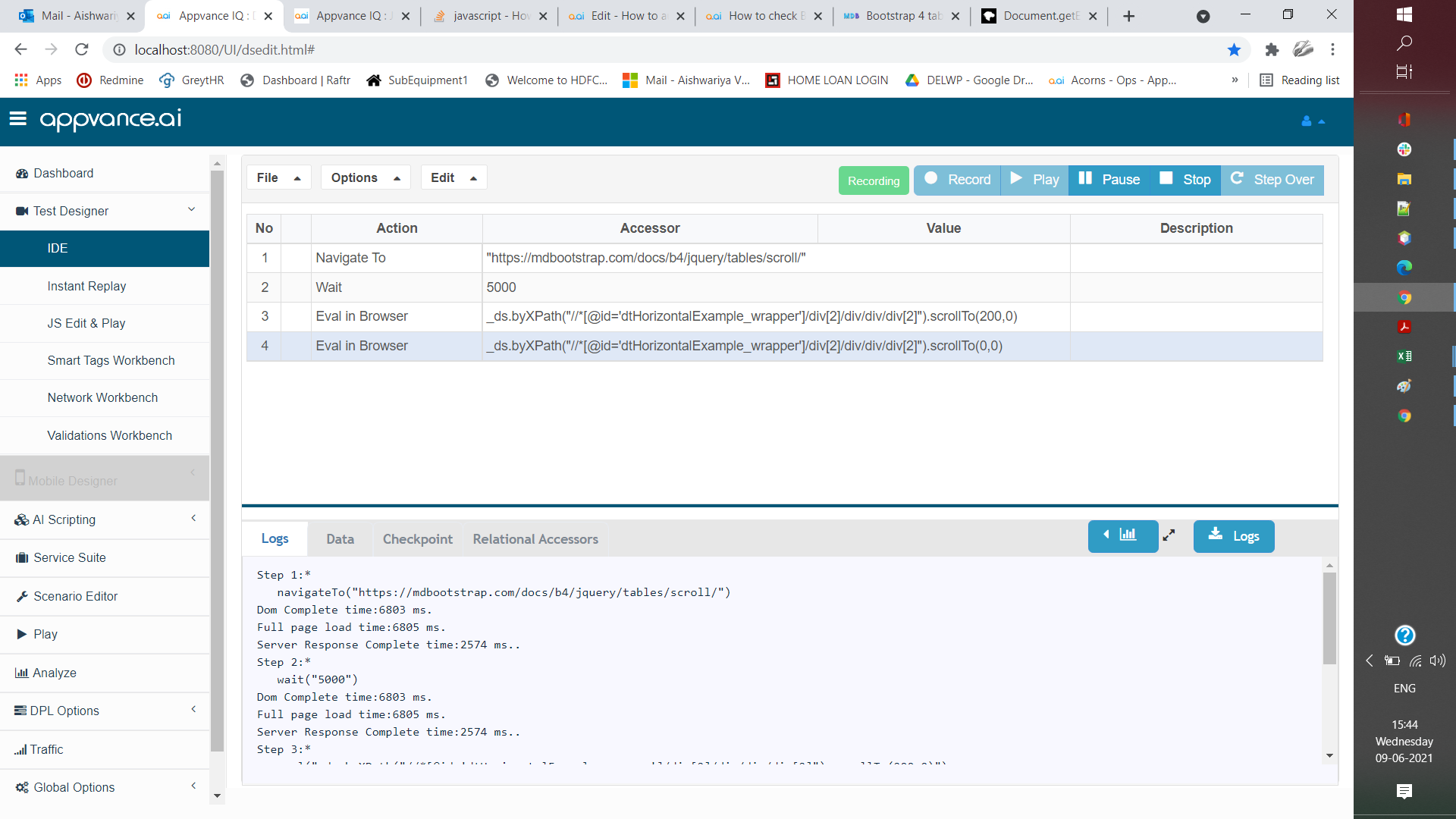
Eval in Browser as action and value to be used is - _ds.byXPath("//*[@id='dtHorizontalExample_wrapper']/div[2]/div/div/div[2]").scrollTo(200,0) — This is for horizontal scrolling. Same can be used for vertical scroll except the
targetcoordinatesisdatavisible0,200.andasstable.Useina_ds.byXPath("//*[@id='dtHorizontalExample_wrapper']/div[2]/div/div/div[2]").scrollTo(0,200)conditionalwait
ifcontentloads
asynchronouslyLast
afterupdated:scrolling.PerformJunethe26,validation2023orIf
actionyouoncehavetheanytarget is ready.
Good practices
Avoid scroll steps that dependfeedback onathisspecifictopic,screenpleasesizecontactunlessusthatatis the test objective.Validate the target element after scrolling before clicking or typing.Document mobile or responsive behavior separately when scrolling differs by viewport.
Last updated: September 9, 2026documentation@appvance.ai