
Automating Multi-Factor Authentication in Scenario Editor
Automating Multi-Factor Authentication in Scenario Editor
SomeAutomate webappsMFA youonly arein testingapproved maytest requestenvironments where the authentication flow is designed for repeatable testing. Do not bypass MFA protections in production or capture real user secrets in scenarios.
Recommended options
- Use a test-only account with an
authenticatorapprovedappMFAshortmethod. - Prefer
codetestasbypasspartcodes, sandbox identity-provider rules, or dedicated automation policies when the customer provides them. - Store any test tokens or secrets in secured variables, not directly in steps.
- Use Scenario Editor validations to confirm the post-login state instead of relying only on timing.
- Document the identity provider, test account type, and approved MFA handling pattern.
Validation workflow
- Confirm that MFA automation is approved for the target environment.
- Run the login
process.flowMicrosoftonceAuthenticatormanually andGoogledocumentAuthenticatorthe expected challenge. - Add the Scenario Editor steps using test-safe inputs only.
- Validate the landing page or authenticated state after MFA completes.
- Review logs to confirm secrets are
thenotmost commonly used authenticator applications but there are others.printed.
YouSecurity cannote: configureThis aarticle third-partyis servicefor to provide a code when creating a AIQauthorized test designerautomation script.only. InIt ordermust to create a test designer script that automate test use cases over this application, a third party service can be configured configured as the code provider.
The third-party services currently supported by AIQ is passwordstate. For more information see passwordstate.
Configure the Authentication Code in the Application
These steps involves creating a new user in the application you are testing and setting the MFA authentication with the passwordstate. The following example shows Microsoft Authenticator and passwordstate.
In a real situation some of these screens would normally show user details such as email addresses or phone numbers. The following example shows generic screens.
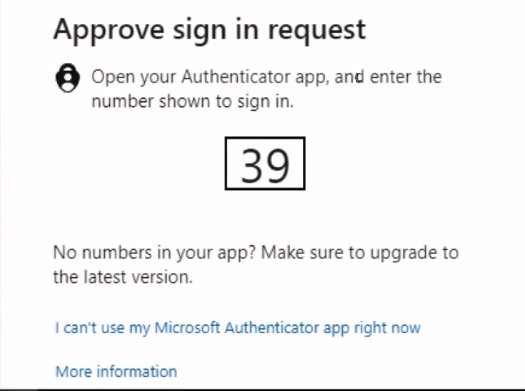
Anytime you try to login you are presented with MFA option to verify your identity.
Select “I can’t use my Microsoft Authenticator app right now”.
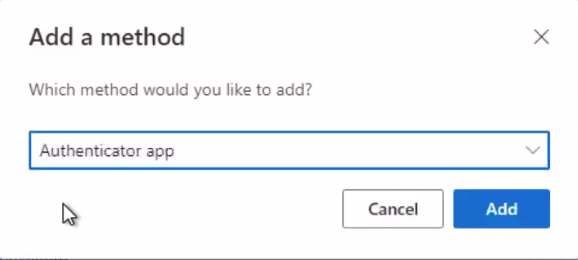
On the Add a method screen, select an Authenticator app as the new method.
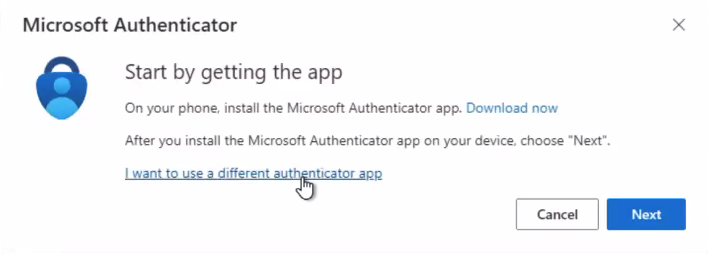
Select “I want to use a different authenticator app”.
The Authenticator app presents you with a QR code. Scan the code the app for passwordstate .
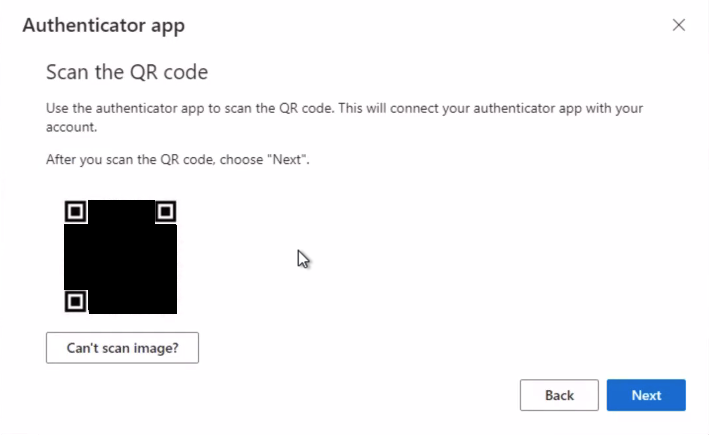
Enter the code that the app gives you in the One-Time Password Authenticator details.
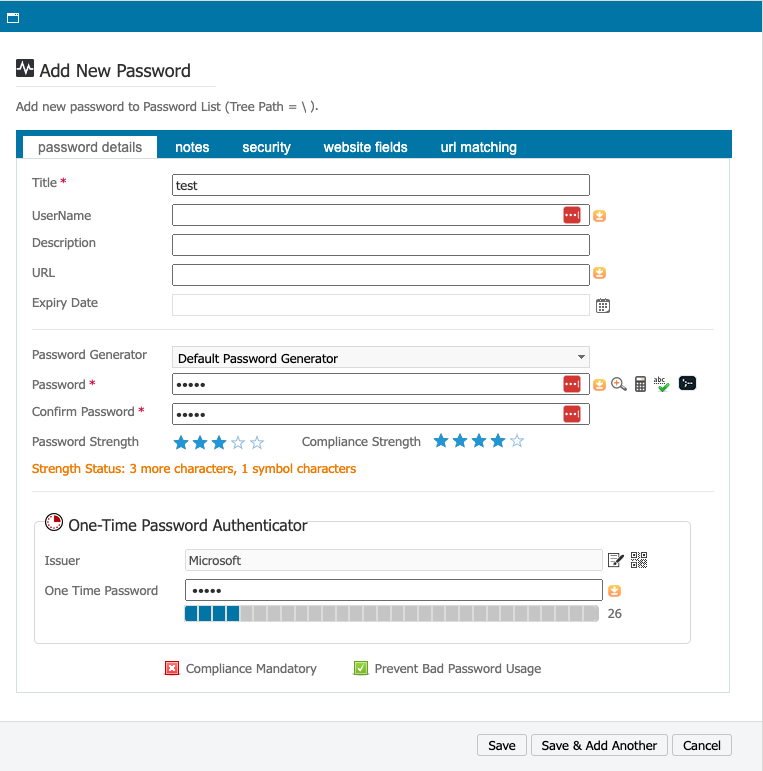
Logging in with the One-Time Password Code
The OTP code generated by passwordstate can be fetched using a REST API call triggered from your test script. The response will contain the code which cannot be used to completeweaken theor authenticationbypass processMFA infor thereal test designer script.
Login to your security portal and remove your current device.
users.
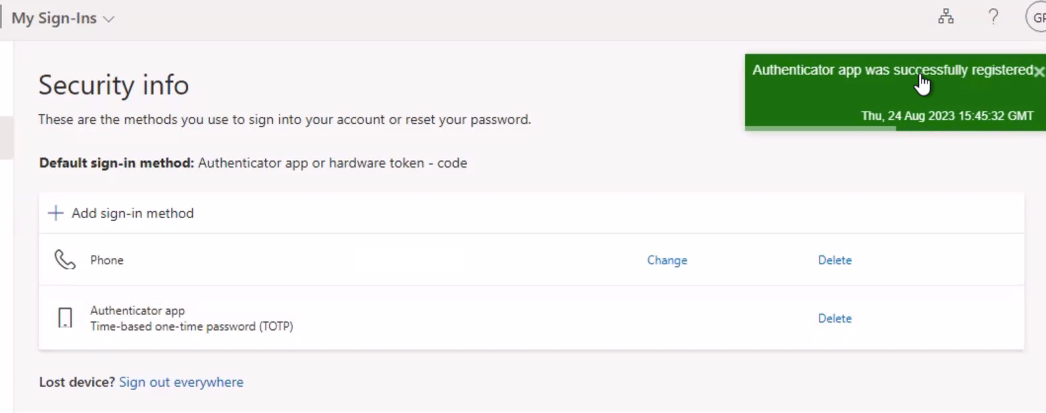
Login using the OTP.
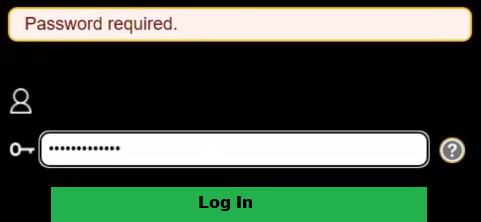
Successful login.
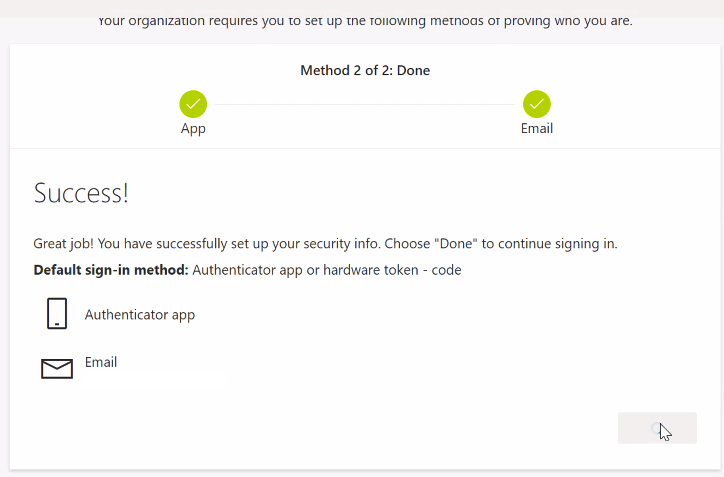
You may need to verify the account, but only the at the first login. Subsequent logins should not require account confirmation.
Getting a Password
To get a password, you must make an API call that can be executed from a JS script.
# Configuration

API_URL="https://client-passwords.appvance.net/api/onetimepassword/<item>"API_KEY="API_KEY"# Make API request using curl

curl -s -H "APIKey: $API_KEY" "$API_URL"
Appvance will create a passwordstate for clients which will have a different URL. Contact Appvance Support to have Appvance whitelist your IP adress and setup an OTP in passwordstate.
Last updated: October 01,8, 20242026
If you have any feedback on this topic, please contact us at documentation@appvance.ai