
Find the Position of an HTML Element in Scenario Editor
Recommended guidance
LetUse uselement considerposition anchecks exampleonly ofwhen thea link("Watch")Scenario inEditor thetest websitetruly www.apple.comneeds layout validation or coordinate-aware behavior. Prefer stable accessors, labels, and theassertions userbefore needsrelying toon findscreen outcoordinates, thebecause co-ordinatespositions assignedcan tochange by browser, device, zoom, responsive layout, or application state.
When position matters
- Verifying that
link.Appvance Designer hasanAPI which can be used to get the exact position or co-ordinates of the html element in a particular page. This also helps the user to know where exactly the htmlelement ispresentvisibleforinsideeasyamodificationviewport or container. - Checking scroll behavior, drag targets, or visual placement.
- Troubleshooting why a click or gesture hits the wrong area.
- Comparing responsive layouts across browsers or screen sizes.
Validation checklist
- Confirm the element is present, visible, and
accessnotincoveredabywebpage.anotherTheelement. - Record
statementbrowser,toviewport,findzoom,thedevicepositionscale,ofandtheTestlink("Watch")Node details. - Use waits so layout has stabilized before reading position.
- Avoid hard-coded coordinates unless there is
(_position_link("Watch"))nowhichstablereturnssemanticthe corresponding co-ordinates of that particular link watch.locator.
Please find attached a sample designer script which demonstrates the usage of position API in Appvance Designer.
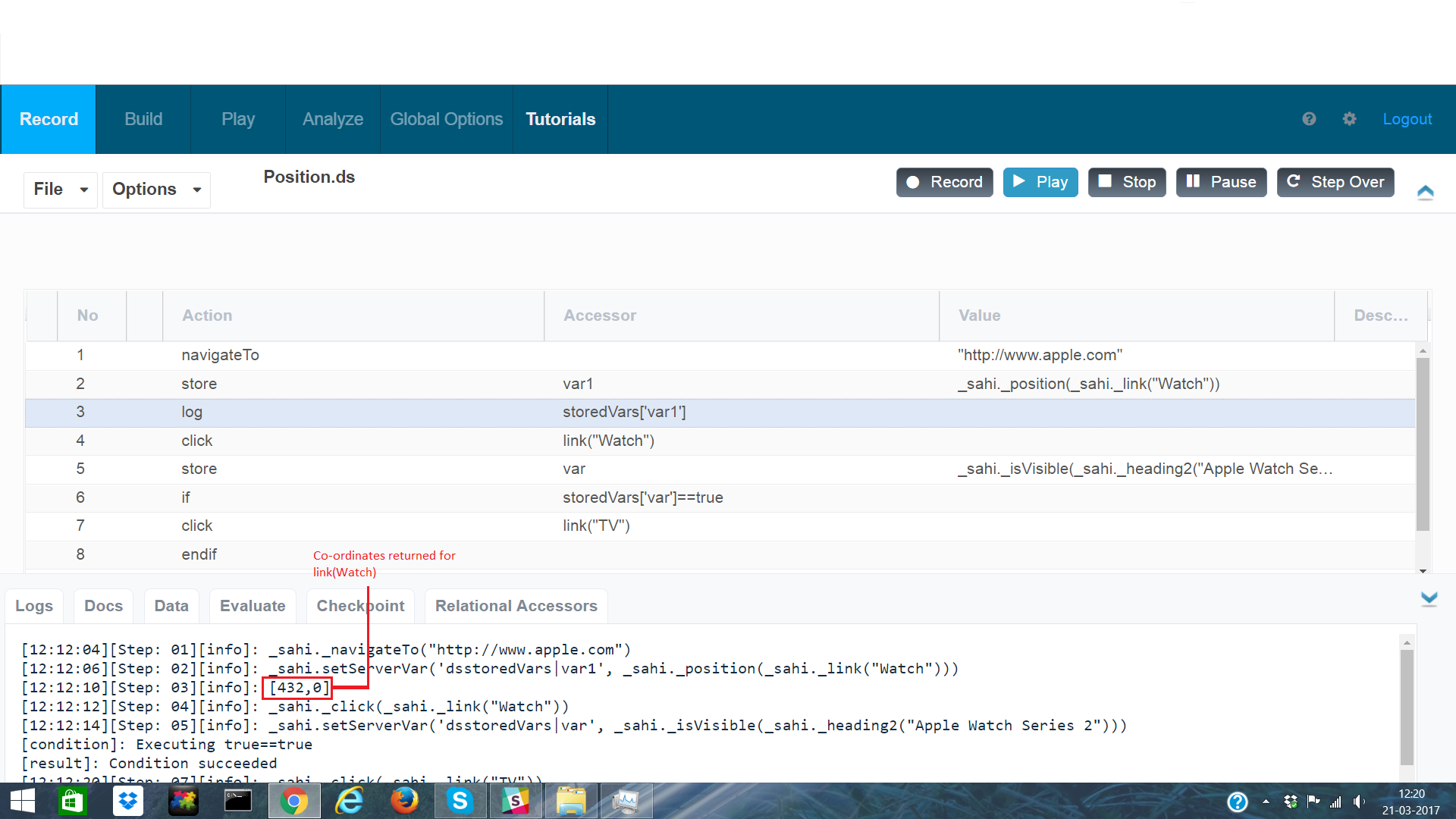
Sample file: Position.ds
Last updated: JuneOctober 05,6, 20242026
If you have any feedback on this topic, please contact us at documentation@appvance.ai