
Handling the Location Permission Browser Popup
How to achieve or handle location permission pop-ups in AIQ.
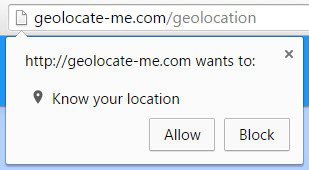
Stop test designer
Navigate to "\TestDesigner\NetworkProxy\config\Chrome" in your installation.
Take backup of the "AllowDownloads.json" file by renaming it.
Create a new version of "AllowDownloads.json" file in "\TestDesigner\NetworkProxy\config\Chrome" using the following code:
AllowDownloads.json
{
                            "credentials_enable_service": false,
                            "profile": {
                            "managed_default_content_settings":{
                            "geolocation": 1
                            },
                            "default_content_setting_values": {
                            "automatic_downloads": 1,
                            "geolocation": 1
                            },
                            "default_content_settings":{
                            "popups":0
                            },
                            "cookie_controls_mode": 0
                            },
                            "download": {
                            "directory_upgrade": true
                            },
                            "partition": {
                            "default_zoom_level": {
                            "x": 0
                            }
                            },
                            "devtools": {
                            "preferences": {
                            "jsSourceMapsEnabled": "false"
                            }
                            }
                        }
Start test designer
Login to AIQ and launch your script in playback mode in Chrome.
Last updated: June 26, 2023
If you have any feedback on this topic, please contact us at documentation@appvance.ai