
Handling the Location Permission Browser Popup
Handle
How Browserto Locationachieve Permissionor Prompts
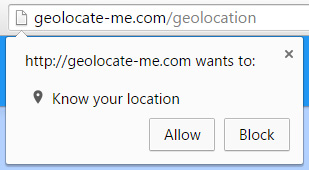
Browser permission prompts can interrupt Scenario Editor executions. Configurehandle location permission behaviorpop-ups intentionallyin beforeAIQ.
Stop test designer
Navigate to "\TestDesigner\NetworkProxy\config\Chrome" in your installation.
Take backup of the run"AllowDownloads.json" insteadfile by renaming it.
Create a new version of treating"AllowDownloads.json" file in "\TestDesigner\NetworkProxy\config\Chrome" using the promptfollowing as an ordinary application dialog.code:
Recommended
approach
{
                            "credentials_enable_service": false,
                            "profile": {
                            "managed_default_content_settings":{
                            "geolocation": 1
                            },
                            "default_content_setting_values": {
                            "automatic_downloads": 1,
                            "geolocation": 1
                            },
                            "default_content_settings":{
                            "popups":0
                            },
                            "cookie_controls_mode": 0
                            },
                            "download": {
                            "directory_upgrade": true
                            },
                            "partition": {
                            "default_zoom_level": {
                            "x": 0
                            }
                            },
                            "devtools": {
                            "preferences": {
                            "jsSourceMapsEnabled": "false"
                            }
                            }
}Start test requiresdesigner
Login blockedto locationAIQ behavior.
Troubleshooting
Check
whetherLast
theupdated:promptJuneis26,from2023theIf
browser,youthehaveoperatinganysystem, or the application.Confirm the Test Node browser profile matches the intended permission state.Review output and screenshots when a prompt blocks execution.Prefer environment configuration over fragile click automationfeedback onbrowserthisprompts.
Lastplease updated:contact Septemberus 9,at 2026documentation@appvance.ai