
Get All Dropdown Values in Scenario Editor
BelowLast reviewed: September 21, 2026
Use this page when a Scenario Editor test needs to capture and validate the available options in a dropdown or select control.
Recommended guidance
- Confirm whether the control is
exampleascriptnative select element or a custom dropdown. - Open custom dropdowns before collecting visible options.
- Normalize labels before comparing expected and actual values.
Validation workflow
- Locate the dropdown using a stable label or selector.
- Expand the dropdown if options are rendered only after interaction.
- Collect the option labels and values.
- Compare the set against expected data, allowing for intentional ordering rules.
- Close the dropdown and continue the workflow only after validation passes.
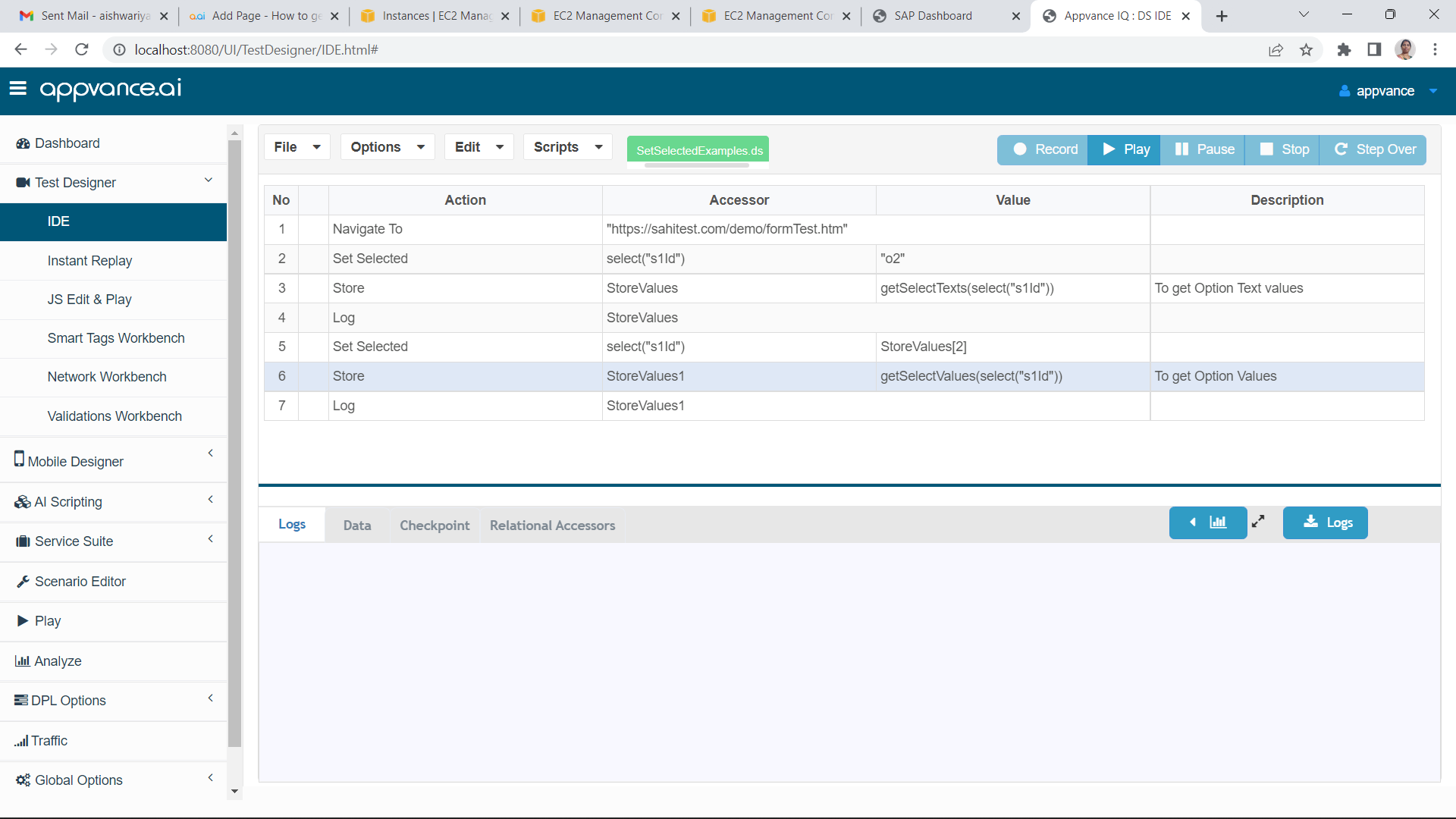
Note: Dynamic dropdowns may depend on previous selections, user role, or environment data; include that showscontext howin tothe get all text and option values of dropdowntest.
Last updated: JulySeptember 03,21, 20232026
If you have any feedback on this topic, please contact us at documentation@appvance.ai.