
MFA Authentication Automation Guidance
SomeLast webappsreviewed: youSeptember are30, testing2026
Use requestthis anarticle authenticatorto appdecide shorthow codeAIQ astests partshould handle applications protected by multi-factor authentication.
What changed in this article
- Reframed MFA automation around approved test-environment patterns instead of bypassing or weakening MFA.
- Added guidance for test accounts, pre-authorized sessions, API token flows, IdP test policies, and audit requirements.
- Added a warning that real user OTPs, personal devices, and production MFA prompts should not be automated in shared tests.
Validation workflow
- Confirm the approved MFA strategy with the application owner or identity team before building the scenario.
- Use a controlled test account, test IdP policy, or token-based flow that is explicitly approved for automation.
- Record evidence of the
loginauthenticationprocess.pathMicrosoftwithoutAuthenticatorloggingandOTPs,GooglerecoveryAuthenticatorcodes,arepersonalthephonemostnumbers,commonlyorused authenticator applications but there are others.secrets.
YouReview cannote: configureThis page now treats MFA as a third-partysecurity servicecontrol to providecoordinate around, not a code when creating a AIQ test designer script to
In orderpopup to create a test designer script that automate test use cases over this application, a third party service can be configured configured as the code provider.defeat.
Two common third-party services are passwordstate and cyberark.
Configure the Authentication Code in the Application
This steps involves creating a new user in the application you are testing and setting the MFA authentication with the third-party provider. The following example shows Microsoft Authenticator and passwordstate.
In a real situation some of these screens would normally show user details such as email addresses or phone numbers. The following example shows generic screens.
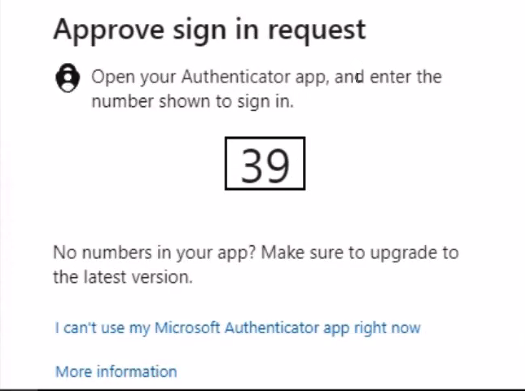
Anytime you try to login you are presented with MFA option to verify your identity.
Select “I can’t use my Microsoft Authenticator app right now”.
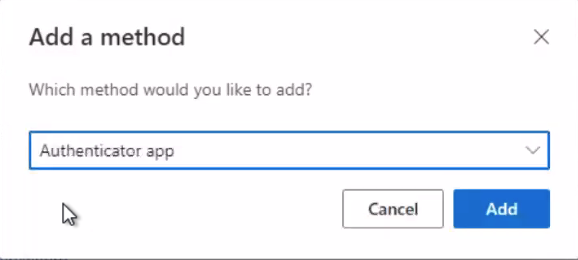
On the Add a method screen, select a Authenticator app as the new method.
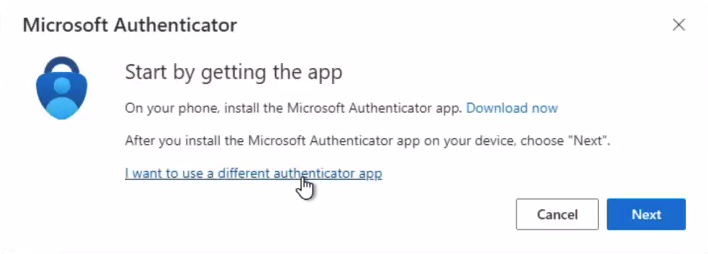
Select “I want to use a different authenticator app”.
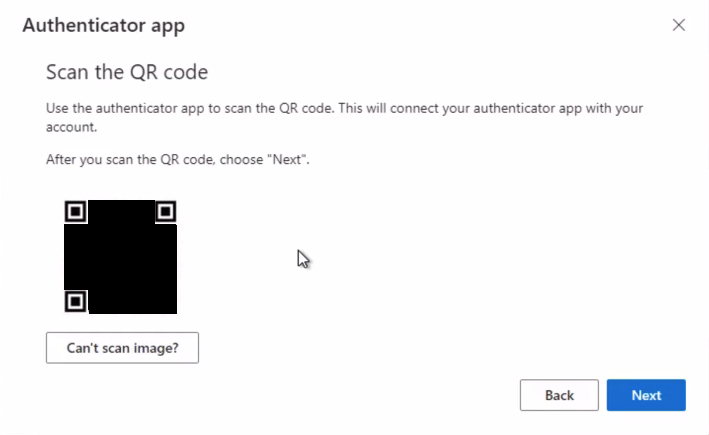
The Authenticator app presents you with a QR code. Scan the code the app for your chosen third-party authentication code service (passwordstate or cyberark).
Enter the code that the app gives you in the One-Time Password Authenticator details.
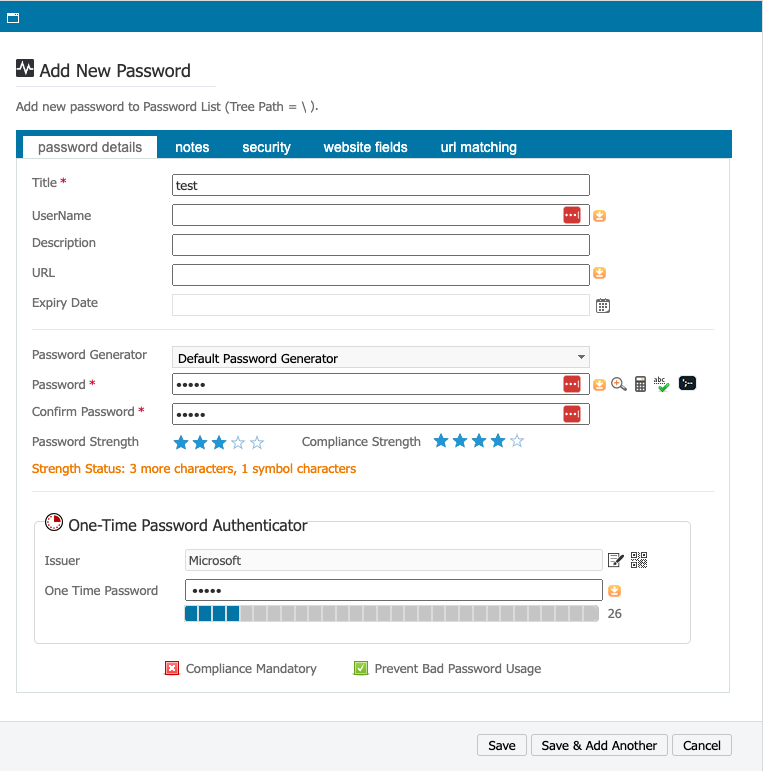
Logging in with the One-Time Password Code
The OTP code generated by your chosen third-party authentication code service (passwordstate or cyberark) can be fetched using a REST API call triggered from your test script. The response will contain the code which can be used to complete the authentication process in the test designer script.
Login to your security portal and remove your current device.
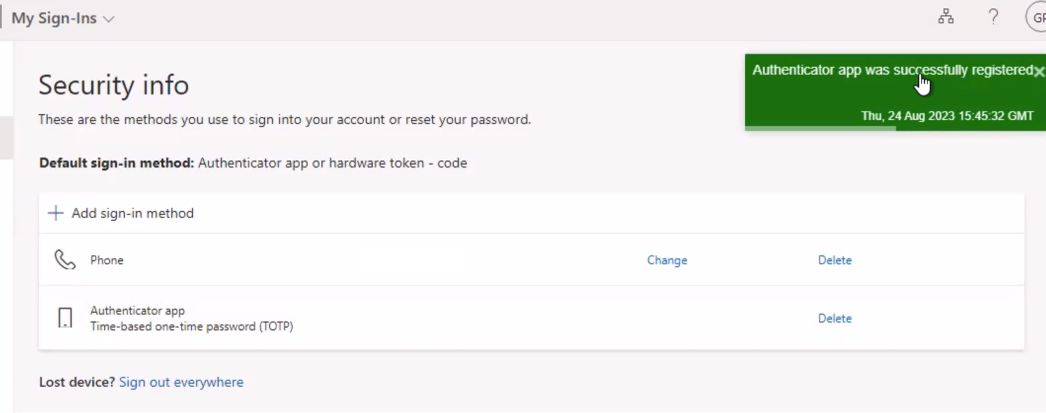
Login using the OTP.
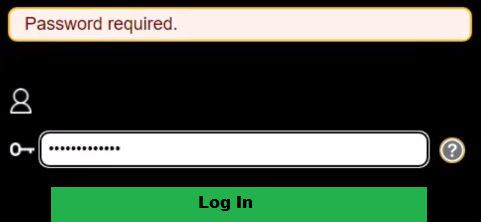
Successful login.
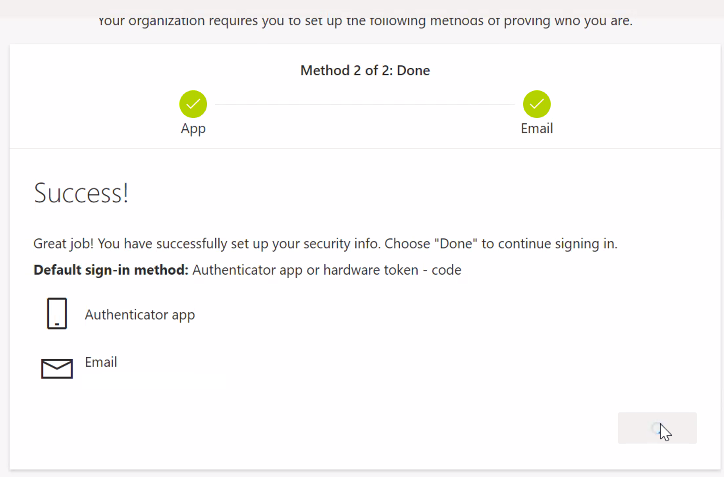
You may need to verify the account, but only the at the first login. Subsequent logins should not require account confirmation.
Getting a Password
To get a password, you must make an API call that can be executed from a JS script.
# Configuration

API_URL="https://client-passwords.appvance.net/api/onetimepassword/<item>"
API_KEY="API_KEY"

# Make API request using curl

curl -s -H "APIKey: $API_KEY" "$API_URL"
Appvance will create a passwordstate for clients which will have a different URL. Contact Appvance Support to have Appvance whitelist your IP adress and setup an OTP in passwordstate.
Last updated: September 05,30, 20232026
If you have any feedback on this topic, please contact us at documentation@appvance.ai.