
About Shadow DOM Settings
Recommended
guidance
Shadow DOM can hide application elements behind component boundaries, which affects how Scenario Editor identifies and interacts with controls. ReviewA Shadow DOM settingssetting when(forcedShadowDom) selectorshas workbeen on normal pages but fail inside web components.
Whenadded to review these settings
Elements are visible but cannot be found during playback.Recorded locators are unstable inside custom components.Self-healing chooses a similar element outsidetheintendedglobal.jsoncomponent.- file. The
applicationdefaultframework changed and moved elements into shadow roots.
Maintenance workflow
Confirm the target elementvalue isinsidetrue.open or closedThe ShadowDOM.UseDOMstable labels, accessible names, or application-provided test attributes when possible.Validate the selectorsetting in thesamescriptbrowseroptions in the Test Designer IDE (Set ShadowDOM) will be ignored if theforcedShadowDomis set to true. Even if that option is set to false in the Test Designer IDE, scripts will be run with the option set to true.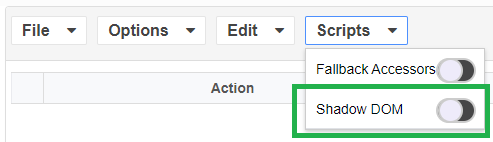
This was added in the 4.10.6 and
Test5.0.0NodereleasesusedofbyAIQ.theGenerally
scenario.Updatespeaking,waits and assertions so the componentthere isreadynobeforelongerinteraction.Documentany reason for having the Shadow DOMdependenciesoption turned off. Setting it off will not help or prevent any problems or failures. Having it set to off can actually cause failures in instances where a script tries to perform a click action on a element that is under Shadow DOM.In previous releases, there may
breakhaveafterbeenfront-endconcernsframeworkofchanges.
Examples
Any Shadow DOM setting of “true” will result in the test case finding the Shadow DOM elements successfully. However, the setting in the global.json file will always override the option set locally in the test script.
Following are some examples of the script execution results from the various combinations of settings between the forcedShadowDom setting in global.json and the Set ShadowDOM action specified in test scripts.
The example test scripts were recorded using the public Salesforce site which has Shadow DOM elements as shown in the examples.
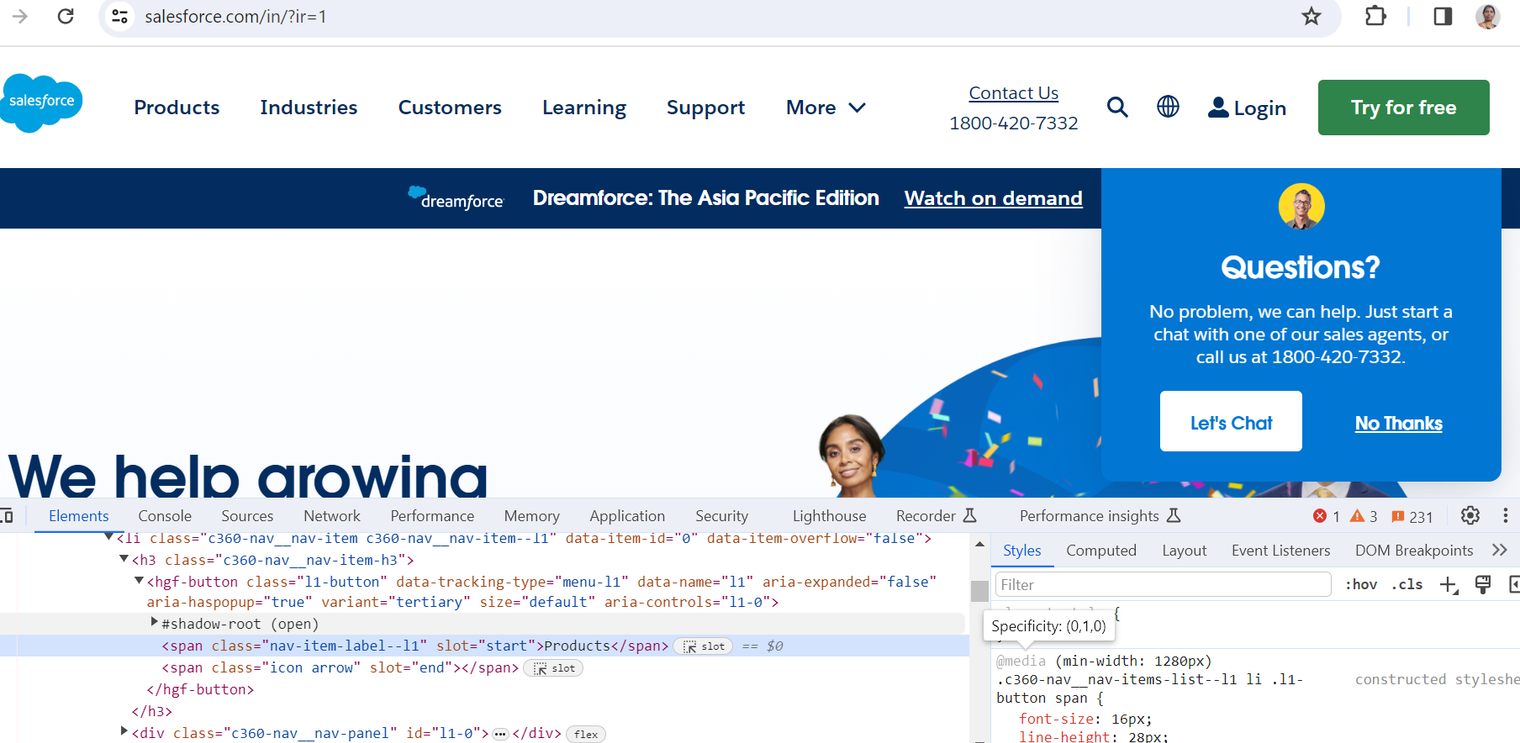
Example 1
Settings:
forcedShadowDom in global.json is set to true
Set ShadowDOM action is not specified in test script
Expected behavior:
AIQ should find the Shadow DOM elements and the script execution completes successfully.
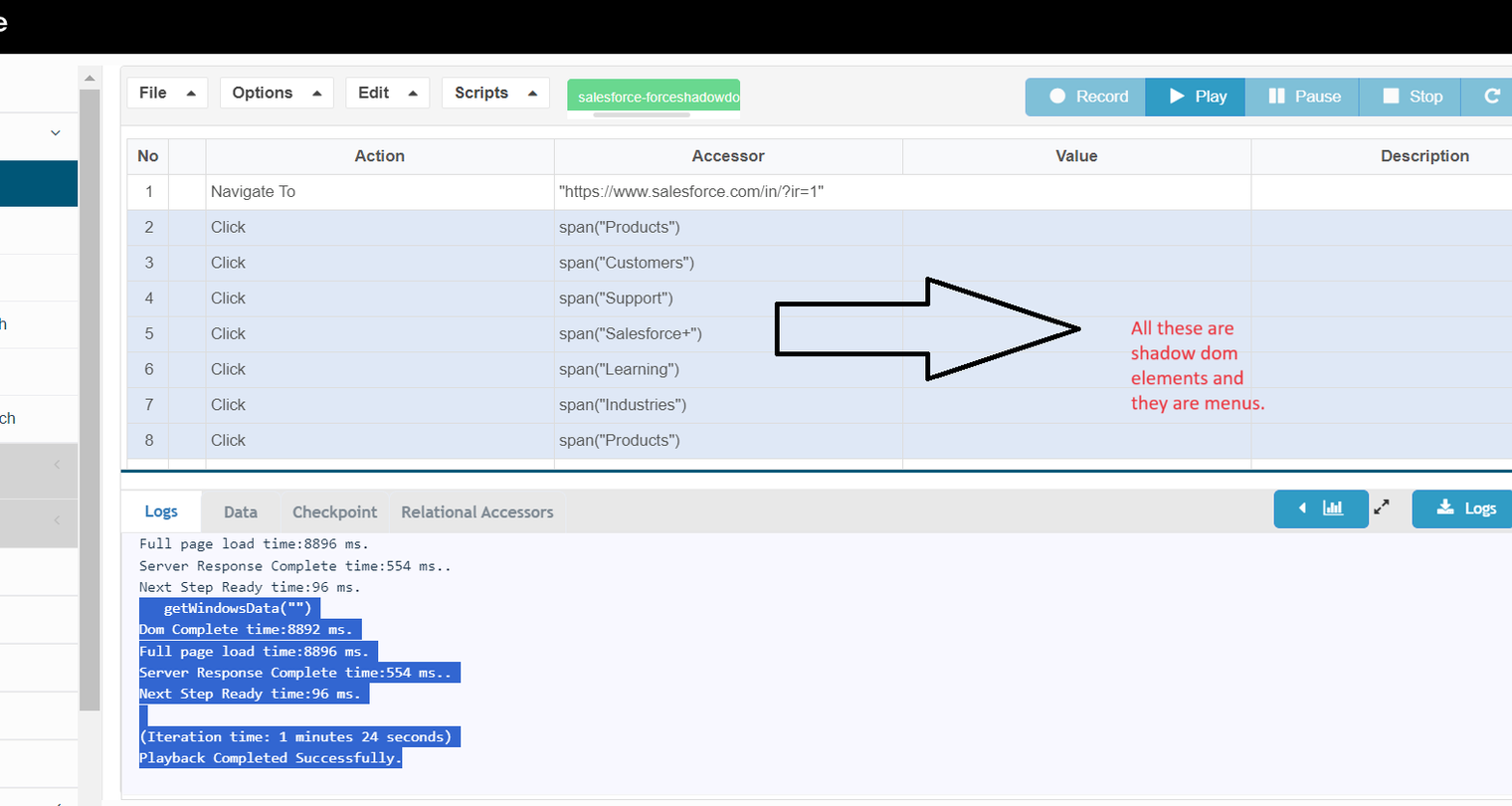
Example 2
Settings:
forcedShadoDom in global.json is set to true
Set ShadowDOM action in the test script is set to false
Expected behavior:
AIQ should find the Shadow DOM elements and the script execution completes successfully. This is because even though the individual script setting is false, the setting in the global.json file is given priority.
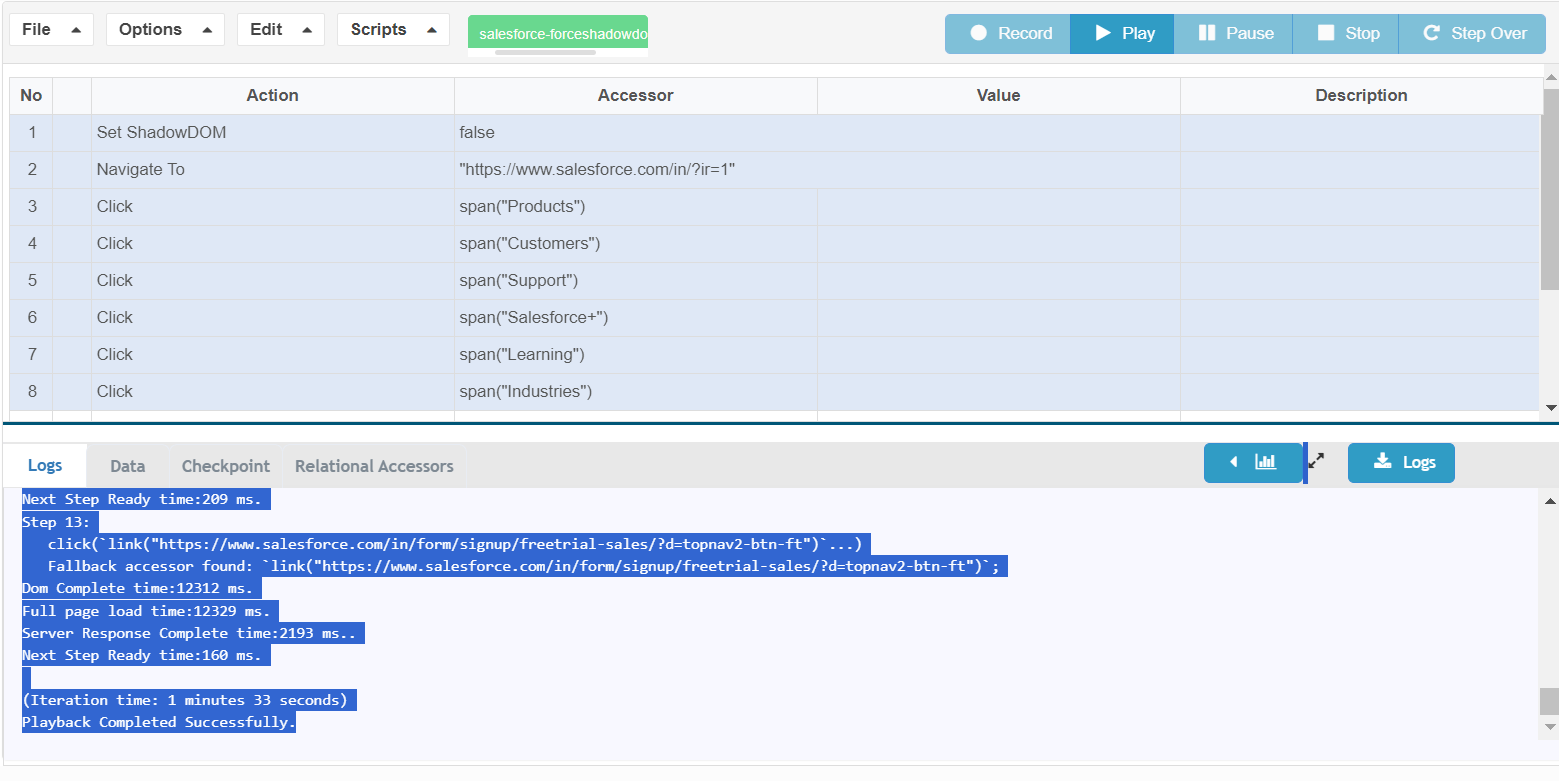
Example 3
Settings:
forcedShadowDom in global.json is set to true
Set ShadowDOM action in the test script is set to true
Expected behavior:
AIQ should find the Shadow DOM elements and the script execution completes successfully. This is because the Shadow DOM property is set to true in both locations.
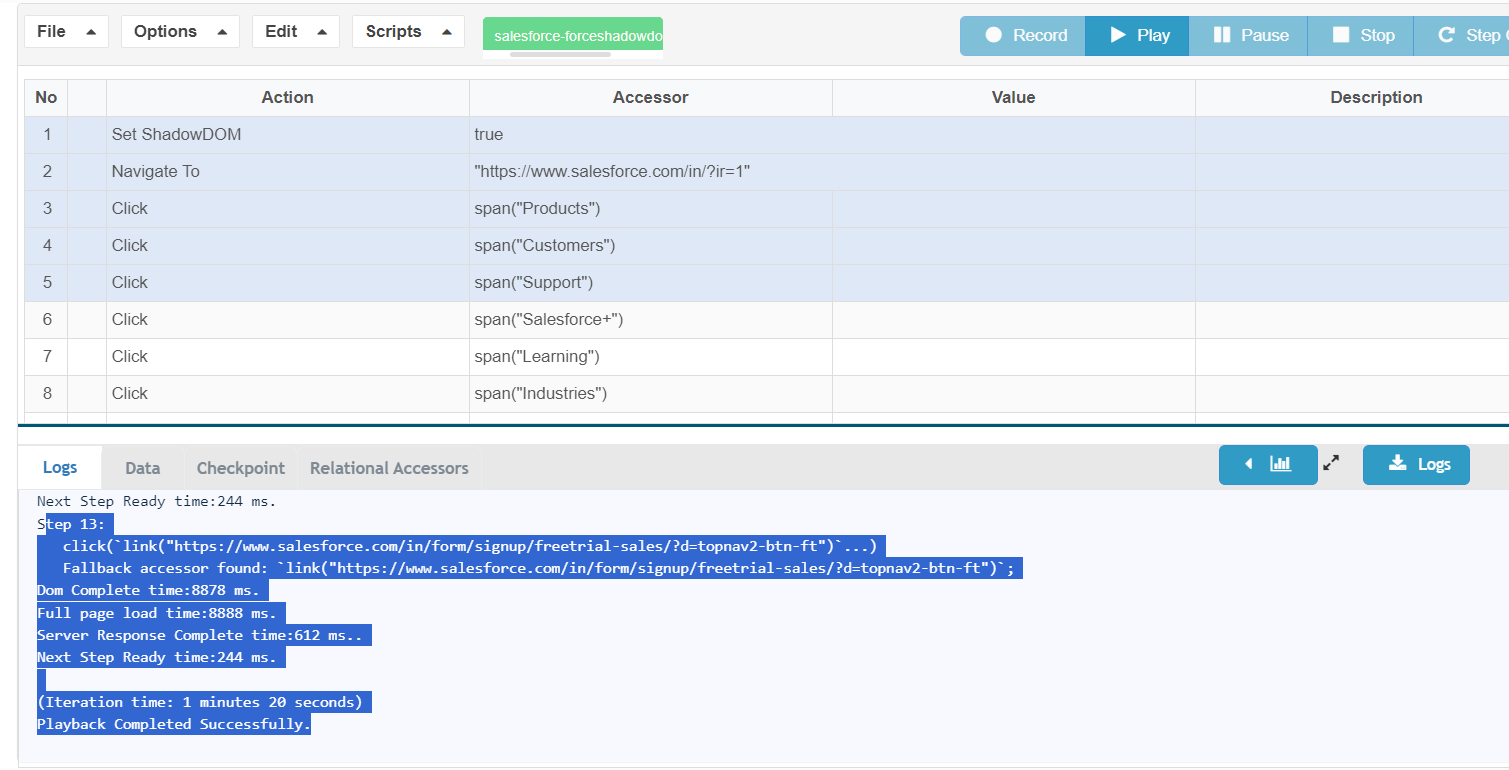
Example 4
Settings:
forcedShadowDom in global.json is set to false
Set ShadowDOM action is not specified in test script
Expected behavior:
AIQ will not locate the Shadow DOM elements and the script fails.
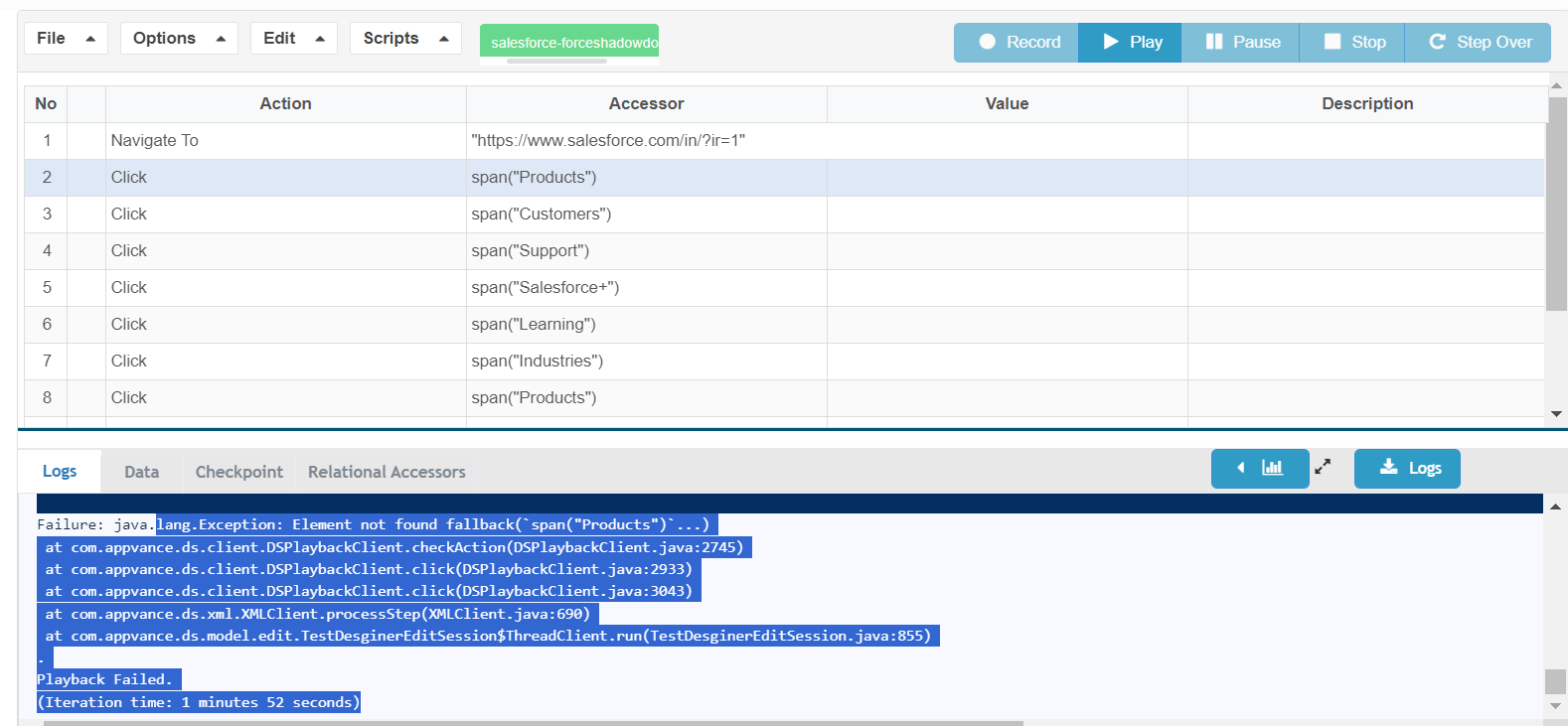
Example 5
Settings:
forcedShadowDom in global.json is set to false
Set ShadowDOM action in the test script is set to false
Expected behavior:
AIQ will not locate the Shadow DOM elements and the script fails.
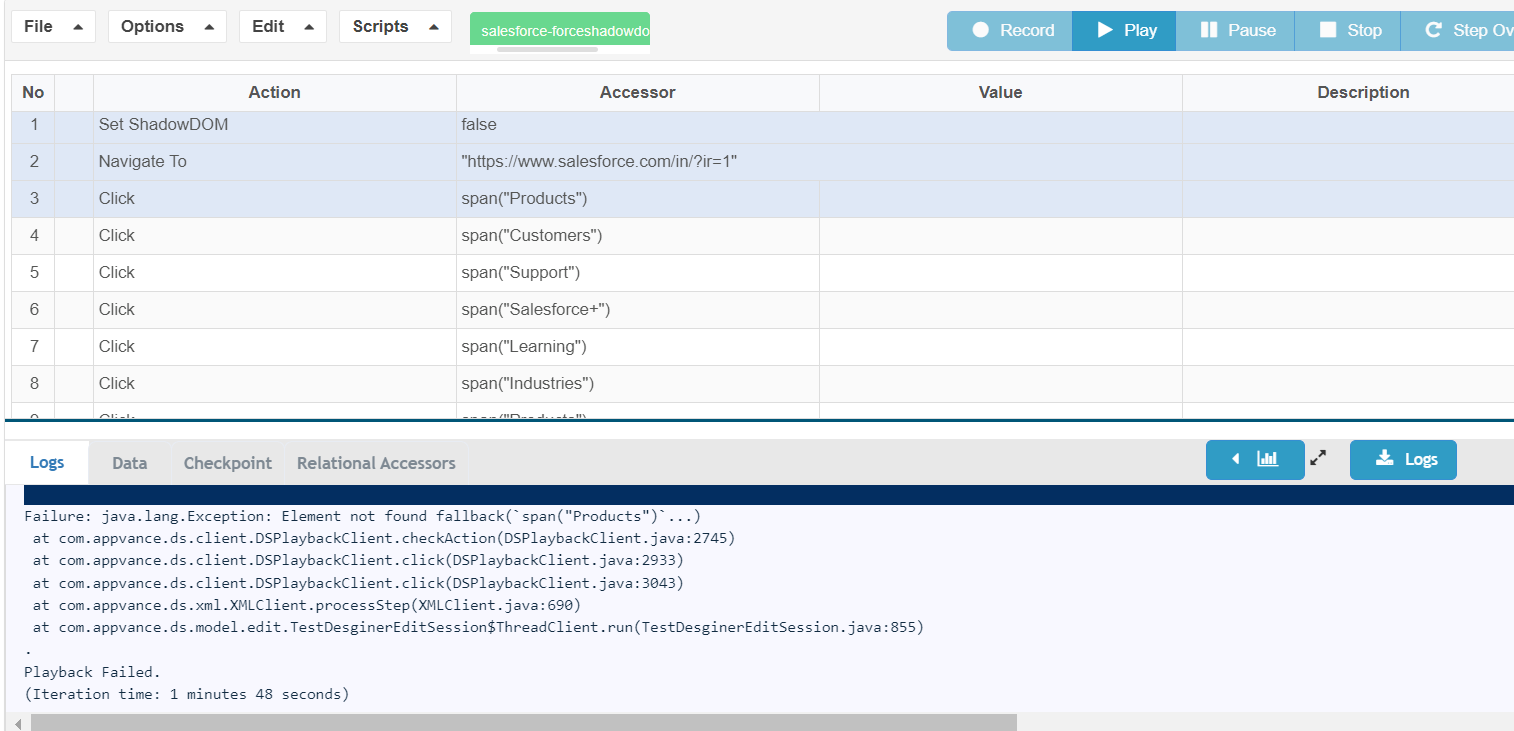
Example 6
Settings:
forcedShadowDom in global.json is set to false
Set ShadowDOM action in the test script is set to true
Expected behavior:
AIQ should find the Shadow DOM elements and the script execution completes successfully.
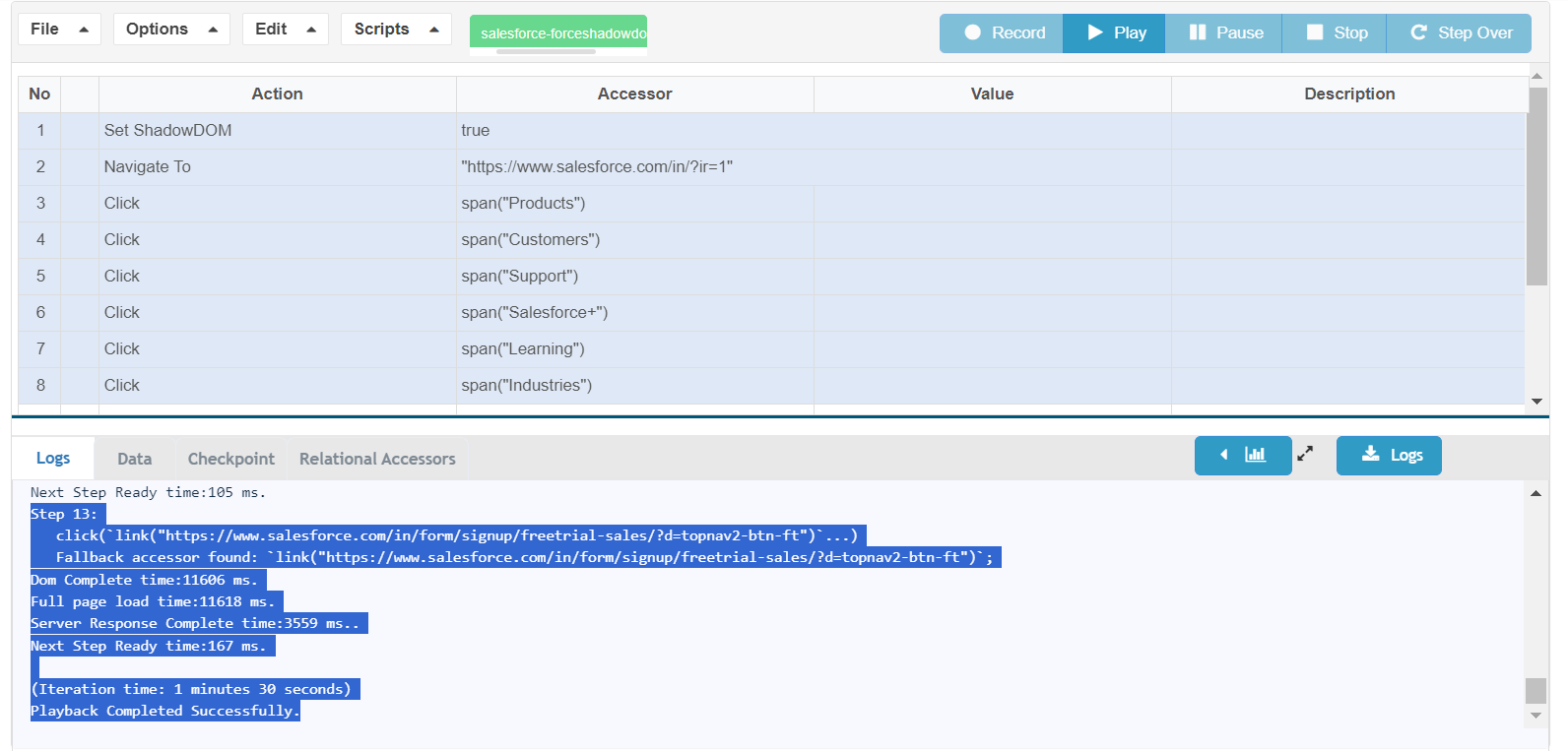
Last updated: OctoberMarch 6,19, 20262024
If you have any feedback on this topic, please contact us at documentation@appvance.ai