
Using setFile in Test Designer with Relative Paths
Use
setFile Relativeaction Filein Pathsdesigner for Scenario Editor Uploads
Use relative file paths only when the execution environment has a controlled project structure and the files are deployed consistently to the Test Node or execution host.
Recommended guidance
Prefer approved test-data locations over ad hoc local paths.Document the base directoryis used toresolve relative paths.Keep upload files versioned with the test assets when appropriate.Avoid paths that depend onset aspecific user profile or workstation.
Validation workflow
Place thefile in theapprovedfileprojectinputorfield.
Form
Appvance designer has a workaround for handling file uploads, designer intercepts the request in the proxy, reads the file
The file has to be present on that path on the targetmachine Testrunning Node.ReviewAppvance outputAIQ.
if
By using relative paths, the filefiles cannotcan be foundsent to all the test node machines running Appvance AIQ so the files need not be moved to all the testnode instances.
Below designer script example shows the same:
Scenario: Image need to be uploaded to my web application and need to run performance test on several test nodes without moving the files manually to all the test node machines.
Images or uploaded.any folder was created in the same place as the designer script, in my case 'FileUpload.ds' script is located in /Appvance AIQ/MyScripts folder and a folder by name 'Images' was created inside MyScripts folder.
Designer:

Scenario Builder:
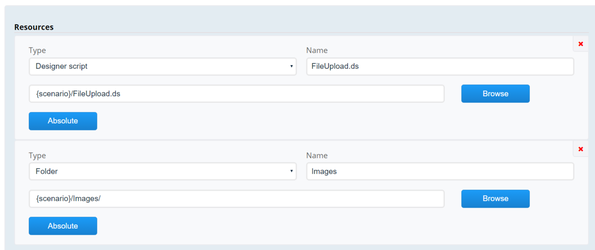 Save and play the scenario!
Note: In the locations panel, user can provide any location to run this particular scenario or can use the cloud files to initialise any cloud machine and run the scenario, all the resource files will be copied over to the test node machines!
Last updated: SeptemberJune 20,26, 20262023
If you have any feedback on this topic, please contact us at documentation@appvance.ai