
Configure Jenkins Integration for AIQ
AboutConfigure Jenkins pluginIntegration configurationfor exampleAIQ
Use
JenkinsInformation within illustrates howintegration to configuretrigger, and run scenarios from Jenkins
Local Jenkins Install Prerequisites
Restart JenkinsFrom a Windows Server machine, go to Server Configuration and select Restart Jenkins Service

Configure Project to Point to Plugin
If hosted by Appvance, selectGitand enterhttps://gitlab.com/Appvance-Public/Jenkins-Plugin.gitin theRepository URLbox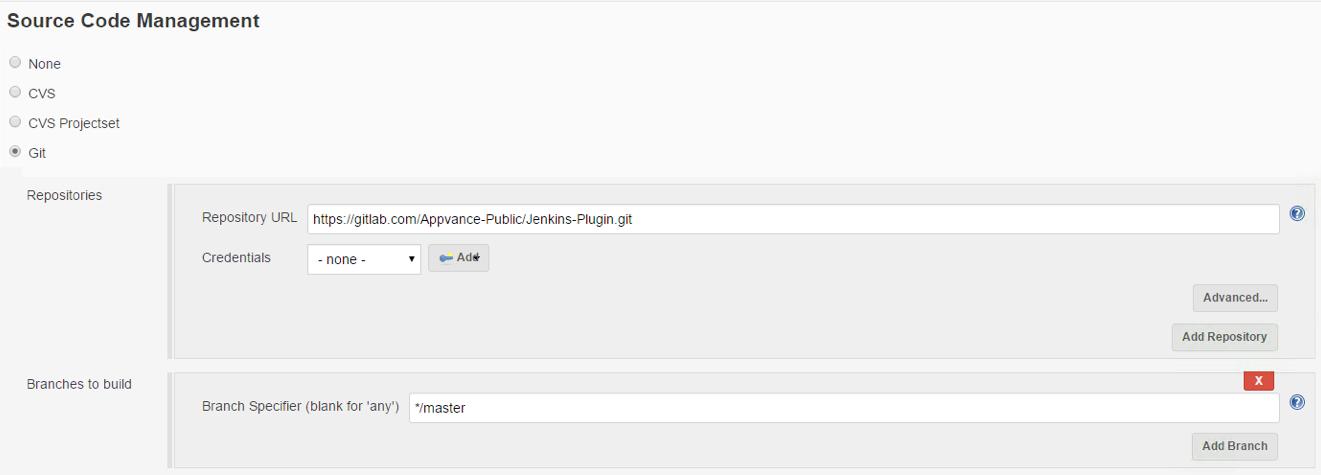
NOTE: Please make sure to install git on the machine where Jenkins is installed, once installed please restart Jenkins service.Download git fromhttps://git-scm.com/downloadsbased on your operation system.
If self-hostedSelect your source code management provider and enter the URL to your hosted plugin in theRepository URLbox
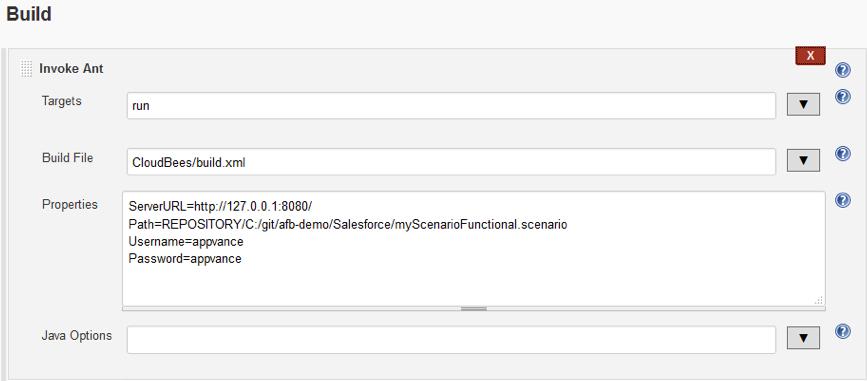
Configure Scenario to Run
Recommended guidance
- Use approved credentials or
GIT)Totokenrunmanagement. - Parameterize
scenariosenvironment,usingsuite,localbranch,files,and execution profile values. - Avoid storing secrets directly in Jenkins
mustjobbedescriptionsinstalledorondocumentation. - Record Jenkins build URLs with AIQ execution evidence.
Validation workflow
- Configure the Jenkins job with approved parameters.
- Run a
localnon-productionmachine,validationafterbuild. - Confirm
whichAIQlocalexecutionpathsorcanintegrationbeoutput. - Document
specifiedfailuresinwithplaceJenkinsofbuildREPOSITORYURL,pathsAIQusingexecutionSERVER.
Running a Scenario
Appvance IQ logging,ID, and a URL to further results, appear in Console Output as part of the project build logs.
Last updated: JuneSeptember 26,20, 20232026
If you have any feedback on this topic, please contact us at documentation@appvance.ai