
Configure Jenkins Integration for AIQ
About Jenkins plugin configuration example
Information within illustrates how to configure and run scenarios from Jenkins
Local Jenkins Install Prerequisites
For example: -Xrs -Xmx256m -Dhudson.lifecycle=hudson.lifecycle.WindowsServiceLifecycle -jar "%BASE%\jenkins.war" --httpPort=8081
Restart Jenkins
From a Windows Server machine, go to Server Configuration and select Restart Jenkins Service

Configure Project to Point to Plugin
- If hosted by Appvance, select Git and enter https://gitlab.com/Appvance-Public/Jenkins-Plugin.git in the Repository URL box
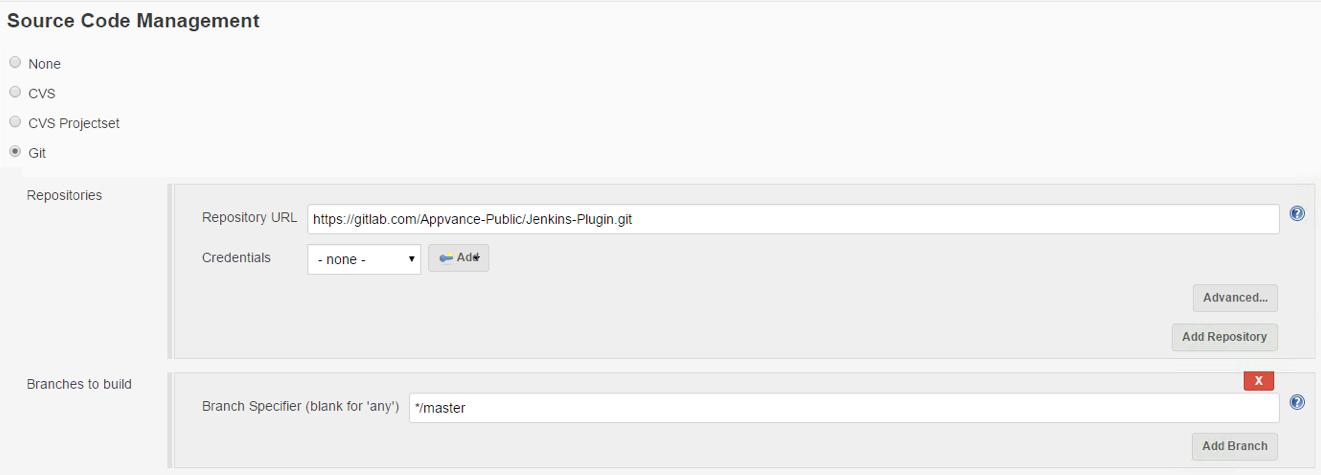
NOTE: Please make sure to install git on the machine where Jenkins is installed, once installed please restart Jenkins service.
Download git from https://git-scm.com/downloads based on your operation system.
- If self-hosted
- Select your source code management provider and enter the URL to your hosted plugin in the Repository URL box
Configure Scenario to Run
ServerURL=<urlToAppvanceUTPServerIncludingPort>
Path=REPOSITORY/<pathToScenarioFileIncludingScenarioNameAndFileExtension>
Username=<appvanceUserName>
Password=<appvancePassword>
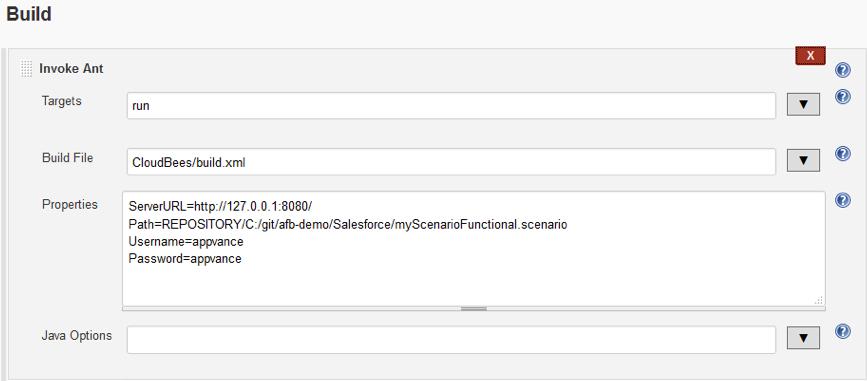
Notice the Path value contains REPOSITORY. Using the cloud version of Jenkins, users should specify scenarios available from a repository (i.e. SVN or GIT)
To run scenarios using local files, Jenkins must be installed on a local machine, after which local paths can be specified in place of REPOSITORY paths using SERVER.
Running a Scenario
Appvance IQ logging, and a URL to further results, appear in Console Output as part of the project build logs.
Last updated: June 26, 2023
If you have any feedback on this topic, please contact us at documentation@appvance.ai
Last updated: October 16, 2026