
AIQ CI/CD Overview
Recommended Appvance AI – CI Integration
Abstractguidance
Use AIQ CI/CD integrations to run controlled Scenario Editor, Service Suite, and performance checks from automated delivery pipelines. CI/CD jobs should provide repeatable execution, clear pass/fail criteria, and useful evidence without exposing credentials or customer data.
What to define before automation
- The
purposeAIQ environment, project, scenario or suite, target Test Node, and browser or API execution mode. - The pipeline trigger: pull request, merge, scheduled run, release candidate, or production validation.
- The test data source, expected result, timeout, retry policy, and artifact retention.
- The credential model, using CI/CD secret storage instead of
thishard-codeddocumentvalues. - The
isownerto give an initial guide about the implementation of Appvance IQ scenarios and AISG in a CI tool.IntroductionAppvance IQ can provide integrated smoke-test testingresponsible foranyfailures,web-based application’s builds. All manual and AI-generated UX scripts are written in Test Designer. Test Designer is our technology in UX automation, that includes "state of the art" features like codeless mode, accessor fallback, accessor self-healing, auto-validation with SmartTags, support for all major browsers, and platforms, and support for major frameworks like Angular, KendoJS, ViewJS and others.The solution involves three main components: Appvance IQ scenarios. These scenario files can contain many test cases with several scripts each, even several iterations.
SOLUTION
Our technology is completely restful, so in order to trigger a build, you can use any CI tool able to trigger an HTTP call. We can provide an ANT-based solution to easily integrate with TeamCity to launch builds,flaky tests, and uploadpipeline resultsmaintenance.
Recommended pipeline behavior
- Run a small smoke suite before expensive end-to-end or performance suites.
- Fail the pipeline when AIQ cannot start, times out, or returns a failed result.
- Publish links to
anAIQonlineexecutions,setlogs,ofreports,Dashboardsscreenshots,showingandtheserviceresults.responses. - Separate
Toproducteasily launch Appvance IQ processes you will need the AppvanceRestClient.Appvance Rest ClientThe Appvance Rest Client enables any CI tool to connect to Appvance. It can be usedfailures fromanyenvironment,CIdata,Engines that support ANT tasks like GitLab, Jenkins, TeamCity, Circle CI, Bamboo, etc. The Appvance Rest Client is a .jar that is located herehttps://s3-us-west-2.amazonaws.com/appvanceivy/projects/AppvanceCIClientWithDeps/master/latest/ivyYou can use the following line inside abuild.xmlfile (sample included in a .zip below) target to downloadbrowser, andname it as AppvanceRestClientWithDeps.jar:<get src="https://[aiq-controller-domain]:8443/UI/container/AppvanceCIClientWithDeps.jar" dest="${lib}/RestClient.jar"/>Find in the next section a zip with a complete setup including the build.xml file.Triggering AppvanceIQ pipelines using Apache ANT TargetsProviding a CI tool with support for Ant tasks, like Jenkins, wholeintegrationcanfailures. - Review
beduplicateaccomplishedorbyobsoleteAntCI/CDjobs.jobsThe only requirement is to set up a repository with a build.xml that has the targetsregularly andthatretirealsounuseddownloads our RestClient.jar. We currently can provide this data as a starting point, assuming some changes will be requested to adjust to any required workflow.Here is a.zip that includes all required files, including a sample documented build.xml:CICD_Pipeline_demo.zipSetting the CI Tool (Jenkins used as example)Create a free style project in Jenkins. Make sure ANT_HOME is properly set in the system as this is required: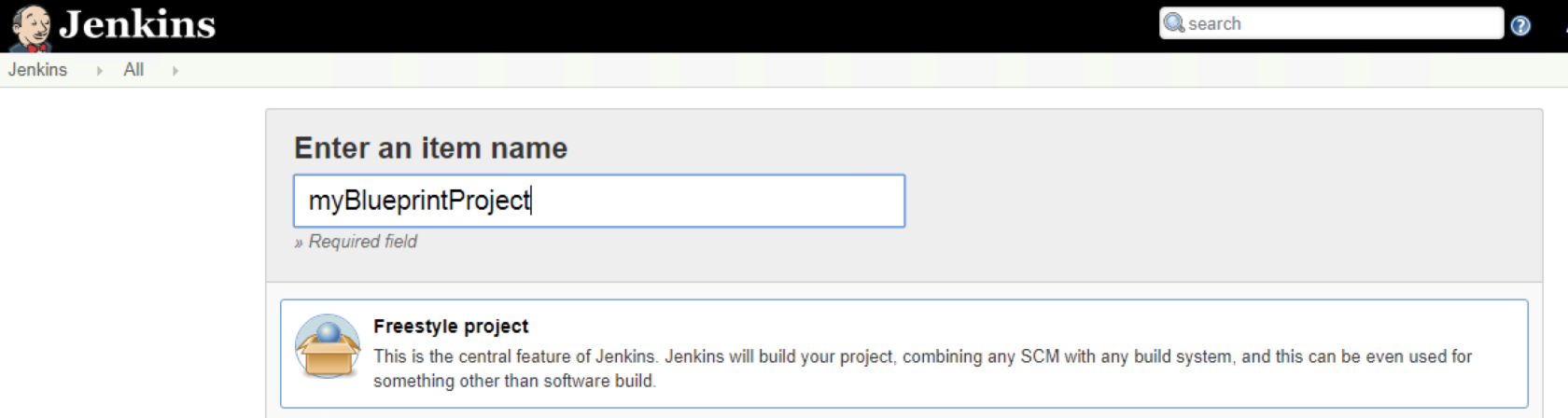
Configure the repository that has the required files (4.3.1) in the project: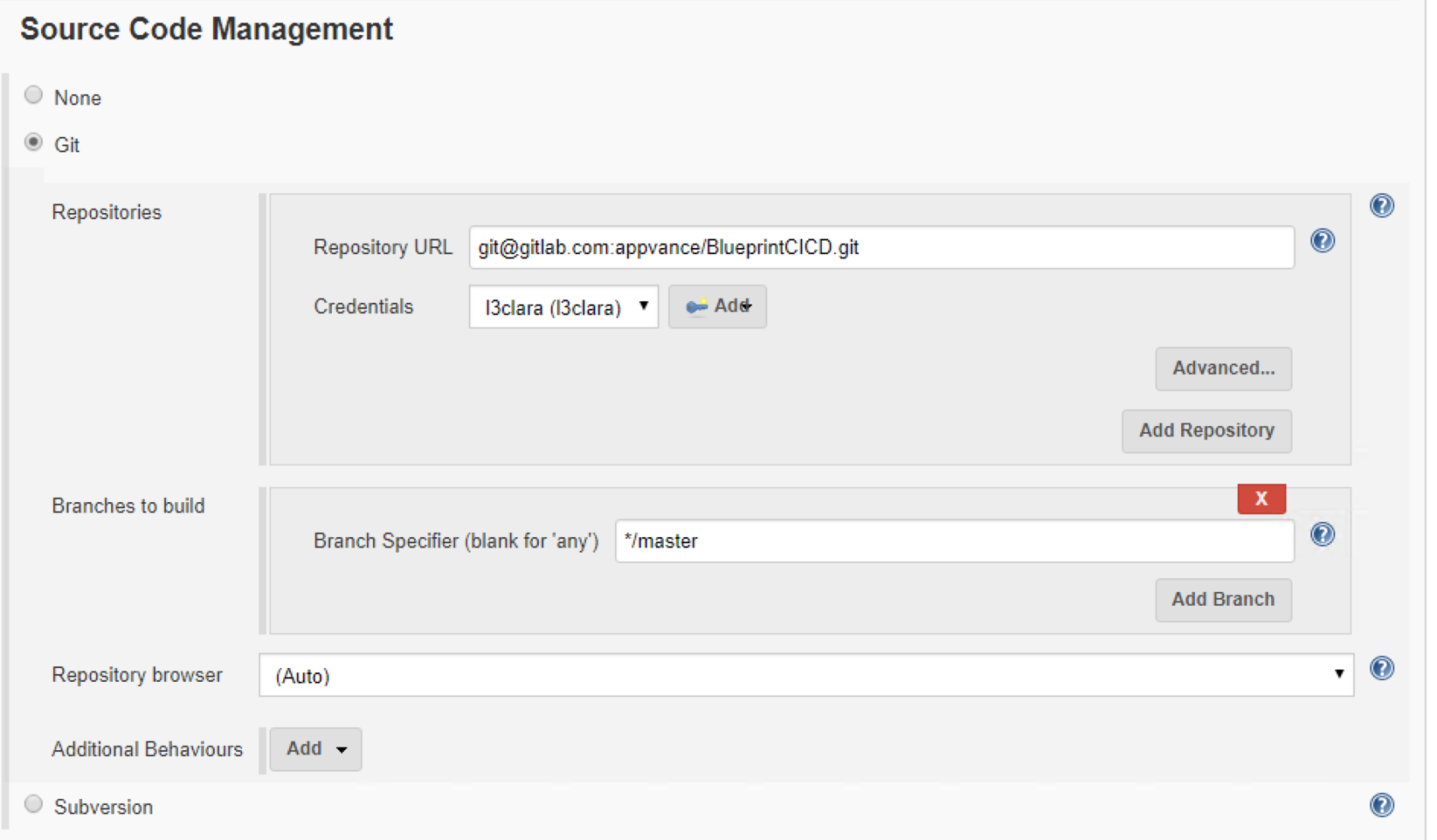
Set the Build Environment to use Ant targets: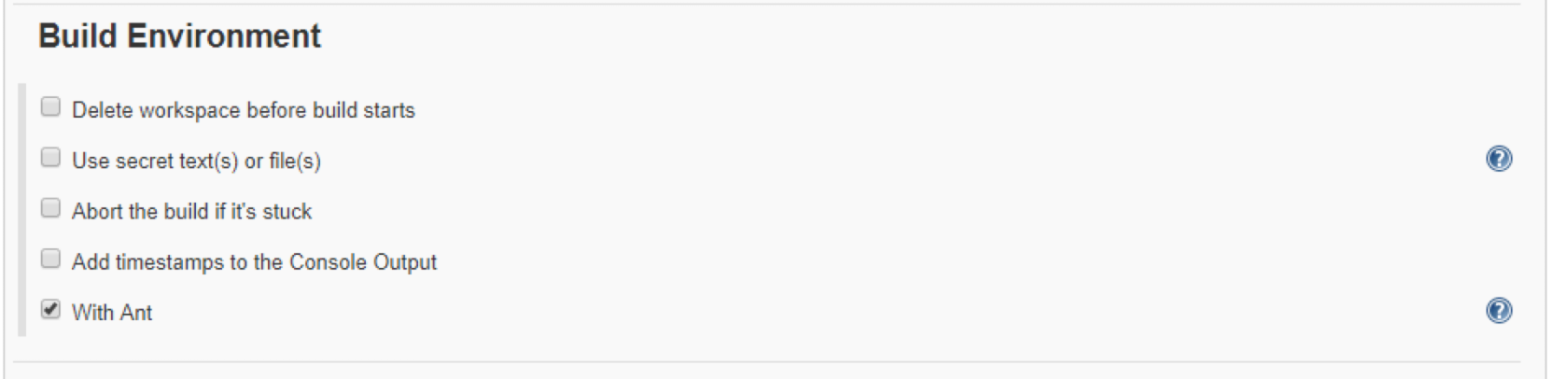
Set the trigger configuration as you want. In the image, the trigger is set to run once daily, but you can set the Poll SCM option to configure the trigger to happen once the polling of a given repository detects new commits.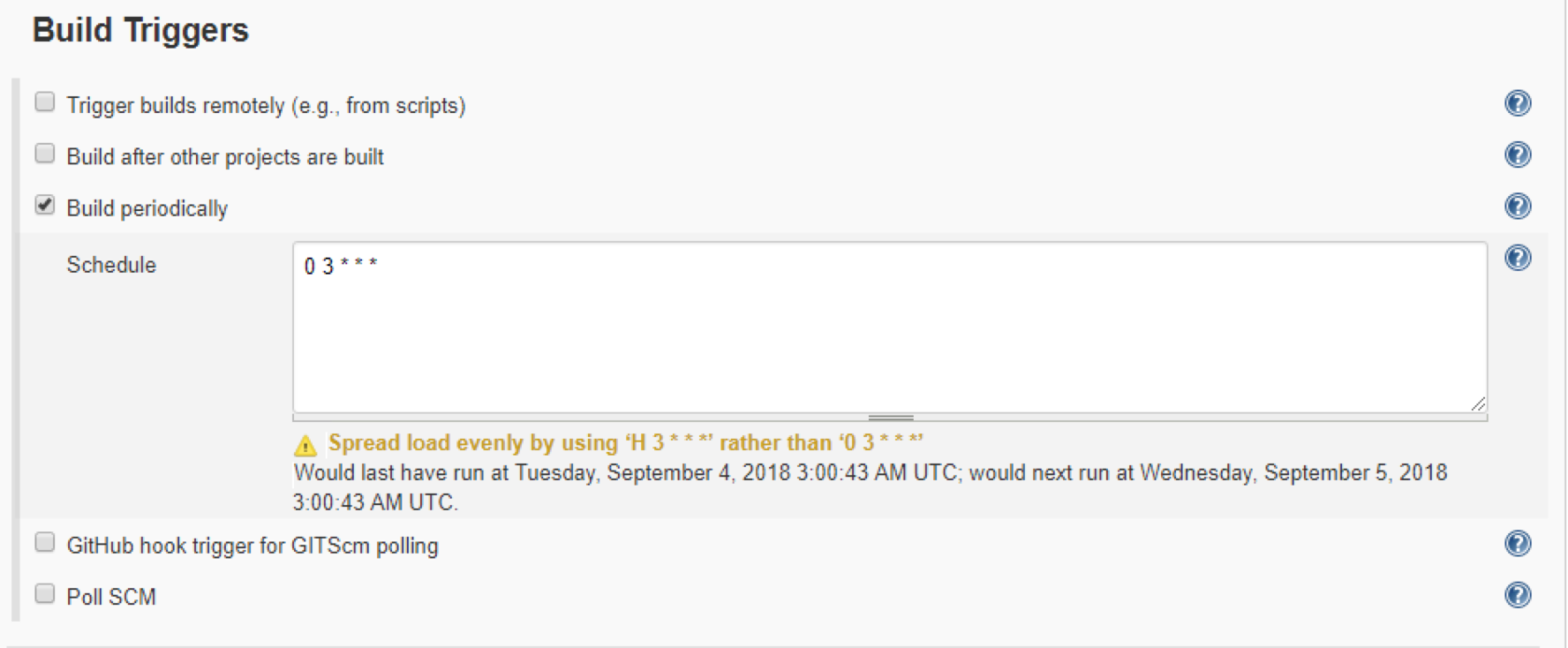
Next step is to add an Ant Job in the Build section: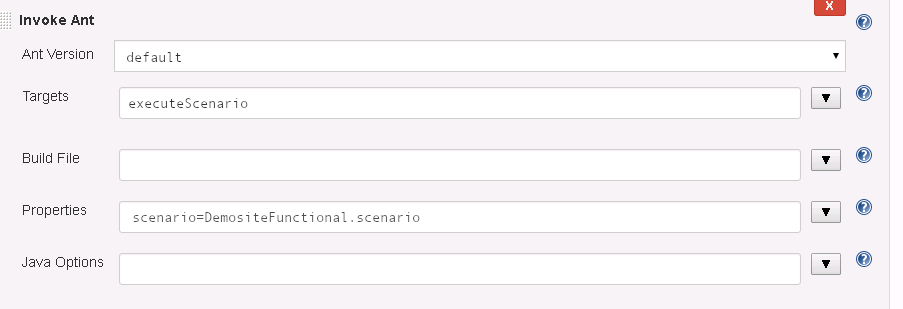
Some available Target DescriptionsAnt TaskDescriptionParameterscreateBlueprintTakes as main input a Template file that contains the smartTag library information, the custom actions, URL, number of browsers. This template was defined in the initial AI setup. With this template, the AI system is able to create a fresh AISG of the AUT on each triggered execution. The AISG is saved in a provided output folder.templateaiqCredsdatasetbuildVersionoutputFolderelementNamerequestMaxDurationconsoleDetailsreportStatusCodeconsoleDetailsforceNewScancreateScenariosDashboardCreate the scenario HTML and configuration files(needs executeScenario target to be executed first)elementName (name of scenario)resultsFolderreportFolderenvironmentproduct ("Name of product")executionType ("scenarios")buildVersionconsoleDetailsbucketBaseaiqCredsstartNodeIt starts an AWS EC2 instance to be used as an Appvance IQ test node.Writes the consoleDetails file with the information of the started nodestopNodeStops an AWS EC2 instance used as an Appvance IQ test node.Gets the data from the consoleDetails file.checkScenarioResultsVerifies if there were more than a user-defined number of request returning status error codes greater or equal to the requestMaxDuration (specified in CreateBlueprint)Add -1 as parameter value to ignore that metric.maxFailuresminSuccessPercentagereports (destination folder)checkBlueprintResultsVerifies the results of the AISG scanning against parameters. Add -1 as parameter value to ignore that metric.maxFailingRequestsmaxValidationFailuresminValidationRatioreportUploadUploads to the Dashboard all the reports gathered from the AISG creation process.(called by createScenariosDashboard and blueprintDashboard calls)buildVersioncredentialsbucketBasereportFolderexecutionType ("blueprints" or "scenarios")environment ( "QA1", "QA2", "QAn", "Production")product ( i.e.: CustormerSite.com to test )executeScenarioAnt Task used to execute an Appvance IQ scenario. Use this to run your must-have validation scripts.scenarioaiqCredsconsoleDetailsdirblueprintDashboardCreates the AISG HTML dashboard with the AISG execution results(needs createBlueprint target to be executed first)credentialscustomerbucketBaseexecutionType ("blueprints" or "scenarios")environment ( "QA1", "QA2", "QAn", "Production")product ( i.e.: CustormerSite.com to test )generateRegressionScenarioUses server access logs and the AISG to create AI-generated scripts in a ready to run regression scenario. (This scenario can then be executed with the executeScenario build target)projectNamefileConfigaiqCredslogsRemoteFolderoutputFolderUpdateJiraTicketThis will add a comment to an existing Atlassian Jira ticket with results of the scenario execution or the AISG process.jiraCredsreportFolderticketIdmaxFailuresminSuccessPercentagejiraApiVersionReportCreates a Test Scenario/Scripts reportresultsFolder;projectName;buildNumber;branch;reportFolder;FetchScenarioResultsSave scenario results in a JUnit format, using the resultFolder parameteraiqCredsscenarioscenarioDirconsoleDetailsresultsFolderstopOnFailureS3DownloadDownloads a folder from S3credentialsbucketBaselocalFolderremoteFolderREPORTING AND DASHBOARDSWe will have several levels of Summary Dashboard. Global Main DashboardShow global summarized data at environment (stage) level (alpha, beta, staging, qa4, etc) and per product (web player, IOS player, Android Player)Product AEnvironment ALastExecution "Scenarios", Link to history dashboard and link to execution reportLastExecution "Blueprints", Link to history dashboard and link to execution reportEnvironment BLastExecution "Scenarios", Link to history dashboard and link to execution reportLastExecution "Blueprints", Link to history dashboard and link to execution report
jobs.
Sample AI Main dashboard report:
In the following link you will be able to see a sample dashboard for an AISG scanning.https://appvance-dev-cicd.s3-us-west-2.amazonaws.com/products/main.html
A triggering system using CURL using Appvance Gitlab and Amazon AWS IT
This section is added as an example of other possible ways to interact with Appvance IQ. Currently, some clients do prefer us to manage this integrationusing our Gitlab and Amazon AWS ITand they use CURL to trigger builds when they want. So, to trigger a build in Linux/Windows using CURL the command line would be
curl -X POST -F token=TOKEN \-F ref=ENVIRONMENT \https://gitlab.com/api/v4/projects/PROJECT_ID/trigger/pipeline
Clearly replacing TOKEN, and PROJECT_ID with values to be defined. The ENVIRONMENT can be QA4, Alpha, Staging, etc.
To trigger the first Smoke Test group, you can call
curl -X POST \-F token=TOKEN \-F ref=Staging \https://gitlab.com/api/v4/projects/9504048/trigger/pipeline
The result of the call is a JSON that looks like
{“id”: 39791847,“sha”: “c656bbbbc5844f342a677d28c3b21c1ad3c6e10ad”,“ref”: “QA4”,…}
The important element is the “id”. Extract theidfrom the JSON file and use it to get the summary about successes and failures after the test ends, with this general format URL:
https://s3-us-west-2.amazonaws.com/ACCOUNT/projects/PROJECT_NAME/ENVIRONMENT/BUILD_ID/report.json
WhereACCOUNTis the client name,PROJECT_NAMEis the Project Name,ENVIRONMENTcan be for example QA4, Alpha, Staging, etc., andBUILD_IDcomes from above JSON response.
So for example, in the case of the above response, the results URL would be
https://s3-us-west-2.amazonaws.com/ACCOUNT/projects/Scenario_01to10/Staging/39789664/report.json
The result of thecall if the scenario has not yet finished executingis an HTTP 403. Forbidden Response
The result of the call when the scenario has already finished is a valid JSON file that indicates the count and name of successes and failures like:
{“nottested”: 1,“workingClasses”: [“MyAccont_1_QA4_DeepLinkTest”],“failures”: 0,“successes”: 1,“skippedClasses”: [],“failingClasses”: [],“project”: “MyAccount_Validations”,“buildNumber”: “40791847”,“branch”: “QA4”,“hash”: “2be843acd5622293087a32496c67d1bb”,“skipped”: 0}
Accessing the HTML Dashboards from AWS S3
Fully detailed results about each project can be accessed using this URL
For AISG: https:/BUCKET/s3-us-west-2.amazonaws.com//products/PRODUCT/ENVIRONMENT/EXECUTIONTYPE/BUILD_ID/blueprintExecution.html
For scenarios: https:/BUCKET.s3-us-west-2.amazonaws.com/products/PRODUCT/ENVIRONMENT/EXECUTIONTYPE/ELEMENTNAME/BUILD_ID/report.html
Last updated: MarchOctober 13,5, 20242026
If you have any feedback on this topic, please contact us at documentation@appvance.ai